

Wireshark Download for Windows – Network Traffic Analysis
Download Wireshark for Windows 11 and 10 to capture packets, inspect network protocols, apply filters, analyze TCP streams, DNS traffic and troubleshoot network problems.
Wireshark Download for Windows gives network administrators, developers, IT professionals, students and security teams a powerful way to inspect network traffic in detail.
Instead of simply showing whether a computer is connected to a network, Wireshark captures packets and displays protocol information, addresses, ports, TCP conversations, DNS queries, TLS traffic and many other network details.
This guide covers Wireshark installation, Npcap, packet capture, filters, TCP and DNS analysis, TShark, troubleshooting and safe official download options for Windows 11 and Windows 10.
Wireshark Download for Windows – Quick Overview
| Information | Details |
|---|---|
| Software | Wireshark |
| Developer | Wireshark Foundation |
| Current Stable Version | 4.6.8 |
| Software Type | Network Protocol Analyzer |
| License | Free & Open Source |
| Windows 11 | Supported |
| Windows 10 | Supported |
| Windows x64 | Available |
| Windows Arm64 | Available |
| Portable Package | Available |
| Packet Capture | Yes |
| Live Traffic Analysis | Yes |
| Capture Filters | Yes |
| Display Filters | Yes |
| TCP Stream Analysis | Yes |
| Protocol Statistics | Yes |
| Command-Line Tool | TShark |
| Packet Capture Driver | Npcap |
| Official Source | Wireshark Foundation |
What Is Wireshark?
Wireshark is an open-source packet and protocol analyzer. It captures network packets and presents them in a graphical interface that makes network communication easier to inspect.
Wireshark’s three main packet views are:
- Packet List: Shows a summary of captured packets.
- Packet Details: Displays expandable protocol layers and fields.
- Packet Bytes: Shows the raw packet data at byte level.
Wireshark can also follow TCP conversations, analyze thousands of protocols, generate statistics, apply powerful filters and open previously saved packet-capture files.
Which Wireshark Version Should You Download?
For normal Windows users, the current stable release is the recommended choice rather than the development branch.
Wireshark Download for Windows – x64 vs Arm64
Choose the Windows x64 installer for most modern Intel or AMD computers.
Choose the Windows Arm64 installer only when your computer actually uses an ARM processor.
Stable vs Development Release
- Stable 4.6.8: Recommended for normal users.
- Old Stable 4.4.18: Maintained older branch.
- Development 4.7.2: Intended for testing newer development work.
For everyday use, install the current stable version unless you specifically need another release track.
What Is Npcap?
Npcap is the Windows packet-capture component that allows Wireshark to capture live network traffic from compatible interfaces.
Without an appropriate capture driver, Wireshark can still open existing capture files, but live packet capturing may not work normally.
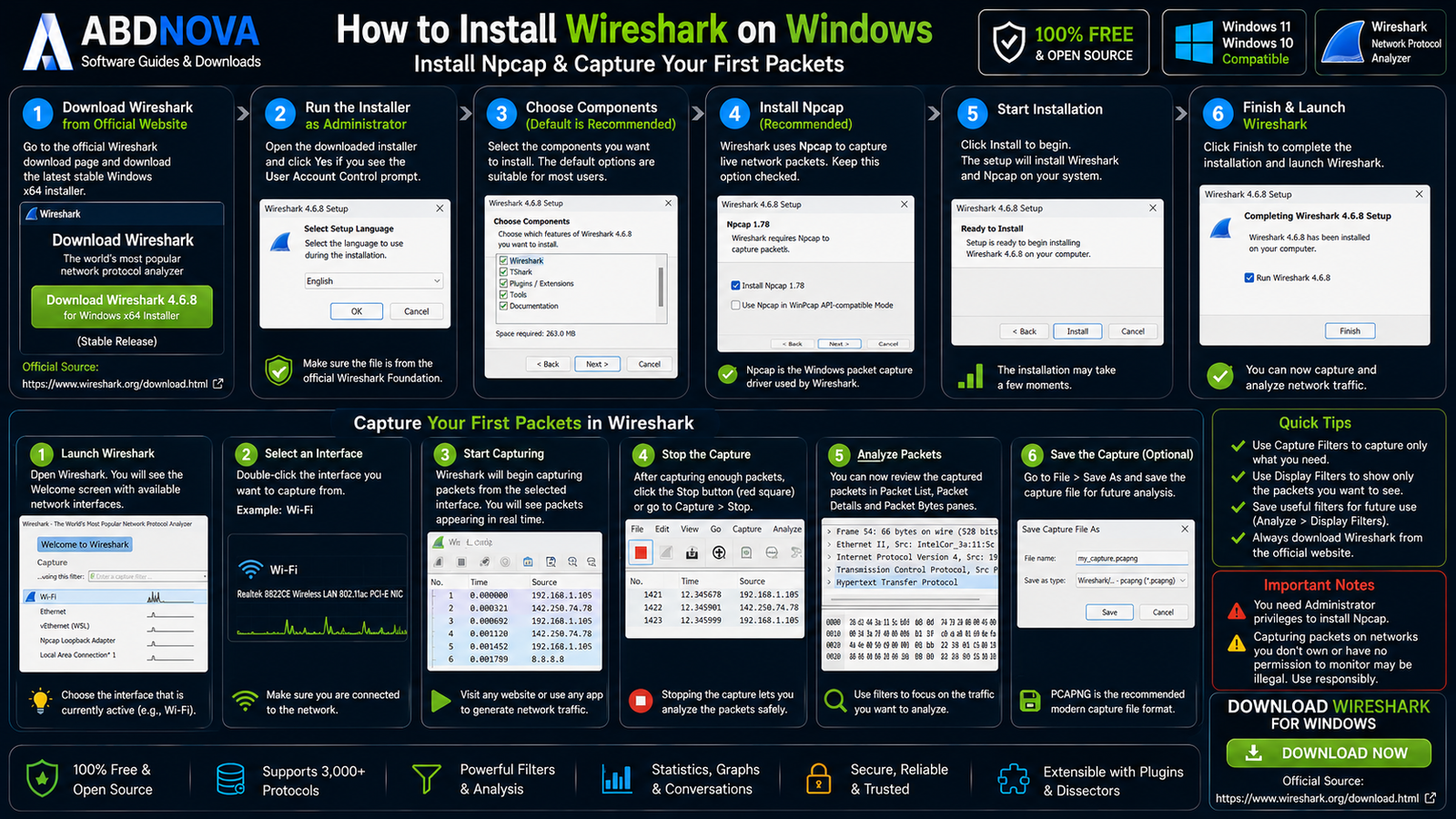
How to Install Wireshark on Windows
- Download Wireshark: Open the official Wireshark download page.
- Choose your package: Select Windows x64 for most Intel or AMD PCs.
- Run the installer: Open the downloaded setup file.
- Review components: Keep the normal components you need.
- Install Npcap: Keep Npcap enabled if live packet capture is required.
- Complete installation: Finish setup and launch Wireshark.
- Select an interface: Choose Wi-Fi, Ethernet or another active network adapter.
Capture Your First Packets
When Wireshark opens, the welcome screen normally displays available interfaces such as Ethernet, Wi-Fi, VPN interfaces and virtual adapters.
Select the interface carrying your network traffic and double-click it to begin capturing.
Open a website or use another network application to generate traffic. Packets should begin appearing immediately.
When enough traffic has been collected, choose Capture → Stop and begin analyzing the saved packets.
If you use a VPN connection and want to understand Windows VPN software separately, see our Proton VPN Download for Windows guide.
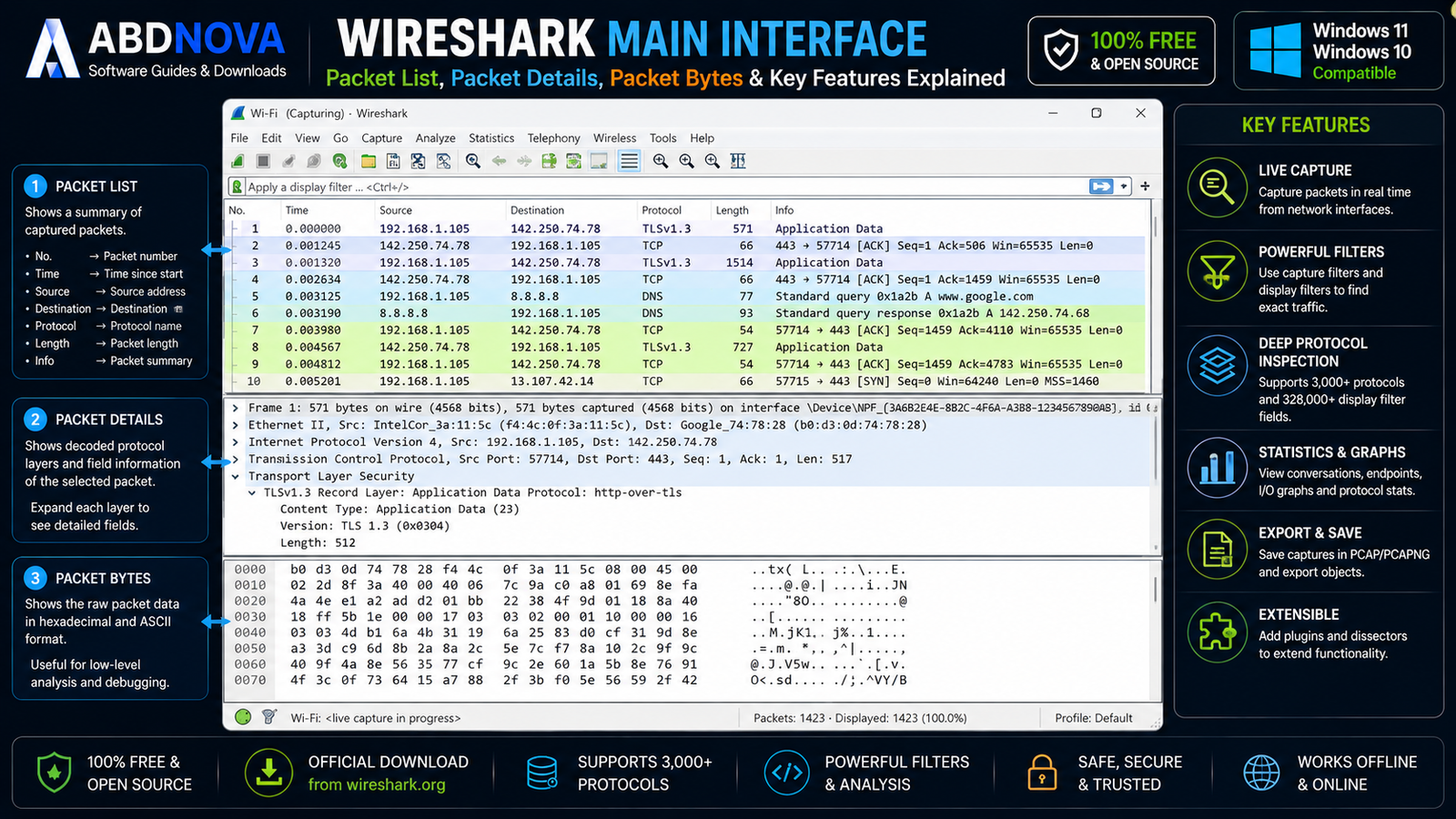
Wireshark Main Interface and Packet Details
Packet List
The upper pane provides a quick summary of network activity. Common columns include packet number, time, source, destination, protocol, length and information.
Packet Details
Select a packet and the details pane breaks it into protocol layers. Depending on the packet, you might see a structure such as:
Ethernet → IP → TCP → Application Protocol
Each section can be expanded to inspect individual protocol fields.
Packet Bytes
The packet-bytes pane shows the underlying raw contents of the selected packet. This is useful for advanced inspection when summary and protocol-field information is not enough.
Wireshark Protocol Analysis
Wireshark can dissect a very large number of protocols, including common network technologies such as:
- Ethernet and ARP.
- IPv4 and IPv6.
- ICMP.
- TCP and UDP.
- DNS and DHCP.
- HTTP.
- TLS and QUIC.
- SSH-related traffic.
- SMB.
- FTP.
- SMTP.
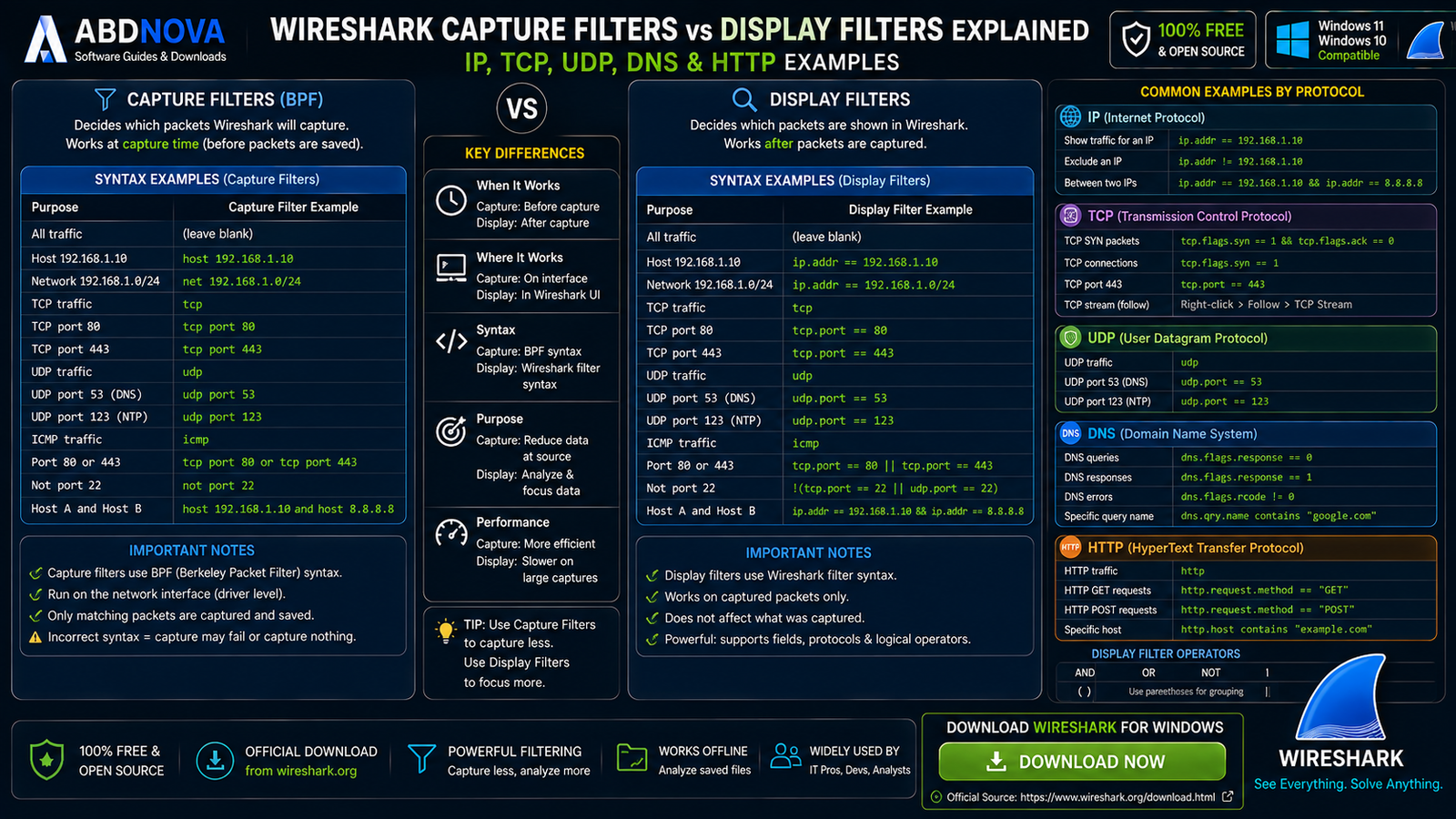
Wireshark Capture Filters vs Display Filters
Understanding the difference between capture filters and display filters is one of the most important parts of learning Wireshark.
Capture Filters
A capture filter determines which packets Wireshark records in the first place.
Example Capture Filter
tcp port 443
This can reduce capture size when you already know which traffic you want to collect.
Display Filters
A display filter works after packets have already been captured. It does not remove packets from the capture; it controls which packets are currently displayed.
Example Display Filter
tcp.port == 443
Useful Wireshark Display Filters
| Traffic | Display Filter |
|---|---|
| TCP | tcp |
| UDP | udp |
| DNS | dns |
| HTTP | http |
| Specific IP | ip.addr == 192.168.1.10 |
| TCP Port 443 | tcp.port == 443 |
| IP + Port | ip.addr == 192.168.1.10 && tcp.port == 443 |
Save Wireshark Filters
If you regularly use complicated filters, Wireshark lets you save predefined capture and display filters so they do not need to be typed repeatedly.
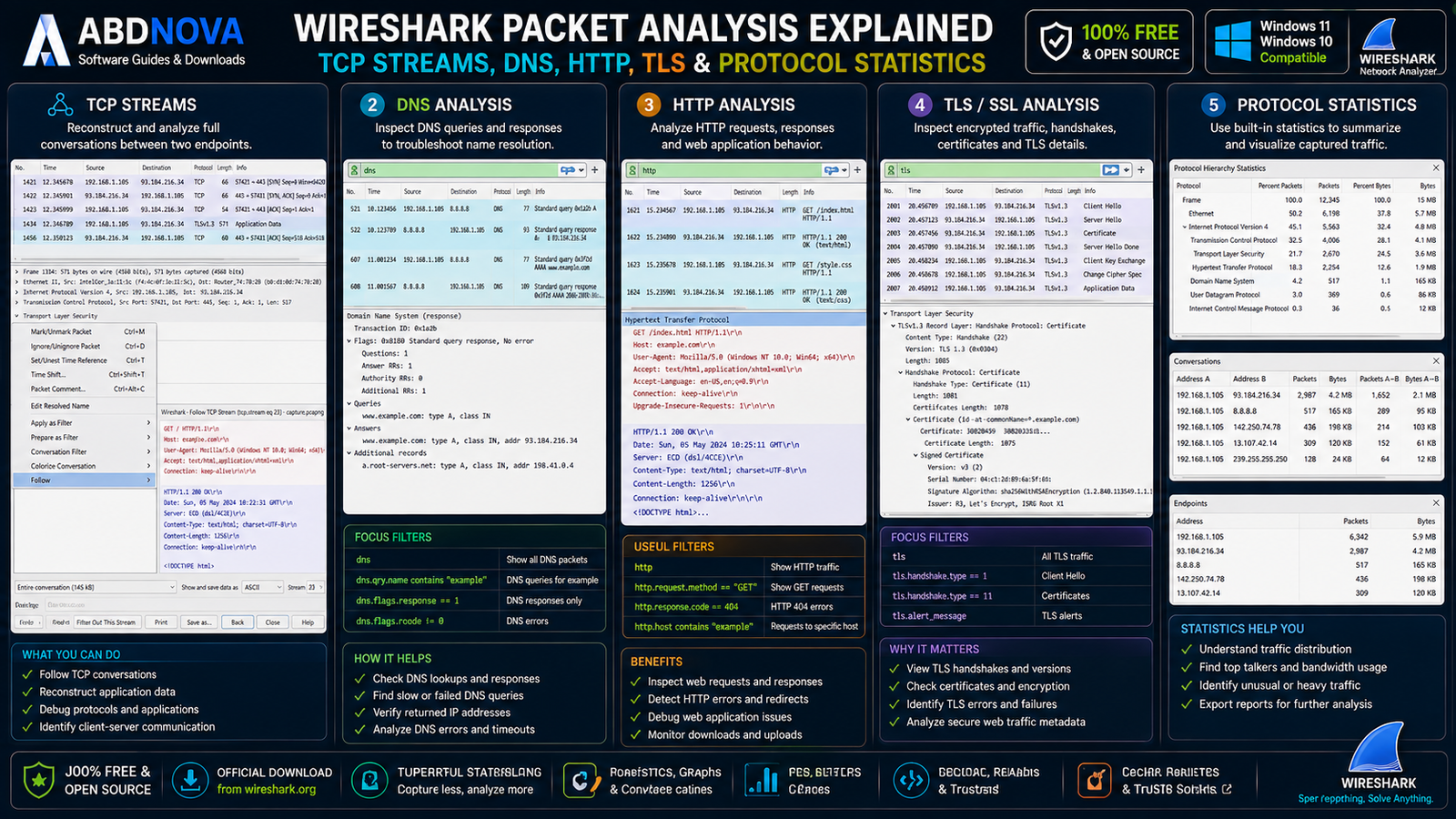
Wireshark Packet Analysis Explained
Analyze DNS Traffic
Apply the dns display filter to focus on DNS queries and responses.
This can help troubleshoot slow hostname resolution, incorrect DNS responses, failed lookups or unexpected DNS servers.
Analyze TCP Traffic
Use the tcp filter to inspect TCP connections, SYN packets, acknowledgements, retransmissions, resets, ports and connection behavior.
This can help determine whether a connection problem involves session establishment, packet loss or application behavior.
Follow TCP Stream
Wireshark can reconstruct packets belonging to a TCP conversation and present the conversation together, making it easier to understand communication between two endpoints.
HTTP and TLS Analysis
Unencrypted HTTP traffic can expose application-level request and response details. Modern HTTPS traffic normally uses TLS encryption, so application payloads are not automatically readable as plain text.
Wireshark can still provide useful TLS metadata such as handshakes, protocol versions, certificates, alerts and encrypted traffic behavior.
Wireshark Statistics
Wireshark includes statistical tools for examining protocol hierarchy, conversations, endpoints, packet lengths, I/O activity and traffic patterns.
These views can be much faster than manually reviewing thousands of individual packets.
Packet Coloring
Wireshark uses coloring rules to make different types of network traffic easier to distinguish visually. This can help patterns and unusual packets stand out in a large capture.
Opening Existing Capture Files
Wireshark is not limited to live packet capture. You can open supported saved capture files and analyze them later.
This makes it practical to capture traffic on one authorized system, save the capture and review it later or share it with another authorized technician.
TShark Command-Line Analysis
TShark provides command-line-oriented packet capture and network-analysis capabilities based on the Wireshark ecosystem.
TShark can be useful for:
- Automation.
- Scripts.
- Remote systems.
- Command-line filtering.
- Processing saved capture files.
- Capturing without the full graphical interface.
If you plan to work with TShark regularly, our Windows Terminal Download for Windows guide covers Microsoft’s modern terminal environment for command-line tools.
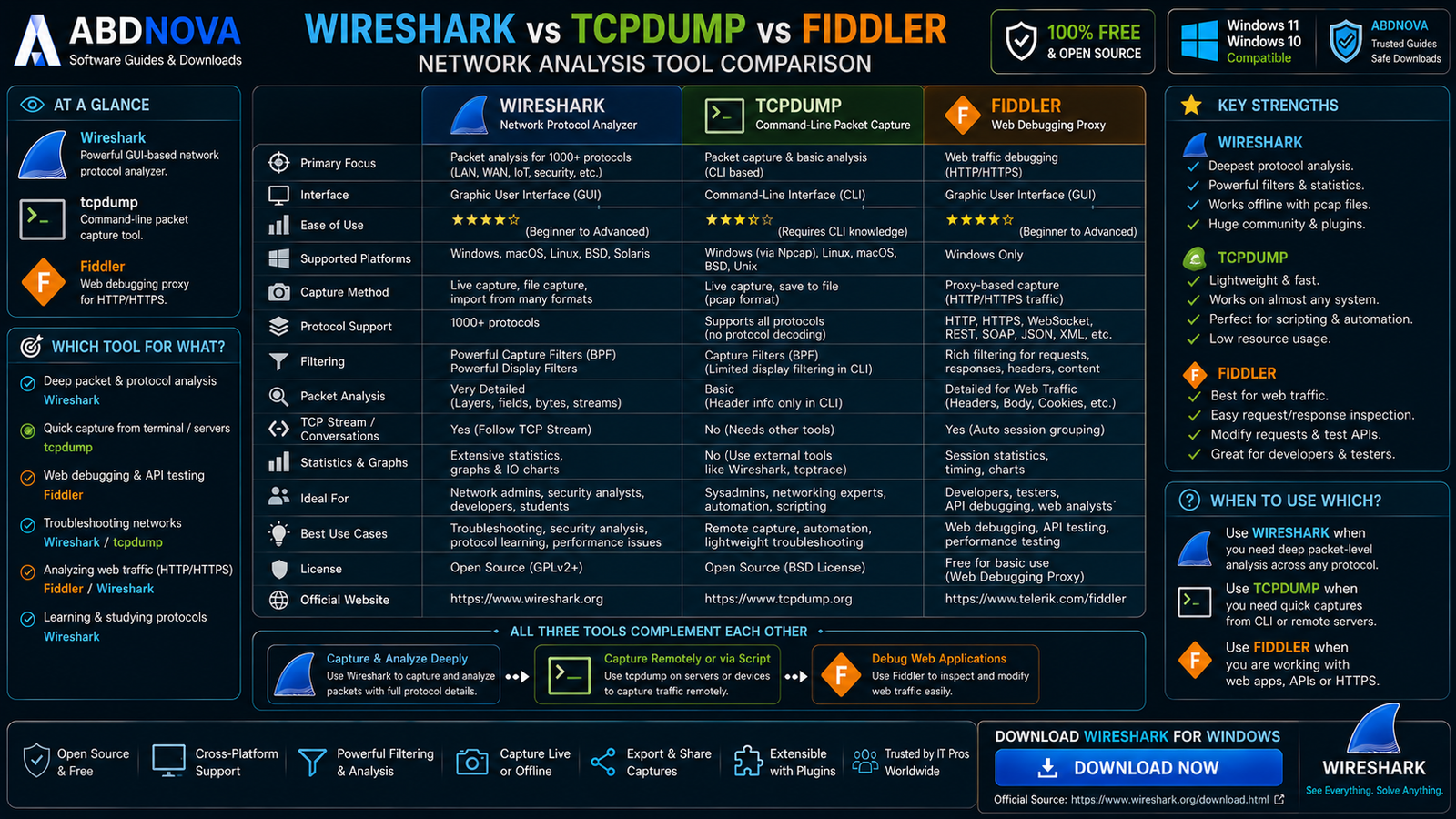
Wireshark vs tcpdump vs Fiddler
| Feature | Wireshark | tcpdump | Fiddler |
|---|---|---|---|
| Primary Focus | Packet & protocol analysis | CLI packet capture | Web / HTTP debugging |
| GUI | Yes | No | Yes |
| Packet Details | Excellent | CLI-based | Web-focused |
| TCP / UDP Analysis | Yes | Yes | Not primary focus |
| DNS Analysis | Yes | Yes | Limited focus |
| HTTP Analysis | Yes | Possible | Excellent |
| TLS / Web Debugging | Advanced | Limited manually | Web-focused |
| Capture Filters | Yes | Yes | Different model |
| Best For | Deep network analysis | CLI network capture | HTTP/web debugging |
Wireshark
Choose Wireshark when you want broad protocol-level visibility with a graphical interface and detailed packet inspection.
tcpdump
tcpdump is particularly useful for command-line packet capture, especially on remote or Unix-like systems.
Fiddler
Fiddler is more focused on application-level HTTP and HTTPS development and debugging workflows.
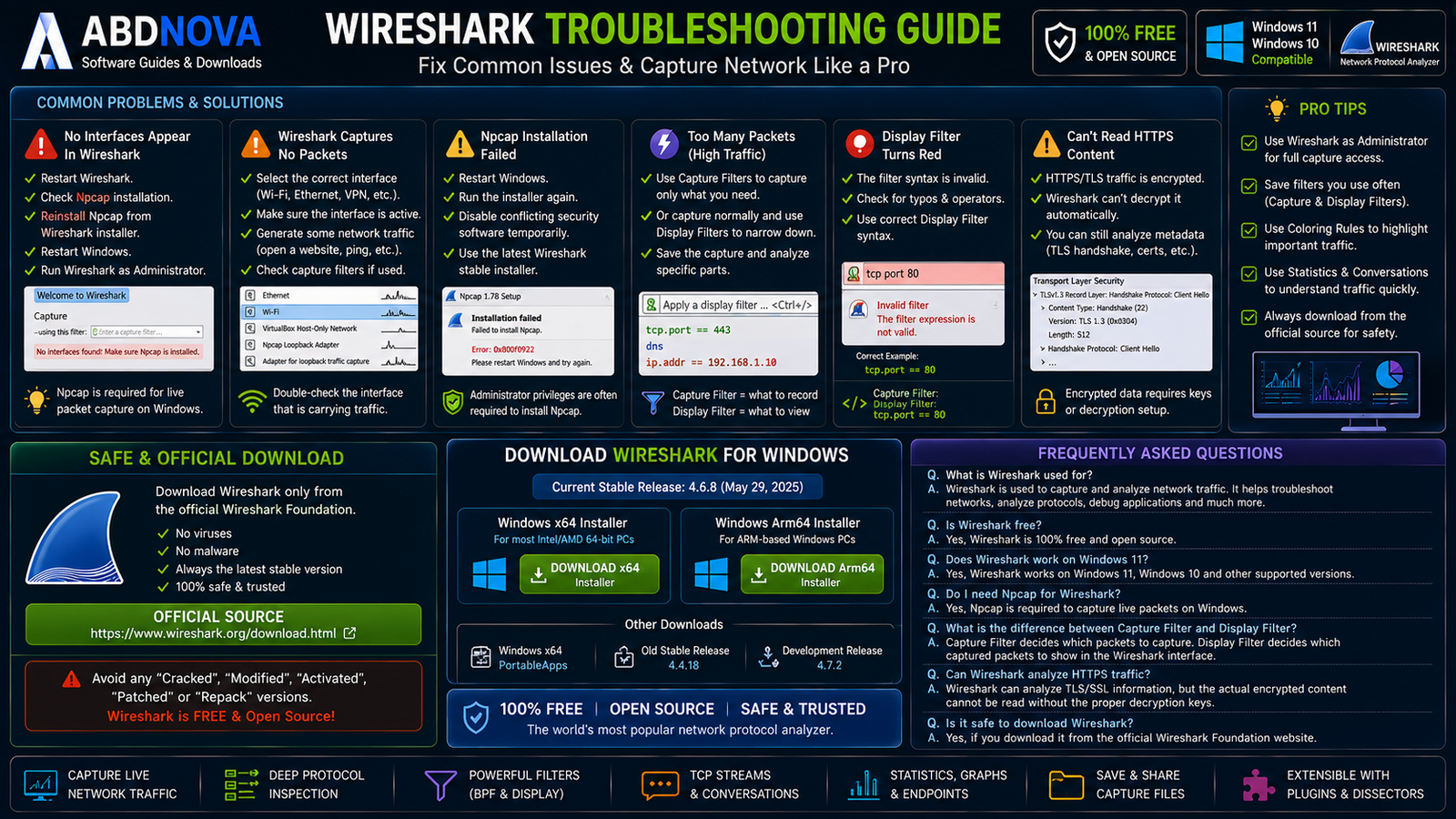
Wireshark Troubleshooting
No Network Interfaces Appear
Restart Wireshark, verify that Npcap is installed, reinstall Npcap if necessary and restart Windows.
Wireshark Captures No Packets
Make sure you selected the active network interface. For example, capturing from Ethernet while the PC is actually using Wi-Fi may show little or no useful traffic.
Npcap Installation Failed
Restart Windows and run the official Wireshark installer again. On managed workplace computers, administrator assistance or organizational approval may be required.
Too Many Packets
Busy networks can create very large captures. Use a capture filter when you already know which traffic you need, or capture broadly and narrow the results later using display filters.
Display Filter Turns Red
A red filter field usually means the filter expression is invalid. Check the syntax and remember that capture filters and display filters use different syntax.
Can’t Read HTTPS Content
HTTPS traffic is encrypted. Wireshark can analyze packet and TLS metadata, but packet capture alone does not automatically reveal encrypted application content.
Is Wireshark Safe?
Wireshark is legitimate open-source network-analysis software when downloaded from the official Wireshark Foundation source.
- Capture traffic only on systems and networks where you are authorized to do so.
- Treat packet-capture files carefully because they can contain sensitive network information.
- Avoid modified or unofficial installers.
Safe Wireshark Download for Windows
The safest source for Wireshark Download for Windows is the official Wireshark Foundation website.
Check the current stable Windows installers on the official Wireshark download page.
- Wireshark Crack.
- Modified Wireshark.
- Pre-Activated Wireshark.
- Patched Wireshark.
- Wireshark Repack.
Wireshark is already free and open source, so cracked or modified copies provide no legitimate benefit.
Frequently Asked Questions
What is the latest stable Wireshark version?
The current stable release is Wireshark 4.6.8.
Is Wireshark free?
Yes. Wireshark is free and open-source software.
Does Wireshark work on Windows 11?
Yes. Current Wireshark Windows builds support modern 64-bit Windows systems including Windows 11.
Does Wireshark work on Windows 10?
Yes. Current stable Wireshark releases support compatible Windows 10 systems.
Can I install Wireshark on an ARM Windows PC?
Yes. The official download page provides a Windows Arm64 installer.
Is there a portable Wireshark?
Yes. The official download page provides a Windows x64 PortableApps package.
What is Npcap used for?
Npcap provides the Windows packet-capture functionality Wireshark uses to capture live network traffic.
What is the difference between capture and display filters?
Capture filters determine which packets are recorded. Display filters determine which already-captured packets are shown. Their syntax is different.
Can Wireshark analyze DNS?
Yes. The dns display filter can be used to focus on DNS traffic.
Can Wireshark analyze TCP?
Yes. TCP packet and stream analysis are core Wireshark capabilities.
Can Wireshark analyze HTTPS?
Wireshark can analyze TLS and network metadata, but encrypted application content is not automatically readable simply because packets were captured.
Can Wireshark follow a TCP conversation?
Yes. Wireshark can reconstruct packets belonging to a TCP conversation for stream analysis.
Is Wireshark safe?
Yes, when obtained from the official Wireshark Foundation source and used responsibly on networks where you are authorized to capture traffic.
Final Thoughts
Wireshark is one of the most capable Windows tools for understanding network traffic. It combines live packet capture, deep protocol inspection, powerful filters, TCP stream analysis, DNS and TLS inspection, statistics and saved-capture analysis in one open-source application.
For most Windows 11 and Windows 10 users, Wireshark 4.6.8 stable is currently the appropriate choice. Select the x64 installer for a typical Intel or AMD PC, use Arm64 for a compatible ARM device and install Npcap when live packet capture is required.
Ready to download Wireshark?
Get the latest stable Windows installer directly from the official Wireshark Foundation website. ABDNOVA recommends official sources only.


