


Geek Uninstaller Download for Windows 11 & 10

Download Geek Uninstaller for Windows 11 and Windows 10 to remove unwanted programs, clean leftovers, force-remove stubborn software, and manage Microsoft Store apps.
Geek Uninstaller Download for Windows gives Windows users a lightweight and portable utility for removing unwanted software and cleaning files, folders, registry entries, and other traces that may remain after a normal uninstall.
Unlike larger PC-maintenance suites, Geek Uninstaller focuses mainly on one job: removing software cleanly and quickly. It does not require a traditional installation and includes Clean Removal, Force Removal, leftover scanning, Microsoft Store app removal, instant search, native 64-bit support, and Dark Mode.
The current free release is Geek Uninstaller 1.5.4.180, released August 19, 2026. The application is only a few megabytes and can be run directly after extracting the downloaded archive.
Geek Uninstaller Download – Quick Overview
| Information | Details |
|---|---|
| Software | Geek Uninstaller |
| Developer | Thomas Koen |
| Category | Uninstaller / System Utility |
| Current Version | 1.5.4.180 |
| Release Date | August 19, 2026 |
| Windows 11 | Supported |
| Windows 10 | Supported |
| 32-bit Windows | Supported |
| 64-bit Windows | Supported / Native x64 |
| Installation Required | No |
| Portable | Yes |
| ZIP Size | Approx. 3.04 MB |
| 7Z Size | Approx. 2.11 MB |
| Clean Removal | Yes |
| Force Removal | Yes |
| Leftover Scan | Yes |
| Microsoft Store Apps | Supported |
| Dark Mode | Yes |
| License | Free for Personal Use |
| Official Source | Geek Uninstaller |
What Is Geek Uninstaller?
Geek Uninstaller is a small Windows software-removal utility created by developer Thomas Koen. It is designed to be simple, fast, portable, and focused on uninstalling applications cleanly.
Geek Uninstaller includes:
- Normal program uninstallation.
- Clean Removal.
- Leftover scanning.
- Force Removal.
- Microsoft Store app removal.
- Instant program search.
- Native x64 support.
- Portable operation.
- Dark Mode.
- Support for many interface languages.
Geek Uninstaller does not try to replace an antivirus, driver updater, VPN, disk cleaner, or complete PC optimization suite. Its main purpose is software removal and cleanup.
Geek Uninstaller System Requirements
Geek Uninstaller has modest system requirements and supports several Windows versions.
| Requirement | Details |
|---|---|
| Windows | Windows 11 / 10 / 8.1 / 8 / 7 |
| Architecture | 32-bit & 64-bit |
| Administrator Rights | Required |
| Installation | Not Required |
| Download Size | Approx. 2–3 MB Depending on Archive |
On 64-bit Windows, Geek Uninstaller runs as a native 64-bit application.
Is Geek Uninstaller Portable?
Yes. Portability is one of Geek Uninstaller’s biggest advantages.
The basic workflow is:
Download → Extract → Run
No traditional setup wizard is required. You can keep Geek Uninstaller in a utilities folder or on a USB drive and run it when needed.
How to Download and Run Geek Uninstaller on Windows

- Open the official website: Visit the Geek Uninstaller download page.
- Choose ZIP or 7Z: For most users, ZIP is easier because Windows can extract it directly.
- Open Downloads: Locate the downloaded archive in File Explorer.
- Extract the archive: Right-click the ZIP file and choose Extract All.
- Open the extracted folder: Locate the Geek Uninstaller executable.
- Run Geek Uninstaller: Launch the executable and approve the UAC prompt when appropriate.
- View installed programs: The application opens directly without an installation wizard.
Geek Uninstaller Main Interface & Instant Search

Geek Uninstaller deliberately keeps its interface simple. The main window displays installed programs together with useful information such as application name, publisher, installation date, and program size.
You can sort the program list and quickly locate applications you want to remove.
Instant Search
If your PC contains many installed applications, you do not need to scroll through the entire list.
Simply start typing part of an application’s name and Geek Uninstaller filters the list immediately.
Recently Installed or Modified Programs
Some programs may appear highlighted in purple or orange. According to the developer, these colors indicate applications installed or modified since Geek Uninstaller was last run.
Dark Mode
Geek Uninstaller also provides an optional Dark Mode for supported Windows systems. This changes the appearance but not the uninstall functionality.
Geek Uninstaller Clean Removal, Leftover Scan & Force Removal

How to Uninstall a Program
- Open Geek Uninstaller.
- Find the program using the list or instant search.
- Select the correct application.
- Start the normal uninstall process.
- Complete the application’s own uninstall wizard if it appears.
- Allow Geek Uninstaller to scan for leftovers.
- Review detected files, folders, and Registry entries.
- Remove only traces that clearly belong to the software you removed.
What Is Clean Removal?
Clean Removal performs an additional scan after a normal software uninstall to identify remaining traces.
Possible leftovers can include:
- Configuration folders.
- Cache files.
- Log files.
- Registry entries.
- Application settings.
- Empty directories.
Do Software Leftovers Matter?
A small number of leftover settings or files usually will not make a modern PC noticeably slower.
Leftover cleanup becomes more useful when you repeatedly install and remove applications, troubleshoot broken software, prepare for a clean reinstall, or deal with old configuration data causing problems.
Force Removal
Force Removal is designed for stubborn or broken applications that cannot be removed normally.
It can be useful when:
- The normal uninstaller is missing.
- The uninstall entry is damaged.
- The application is corrupted.
- Windows cannot remove the program normally.
- The application was partially deleted.
- Normal uninstall repeatedly fails.
A sensible workflow is:
Normal Uninstall → Leftover Scan → Force Removal only if normal uninstall fails.
How to Force Remove a Program
- Open Geek Uninstaller.
- Locate the problematic application.
- Right-click it.
- Select Force Removal.
- Review the detected program traces.
- Confirm removal only when you are sure the correct application is selected.
Uninstall Microsoft Store Apps with Geek Uninstaller
Geek Uninstaller can also display and remove Microsoft Store applications on supported Windows versions.
To switch between desktop applications and Store apps, use:
View → Windows Store Apps
or press:
Ctrl + Tab
Geek Uninstaller Free vs Pro
The standard Geek Uninstaller is free for personal use.
The developer also references a Pro product called Uninstall Tool, based on Geek Uninstaller’s code, with additional functionality.
For normal personal use, the free Geek Uninstaller already provides important features such as Clean Removal, Force Removal, leftover scanning, Microsoft Store app removal, instant search, native x64 support, and portable operation.
Geek Uninstaller vs Windows Built-In Uninstaller
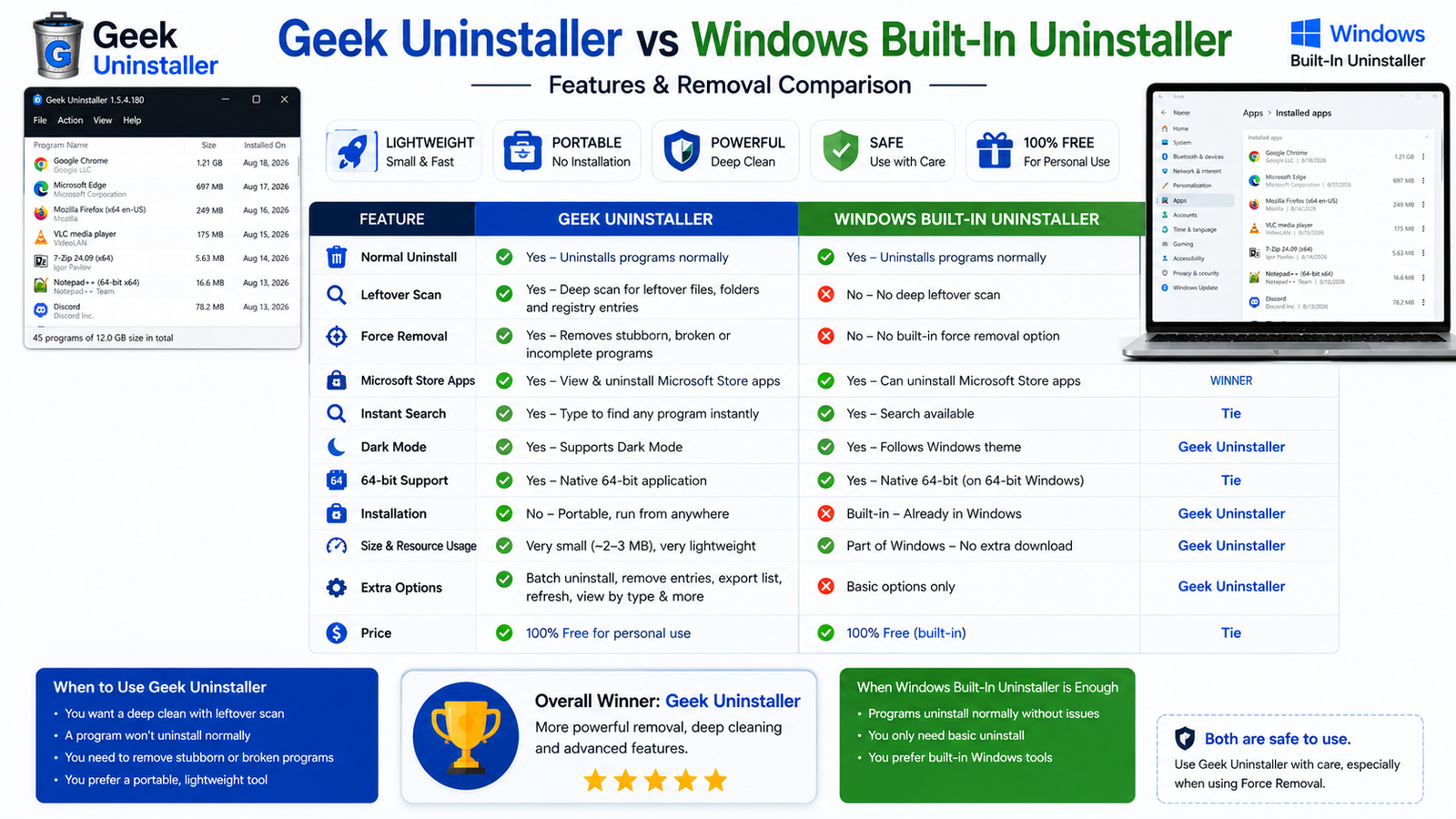
Windows 11 and Windows 10 already provide software removal through Settings → Apps → Installed apps.
Geek Uninstaller is therefore optional, but it adds leftover scanning, portability, and Force Removal for difficult uninstallations.
| Feature | Geek Uninstaller | Windows Built-In |
|---|---|---|
| Normal Uninstall | Yes | Yes |
| Portable | Yes | Built Into Windows |
| Leftover Scanning | Yes | No Dedicated Deep Scan |
| Force Removal | Yes | No Dedicated Equivalent |
| Microsoft Store Apps | Yes | Yes |
| Instant Search | Yes | Yes |
| Native x64 | Yes | Windows Native |
| Installation Required | No | Already Built In |
For applications that uninstall normally, Windows’ built-in method may be enough. Geek Uninstaller becomes more useful when you need leftover cleanup or Force Removal.
Geek Uninstaller vs IObit Uninstaller
Geek Uninstaller and IObit Uninstaller target slightly different users.
Geek Uninstaller
- Very small.
- Portable.
- Simple interface.
- Fast startup.
- Focused primarily on uninstalling.
IObit Uninstaller
- Broader software-management suite.
- Installation monitoring.
- Software Health tools.
- Batch-oriented management.
- Additional maintenance features.
If you prefer a lightweight portable uninstaller, Geek Uninstaller is attractive. If you want a broader software-management toolset, see our IObit Uninstaller Download for Windows guide.
Is Geek Uninstaller an Antivirus?
No. Geek Uninstaller is a software-removal utility and does not replace Windows Security, Microsoft Defender, firewall protection, or dedicated anti-malware software.
If you are removing software because you suspect malware or unwanted programs, you can also see our Malwarebytes Download guide for an additional security scan.
Does Geek Uninstaller Speed Up Your PC?
Not directly. Removing unnecessary applications may help if those programs consume storage, run in the background, or start automatically with Windows.
However, Geek Uninstaller cannot add RAM, upgrade your processor, replace an HDD with an SSD, repair failing hardware, or automatically improve gaming performance.
Can Geek Uninstaller Run from a USB Drive?
Yes. Because Geek Uninstaller is portable, you can keep the extracted executable on a USB drive and run it on compatible Windows computers where you have appropriate administrator permissions.
This can be useful for PC technicians, troubleshooting PCs, portable maintenance toolkits, and users who do not want another permanently installed application.
Is Geek Uninstaller Safe?
Geek Uninstaller downloaded from the developer’s official website is a legitimate Windows utility.
However, any uninstaller can remove software and related system data, so you should use it carefully.
- Download only from the official source.
- Verify the application before removing it.
- Review leftover entries.
- Use Force Removal cautiously.
- Avoid removing unknown Windows components.
- Keep backups of important data.
Geek Uninstaller Troubleshooting
Geek Uninstaller Won’t Open
Make sure the downloaded ZIP or 7Z archive has been extracted first. Do not try to use the compressed archive itself as the program.
Run the extracted executable and approve administrator permission when required.
A Program Won’t Uninstall
Restart Windows, open Geek Uninstaller, try the normal Uninstall option again, and use Force Removal only if the standard process continues to fail.
Geek Uninstaller Crashes During Leftover Scan
Make sure you are using the latest version. Version 1.5.4.180 includes a fix for crashes that could occur while scanning for leftovers.
If the issue continues, restart Windows, download a fresh official copy, run it with administrator rights, and try again.
Microsoft Edge Removal
The current 1.5.4.180 release includes a change where Microsoft Edge and companion apps are handled through Force Removal.
Geek Uninstaller Doesn’t Show an App
Try reopening Geek Uninstaller, restarting Windows, using instant search, switching between desktop and Store app views, and checking Windows Settings → Apps.
Remember that Microsoft Store applications can be displayed separately using View → Windows Store Apps or Ctrl + Tab.
Leftovers Are Still Found After Uninstall
This can be normal. Programs may leave Registry entries, configuration files, cache, logs, settings, or folders behind.
Review detected leftovers and remove only items that clearly belong to the program you intentionally uninstalled.
How to Update Geek Uninstaller
Because Geek Uninstaller is portable, updating is straightforward.
- Check the official website for the current version.
- Download the latest archive.
- Extract the new files.
- Use the newer executable.
As of August 2026, the latest official release is Geek Uninstaller 1.5.4.180.
How to Remove Geek Uninstaller
There is normally nothing to uninstall because Geek Uninstaller is portable.
- Close Geek Uninstaller.
- Locate the extracted folder.
- Delete the executable or folder.
- Delete the original downloaded archive if you no longer need it.

Safe Geek Uninstaller Download – Important
Always download Geek Uninstaller from the developer’s official website.
Official source: Geek Uninstaller Official Download.
- Geek Uninstaller Crack.
- Geek Uninstaller Pro Crack.
- Modified Geek Uninstaller.
- Repacked executables.
- Unofficial portable builds.
- Torrent downloads.
- Unknown third-party mirrors.
The genuine free edition is already extremely small and available directly from the developer.
Frequently Asked Questions
Is Geek Uninstaller free?
Yes. The standard Geek Uninstaller edition is free for personal use.
Does Geek Uninstaller work on Windows 11?
Yes. Windows 11 is officially supported.
Does Geek Uninstaller support Windows 10?
Yes. Windows 10 is supported.
What is the latest Geek Uninstaller version?
As of August 2026, the latest official release is Geek Uninstaller 1.5.4.180, released August 19, 2026.
Does Geek Uninstaller need installation?
No. It is portable. Extract the downloaded archive and run the executable.
Can Geek Uninstaller remove leftover files?
Yes. After normal uninstall, Geek Uninstaller can scan for remaining files, folders, Registry entries, and other traces.
What is Force Removal?
Force Removal is designed for stubborn, damaged, or broken programs that cannot be removed normally.
Can Geek Uninstaller remove Microsoft Store apps?
Yes. Store apps can be viewed separately through the View menu or Ctrl + Tab.
Does Geek Uninstaller support 64-bit Windows?
Yes. Geek Uninstaller provides native x64 support on compatible 64-bit Windows systems.
Can Geek Uninstaller run from a USB drive?
Yes. Its portable design makes it suitable for USB drives and maintenance toolkits.
Does Geek Uninstaller have Dark Mode?
Yes. Geek Uninstaller includes an optional Dark Mode.
Is Geek Uninstaller an antivirus?
No. Geek Uninstaller is a software-removal utility. Continue using appropriate Windows security and anti-malware protection.
Is Geek Uninstaller better than Windows’ built-in uninstaller?
Geek Uninstaller adds leftover scanning and Force Removal, but Windows’ built-in uninstaller is sufficient for many programs that uninstall normally.
Is Geek Uninstaller better than IObit Uninstaller?
They target different users. Geek Uninstaller is lightweight and portable, while IObit Uninstaller provides a broader software-management feature set.
Can I remove Geek Uninstaller itself?
Yes. Since it is portable, normally you only need to close it and delete the extracted executable or folder.
Final Thoughts
Geek Uninstaller is a good option for Windows users who want a small, portable, and focused uninstaller instead of a large PC-maintenance suite.
Its strongest features include Clean Removal, leftover scanning, Force Removal, Microsoft Store app removal, instant search, native 64-bit support, Dark Mode, and portable operation.
For programs that uninstall normally, Windows’ built-in tools may already be enough. Geek Uninstaller becomes particularly useful when you need deeper leftover cleanup or have a stubborn or damaged program that will not uninstall normally.
Most importantly, use Force Removal carefully and download Geek Uninstaller only from the official developer website.
Ready to download Geek Uninstaller?
Get the latest portable Windows version directly from the official Geek Uninstaller website. ABDNOVA recommends official sources only.


