
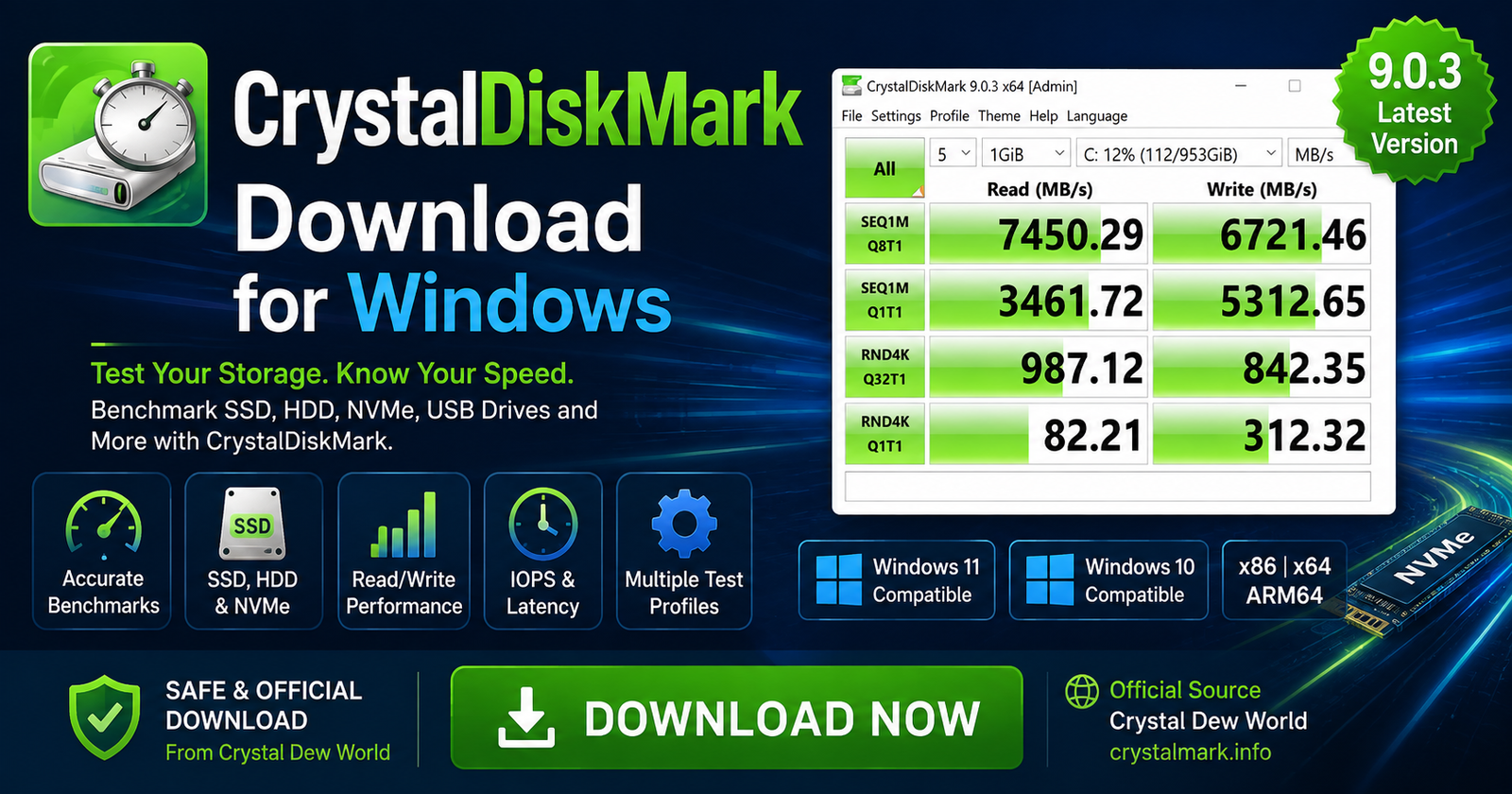

CrystalDiskMark Download for Windows 11 & 10
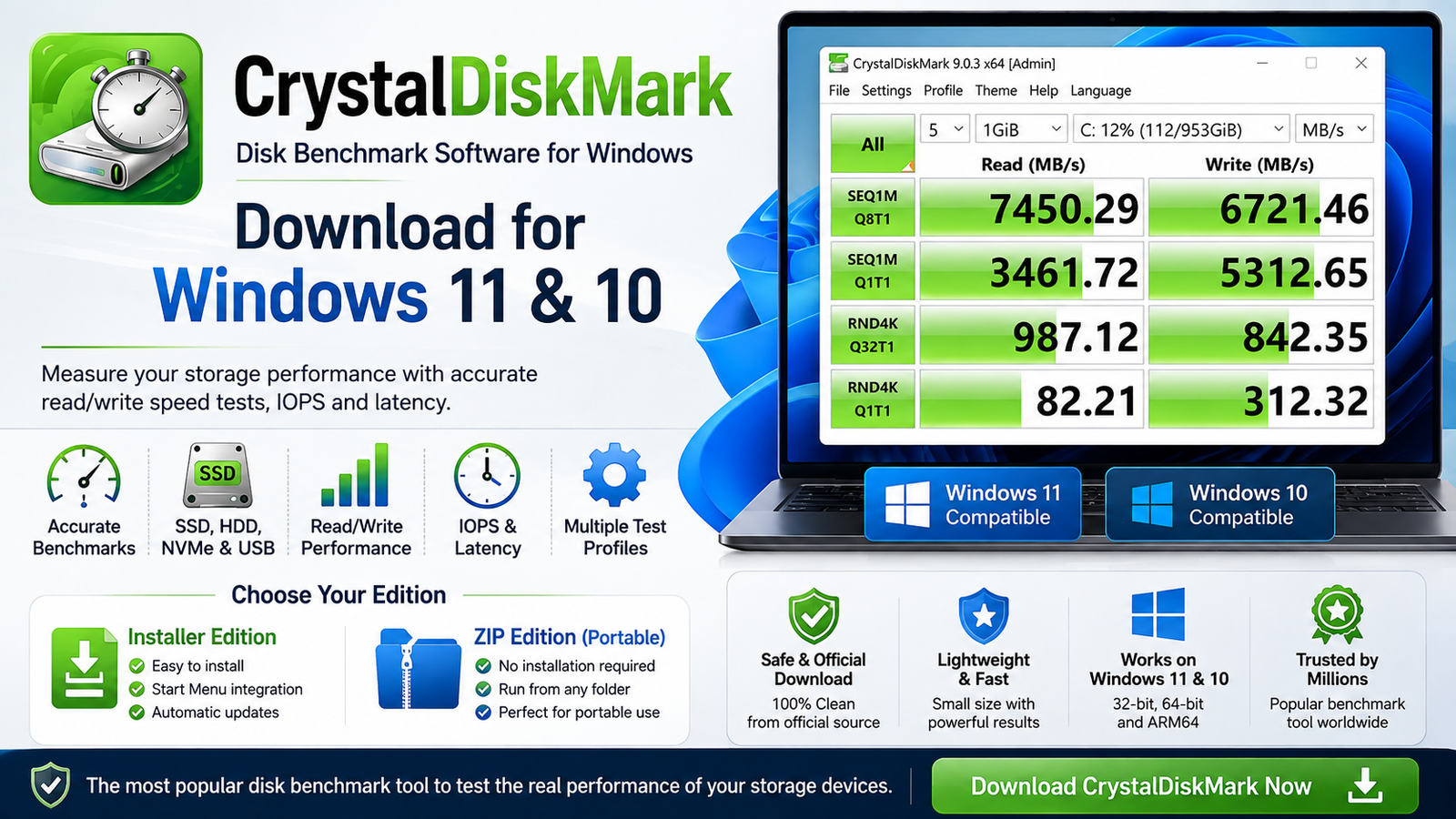
Download CrystalDiskMark for Windows to benchmark NVMe SSDs, SATA SSDs, HDDs, USB drives, and other storage devices.
CrystalDiskMark Download for Windows gives Windows 11 and Windows 10 users a lightweight storage benchmarking utility for measuring read and write performance of SSDs, NVMe drives, HDDs, USB drives, and other storage devices.
With a few clicks, CrystalDiskMark can measure sequential and random performance and display results in MB/s, GB/s, IOPS, or average latency. This makes it useful when checking a new SSD, comparing storage devices, troubleshooting unexpectedly slow performance, or confirming whether a drive performs close to expectations.
CrystalDiskMark is developed by Crystal Dew World and is available in Installer and ZIP editions, with support for x86, x64, and ARM64 Windows systems.
CrystalDiskMark Download – Quick Overview
| Information | Details |
|---|---|
| Software | CrystalDiskMark |
| Developer | Crystal Dew World |
| Current Version | 9.0.3 |
| Software Type | Disk Benchmark Utility |
| Windows 11 | Supported |
| Windows 10 | Supported |
| Architecture | x86, x64, ARM64 |
| Storage Tests | Sequential, Random & Mix |
| Measurement Units | MB/s, GB/s, IOPS, Average Latency |
| Distribution | Installer & ZIP |
| Editions | Standard, Shizuku, Aoi |
| Main Purpose | SSD, HDD & Storage Performance Benchmarking |
| Official Source | Crystal Dew World |
What Is CrystalDiskMark?
CrystalDiskMark is a Windows storage benchmark application designed to measure how quickly a drive can read and write data.
Unlike drive-health utilities that focus on temperature and S.M.A.R.T. information, CrystalDiskMark focuses specifically on storage performance.
CrystalDiskMark can measure:
- Sequential read performance.
- Sequential write performance.
- Random read performance.
- Random write performance.
- Mixed read/write performance.
- IOPS.
- Average latency.
The program can benchmark internal NVMe SSDs, SATA SSDs, traditional hard drives, and many external or removable storage devices.
CrystalDiskMark for Windows 11 & 10
CrystalDiskMark works on Windows 11 and Windows 10 as well as several older supported Windows versions.
For most users, the Standard Edition is the simplest choice. Crystal Dew World also provides Shizuku and Aoi editions that primarily offer different visual themes.
Installer Edition
The Installer edition provides the normal Windows installation experience. It is convenient if you expect to use CrystalDiskMark regularly.
ZIP Edition
The ZIP version does not require traditional installation. Extract the archive into a folder and run CrystalDiskMark directly.
This can be useful for occasional benchmarking, troubleshooting multiple PCs, or keeping disk utilities together in a portable tools folder.
Installer vs ZIP
| Feature | Installer | ZIP |
|---|---|---|
| Traditional Installation | Yes | No |
| Start Menu Integration | Yes | No |
| Easy Regular Use | Excellent | Good |
| Portable-Style Use | No | Yes |
| Manual Extraction | No | Yes |
| Removal | Windows Settings | Delete Extracted Files |
How to Install CrystalDiskMark on Windows
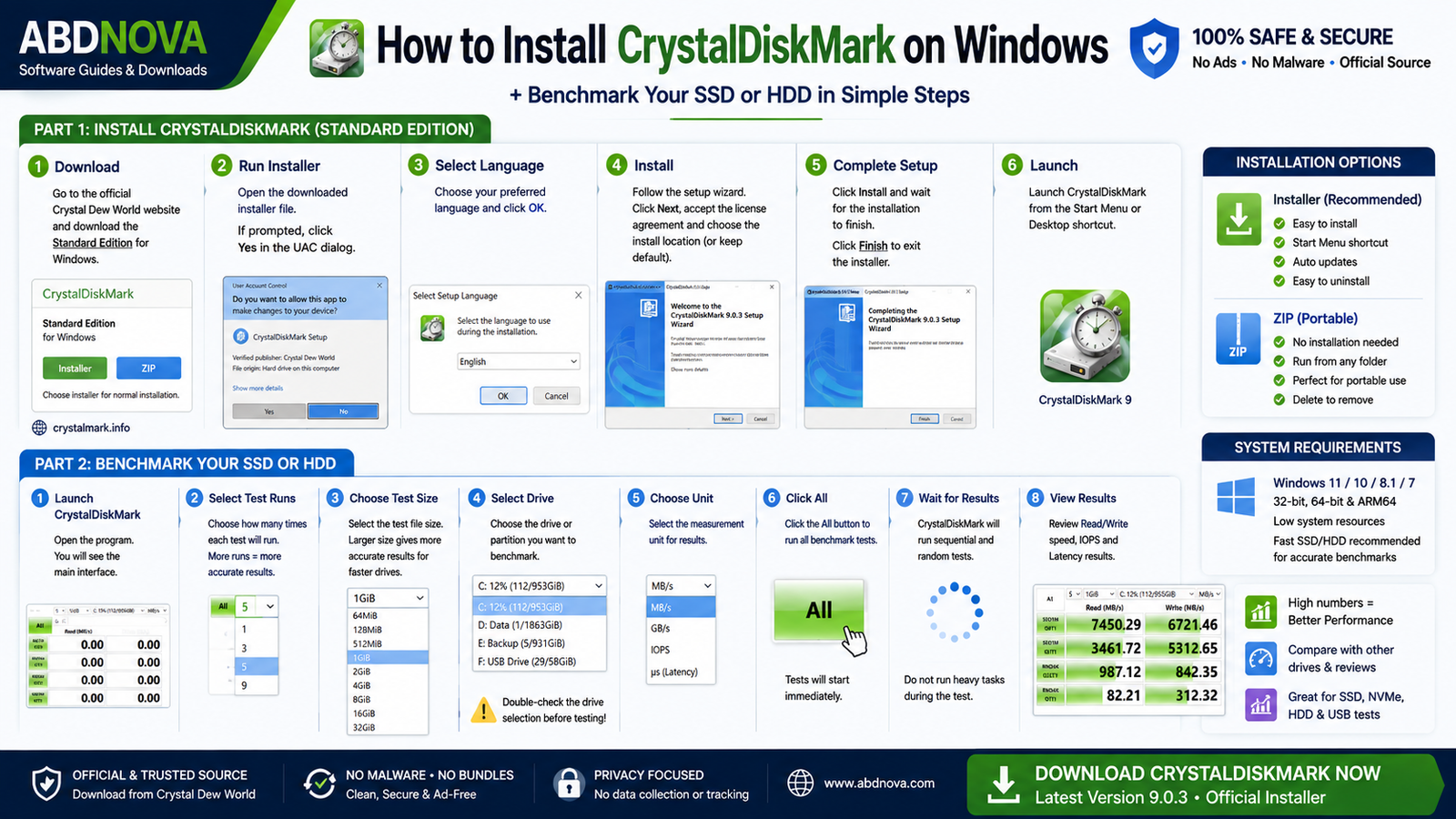
- Open the official source: Visit the Crystal Dew World website and open the CrystalDiskMark download section.
- Choose an edition: Select Standard Edition unless you specifically want one of the themed versions.
- Choose Installer or ZIP: Use Installer for normal installation or ZIP for portable-style use.
- Run the installer: Open the downloaded setup file and verify that it came from the official source.
- Complete setup: Follow the installation wizard and launch CrystalDiskMark.
If you choose the ZIP version, extract the archive into a folder and run the appropriate CrystalDiskMark executable instead.
How to Benchmark an SSD or HDD
- Launch CrystalDiskMark.
- Select the number of test runs.
- Choose a test size.
- Select the drive you want to benchmark.
- Confirm the measurement unit.
- Click All to run the available tests.
- Wait until the benchmark finishes.
- Review the Read and Write results.
CrystalDiskMark Main Interface & Benchmark Settings

CrystalDiskMark uses a compact interface focused on storage benchmarking. Before running a test, check the number of runs, test size, selected drive, profile, and measurement unit.
Number of Test Runs
This setting determines how many times CrystalDiskMark performs each benchmark. More runs can provide more consistent results but also increase testing time and storage write activity.
Test Size
Larger test files can provide a more demanding benchmark. Smaller test sizes may be more convenient for slower devices such as some USB flash drives.
Test Drive
Use the drive selector to choose the SSD, HDD, USB drive, or other Windows volume you want to benchmark.
Benchmark Buttons
Selecting All runs the available benchmark tests. Individual benchmark rows can also be run separately when you need only a specific measurement.
Peak, Real World & Demo Profiles
CrystalDiskMark provides multiple measurement profiles. Peak Performance focuses on higher-performance capabilities, while Real World Performance is intended for more practical workload conditions.
Mix-capable profiles can also evaluate combinations of read and write activity.
CrystalDiskMark Sequential vs Random 4K Tests Explained

Sequential Read and Write Speed
Sequential performance measures how quickly a storage device can process relatively large blocks of data arranged sequentially.
This type of performance is especially relevant when copying large files, moving videos, working with large archives, loading large project files, or transferring data between fast storage devices.
Modern NVMe SSDs can achieve much higher sequential throughput than SATA SSDs or traditional hard drives, but sequential speed is only one part of overall storage performance.
Random 4K Performance
Random tests measure performance when accessing smaller pieces of data located throughout the storage device.
This is more representative of many everyday operating-system workloads, including application responsiveness, Windows startup activity, loading many small files, software installation, multitasking, and general desktop use.
MB/s, GB/s, IOPS & Latency
MB/s
Megabytes per second measures how much data the drive can transfer each second.
GB/s
Gigabytes per second can make the results of very fast NVMe SSDs easier to read.
IOPS
IOPS means Input/Output Operations Per Second and is particularly useful for evaluating random workloads.
Average Latency
Latency indicates how long storage operations take to complete. Lower latency is generally better.
Looking at throughput, IOPS, and latency together gives a more complete picture than judging a drive by only one benchmark number.
CrystalDiskMark NVMe, SATA SSD, HDD & USB Benchmarking
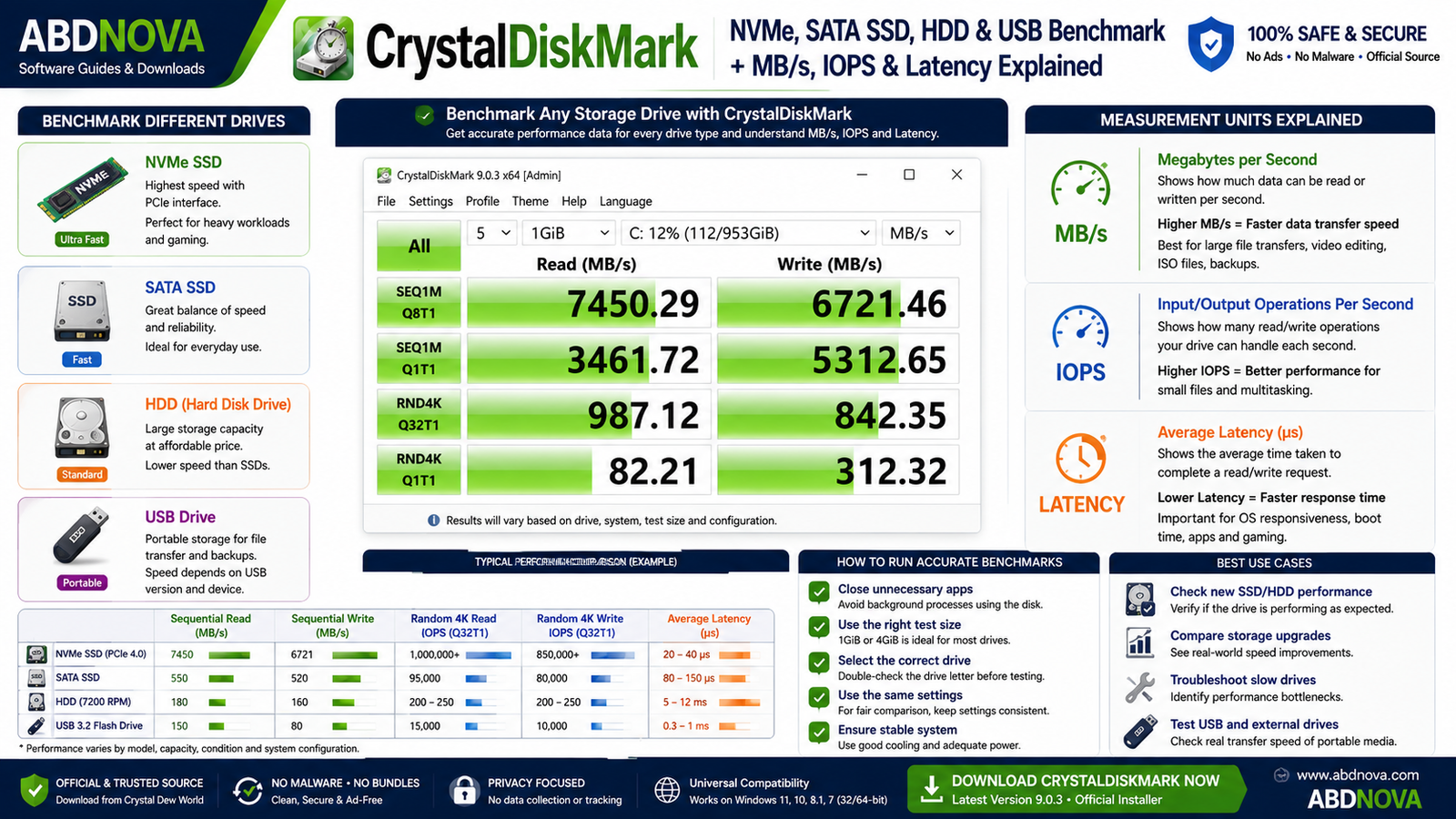
NVMe SSD Benchmarking
CrystalDiskMark is particularly useful for benchmarking high-performance NVMe SSDs and includes an NVMe SSD settings option.
Before comparing your result with a manufacturer’s specification or another PC, remember that NVMe performance can depend on several factors:
- PCIe generation.
- Number of PCIe lanes.
- SSD capacity.
- Controller and NAND configuration.
- Available free space.
- SSD temperature and thermal throttling.
- CPU performance.
- Background applications.
- Power settings.
- Driver configuration.
- Benchmark test size and settings.
For example, a PCIe 4.0 SSD installed in a system limited to PCIe 3.0 may not reach its advertised maximum sequential performance.
Testing SATA SSDs and HDDs
CrystalDiskMark can also benchmark SATA SSDs and traditional hard drives.
A SATA SSD typically has lower maximum sequential throughput than a modern NVMe SSD because of the SATA interface, but it can still provide much stronger random performance and responsiveness than a mechanical hard drive.
HDD benchmark results can vary depending on drive RPM, cache, data location, fragmentation, and background activity.
Testing USB Drives and External Storage
CrystalDiskMark can test many USB flash drives, portable SSDs, external HDDs, external SSD enclosures, and memory-card storage that appears as an accessible Windows drive.
External storage performance depends on both the storage device and its connection. A fast SSD connected through a slower USB interface can be limited by that interface.
How to Read CrystalDiskMark Results
A common mistake is looking only at the largest number in the benchmark.
Instead, consider the workload that matters to you. High sequential speed is useful for large-file transfers, while strong random performance is more relevant to many small-file and operating-system workloads.
For meaningful comparisons, use the same CrystalDiskMark major version and equivalent test settings.
Why CrystalDiskMark Results May Be Lower Than Advertised
A lower benchmark result does not automatically mean that your SSD is defective.
Interface Limitation
The motherboard, laptop, PCIe generation, lane configuration, SATA interface, USB interface, or enclosure can limit storage performance.
Thermal Throttling
High-performance NVMe SSDs can become hot during sustained workloads and may reduce performance when temperatures rise.
Background Disk Activity
Windows Update, antivirus scanning, indexing, downloads, cloud synchronization, or other applications can use the drive while CrystalDiskMark is running.
If Microsoft OneDrive is actively synchronizing large amounts of data, benchmark results can also be affected. See our Microsoft OneDrive Download for Windows guide for more information about OneDrive on Windows.
Power Settings
Laptop power-saving modes and other system power settings can sometimes affect performance.
Different Benchmark Configuration
Drive manufacturers may use different software, queue depths, test sizes, hardware, and test conditions when publishing performance specifications.
Drive Capacity and Free Space
Different capacities of the same SSD model can perform differently, and available free space or cache behavior can also influence results.
CrystalDiskMark vs Windows Task Manager vs CrystalDiskInfo

CrystalDiskMark vs Windows Task Manager
| Feature | CrystalDiskMark | Windows Task Manager |
|---|---|---|
| Dedicated Storage Benchmark | Yes | No |
| Sequential Testing | Yes | No |
| Random Testing | Yes | No |
| Read/Write Benchmark Results | Yes | Limited Live Activity |
| IOPS / Latency Tests | Yes | Limited |
| Real-Time Disk Usage | No | Yes |
| Background Process Monitoring | No | Yes |
| Best Use | Measuring Drive Performance | Monitoring Current Disk Activity |
Task Manager is useful when you want to see which applications are currently using your disk. CrystalDiskMark is better when you want a controlled benchmark of storage performance.
CrystalDiskMark vs CrystalDiskInfo
Despite their similar names, CrystalDiskMark and CrystalDiskInfo perform different jobs.
CrystalDiskMark
Measures storage performance, including sequential and random read/write speed, IOPS, and latency.
CrystalDiskInfo
Focuses on drive health and monitoring information such as S.M.A.R.T. data and other drive-health details.
If you want to benchmark storage speed, use CrystalDiskMark. If you want to inspect drive health, CrystalDiskInfo is the more appropriate Crystal Dew World utility.
Is CrystalDiskMark Safe for SSDs?
CrystalDiskMark is a legitimate benchmarking utility from Crystal Dew World, but storage benchmarking generates real read and write activity.
Crystal Dew World warns that repeatedly running CrystalDiskMark can contribute additional writes to SSDs and USB memory.
Useful reasons to benchmark include installing a new drive, changing hardware configuration, comparing storage devices, or investigating an unexpected performance problem.
CrystalDiskMark Troubleshooting
Benchmark Shows Unexpectedly Low Speed
Close storage-intensive applications and allow background activity to settle. Confirm that the correct drive and benchmark settings are selected.
For NVMe SSDs, also check the motherboard slot, PCIe generation, and lane configuration.
Results Change Between Tests
Some variation is normal. Drive temperature, cache behavior, background processes, test size, and general system activity can affect benchmark results.
Use consistent settings when comparing results.
CrystalDiskMark Shows 0 or Does Not Complete a Test
Restart CrystalDiskMark and check that the selected drive is accessible. Close applications heavily using the disk and try again.
If necessary, restart Windows before repeating the benchmark.
External Drive Is Slow
Check the USB port, cable, enclosure, and interface speed. A fast external SSD connected through an older or slower USB interface can be limited by that connection.
Network Drive Does Not Appear
Crystal Dew World’s documentation notes that network drives may not appear when CrystalDiskMark is launched with administrator rights.
If you need to benchmark a network drive, try running CrystalDiskMark without administrator privileges.
How to Update CrystalDiskMark
If you use the Installer edition, download the newer official installer and run it.
For the ZIP edition, extract the newer files and replace the older standalone copy as appropriate.
When comparing old and new benchmark results, remember that different major CrystalDiskMark versions may not produce directly comparable results.
How to Uninstall CrystalDiskMark
Installer Edition
- Open Windows Settings.
- Go to Apps.
- Open Installed apps or Apps & features.
- Find CrystalDiskMark.
- Select Uninstall.
- Complete the removal process.
ZIP Edition
No traditional Windows uninstall process is necessary. Close CrystalDiskMark and delete the extracted files when you no longer need them.

Safe CrystalDiskMark Download – Important
Download CrystalDiskMark only from Crystal Dew World’s official website or a download destination explicitly provided by the developer.
Official source: Crystal Dew World – CrystalDiskMark.
- CrystalDiskMark Crack.
- CrystalDiskMark Pro.
- CrystalDiskMark Activated.
- Modified CrystalDiskMark.
- Repacked installers.
- Unofficial portable builds.
- Torrent or unknown third-party downloads.
For most Windows users, the official Standard Edition is the appropriate choice.
Frequently Asked Questions
Is CrystalDiskMark free?
Yes. CrystalDiskMark is available from Crystal Dew World as a storage benchmarking utility.
Does CrystalDiskMark work on Windows 11?
Yes. Windows 11 is officially supported.
Does CrystalDiskMark work on Windows 10?
Yes. Windows 10 is officially supported.
What is the current CrystalDiskMark version?
As of August 2026, Crystal Dew World lists CrystalDiskMark 9.0.3.
Can CrystalDiskMark test NVMe SSDs?
Yes. CrystalDiskMark can benchmark NVMe SSDs and provides settings suitable for high-performance NVMe storage.
Can CrystalDiskMark benchmark SATA SSDs?
Yes. SATA SSDs can be benchmarked for sequential and random read/write performance.
Can CrystalDiskMark test HDDs?
Yes. Traditional hard drives can also be benchmarked.
Can CrystalDiskMark test USB drives?
Yes, provided the storage device appears as an accessible Windows drive. Keep in mind that benchmarking generates storage activity.
What is the difference between CrystalDiskMark and CrystalDiskInfo?
CrystalDiskMark measures storage performance. CrystalDiskInfo is mainly used to inspect and monitor drive-health information.
Is the CrystalDiskMark ZIP version portable?
The ZIP version does not require a traditional installation. Extract the archive and run CrystalDiskMark from the extracted folder.
Does CrystalDiskMark damage an SSD?
Benchmarking creates additional write activity. Occasional testing is generally reasonable, but repeatedly running unnecessary benchmarks creates extra writes.
Why is my SSD slower than its advertised speed?
PCIe or interface limitations, temperature, background activity, power settings, benchmark configuration, SSD capacity, free space, and system hardware can all affect performance.
Should I compare results from different CrystalDiskMark versions?
For meaningful comparisons, use the same major CrystalDiskMark version and equivalent benchmark settings.
Final Thoughts
CrystalDiskMark is a simple but powerful Windows utility for measuring storage performance. It can benchmark everything from traditional hard drives and SATA SSDs to modern NVMe storage and external USB drives.
Sequential and random read/write measurements, IOPS, and latency provide much more useful information than looking only at an SSD’s advertised maximum speed.
For meaningful results, benchmark under consistent conditions, avoid heavy background disk activity, and compare drives using the same test settings and CrystalDiskMark major version.
Most importantly, run benchmarks when they serve a practical purpose and download CrystalDiskMark only from the official Crystal Dew World source.
Ready to download CrystalDiskMark?
Get the latest official Windows version directly from Crystal Dew World. ABDNOVA recommends official sources only.


