

IObit Uninstaller Download for Windows 11 & 10
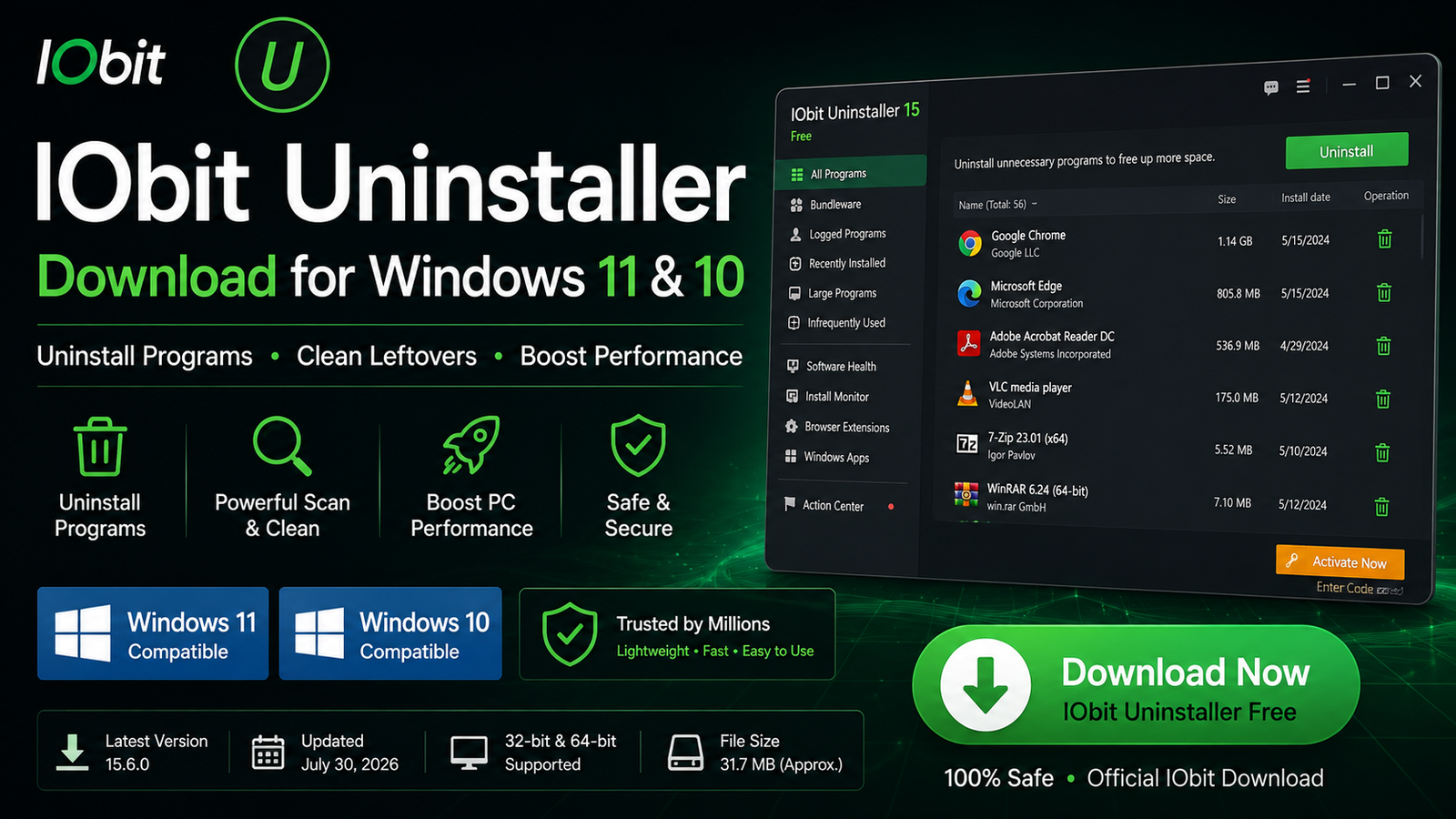
Download IObit Uninstaller for Windows 11 and Windows 10 to remove unwanted programs, clean leftovers, uninstall stubborn software, and manage Windows apps.
IObit Uninstaller Download for Windows gives Windows users an advanced software-removal utility for uninstalling unwanted programs and cleaning files, folders, registry entries, and other traces that may remain after a normal uninstall.
Windows already includes its own uninstall feature, but some programs refuse to uninstall, leave unnecessary leftovers, or have damaged uninstall information. IObit Uninstaller adds tools such as Powerful Scan, Force Uninstall+, Stubborn Program Remover, batch uninstall, Install Monitor, Software Health, browser extension management, and Windows app removal.
The current IObit Uninstaller 15 generation supports Windows 11 and Windows 10. The Free edition handles core removal tasks, while some advanced features are available with IObit Uninstaller Pro.
IObit Uninstaller Download – Quick Overview
| Information | Details |
|---|---|
| Software | IObit Uninstaller |
| Developer | IObit |
| Category | Uninstaller / Software Management |
| Current Version | 15.6.0 |
| Windows 11 | Supported |
| Windows 10 | Supported |
| Free Version | Yes |
| Batch Uninstall | Yes |
| Leftover Cleanup | Yes |
| Stubborn Program Removal | Yes |
| Force Uninstall+ | Available |
| Windows App Removal | Yes |
| Browser Extension Management | Yes |
| Install Monitor | Yes |
| Software Health | Yes |
| Official Source | IObit |
What Is IObit Uninstaller?
IObit Uninstaller is a software-management and uninstallation utility developed by IObit. Its main purpose is to remove programs you no longer need and clean associated leftovers.
IObit Uninstaller can help with:
- Uninstalling desktop programs.
- Removing multiple applications in a batch.
- Cleaning leftover files and registry entries.
- Removing stubborn programs.
- Force-uninstalling software with broken uninstallers.
- Managing Windows apps.
- Removing unwanted browser extensions.
- Detecting bundleware.
- Monitoring software installations.
- Checking software health.
- Updating supported applications.
- Shredding selected files.
IObit’s current version also includes an expanded stubborn-program database designed to handle thousands of difficult-to-remove applications.
IObit Uninstaller Main Interface
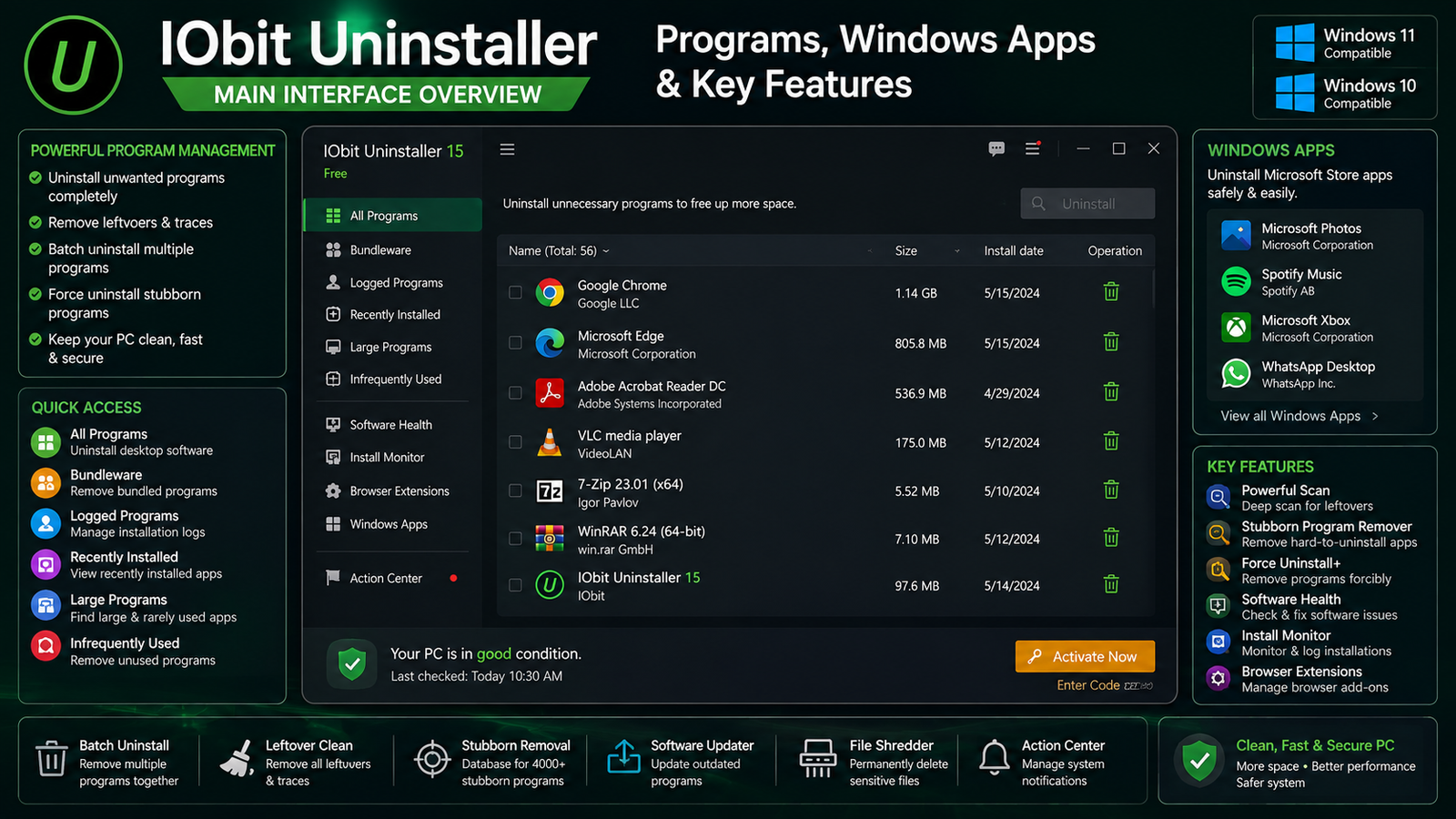
The main interface is centered around installed applications and software-management tools. Depending on the current release, you may see categories such as All Programs, Bundled Programs, Stubborn Programs, Windows Apps, Browser Extensions, Software Health, Install Monitor, Software Updater, and Tools.
The most important area for new users is the installed-program list. From here, you can search for software, select one or more applications, and begin removing them.
How to Install IObit Uninstaller on Windows
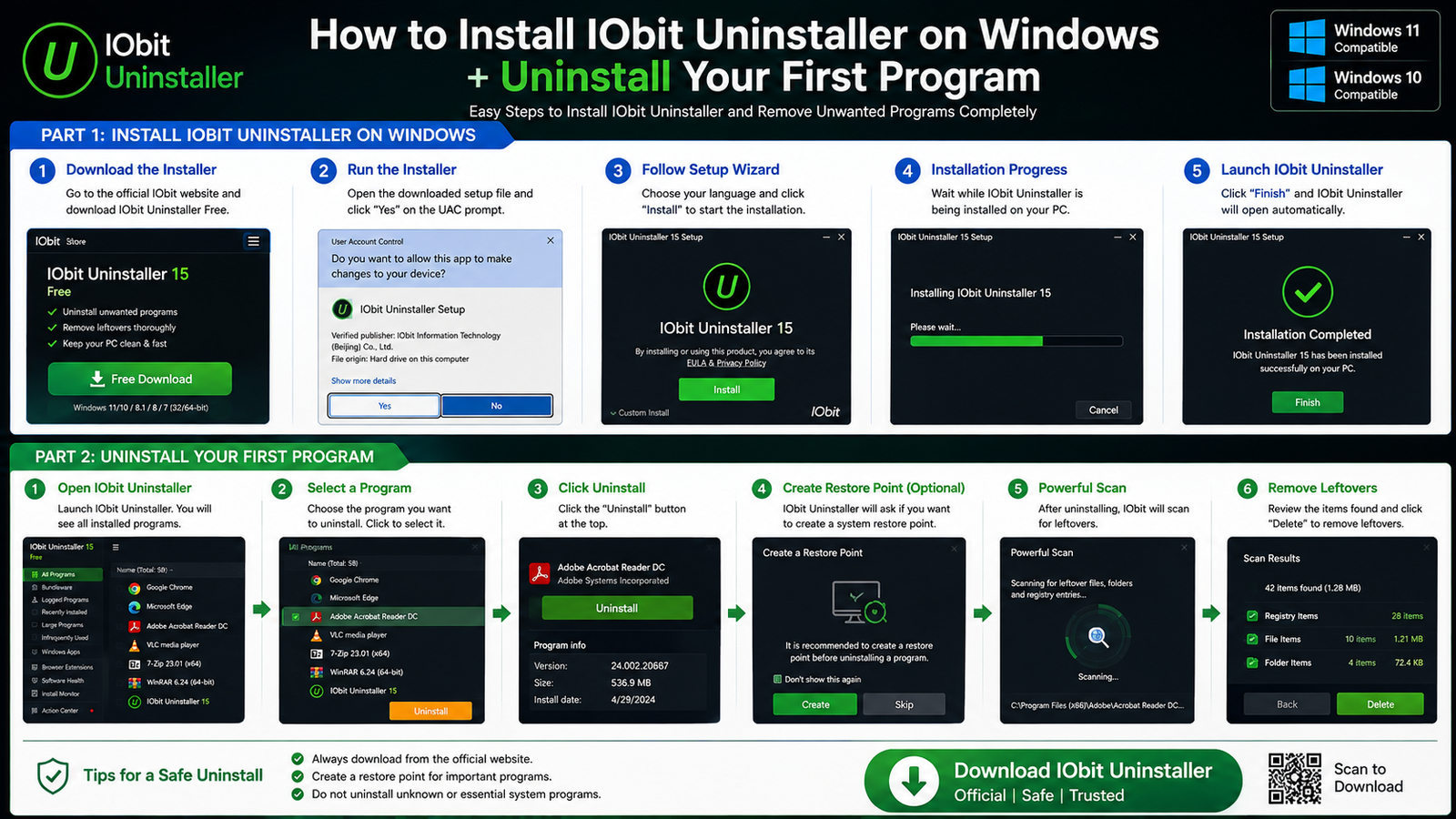
- Download the installer: Open the official IObit Uninstaller page and choose the Free Download option.
- Open the setup file: Go to File Explorer → Downloads and run the installer.
- Check the source: If Windows displays a User Account Control prompt, verify that the installer came from IObit.
- Review installation options: Read each setup screen and avoid installing optional software you do not need.
- Complete installation: Finish the setup wizard and launch IObit Uninstaller.
How to Uninstall Your First Program
- Open IObit Uninstaller.
- Find the program you want to remove.
- Select the application.
- Click Uninstall.
- Review restore-point and leftover-cleanup options.
- Complete the program’s normal uninstall wizard if it appears.
- Allow IObit to scan for remaining files and traces.
- Review detected leftovers before deleting them.
IObit Powerful Scan, Leftover Cleanup & Batch Uninstall
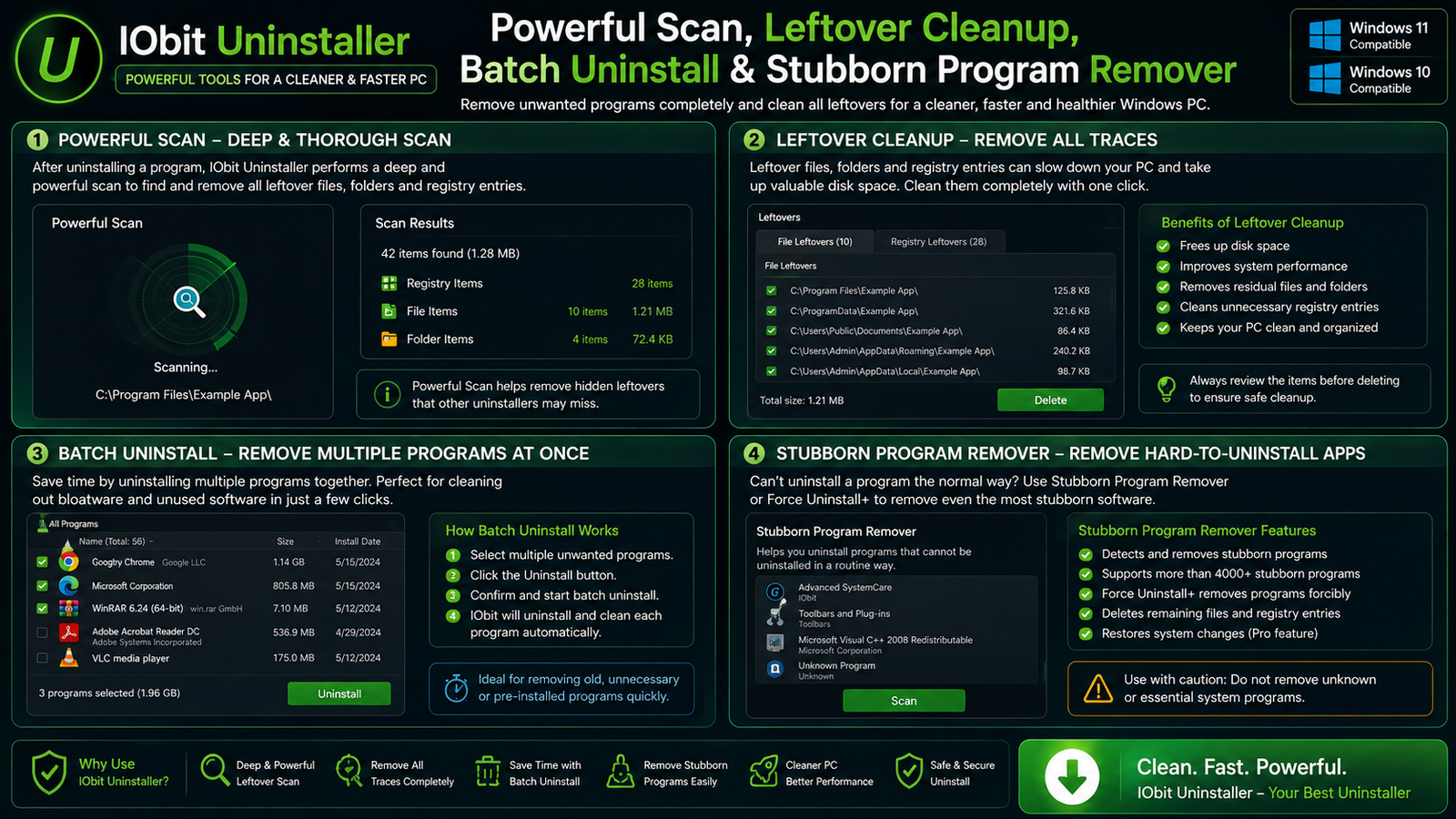
Powerful Scan and Leftover Cleanup
One of the main differences between IObit Uninstaller and a basic Windows uninstall is its ability to scan for remaining files and other traces after software removal.
Possible leftovers include configuration files, empty folders, cached data, log files, registry entries, installation records, and user settings.
IObit’s deeper scanning system is designed to detect residual data associated with removed applications. This can be especially useful when a normal uninstall leaves folders or settings behind, or when you want to reinstall a program cleanly.
Batch Uninstall Multiple Programs
IObit Uninstaller allows multiple applications to be selected and removed in one batch. This can save time when cleaning a PC with many old or unnecessary programs.
- Open IObit Uninstaller.
- Select several unwanted applications.
- Click Uninstall.
- Review the available removal options.
- Continue through each required uninstall process.
Stubborn Program Remover
Stubborn Program Remover is intended for applications that cannot be removed properly through the normal uninstall process.
Typical signs include an uninstall button that does nothing, a crashing uninstaller, damaged uninstall information, a program missing from Windows Settings, or software that leaves major components behind.
IObit Uninstaller 15 includes expanded support for thousands of stubborn applications.
IObit Force Uninstall+, Install Monitor & Software Health
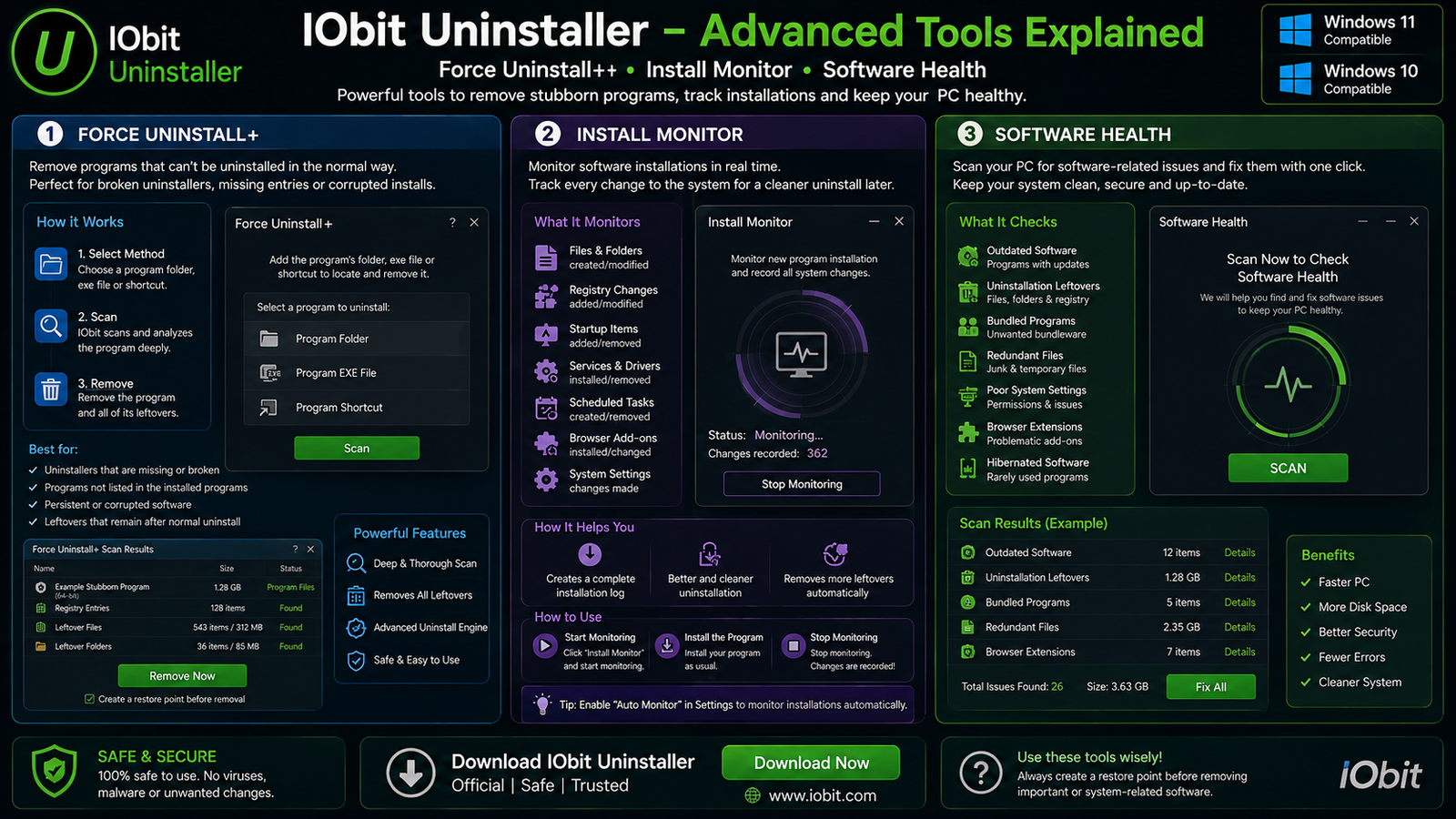
Force Uninstall+
Force Uninstall+ is designed for situations where normal removal fails. It can identify software from its installation folder, executable file, or shortcut and attempt deeper removal.
A sensible order is:
Normal uninstall → leftover scan → Force Uninstall+ only if normal removal fails.
Create a Restore Point Before Difficult Removals
IObit Uninstaller can offer an option to create a Windows restore point before removing software. This can be useful before uninstalling complicated applications, stubborn programs, or utilities that are deeply integrated into Windows.
A restore point can help recover certain system settings, but it is not a substitute for a full backup of important personal files.
Install Monitor
Install Monitor can record system changes made while software is being installed. These changes can include startup entries, services, scheduled tasks, DLL registrations, and other installation-related changes.
When the monitored application is later removed, this information can help IObit identify more of the associated components.
Software Health
Software Health checks software-related issues across the PC rather than focusing on one application. Depending on the current version, it can identify issues such as outdated software, leftovers, redundant files, hibernated programs, permissions, intrusive notifications, and problematic browser extensions.
Review Software Health recommendations before changing everything automatically. A rarely used application may still be important to you.
Windows Apps, Browser Extensions & Other Tools
Remove Windows Apps
IObit Uninstaller can manage pre-installed Windows apps and applications installed through Microsoft Store.
Be more careful with built-in Windows components than with normal third-party programs. Do not remove an item simply because you do not recognize its name.
Browser Extension Management
IObit Uninstaller can display browser extensions and toolbars so you can decide which ones to keep or remove.
Unwanted extensions can sometimes cause advertising, redirects, browser slowdown, tracking, changed search behavior, or unwanted notifications.
Bundleware Removal
Some installers include additional applications or components. IObit Uninstaller can help identify bundled software and remove unwanted components.
Software Updater
IObit Uninstaller also provides software-update functionality for supported applications. Keeping software updated can provide security fixes, bug fixes, compatibility improvements, and new features.
File Shredder
File Shredder is designed to permanently remove selected files so they are more difficult or impossible to recover through normal recovery methods.
IObit Uninstaller vs Windows Built-In Uninstaller
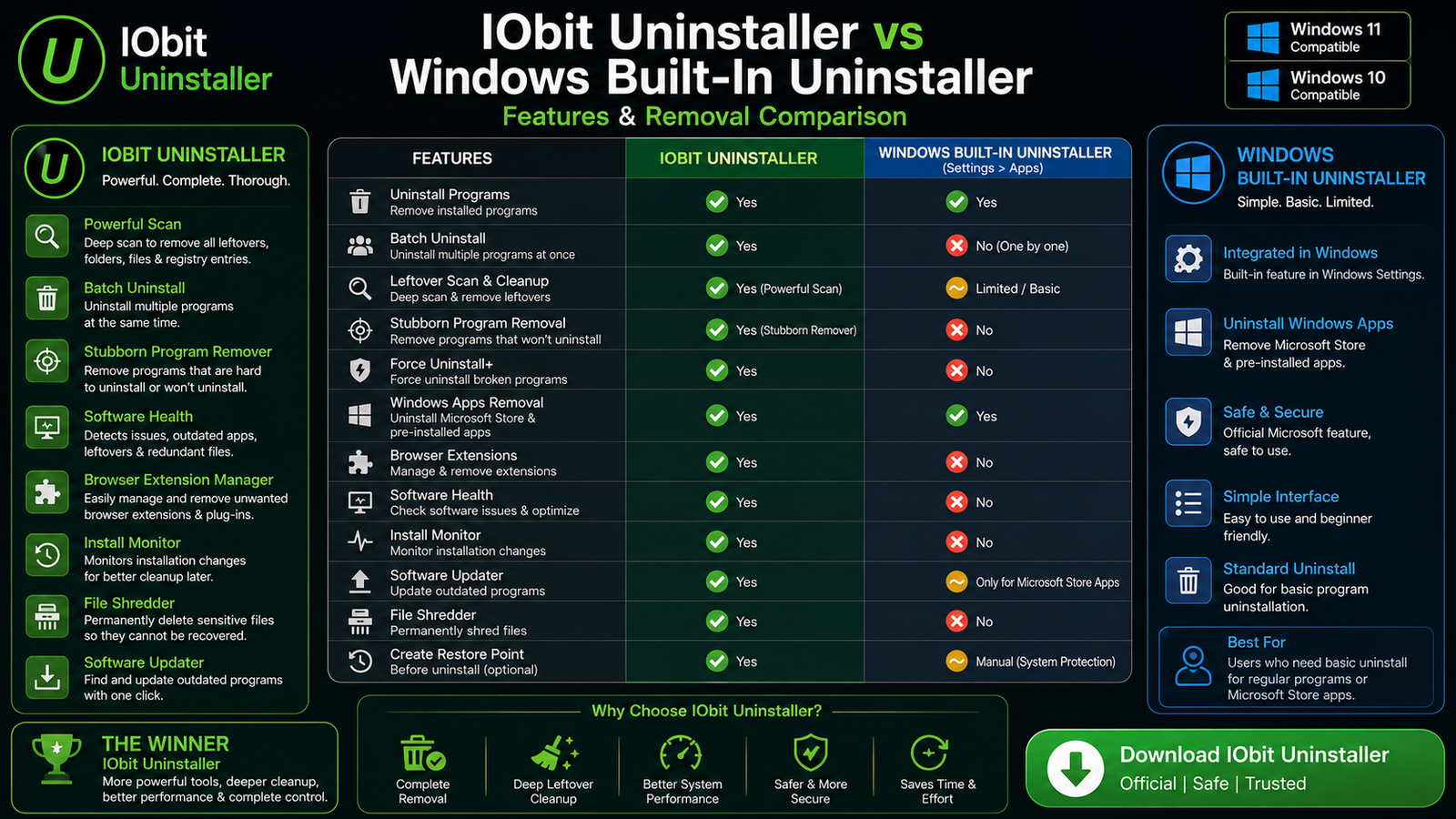
Windows 11 and Windows 10 already allow users to uninstall programs through Settings → Apps → Installed apps. For normal software removal, that may be enough.
IObit Uninstaller adds more advanced removal and software-management functions.
| Feature | IObit Uninstaller | Windows Built-In |
|---|---|---|
| Normal Program Uninstall | Yes | Yes |
| Batch Uninstall | Yes | Limited |
| Dedicated Leftover Scan | Yes | Limited |
| Stubborn Program Removal | Yes | Limited |
| Force Uninstall+ | Yes | No Dedicated Equivalent |
| Install Monitor | Yes | No |
| Browser Extension Management | Yes | No |
| Software Health | Yes | No |
| File Shredder | Yes | No |
| Software Updater | Yes | Limited to Windows/Store Update Functions |
Do You Need IObit Uninstaller?
Not every Windows user needs a separate uninstaller. If Windows removes your applications without problems, the built-in uninstaller may already be sufficient.
IObit Uninstaller becomes more useful if you frequently install and remove software, test applications, want leftover cleanup, have stubborn programs, need batch uninstall, manage many extensions, or want installation monitoring.
IObit Uninstaller Free vs Pro
IObit provides both Free and Pro editions. The Free version covers the core uninstallation experience, while Pro expands automation and advanced cleanup functions.
For most users, starting with the Free edition is sensible. Upgrade only if a Pro-specific feature is genuinely useful to you.
Does IObit Uninstaller Make Windows Faster?
It can help indirectly. Removing unnecessary programs may free storage space, reduce background software, remove unwanted startup applications, and eliminate unused components.
However, uninstalling software cannot upgrade your CPU, add RAM, replace an HDD with an SSD, repair failing hardware, or turn an old computer into a high-performance machine.
Is IObit Uninstaller an Antivirus?
No. IObit Uninstaller is primarily a software-removal and management utility. Although it can identify some unwanted applications or extensions, it should not replace real-time antivirus protection.
Windows 11 and Windows 10 already include Microsoft Defender through Windows Security.
If you suspect malware or unwanted software and want an additional scanner, see our Malwarebytes Download guide.
Is IObit Uninstaller Safe?
The genuine IObit Uninstaller obtained from IObit’s official website is a legitimate Windows utility.
Because uninstallers can make significant changes to programs, files, folders, and registry entries, you should still review what you remove, create restore points when appropriate, avoid deleting unknown system components, and back up important files.
IObit Uninstaller Troubleshooting
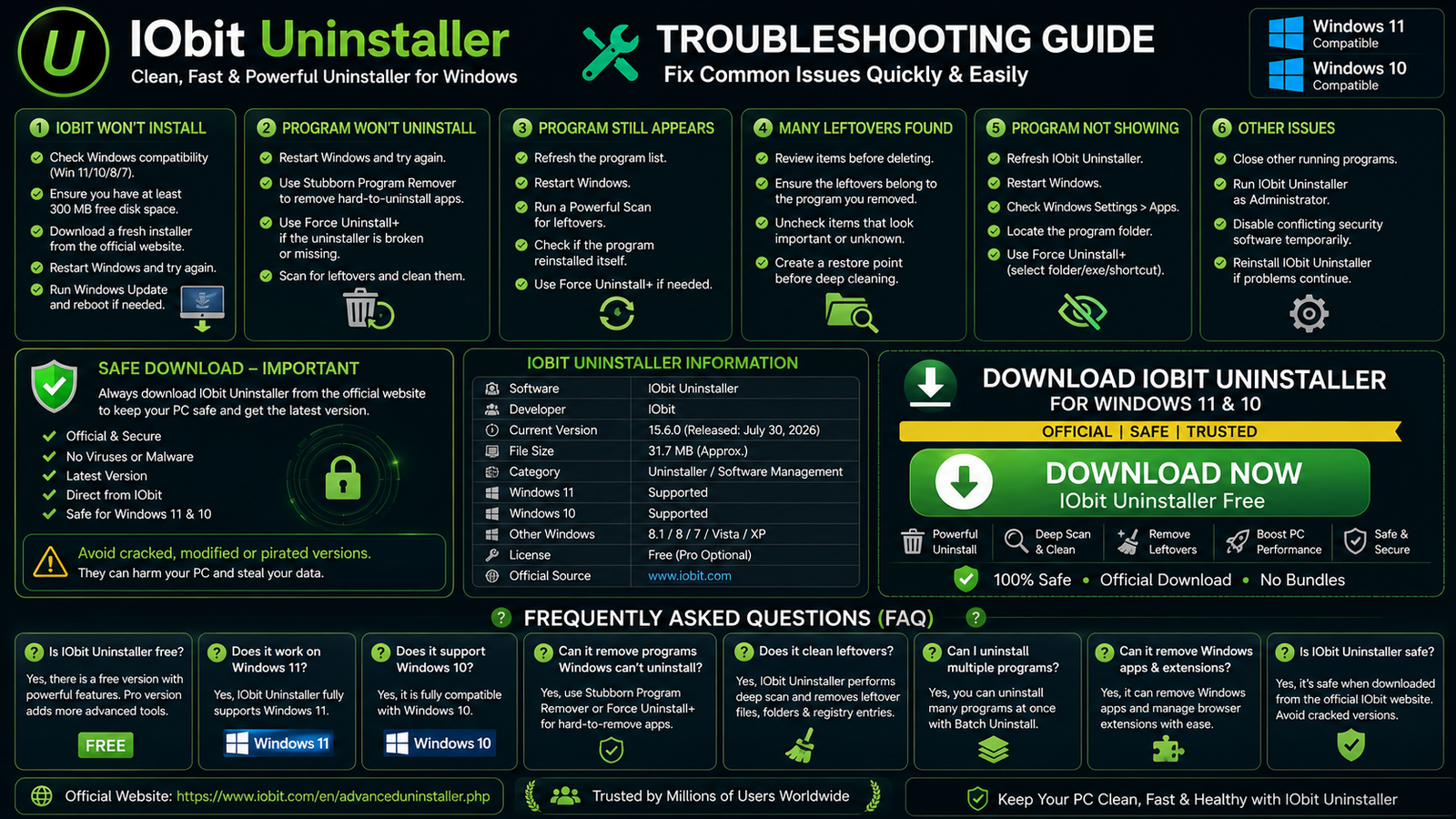
IObit Uninstaller Won’t Install
Confirm that your Windows version is supported, check that you have sufficient free storage, download a fresh installer from IObit, restart Windows, and install important Windows updates.
A Program Won’t Uninstall
Try the normal Uninstall option first. If it fails, restart Windows, reopen IObit Uninstaller, try the standard removal again, and use Stubborn Program Remover or Force Uninstall+ only if necessary.
Program Still Appears After Uninstalling
Restart Windows, run another leftover scan, check whether the application has reinstalled itself, inspect its remaining folder, and use Force Uninstall+ when appropriate.
Do not manually delete random registry entries unless you know exactly what they belong to.
IObit Found Many Leftovers
A large number of leftover entries does not automatically indicate a serious problem. Applications can create many small configuration files, caches, and registry items.
Review the results and be cautious with shared components that may be used by multiple applications.
IObit Uninstaller Is Not Showing a Program
Refresh or reopen IObit Uninstaller, restart Windows, check Windows Settings → Apps, inspect the program’s installation folder, and consider Force Uninstall+ if the normal uninstall registration is damaged.
How to Uninstall IObit Uninstaller
Windows 11
Open Settings → Apps → Installed apps, find IObit Uninstaller, and select Uninstall.
Windows 10
Open Settings → Apps, find IObit Uninstaller, and choose Uninstall.
Safe Download – Important
Always obtain IObit Uninstaller from IObit’s official website. The official product page currently lists IObit Uninstaller 15.6.0 for Windows 11, Windows 10, and supported older Windows versions.
Visit the official IObit Uninstaller website to get the current installer.
- IObit Uninstaller Pro cracked.
- IObit Uninstaller activated.
- Pre-activated IObit Uninstaller.
- Modified or repacked builds.
- Pirated Pro keys.
- Torrent downloads.
- Unknown third-party mirrors.
Frequently Asked Questions
Is IObit Uninstaller free?
Yes. IObit offers a Free edition as well as an optional paid Pro edition.
Does IObit Uninstaller work on Windows 11?
Yes. Windows 11 is officially supported.
Does IObit Uninstaller support Windows 10?
Yes. Windows 10 is supported.
What is the current IObit Uninstaller version?
As of August 2026, IObit’s official website lists version 15.6.0.
Can IObit remove programs that Windows cannot uninstall?
Yes. Stubborn Program Remover and Force Uninstall+ are designed for difficult or damaged uninstallations.
Does IObit Uninstaller remove leftover files?
Yes. Leftover scanning and cleanup are core IObit Uninstaller features.
Can I uninstall multiple programs at once?
Yes. IObit Uninstaller supports batch removal of multiple selected applications.
Can IObit Uninstaller remove Windows apps?
Yes. It can manage pre-installed Windows apps and Microsoft Store applications, but be careful with built-in Windows components.
Can IObit Uninstaller remove browser extensions?
Yes. It can display and manage installed browser extensions and toolbars.
What does Install Monitor do?
Install Monitor tracks system changes made during software installation so associated changes can be identified when the program is later removed.
What is Software Health?
Software Health checks software-related issues such as leftovers, outdated applications, permissions, redundant files, notifications, and problematic browser extensions.
Is IObit Uninstaller an antivirus?
No. It is primarily an uninstall and software-management utility. Continue using appropriate antivirus protection.
Is IObit Uninstaller better than Windows’ built-in uninstaller?
It provides additional features such as batch uninstall, leftover scanning, stubborn-program removal, Force Uninstall+, Install Monitor, and other software-management tools. Windows’ built-in option may still be enough for normal removals.
Should I create a restore point before uninstalling software?
It can be a sensible precaution before removing complicated or stubborn programs. IObit Uninstaller supports creating restore points before removal.
Is a cracked IObit Uninstaller Pro safe?
No. Avoid cracked or modified versions. Use the official Free edition or purchase Pro legitimately.
Final Thoughts
IObit Uninstaller is most useful when Windows’ standard uninstall functionality is not enough. Its strongest features include leftover cleanup, batch uninstall, Stubborn Program Remover, Force Uninstall+, Install Monitor, Software Health, Windows app management, browser extension removal, and additional software-management tools.
Not every Windows user needs a separate uninstaller, but it can be valuable for people who frequently install and remove software or need to clean stubborn programs and their leftovers.
Most importantly, review programs before removing them, use restore points for difficult removals, and obtain IObit Uninstaller only from the official IObit source.
Ready to download IObit Uninstaller?
Get the latest supported Windows installer from the official IObit website. ABDNOVA recommends official sources only.


