

AVG AntiVirus Free Download for Windows 11 & 10
Download AVG AntiVirus Free for Windows 11 and Windows 10 to get real-time malware protection, Smart Scan, virus scanning, quarantine, and automatic security updates.
AVG AntiVirus Free is a free security application for Windows that helps protect your computer against viruses, malware, spyware, ransomware, malicious downloads, and other online threats.
It provides continuous real-time protection along with manual virus scanning, Smart Scan, automatic threat-definition updates, and security tools designed for everyday Windows users.
The current AVG AntiVirus FREE 26.x supports Windows 11 and Windows 10, including both 32-bit and 64-bit Windows 10. Compatible Windows ARM64 systems are also supported, although some advanced features have limitations on Windows 11 ARM.
This guide explains AVG AntiVirus Free Download for Windows, installation, Smart Scan, Full Virus Scan, real-time protection, malware detection, quarantine, Microsoft Defender comparison, troubleshooting, safe download, and removal.
What Is AVG AntiVirus Free?
AVG AntiVirus Free is the free antivirus product from AVG. Its primary purpose is to detect and block malicious software before it can harm your Windows computer.
AVG provides real-time malware protection rather than relying only on manual scans.
AVG AntiVirus Free can help protect against:
- Viruses
- Malware
- Spyware
- Ransomware
- Trojans
- Malicious files
- Unsafe downloads
- Suspicious applications
- Potentially harmful browser content
AVG continuously receives program and antivirus-database updates through the internet to improve protection against newer threats.
AVG AntiVirus Free at a Glance
| Information | Details |
|---|---|
| Software | AVG AntiVirus FREE |
| Developer | AVG |
| Category | Antivirus / Security |
| Current Windows Line | AVG AntiVirus FREE 26.x |
| Windows 11 | Supported |
| Windows 10 | Supported |
| 32-bit / 64-bit | Supported |
| ARM64 | Supported with some limitations |
| Real-Time Protection | Yes |
| Virus & Malware Scanning | Yes |
| Smart Scan | Yes |
| Automatic Updates | Yes |
| Price | Free |
| Internet | Required for download, activation and updates |
| Official Source | AVG website |
Download AVG AntiVirus Free for Windows
Antivirus software should be downloaded only from its genuine developer.
For AVG, use the official AVG website or AVG’s official support download source.
This is especially important because antivirus applications receive extensive access to files and system activity.
- Modified AVG installers
- Cracked versions
- Unofficial repacks
- Torrent downloads
- Unknown download portals offering paid features for free
AVG already provides a legitimate free edition, so there is no reason to install a modified copy.
AVG AntiVirus Free System Requirements
| Requirement | Minimum |
|---|---|
| Operating System | Windows 11, Windows 10, Windows 8/8.1, or Windows 7 SP1 with required updates |
| Windows 10 Architecture | 32-bit or 64-bit |
| ARM Support | Compatible Windows ARM64 systems |
| Processor | Intel Pentium 4 / AMD Athlon 64 or newer with SSE3 |
| RAM | 1 GB or more |
| Disk Space | 2 GB free |
| Internet | Required for download, activation and updates |
AVG’s current 26.x requirements list 1 GB RAM and 2 GB of free disk space. :contentReference[oaicite:1]{index=1}
Windows 11 ARM64 Support
AVG AntiVirus FREE 26.x supports compatible Windows 11 ARM64 systems.
How to Install AVG AntiVirus Free on Windows
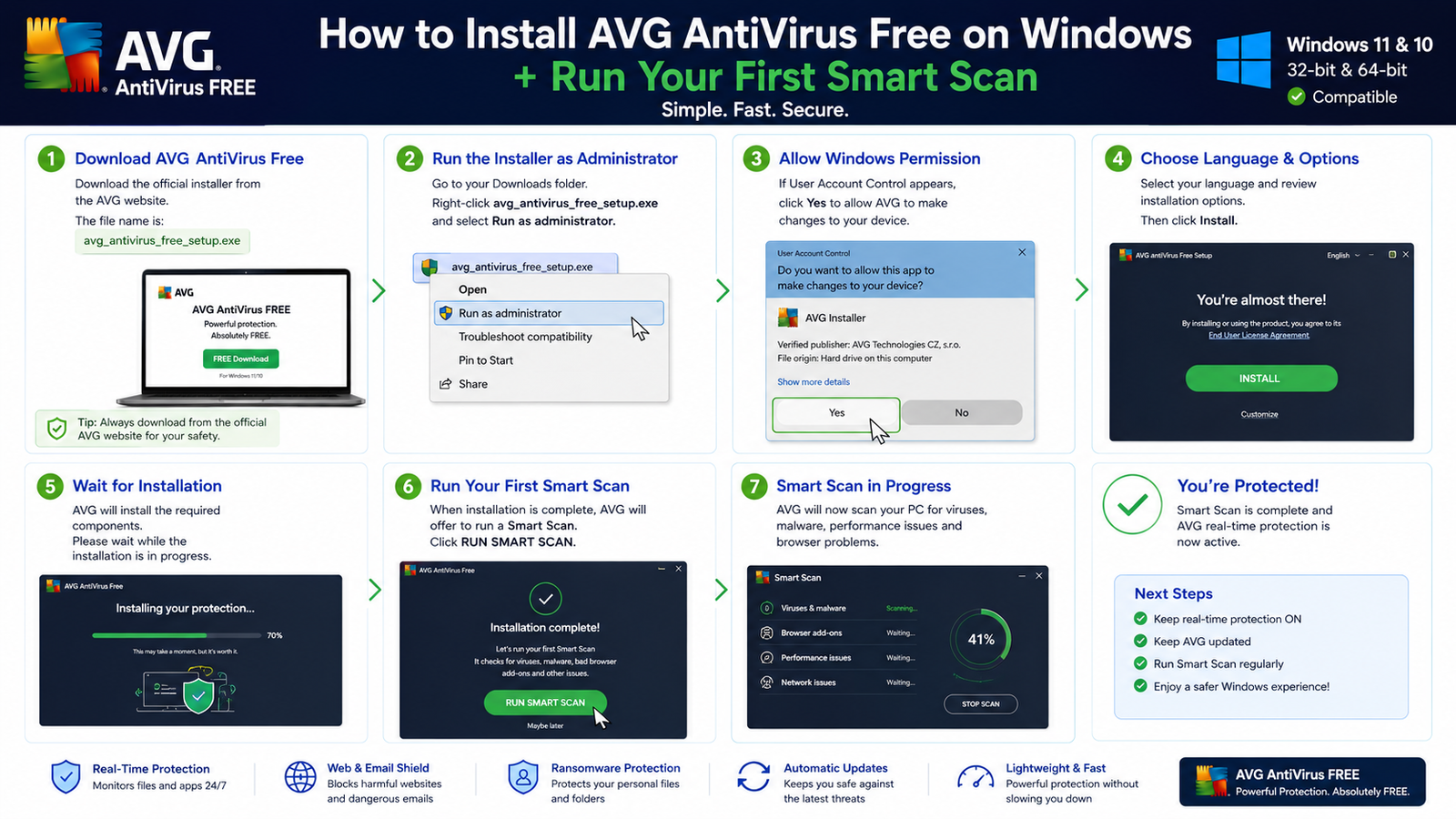
Step 1: Download AVG AntiVirus Free
Download the official Windows installer directly from AVG.
The setup filename documented by AVG is avg_antivirus_free_setup.exe. :contentReference[oaicite:2]{index=2}
Step 2: Run the Installer as Administrator
Right-click the downloaded setup file and select Run as administrator.
Step 3: Allow Windows Permission
If Windows User Account Control asks whether you want to allow the application to make changes, select Yes after confirming that the installer came from AVG.
Step 4: Review Installation Options
Choose the installation language and review the options shown instead of automatically accepting every optional component.
Step 5: Install AVG
Select Install and keep your internet connection active while AVG installs the required components.
Step 6: Run Your First Smart Scan
After installation, AVG offers the option to Run smart scan.
Smart Scan can check for malware, viruses, problematic browser add-ons, and other security-related issues.
Step 7: Restart Windows If Needed
Restart the PC if AVG requests it so that all protection components can initialize correctly.
AVG AntiVirus Free Main Interface
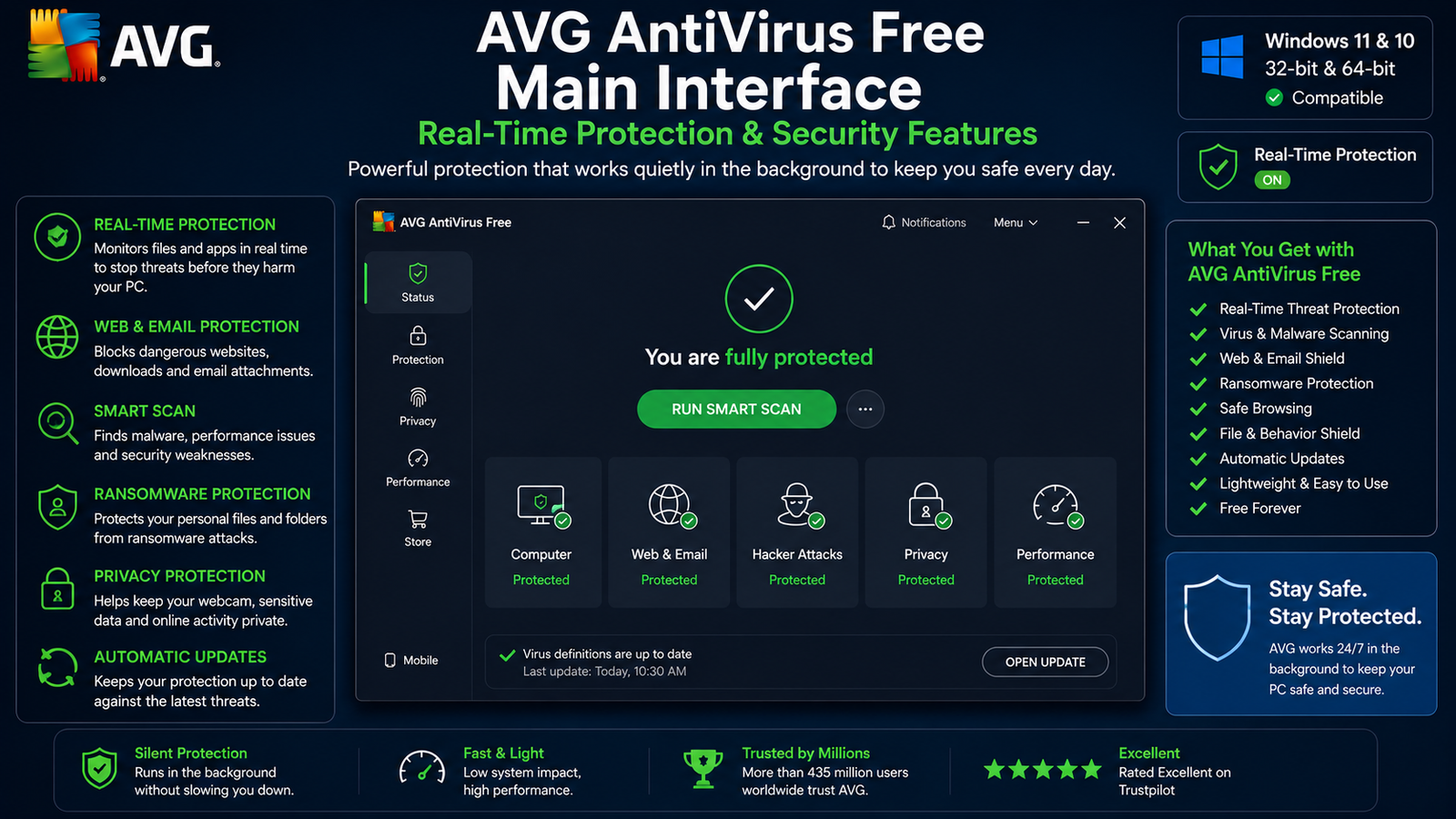
AVG uses a relatively simple security dashboard. The exact design can change between releases, but the main screen normally displays your protection status and provides access to scanning and security tools.
Common areas include:
- Computer protection
- Web & Email protection
- Virus scans
- Smart Scan
- Quarantine
- Settings
- Update options
- Performance and security recommendations
When active protection is working normally, AVG displays a protected status.
AVG Real-Time Protection, Malware, Ransomware & Web Security
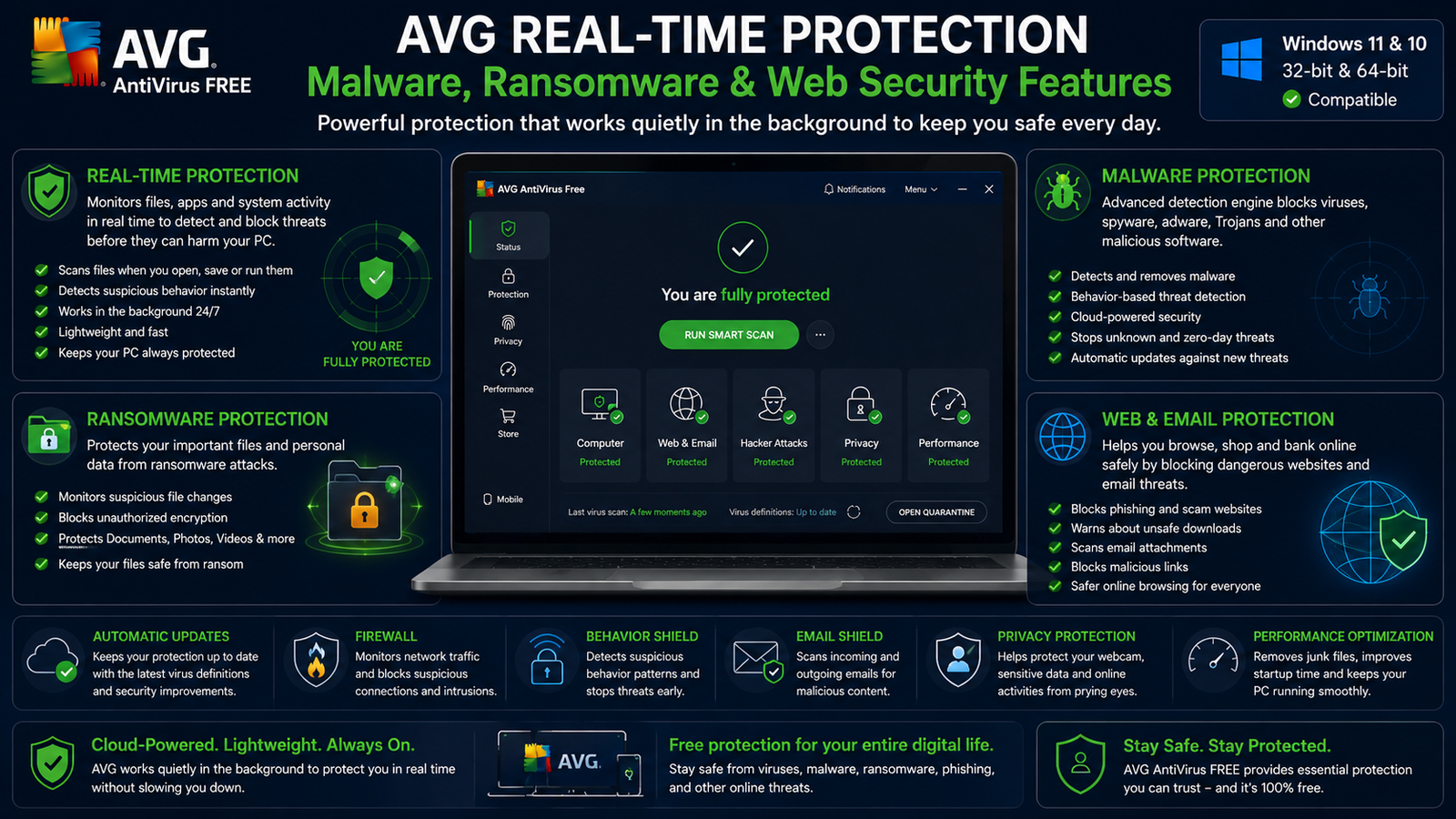
Real-time protection is the main reason to keep antivirus software running continuously.
Instead of waiting until you manually scan the computer, AVG monitors files, processes, applications, and other activity as you use Windows.
If suspicious content is detected, AVG can block or isolate it before it causes further damage.
AVG Security Shields
AVG’s security components work together to provide ongoing protection for areas such as files, web activity, email-related threats, and suspicious application behavior depending on the current product configuration.
For ordinary users, leaving AVG’s recommended protection configuration enabled is usually the best option.
AVG Smart Scan, Full Virus Scan, Malware Detection & Quarantine
AVG Smart Scan
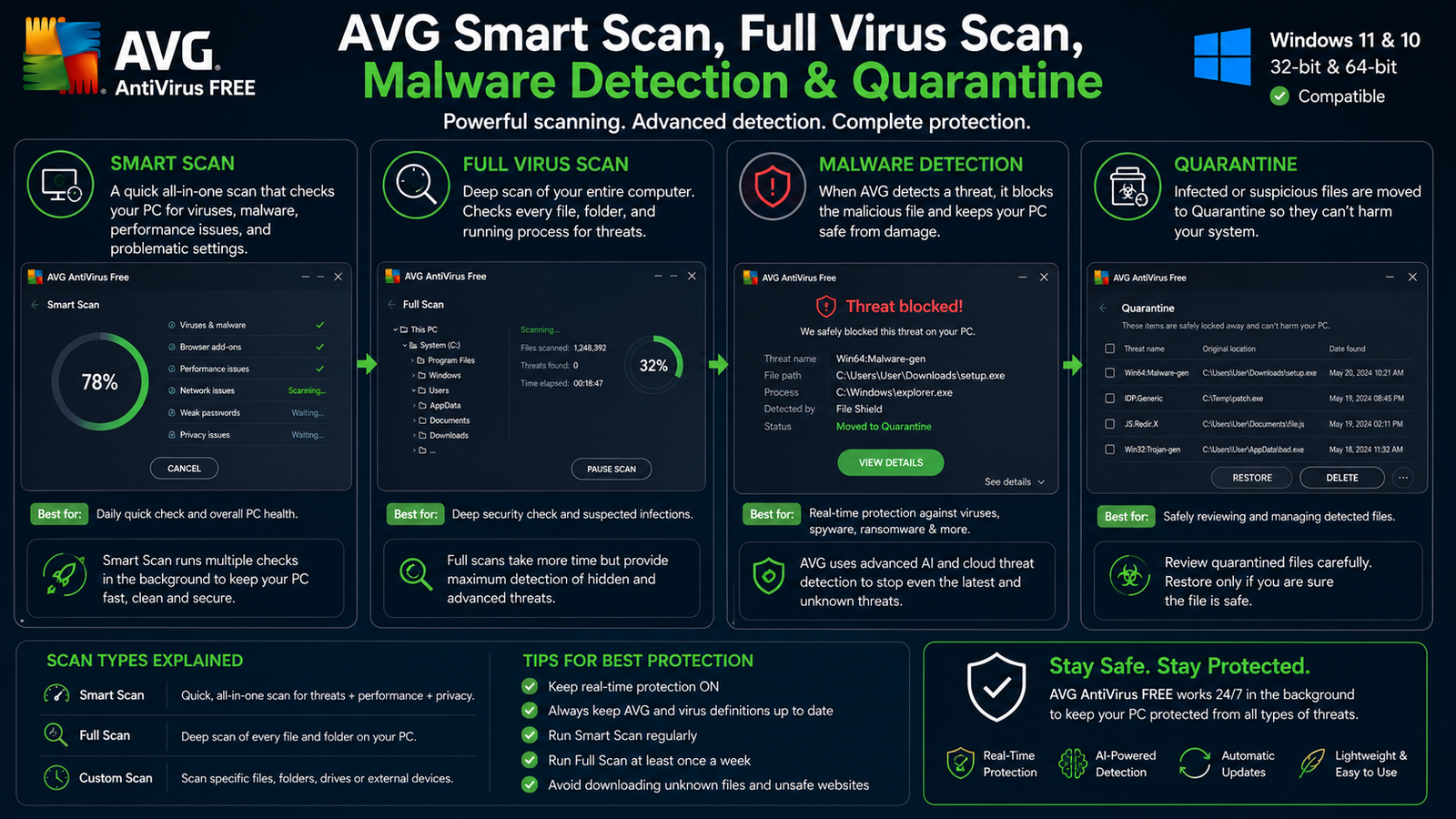
Smart Scan provides an all-in-one security check without requiring users to manually configure multiple scan types.
You may want to run Smart Scan:
- Immediately after installing AVG
- After downloading something suspicious
- When your PC behaves unusually
- If unexpected browser changes appear
- After removing questionable software
- As an occasional additional security check
You do not need to run Smart Scan constantly because AVG’s real-time protection continues operating in the background.
Full Virus Scan
A Full Virus Scan checks a broader portion of the computer than a quick security check.
Use it when:
- You suspect malware
- Smart Scan detected something concerning
- The PC is behaving unusually
- You have not scanned the computer for a long time
- You want a deeper security check
A full scan usually takes longer because it examines more files and locations.
Boot-Time Scan
AVG also provides Boot-Time Scan on compatible conventional Windows PCs.
A boot-time scan can inspect the computer before many normal Windows applications and services start running, which may help with certain persistent threats.
Most users do not need to run Boot-Time Scan regularly.
Malware Detection and Quarantine
If AVG identifies a suspicious or malicious file, it may block or isolate it so that the file cannot continue operating normally.
Isolated files are commonly placed in Quarantine.
AVG Detected a Safe File
Antivirus software can occasionally identify a legitimate file incorrectly. This is known as a false positive.
- Do not disable AVG completely.
- Check the file’s original source.
- Download a fresh copy from the official developer if possible.
- Make sure AVG is updated.
- Research the exact detection.
- Restore or exclude the file only if you are confident it is legitimate.
AVG Web Protection
AVG AntiVirus Free also includes protection designed to help identify threats encountered while browsing, downloading files, or handling email-related content.
Even with antivirus software installed, continue to avoid:
- Fake download buttons
- Phishing websites
- Pirated installers
- Suspicious browser extensions
- Unknown email attachments
AVG AntiVirus Free vs AVG Internet Security
AVG AntiVirus Free
Best suited to users who mainly want:
- Antivirus protection
- Real-time malware detection
- Virus scanning
- Smart Scan
- Basic everyday Windows security
AVG Internet Security
AVG Internet Security is a paid product that adds security functionality beyond the free antivirus.
You do not need a paid AVG subscription simply to use AVG’s core free antivirus protection.
AVG AntiVirus Free vs Microsoft Defender
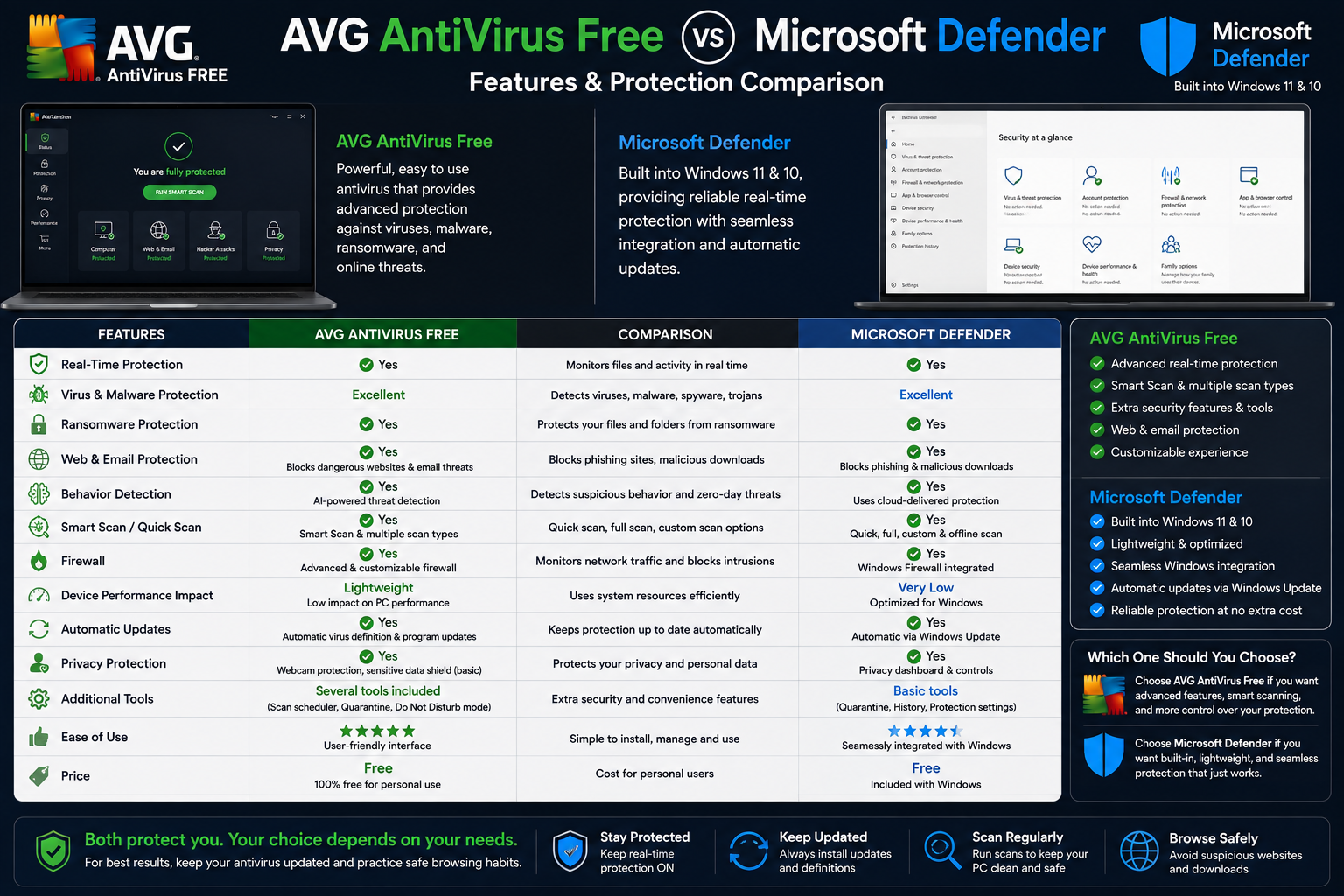
Windows 10 and Windows 11 already include Microsoft Defender Antivirus.
That means AVG is an optional third-party antivirus rather than a requirement for every Windows computer.
Microsoft Defender is integrated directly into Windows, while AVG provides a separate antivirus interface and its own scanning and security ecosystem.
Either can provide real-time antivirus protection when properly configured and kept updated.
Should You Use Both?
Avoid running multiple third-party real-time antivirus products simultaneously because this can cause conflicts and unnecessary resource use.
If you want an additional on-demand malware scanner rather than another always-on antivirus, see our Malwarebytes Download for Windows guide.
Automatic Security Updates
AVG relies on current program and antivirus database updates to identify newer threats.
Leave automatic updates enabled. An outdated antivirus application can provide weaker protection against newly discovered malware.
Does AVG Slow Down Windows?
Every real-time antivirus uses some system resources because it needs to inspect files and activity.
AVG may temporarily use more CPU, RAM, or disk during:
- Full scans
- Smart Scan
- Initial installation
- Virus-definition updates
- Program updates
If AVG seems unusually slow for a long time, first check whether a scan or update is currently running.
AVG AntiVirus Free Troubleshooting
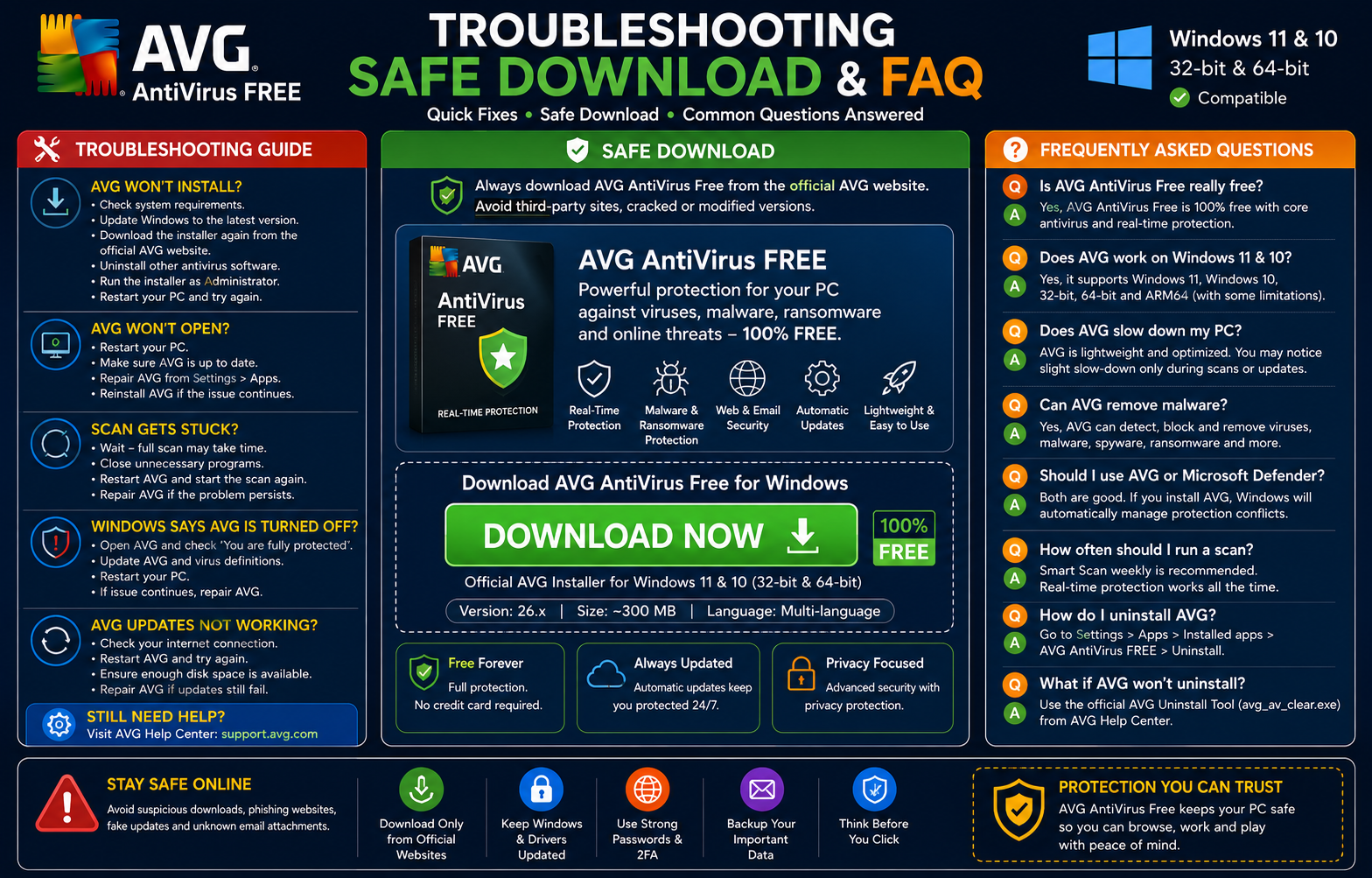
AVG AntiVirus Free Won’t Install
- Check the current system requirements.
- Install available Windows updates.
- Restart the PC.
- Download a fresh installer directly from AVG.
- Remove conflicting third-party antivirus software if necessary.
AVG Won’t Open
- Restart Windows.
- Check AVG updates.
- Check Windows updates.
- Try repairing AVG.
- Reinstall AVG if repair does not solve the problem.
AVG Scan Is Stuck
A large full scan can take considerable time. Do not immediately assume the scan has frozen.
If it genuinely stops progressing:
- Close unnecessary applications
- Restart AVG
- Restart Windows
- Update AVG
- Run the scan again
- Use AVG’s Repair function if the problem continues
How to Repair AVG AntiVirus Free
Repair can fix damaged AVG components without requiring a complete reinstall.
AVG recommends repair when features are not working, scans become stuck, or an application update fails.
On current Windows versions, open:
Open AVG’s available setup or modify option and choose Repair. Restart Windows afterward if requested.
Windows Says AVG Is Turned Off
If Windows Security reports that antivirus protection is missing or disabled even though AVG is installed, first check that:
- AVG is installed correctly
- AVG reports active protection
- The application is updated
- Virus definitions are current
Restart Windows after checking updates.
AVG Updates Not Working
- Check your internet connection
- Restart AVG
- Restart Windows
- Verify available disk space
- Check whether another firewall or security product is interfering
- Retry the update
If application updates continue to fail, try repairing AVG.
How to Uninstall AVG AntiVirus Free
Windows 11
Open Settings → Apps → Installed apps.
Find AVG AntiVirus FREE, open the menu beside it, and choose Uninstall.
Windows 10
Open Settings → Apps → Apps & features, select AVG AntiVirus FREE, and choose Uninstall.
AVG Won’t Uninstall
If standard Windows removal fails, AVG provides its own official AVG Uninstall Tool.
The documented utility is named avg_av_clear.exe.
Is AVG AntiVirus Free Safe?
The genuine AVG AntiVirus Free application is legitimate security software designed to provide malware scanning and real-time protection.
However, antivirus software cannot replace:
- Strong passwords
- Two-factor authentication
- Windows updates
- Safe browsing
- Careful downloading
- Backups of important files
- Common sense around scams
Safe Download – Important
Always get AVG AntiVirus Free from AVG’s official AVG antivirus page or AVG’s official support download source. The official Windows product page provides AVG AntiVirus FREE and confirms current Windows compatibility. :contentReference[oaicite:3]{index=3}
- Cracked AVG Internet Security
- Modified Free Antivirus installers
- Pre-activated versions
- Torrent copies
- Unknown third-party download packages
A modified antivirus installer can be especially risky because antivirus applications receive extensive system permissions.
ABDNOVA does not host modified AVG installers. Our final download button directs visitors to AVG’s official source.
Frequently Asked Questions
Is AVG AntiVirus Free really free?
Yes. AVG provides a free antivirus application for Windows. Paid AVG products are also available with additional features.
Does AVG work on Windows 11?
Yes. AVG AntiVirus FREE 26.x supports Windows 11.
Does AVG work on Windows 10?
Yes. AVG supports compatible 32-bit and 64-bit Windows 10 installations.
Does AVG support ARM64?
Yes. Compatible Windows ARM64 systems are supported, although Boot-Time Scan and Rescue Disk are unavailable on Windows 11 ARM.
How much RAM does AVG need?
AVG’s current AntiVirus FREE 26.x documentation lists 1 GB RAM or more.
How much disk space does AVG require?
AVG currently lists 2 GB of free disk space as the minimum.
Does AVG provide real-time protection?
Yes. AVG AntiVirus Free provides real-time malware protection in addition to manual virus scanning.
Should I run Smart Scan after installation?
Yes. AVG offers Smart Scan after installation to check for malware, problematic browser add-ons, and other issues.
Can AVG remove malware?
AVG AntiVirus Free provides malware scanning, detection, blocking, quarantine, and removal capabilities.
Does Windows already include antivirus?
Yes. Windows 10 and Windows 11 include Microsoft Defender Antivirus. AVG is an optional third-party alternative.
Should I use AVG and Avast together?
No. Running multiple third-party antivirus products with real-time protection can cause conflicts and unnecessary resource use. Choose one primary real-time antivirus.
What should I do if an AVG scan freezes?
Update AVG and restart the scan. If the problem continues, try AVG’s Repair function.
What if AVG won’t uninstall?
Use AVG’s official AVG Uninstall Tool if normal Windows removal fails.
Should I download cracked AVG Internet Security?
No. Modified antivirus applications are a major security risk. Use AVG AntiVirus Free or purchase AVG’s paid products legitimately.
Final Thoughts
AVG AntiVirus Free is a practical security option for Windows users who want a dedicated third-party antivirus with real-time malware protection, Smart Scan, deeper virus scanning, quarantine, and automatic security updates.
The current AVG AntiVirus FREE 26.x supports Windows 11, Windows 10, and compatible ARM64 Windows systems. Current requirements include 1 GB RAM and 2 GB of free disk space. :contentReference[oaicite:4]{index=4}
Windows already includes Microsoft Defender, so AVG is not mandatory. Users who prefer AVG’s interface and scanning tools can choose AVG, while users satisfied with Windows Security can continue using Microsoft’s built-in antivirus.
Whichever option you use, keep only one primary third-party real-time antivirus active, keep security definitions updated, avoid cracked software, and download antivirus installers only from official sources.
Ready to download AVG AntiVirus Free?
Get the official Windows installer directly from AVG. ABDNOVA recommends official sources only.


