


WhatsApp Download for Windows

WhatsApp Download for Windows gives Windows 11 and compatible Windows 10 users access to the official desktop app for messaging, voice and video calls, file sharing, group conversations, notifications, and linked-device access directly from a PC.
WhatsApp Download for Windows – Quick Overview
| Software | |
| Developer | WhatsApp LLC / Meta |
| Category | Communication |
| Platform | Windows |
| Windows 11 | Supported |
| Windows 10 | Supported on compatible versions |
| Desktop App | Available |
| Web Version | Available |
| Text Messaging | Yes |
| Voice Calls | Yes |
| Video Calls | Yes |
| File Sharing | Yes |
| Linked Devices | Yes |
| Price | Free |
What Is WhatsApp for Windows?
WhatsApp for Windows is the desktop version of the WhatsApp messaging service. After linking your computer to your existing WhatsApp account, you can send messages, share media and documents, join group conversations, make supported voice and video calls, and receive notifications from your Windows PC.
WhatsApp Desktop – Main Interface

The desktop interface is designed for easy messaging on a larger screen. It typically provides a chat list, search, conversation area, message box, attachment controls, and settings for privacy, notifications, chats, storage, appearance, and other preferences.
WhatsApp Desktop Features

Messaging
Send and receive text messages, emoji, stickers, GIFs, voice messages, media, and documents directly from your PC.
Voice & Video Calls
WhatsApp Desktop supports calling features on compatible Windows computers. Before an important call, check that Windows has granted WhatsApp permission to use your microphone and camera.
File Sharing
You can share supported photos, videos, documents, audio, and other attachments. This is convenient when the file you want to send is already stored on your computer.
Group Chats & Notifications
WhatsApp groups make it easy to communicate with family, friends, work contacts, study groups, communities, and event participants. The desktop app can also show Windows notifications for new messages.
WhatsApp Desktop 64-bit & Windows Compatibility

WhatsApp provides an official desktop application for supported Windows PCs. ABDNOVA focuses on Windows 11 and compatible Windows 10 versions. Since minimum requirements can change, users with older Windows builds should check the current official requirements before installing.
How to Install WhatsApp on Windows
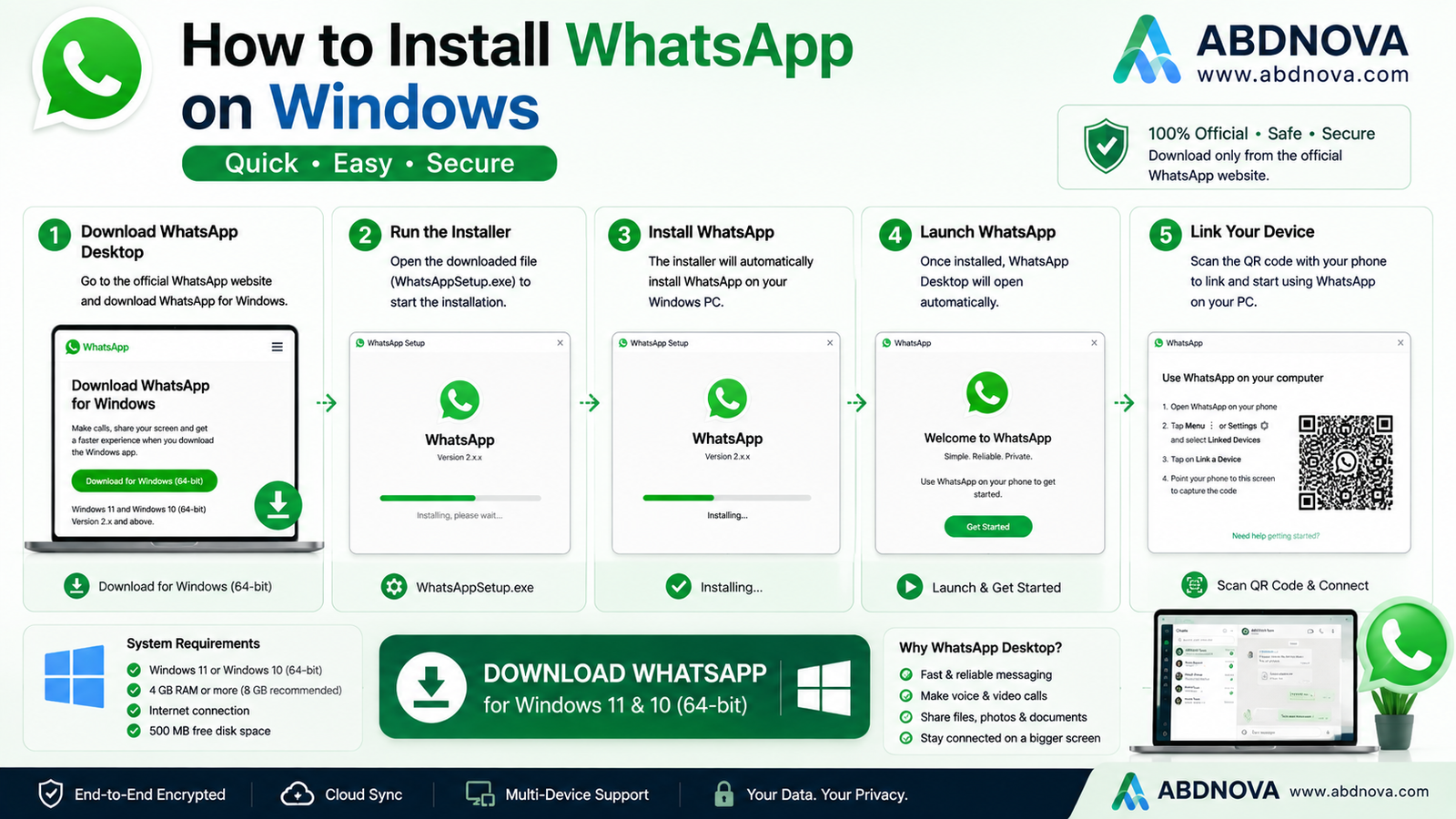
- Open the official WhatsApp download page.
- Choose the Windows desktop option.
- Use the official installation option provided.
- Wait for Windows to complete the installation.
- Launch WhatsApp.
- Link the PC to your existing WhatsApp account.
- Allow your chats to synchronize.
Avoid modified or unofficial WhatsApp installers from unknown third-party websites.
How to Link WhatsApp Desktop with Your Phone

When you first open WhatsApp Desktop, you will normally see a QR code. Use WhatsApp on your phone to link the computer.
Typical process:
WhatsApp on Phone → Linked Devices → Link a Device → Scan QR Code
Point your phone camera at the QR code shown in the Windows app. Once verified, your PC becomes a linked device.
WhatsApp Voice, Video Calls & File Sharing

WhatsApp Desktop can be useful when you want to communicate while working on a computer. On compatible systems, you can make supported voice and video calls and quickly share files already stored on the PC.
WhatsApp Desktop vs WhatsApp Web
| Feature | Desktop App | WhatsApp Web |
|---|---|---|
| Installation | Required | No |
| Messaging | Yes | Yes |
| Linked Device | Yes | Yes |
| Browser Required | No | Yes |
| Desktop Notifications | Yes | Browser dependent |
| Regular PC Use | Recommended | Convenient |
| Quick Temporary Access | Good | Excellent |
WhatsApp vs Telegram Desktop
Both WhatsApp and Telegram offer Windows apps, messaging, calls, groups, channels, web access, and multi-device support. WhatsApp is particularly convenient for everyday communication with contacts who already use WhatsApp, while Telegram places a stronger focus on large public communities, channels, bots, and cloud-based access.
Related Guide: Read our Telegram Desktop Download for Windows guide.
WhatsApp Privacy & Security
WhatsApp states that personal messages and calls are protected with end-to-end encryption. Users should still protect their accounts by enabling two-step verification, reviewing linked devices, removing unknown devices, never sharing verification codes, and being cautious with suspicious links and attachments.
To enable additional account protection, open WhatsApp on your phone and go to:
Settings → Account → Two-step verification
Common WhatsApp Desktop Problems and Fixes

WhatsApp Won’t Install
Restart Windows, check Windows Updates, try the official download again, and confirm that your PC meets the current requirements.
WhatsApp Won’t Open
Close WhatsApp, restart Windows, update the app, check Microsoft Store updates if applicable, use Windows repair or reset options if available, or reinstall WhatsApp.
QR Code Won’t Scan
Clean your phone camera, increase monitor brightness, make sure the entire QR code is visible, check internet access on both devices, refresh the QR code, and update WhatsApp on your phone.
Messages Aren’t Syncing
Check your internet connection, WhatsApp service availability, linked-device status, app updates, and firewall or network restrictions.
Microphone Not Working
Open Windows Settings → Privacy & security → Microphone and make sure WhatsApp has permission to access the microphone.
Camera Not Working
Open Windows Settings → Privacy & security → Camera, enable camera access, and close other applications that may already be using the webcam.
Notifications Not Working
Check Windows Settings → System → Notifications → WhatsApp and verify WhatsApp’s own notification settings. Windows Focus or Do Not Disturb settings can also suppress notifications.
Is WhatsApp for Windows Free?
Yes. The official WhatsApp desktop application can be downloaded and used without purchasing the software. Normal internet or data charges from your provider may still apply.
Is WhatsApp for Windows Safe?
Yes, when you use the genuine app from an official source. Avoid modified WhatsApp versions, keep the application updated, enable two-step verification, review linked devices, and never share verification codes.
Related Communication Guides
For large communities, channels, and cloud-based messaging, see our Telegram Desktop Download for Windows guide.
For online meetings and collaboration, see our Microsoft Teams Download for Windows guide.
WhatsApp FAQ
Can I download WhatsApp on Windows 11?
Yes. WhatsApp provides an official Windows desktop application for supported Windows PCs.
Does WhatsApp work on Windows 10?
WhatsApp supports compatible Windows systems, but users on older Windows 10 versions should check the current official requirements before installing.
Is WhatsApp for Windows free?
Yes. The official desktop application is free to download and use.
Do I need my phone to use WhatsApp on Windows?
You normally need your existing WhatsApp account and phone during the initial device-linking process. After the PC is linked, WhatsApp’s multi-device system allows the companion device to work more independently.
How do I connect WhatsApp to my computer?
Open WhatsApp on your phone, go to Linked Devices, choose Link a Device, and scan the QR code displayed by WhatsApp on your PC.
Can WhatsApp Desktop make video calls?
Yes. The Windows desktop application supports calling features on compatible systems.
Can I use WhatsApp without installing it?
Yes. You can use the official WhatsApp Web service in a supported browser.
Final Thoughts
WhatsApp for Windows is useful if you already use WhatsApp on your phone and want to manage messages, files, groups, voice calls, and video calls from a larger screen.
If you are looking for WhatsApp Download for Windows, use the official WhatsApp source, link your PC securely, keep the app updated, and review your linked devices regularly.
Ready to download WhatsApp?
Windows 11 & 10 • Free • Official Source
ABDNOVA does not host the WhatsApp installer. The button opens WhatsApp’s official download page or its official Windows distribution channel.


