
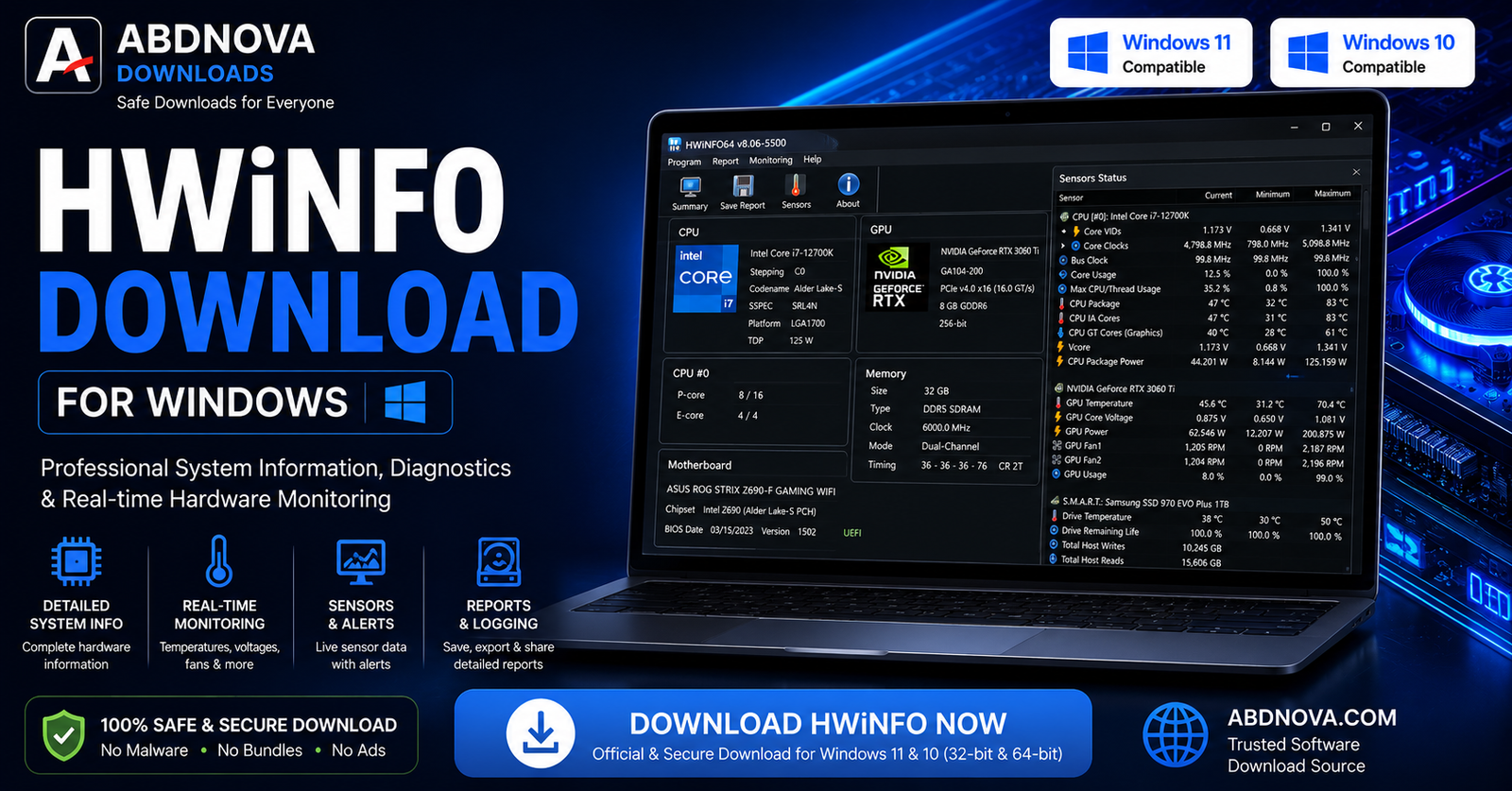

HWiNFO Download for Windows

HWiNFO Download for Windows gives Windows 11 and Windows 10 users detailed hardware information and real-time monitoring for CPU and GPU temperatures, fan speeds, voltages, storage devices, memory, motherboard information, clock speeds, power usage, and other supported system sensors.
HWiNFO Download for Windows – Overview
| Software | HWiNFO |
| Developer | REALiX |
| Platform | Windows |
| Supported Windows | Windows 11 & Windows 10 |
| Architecture | 64-bit |
| Category | System Information / Hardware Monitoring |
| Versions | Installer / Portable |
| Main Purpose | Hardware information and sensor monitoring |
What Is HWiNFO?
HWiNFO is a Windows hardware information, monitoring, and diagnostic utility. It can identify important PC components and display real-time sensor data from compatible hardware.
It is useful for checking processor and motherboard details, RAM configuration, graphics hardware, storage devices, BIOS information, temperatures, fan speeds, voltages, clock speeds, power usage, and other system information exposed by the hardware.
HWiNFO Main Interface and Features
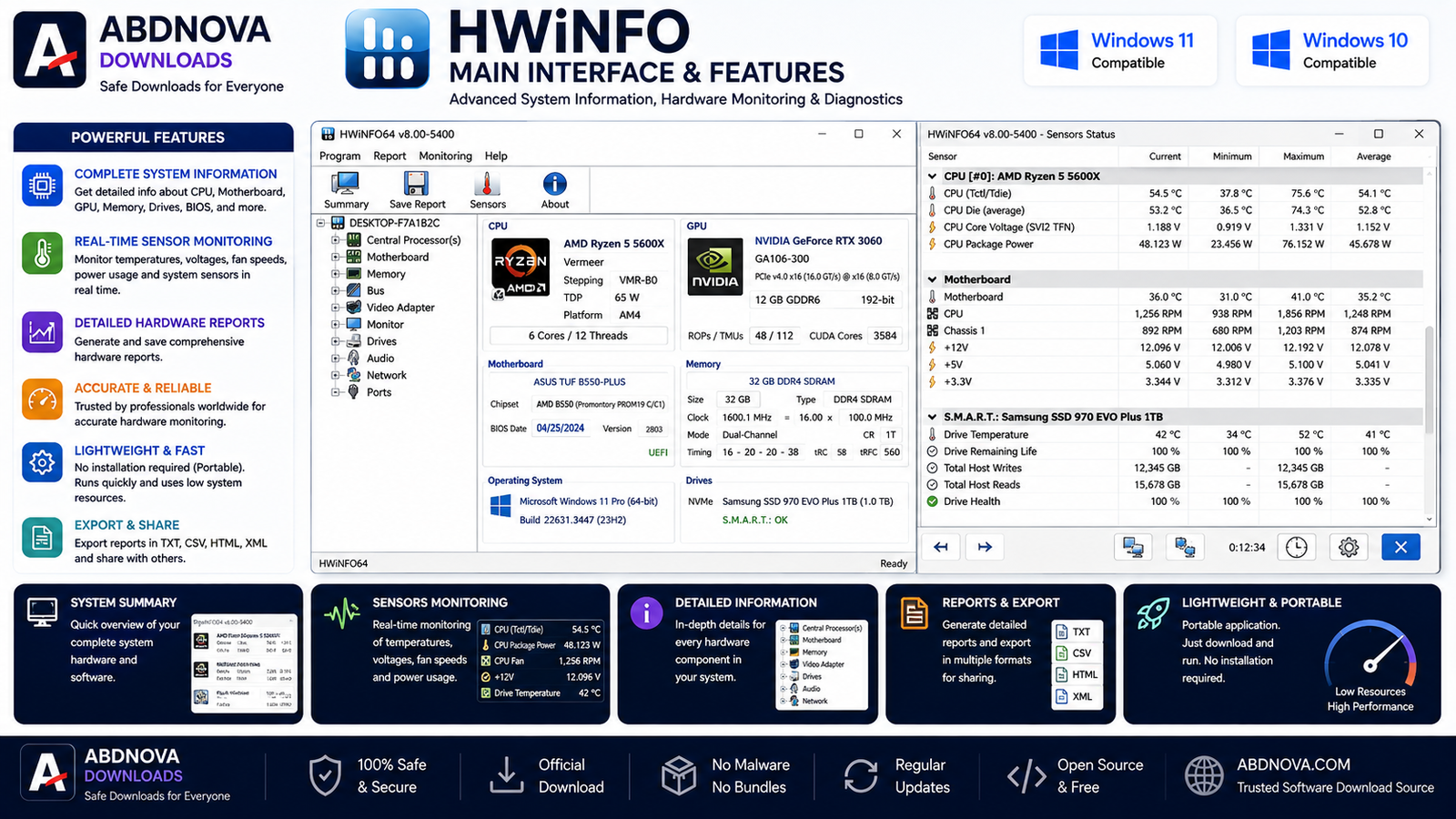
System Summary
The System Summary provides a quick overview of major hardware such as the CPU, motherboard, RAM, graphics adapter, storage devices, operating system, and clock speeds.
Detailed Hardware Information
The full interface organizes hardware into categories such as processor, motherboard, memory, bus, video adapter, monitor, drives, audio, network, battery, ports, and other devices.
Sensors-Only Mode
If you mainly want real-time monitoring, HWiNFO can be opened in Sensors-only mode. Sensor columns commonly include Current, Minimum, Maximum, and Average values.
HWiNFO Hardware Monitoring, Sensors and System Information
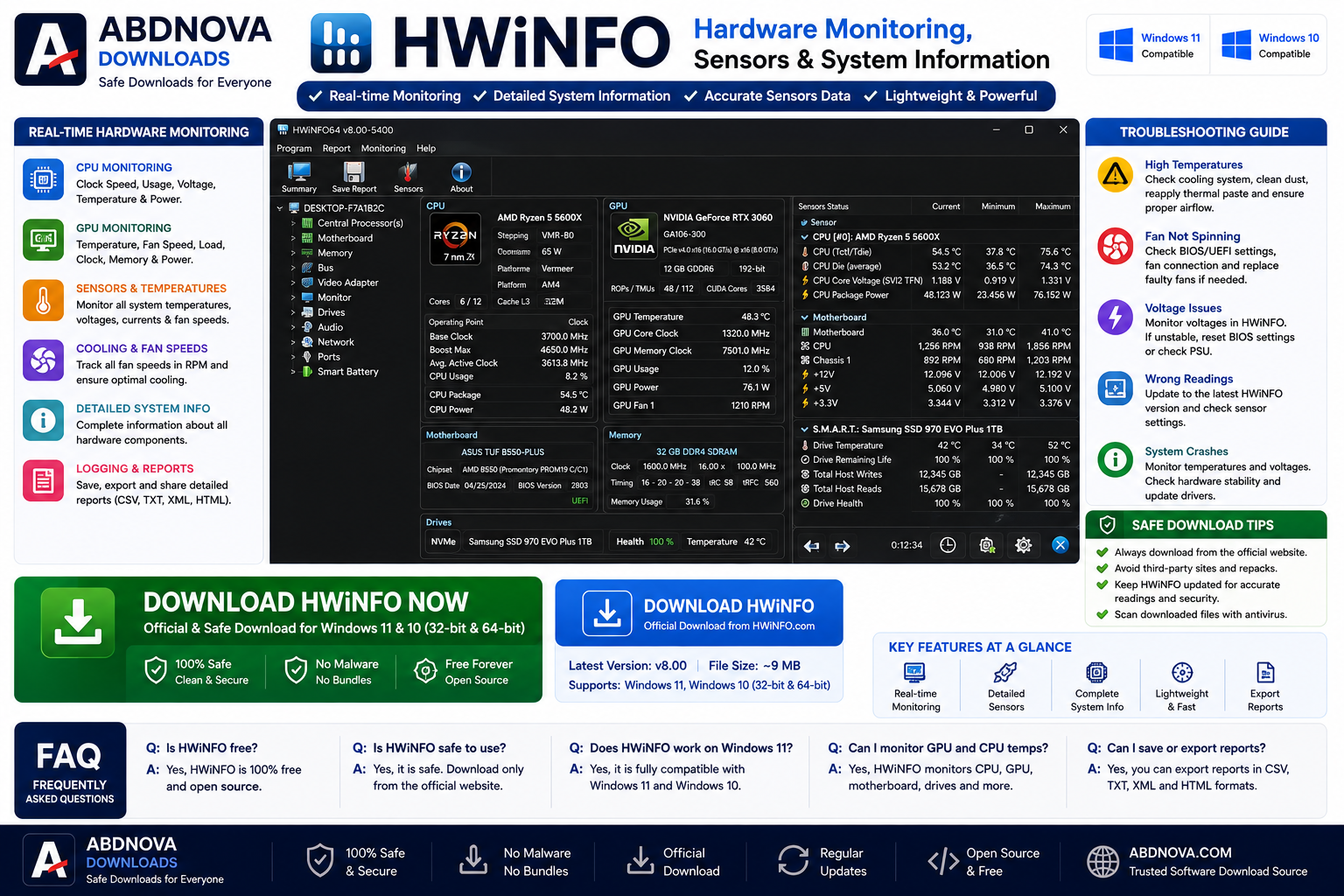
CPU Temperature Monitoring
Depending on the processor, HWiNFO can show individual core temperatures, CPU package temperature, current and maximum readings, CPU clocks, voltage, and power information. Always compare temperatures with guidance for your exact CPU model rather than relying on one universal temperature limit.
GPU Monitoring
Compatible graphics hardware may expose GPU temperature, hotspot temperature, memory temperature, clock speeds, fan speed, power usage, and utilization. Available readings depend on the GPU and driver.
Fan Speeds, Voltages and Power
HWiNFO can display supported fan RPM, voltage, and power sensors when the motherboard, laptop firmware, fan controller, or other hardware exposes that information.
SSD and HDD Monitoring
Depending on the drive, HWiNFO may show model, capacity, interface, firmware, temperature, S.M.A.R.T. information, and NVMe health data.
Sensor Logging
Sensor readings can be logged over time, which can help investigate overheating, thermal throttling, random shutdowns, performance drops, power issues, or unstable hardware.
How to Install HWiNFO on Windows
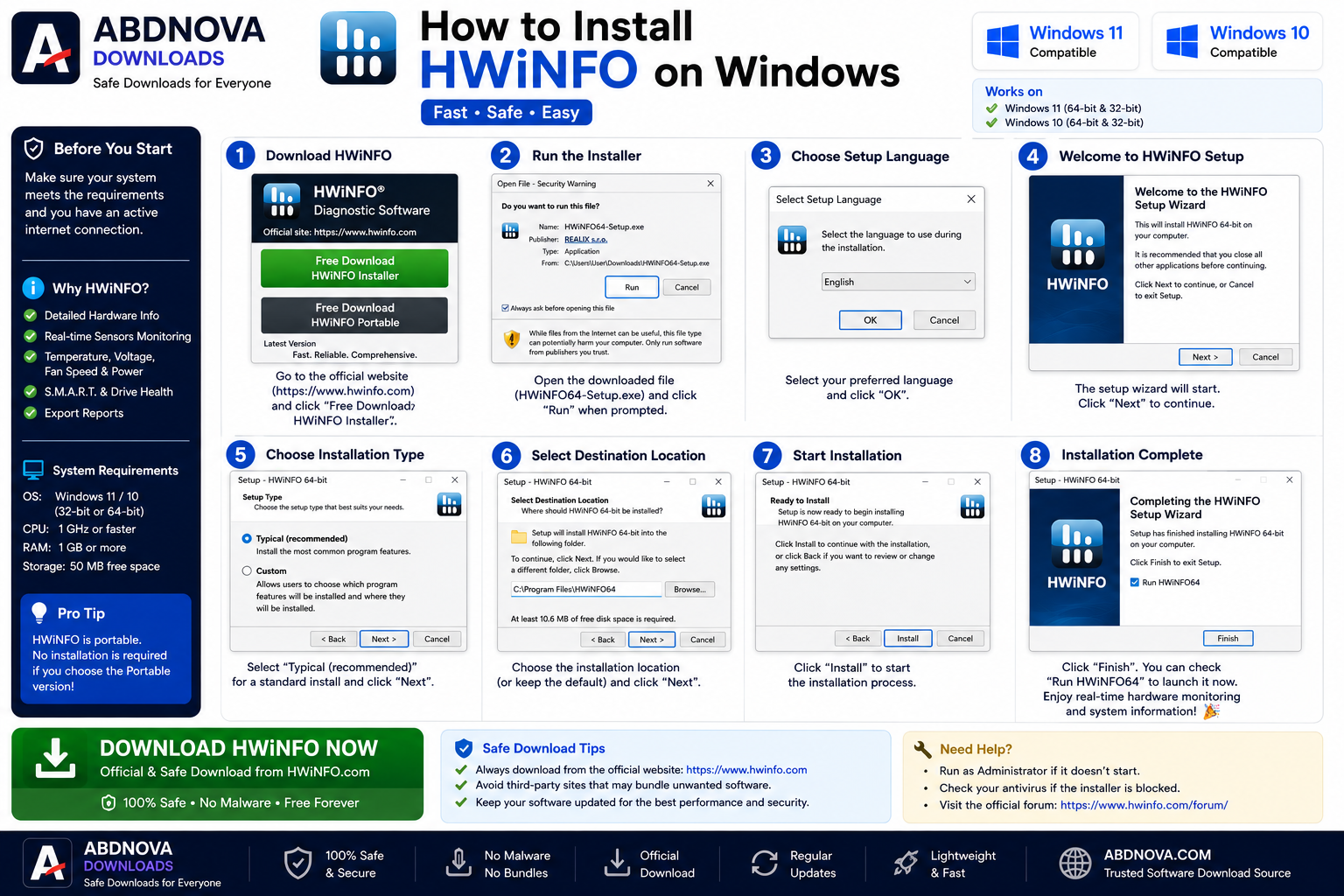
- Visit the official HWiNFO download page.
- Choose the current stable Windows release for normal use.
- Select the Installer version for a normal installation or Portable if you prefer to run HWiNFO without traditional installation.
- Download the selected file.
- Open the installer and confirm that it came from the expected official source if Windows shows a security prompt.
- Review the setup options and choose an installation location.
- Complete setup and launch HWiNFO.
- Choose Sensors-only, Summary-only, or the full program depending on what you need.
HWiNFO Installer vs Portable
| Feature | Installer | Portable |
|---|---|---|
| Installation Required | Yes | No |
| Start Menu Integration | Yes | Manual |
| Easy Setup | Excellent | Easy |
| Portable Use | No | Yes |
| Recommended For | Most users | Technicians / portable use |
How to Use HWiNFO Sensors
- Open HWiNFO.
- Choose Sensors-only if you only need monitoring.
- Wait for hardware and sensor detection.
- Locate the CPU, GPU, storage, motherboard, or other component you want to monitor.
- Check Current, Minimum, Maximum, and Average readings.
The Maximum column is particularly useful for checking peak CPU or GPU temperatures after gaming or another demanding workload.
HWiNFO vs CPU-Z
CPU-Z is excellent for quick CPU, motherboard, and memory identification. HWiNFO provides a broader system overview and much more extensive real-time sensor monitoring.
Related Guide: See our CPU-Z Download for Windows guide.
HWiNFO and Storage Health
HWiNFO can report supported storage temperatures and health information, while a dedicated drive-health utility can provide a more storage-focused view.
Related Guide: See our CrystalDiskInfo Download for Windows guide.
Common HWiNFO Problems and Fixes
HWiNFO Won’t Open
Restart Windows, install the latest stable version, verify the download source, install available Windows updates, try the portable version, and check whether security software blocked the application.
HWiNFO Shows No Sensors
Restart HWiNFO, update it, check BIOS or UEFI settings, update chipset drivers, and remember that some systems do not expose every sensor to third-party software.
Fan Speed Is Missing
Fan RPM availability depends on the motherboard sensor chip, BIOS, laptop firmware, fan controller, and hardware compatibility. Missing fan data does not automatically indicate a fault.
CPU Temperature Looks Too High
Make sure you are reading the correct CPU sensor and compare current, maximum, and workload values. If sustained temperatures remain unusually high, check cooling, dust, airflow, fan operation, and the processor manufacturer’s specifications.
HWiNFO Shows Strange Voltage Values
Update HWiNFO and compare suspicious values with BIOS monitoring or the motherboard manufacturer’s utility. Do not assume a hardware failure from a single unusual software reading.
HWiNFO Uses Too Much CPU
Close unused monitoring windows, increase sensor polling intervals, disable unnecessary sensors, update HWiNFO, and restart the application.
HWiNFO System Requirements
- Operating System: Windows 11 / Windows 10
- Architecture: 64-bit
- CPU: Modern Intel, AMD, or supported platform
- RAM: Minimal for normal monitoring
- Storage: Small application footprint
- Internet: Needed for download and updates
- Sensors: Availability depends on hardware support
Is HWiNFO Free?
HWiNFO offers free-use options for many personal or non-commercial users. Licensing can differ for commercial or professional use, so check the current official licensing terms if you plan to use it in a business environment.
Is HWiNFO Safe?
HWiNFO is a legitimate Windows hardware-monitoring utility. Download it from the official HWiNFO source, avoid modified installers, use a stable release for normal use, keep Windows and drivers updated, and verify unusual sensor readings before making hardware or BIOS changes.
HWiNFO FAQ
Does HWiNFO work on Windows 11?
Yes. HWiNFO supports modern Windows 11 systems.
Can HWiNFO show CPU temperature?
Yes. CPU temperature monitoring is one of HWiNFO’s commonly used sensor features.
Can HWiNFO show GPU temperature?
Yes. It can display supported GPU temperature and other graphics sensor information.
Can HWiNFO show fan speed?
Yes, when compatible hardware and firmware expose fan RPM data.
Does HWiNFO monitor SSD temperature?
Yes. Compatible storage devices can report temperature and other health information.
What is HWiNFO Sensors-only mode?
Sensors-only mode opens the real-time monitoring interface without loading the complete hardware-information tree.
Does HWiNFO overclock the CPU?
HWiNFO is primarily designed for hardware information and monitoring rather than CPU overclocking.
Final Thoughts
HWiNFO is a powerful choice for users who want both detailed hardware identification and real-time sensor monitoring in one Windows utility. It is especially useful for checking CPU and GPU temperatures, fan speeds, voltages, storage information, clocks, power data, and system sensors.
If you are looking for HWiNFO Download for Windows, use the official HWiNFO source and choose the current stable installer or portable version that fits your workflow.
Ready to download HWiNFO?
Windows 11 & 10 • 64-bit • Hardware Information & Monitoring
ABDNOVA does not host the HWiNFO installer. The button opens the official HWiNFO download page.


