
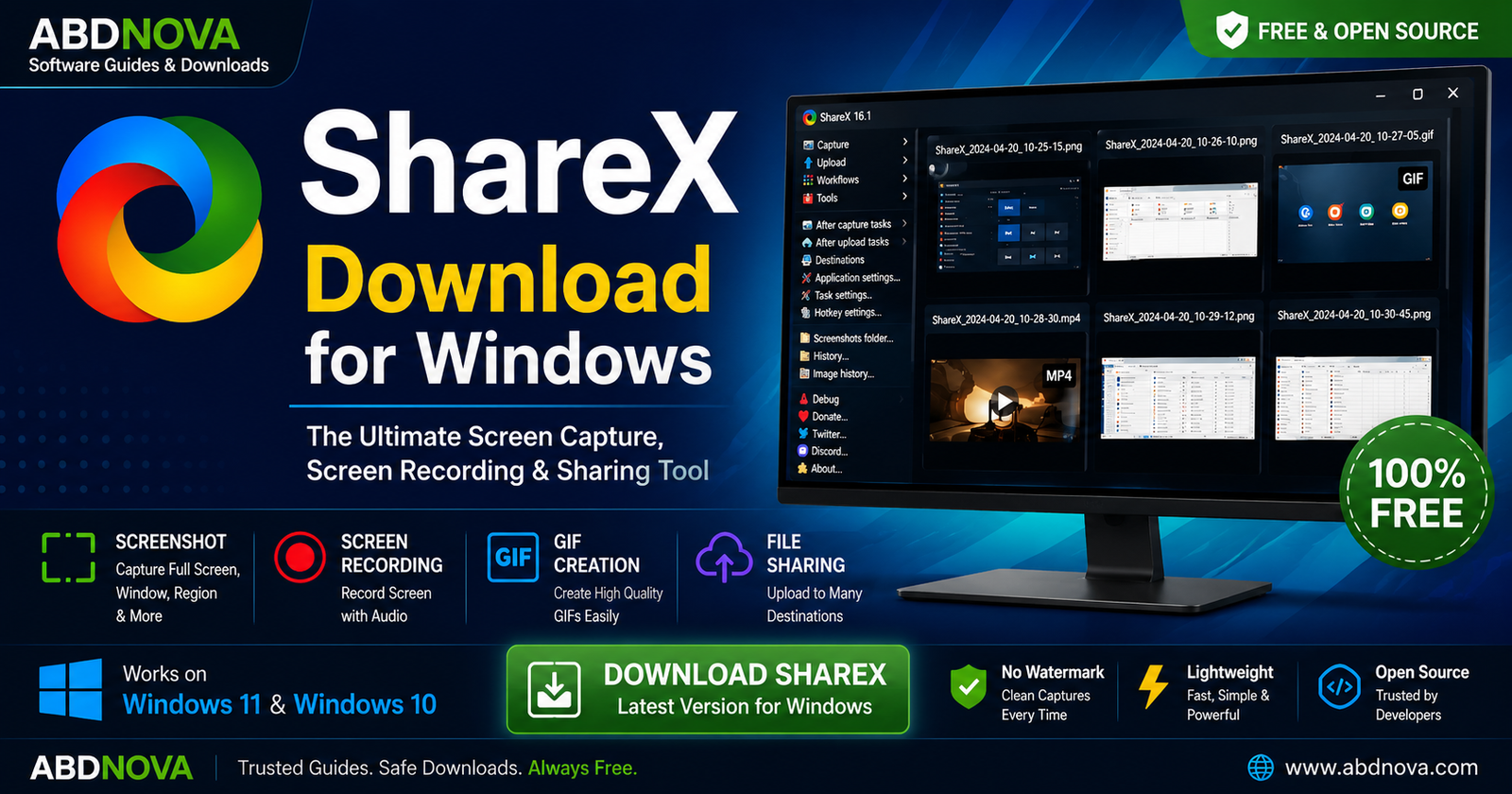

ShareX Download for Windows

ShareX Download for Windows gives you a free and open-source tool for screenshots, screen recording, GIF recording, scrolling capture, image annotation, OCR, and automated capture workflows. It is especially useful for tutorials, documentation, bug reports, software guides, and everyday productivity.
ShareX Download for Windows – Overview
| Software | ShareX |
| Platform | Windows |
| Supported OS | Windows 11 & Windows 10 |
| Category | Screenshot / Screen Capture |
| License | Free & Open Source |
| Cost | Free |
| Main Uses | Screenshots, Screen Recording, GIFs, OCR & Workflow Automation |
What Is ShareX?
ShareX is an open-source screen-capture and productivity utility designed primarily for Windows. It combines screenshot capture, screen recording, GIF recording, scrolling capture, image editing, OCR, color tools, QR tools, hotkeys, automation, and optional upload workflows in one application.
One of ShareX’s biggest strengths is customization. After taking a screenshot, you can configure actions such as opening the image editor, saving the file, copying it to the clipboard, or performing another selected task.
ShareX Main Interface, Screenshot and Screen Recording Features

Screenshot Capture
ShareX supports multiple capture methods, including full-screen capture, active window, specific monitor, custom region, rectangle region, scrolling capture, and auto capture.
Screen Recording
You can record a selected area of your screen for software demonstrations, short tutorials, troubleshooting guides, bug reports, and workflow demonstrations. ShareX can use FFmpeg for screen-recording functionality.
GIF Recording
For short demonstrations, ShareX can record selected areas as animated GIFs. This is useful when a full video would be unnecessary.
Scrolling Capture
Scrolling capture can help capture long webpages, documents, software windows, conversations, and tutorials that extend beyond the visible screen.
ShareX Screenshot, Screen Recording, GIF, OCR and Productivity Tools

ShareX Image Editor
After capturing a screenshot, you can annotate it with arrows, rectangles, circles, text, numbers, highlights, blur or pixelation, and crop tools.
OCR – Extract Text from Images
ShareX includes OCR functionality that can help extract visible text from an image or selected screen area. Accuracy depends on image quality, language, font, and text clarity.
Useful Productivity Tools
Additional ShareX tools can include a color picker, screen ruler, QR code tools, image effects, thumbnail utilities, and other screenshot-related productivity features.
Workflow Automation
ShareX can automate multi-step screenshot workflows. For example, a capture can open in the editor, save to a folder, copy to the clipboard, and then perform another configured action.
Custom Hotkeys
You can assign keyboard shortcuts for full-screen screenshots, region capture, window capture, screen recording, GIF recording, scrolling capture, and clipboard operations.
How to Install ShareX on Windows
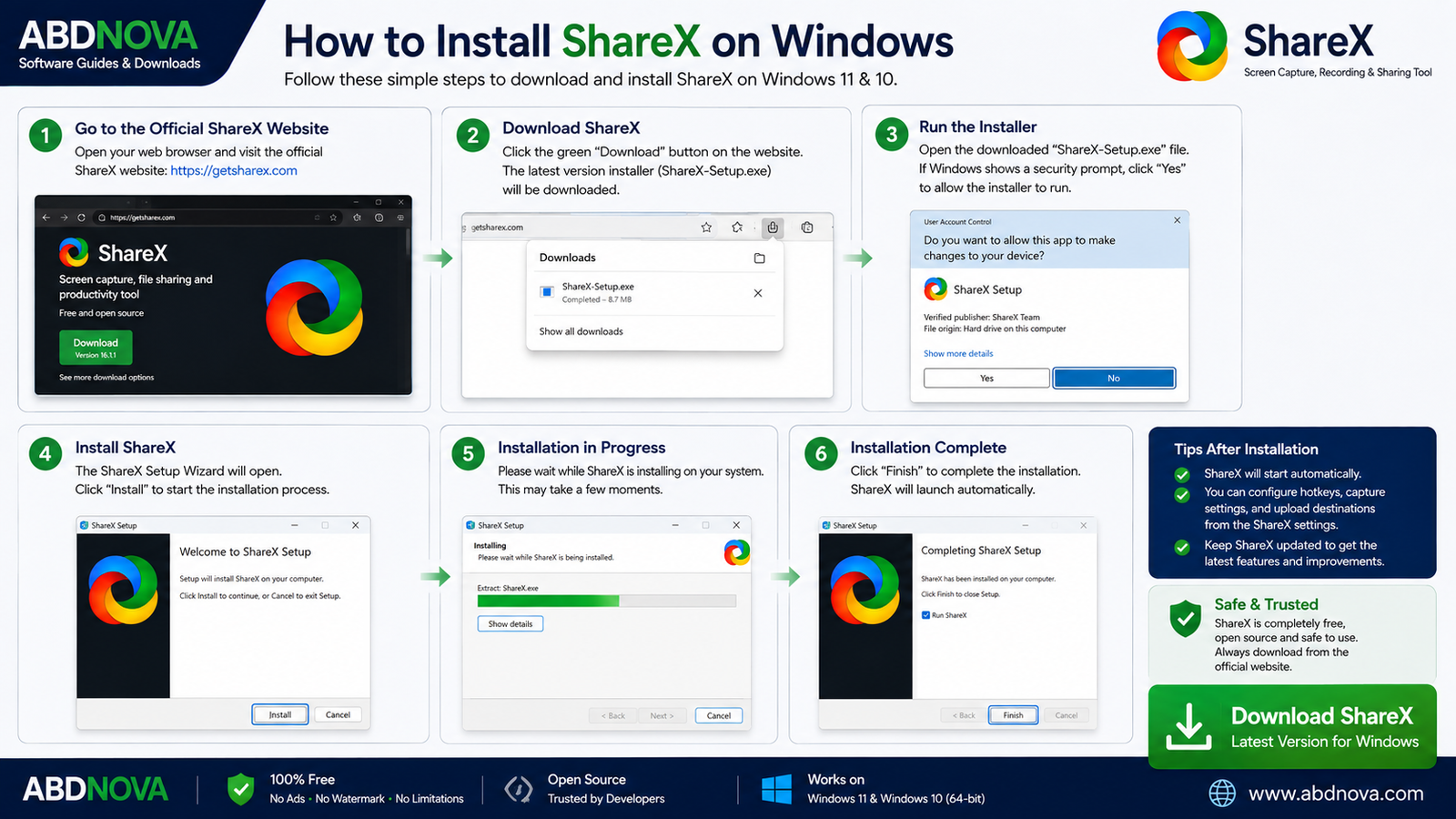
- Visit the official ShareX website.
- Choose the Windows download option.
- Download the installer from the official source.
- Open the setup file.
- If Windows displays a security prompt, verify the installer source before continuing.
- Follow the setup wizard.
- For most users, the default installation settings are sufficient.
- Complete installation and launch ShareX.
- Configure your preferred capture methods, hotkeys, folders, and after-capture actions.
How to Take a Screenshot with ShareX
- Open ShareX.
- Select Capture.
- Choose Region, Fullscreen, Window, or another capture method.
- Select the area you want to capture.
- Edit, save, or copy the screenshot according to your configured workflow.
ShareX vs Windows Snipping Tool
Windows Snipping Tool is convenient for quick and simple captures. ShareX is more suitable when you need advanced screenshot methods, screen recording, GIF creation, scrolling capture, image annotation, OCR, hotkeys, and automated workflows.
Related Screenshot and Recording Guides
If you need more advanced video recording or streaming features, see our OBS Studio Download for Windows guide.
For additional image editing after taking screenshots, see our Paint.NET Download for Windows guide.
For another lightweight screenshot utility, see our Greenshot Download for Windows guide.
ShareX System Requirements
- Operating System: Windows 11 or Windows 10
- Processor: Modern compatible Intel or AMD processor
- RAM: 2 GB minimum; 4 GB or more recommended
- Storage: A few hundred MB of free space recommended
- Display: Standard Windows-compatible display
- Internet: Needed for downloads, updates, and online upload features
ShareX Upload Features and Privacy
ShareX can integrate with online upload destinations, but uploading is different from simply saving files locally. Before enabling automatic uploads, check which service receives the screenshot, whether the image contains sensitive information, and whether the generated link is private or publicly accessible.
If you only want local screenshots, configure ShareX to save files locally without automatic uploading.
Common ShareX Problems and Fixes
ShareX Won’t Open
Restart Windows, update ShareX, use appropriate permissions, check Windows Security notifications, or reinstall ShareX from the official source.
Screenshot Hotkey Doesn’t Work
Another application may already be using the same shortcut. Open ShareX hotkey settings and assign a different keyboard combination.
Screen Recording Doesn’t Work
Check ShareX screen-recording settings and confirm that the required FFmpeg components are correctly configured.
Screenshot Saves to the Wrong Folder
Open ShareX settings and review the screenshot or destination-folder configuration. Choose a folder that is easy to locate and writable by your Windows account.
Scrolling Capture Doesn’t Work Correctly
Scrolling capture behavior can vary by browser or application. Try a smaller capture area, adjust scrolling-capture settings, use another browser, or update ShareX.
Screenshots Upload Automatically
Review the After capture tasks and After upload tasks. Disable automatic uploading if you want screenshots to remain only on your computer.
Is ShareX Free?
Yes. ShareX is free and open-source software. There is no subscription required for its core screenshot, screen-recording, editing, OCR, and productivity features.
Is ShareX Safe?
ShareX is a well-established open-source project. Download it from the official website or official project source, avoid modified installers, keep ShareX updated, keep Windows security enabled, and review upload settings before sending screenshots online.
ShareX FAQ
Is ShareX completely free?
Yes. ShareX is free and open-source software.
Does ShareX work on Windows 11?
Current ShareX releases support modern Windows systems, including Windows 11.
Can ShareX record my screen?
Yes. ShareX provides screen-recording functionality and can use FFmpeg for recording.
Can ShareX create GIFs?
Yes. You can record selected screen areas as animated GIFs.
Can ShareX capture scrolling webpages?
Yes. ShareX includes scrolling capture, although results can vary depending on the application or webpage.
Does ShareX have an image editor?
Yes. ShareX includes built-in image-editing and annotation tools for screenshots.
Is ShareX better than Snipping Tool?
It depends on your needs. Snipping Tool is simpler for basic captures, while ShareX provides more advanced capture, recording, editing, automation, and workflow features.
Final Thoughts
ShareX is a powerful Windows tool for screenshots, screen recording, GIF creation, scrolling capture, image annotation, OCR, and automated workflows. It offers far more customization than a basic screenshot utility while remaining free and open source.
If you are looking for ShareX Download for Windows, use the official ShareX source and configure capture and upload settings according to your privacy needs.
Ready to download ShareX?
Windows 11 & 10 • Free & Open Source • Official Download
ABDNOVA does not host the ShareX installer. The button opens the official ShareX download page.


