

Revo Uninstaller Download for Windows
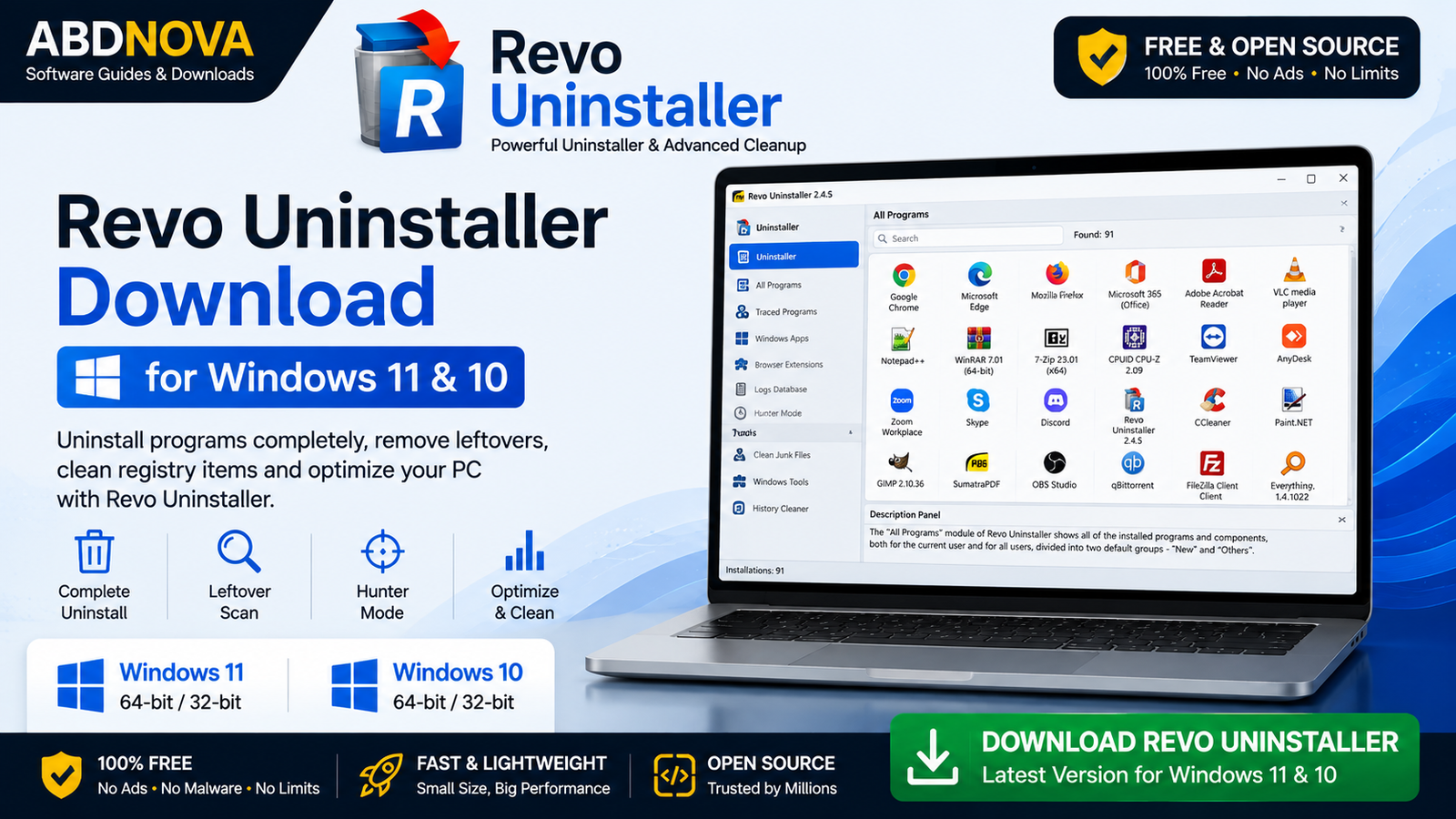
Revo Uninstaller Download for Windows gives users more control over removing unwanted programs and cleaning related leftovers. Revo can run a program’s normal uninstaller and then scan for remaining files, folders, and registry entries that may have been left behind.
Revo Uninstaller Download for Windows – Overview
| Software | Revo Uninstaller |
| Developer | VS Revo Group |
| Platform | Windows |
| Compatible OS | Windows 11 & Windows 10 |
| Category | Uninstaller / System Utility |
| License | Free / Paid Pro Version |
| Portable Version | Available with selected editions/packages |
| Best For | Removing programs and related leftovers |
What Is Revo Uninstaller?
Revo Uninstaller is a Windows software-management utility developed by VS Revo Group. Its main purpose is to uninstall programs and provide an additional scan for related leftovers after the application’s normal uninstall process finishes.
Common functions include program removal, leftover file and folder scanning, related registry-entry detection, Hunter Mode, startup management, cleanup tools, and additional advanced uninstall features depending on the edition.
Revo Uninstaller Main Interface and Features
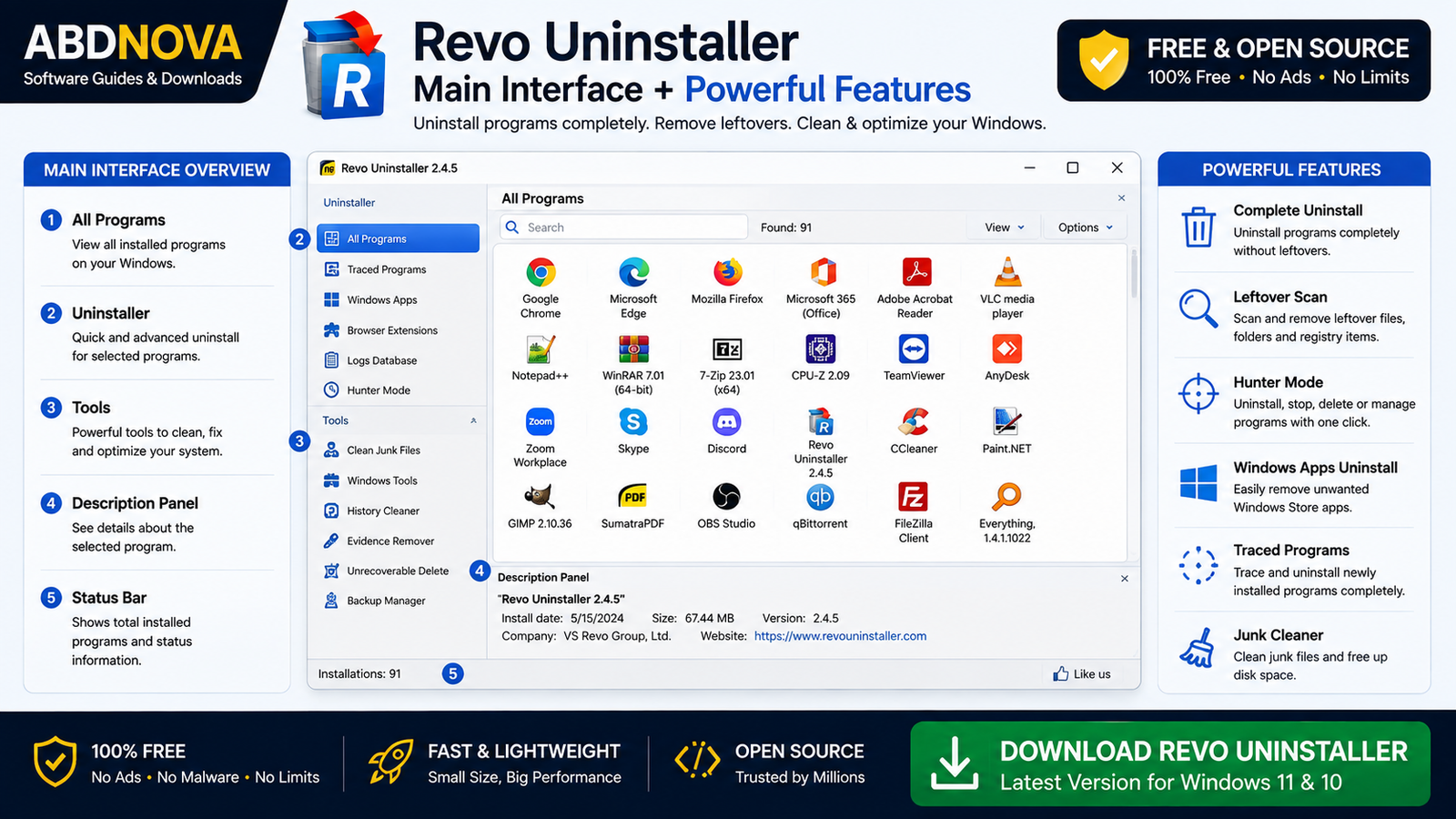
Complete Program Uninstallation
Revo normally starts the application’s own uninstaller first. After the standard removal process, it can scan for related files, folders, configuration data, and registry entries that may remain.
Leftover Files and Registry Scan
Some applications leave settings, temporary files, cache data, folders, or registry entries after removal. Revo can search for related leftovers, but you should review detected items carefully before deleting them.
Hunter Mode
Hunter Mode lets you target a running program, desktop icon, system-tray icon, or application window and access available management actions. Depending on the application, this can help with uninstalling, stopping a process, disabling startup, opening its folder, or viewing program information.
Forced Uninstall
Supported advanced editions include Forced Uninstall for situations where a normal uninstaller is broken, missing, or has left substantial remnants. Use deeper removal features carefully.
Startup and Cleanup Tools
Revo also includes additional Windows-management utilities such as startup management and tools for locating certain unnecessary files. Avoid disabling essential Windows, security, driver, or hardware-related startup items unless you understand their purpose.
Revo Uninstaller Program Removal and Leftover Scan
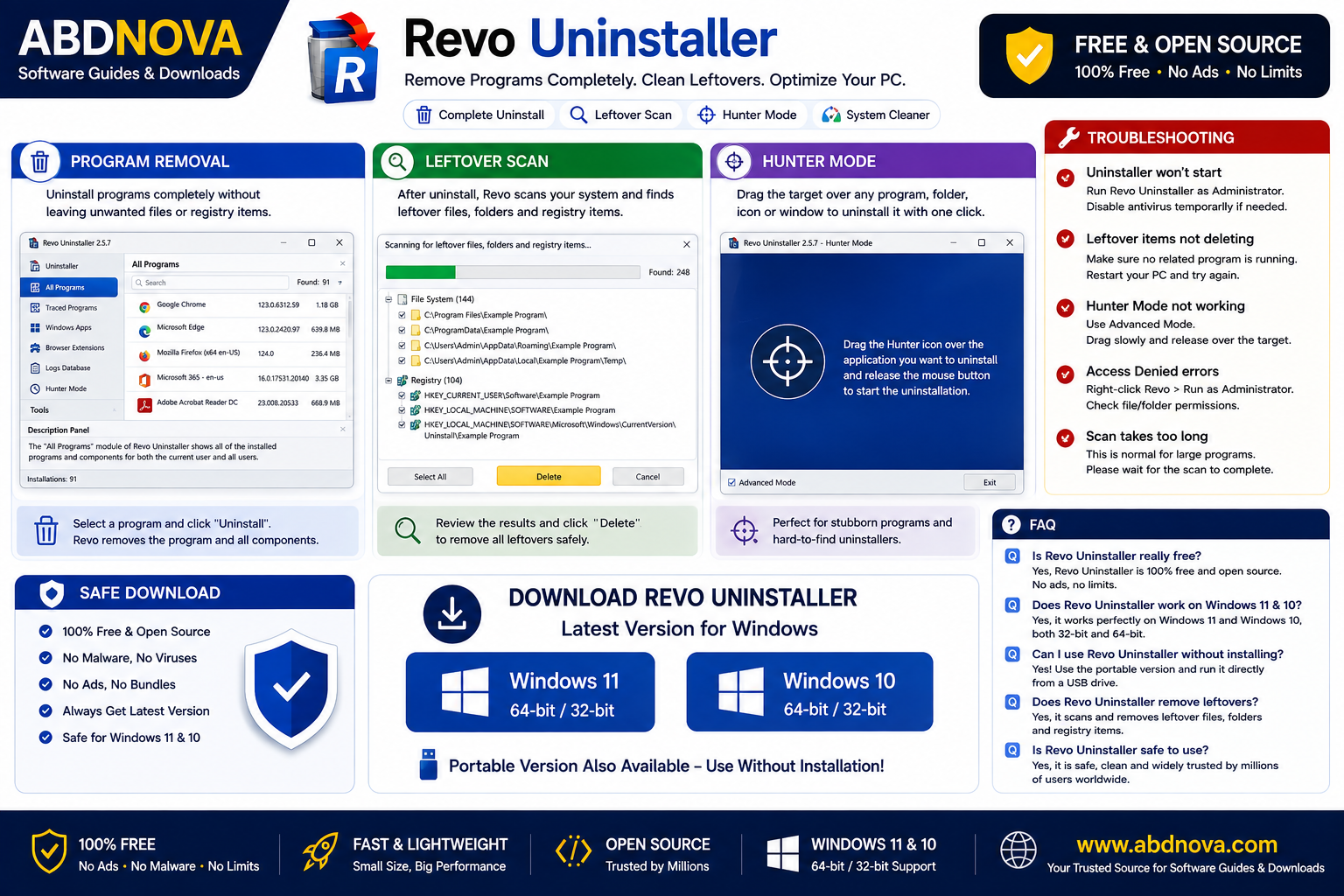
How to Uninstall a Program with Revo Uninstaller
- Open Revo Uninstaller.
- Find the program you want to remove.
- Select the application and choose Uninstall.
- Allow the program’s standard uninstaller to run.
- Complete the normal uninstall process.
- Allow Revo to scan for related leftovers.
- Carefully review detected files, folders, and registry entries.
- Delete only items you are confident belong to the removed program.
Revo Uninstaller Scanning Modes
Depending on the version, Revo can provide different scanning options that determine how thoroughly it searches for leftover data. More aggressive scanning can require more careful review, especially when registry entries are involved.
How to Install Revo Uninstaller on Windows
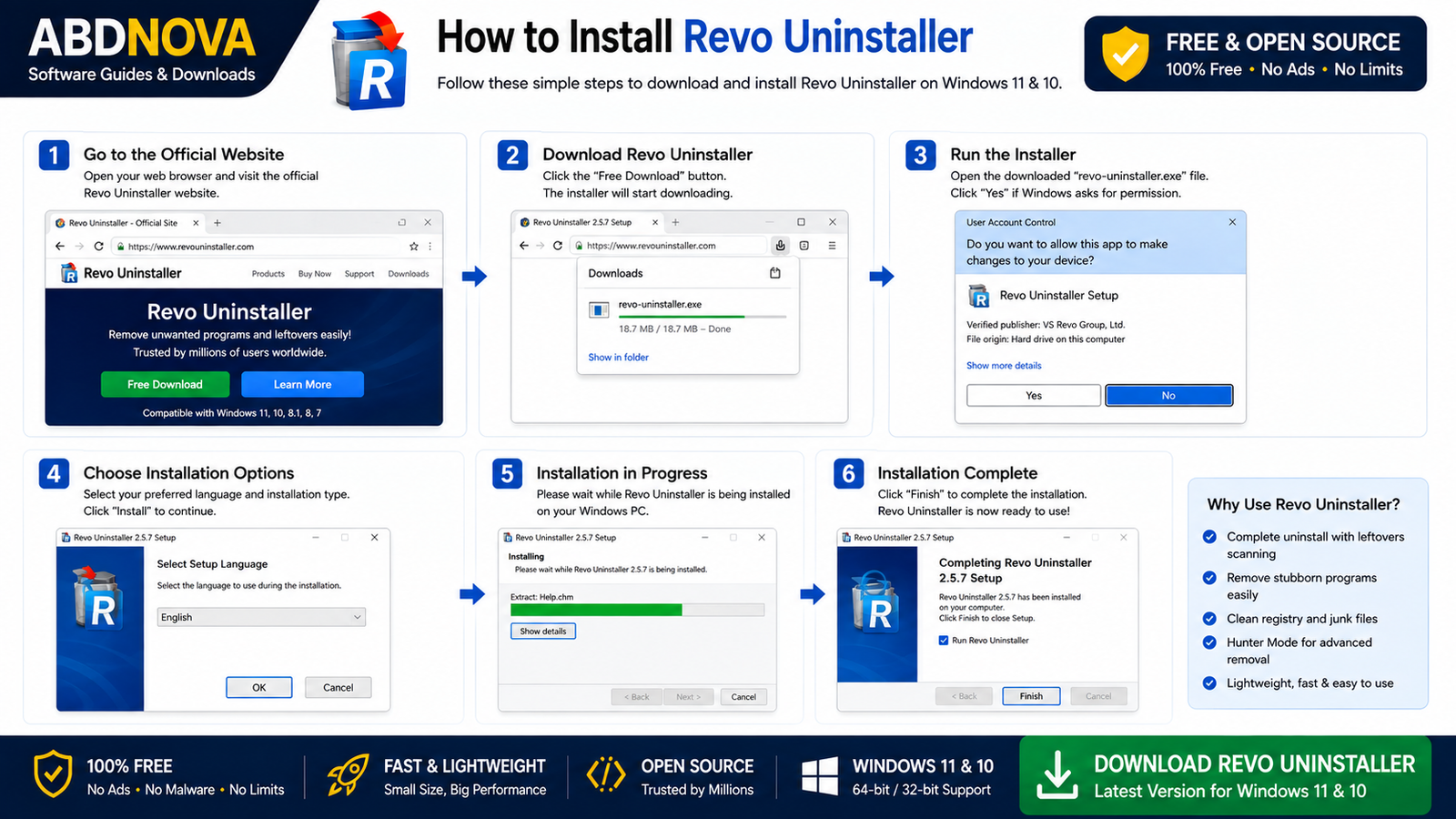
- Visit the official Revo Uninstaller website.
- Choose the edition you want. For basic use, Revo Uninstaller Free is a practical starting point.
- Download the installer from the official source.
- Open the setup file and verify the publisher if Windows displays a security prompt.
- Read and accept the license terms if you agree.
- Use the default installation location unless you have a reason to change it.
- Complete installation and launch Revo Uninstaller.
Revo Uninstaller Free vs Pro
Revo Uninstaller Free provides the core program-removal and leftover-scanning workflow for normal users. Revo Uninstaller Pro adds more advanced functionality such as deeper removal and management features. Exact features can vary by version, so check the current official comparison before purchasing.
Revo Uninstaller vs Windows Uninstall
Windows already includes built-in application removal through Settings. For many programs, that is sufficient. Revo becomes more useful when an application leaves unwanted data behind or when the normal uninstall process does not work correctly.
Revo’s main advantage is its additional leftover-scanning workflow and specialized removal tools.
Revo Uninstaller System Requirements
- Operating System: Windows 11 / Windows 10
- Processor: Standard compatible Intel or AMD processor
- RAM: 2 GB or more recommended
- Storage: Small amount of available disk space
- Internet: Required for download, updates, and some online functionality
- Administrator Rights: May be required for removing certain applications
Common Revo Uninstaller Problems and Solutions
Revo Doesn’t Show an Installed Program
Refresh the program list first. A missing application may be portable, installed under another Windows account, partially removed, or have damaged uninstall information.
Program Won’t Uninstall
Restart Windows, close the application, check Task Manager for related processes, and try again. Advanced removal features may help when supported by your Revo edition.
Leftover Scan Finds Many Registry Entries
Do not assume every detected registry entry should be removed. Select only entries that are clearly associated with the program you just uninstalled.
Revo Uninstaller Won’t Open
Restart Windows, use appropriate permissions, update Revo, reinstall it from the official source, and check Windows Security notifications.
Application Still Appears After Uninstall
Refresh Revo’s program list or restart Windows. A remaining entry may indicate incomplete or damaged uninstall information.
Should You Use a Registry Cleaner?
Registry cleaning should not be treated as routine Windows maintenance. Revo’s registry scanning is most useful for identifying specific leftovers associated with software you have just removed rather than deleting large numbers of unrelated registry entries.
Related Windows Utility Guides
For cleaning temporary files and managing other common Windows maintenance tasks, see our CCleaner Download for Windows guide.
If you want detailed system and hardware information before making system changes, see our CPU-Z Download for Windows guide.
Is Revo Uninstaller Free?
Yes. Revo Uninstaller Free is available for basic software-removal needs. A paid Pro edition adds advanced features for users who require additional uninstall and management functionality.
Is Revo Uninstaller Safe?
Revo Uninstaller is a legitimate Windows utility when downloaded from the official developer source. Because uninstall tools can remove files and registry entries, review leftovers carefully, avoid deleting unfamiliar system entries, and keep backups of important data.
Revo Uninstaller FAQ
Is Revo Uninstaller free?
Yes. Revo Uninstaller has a Free edition as well as a paid Pro edition.
Does Revo Uninstaller work on Windows 11?
Current Revo releases support modern Windows systems. Check the official download page for current compatibility information.
Does Revo Uninstaller delete leftover files?
It can scan for program-related files, folders, and registry entries after the normal uninstall process. Review the detected items before deleting them.
What is Revo Hunter Mode?
Hunter Mode lets you target a running application or interface element and access available actions such as uninstalling, stopping the process, locating files, or managing startup behavior.
What is Forced Uninstall?
Forced Uninstall is an advanced feature intended for programs whose normal uninstall information is unavailable, damaged, or incomplete. Availability depends on the edition.
Should I use Revo Free or Pro?
For ordinary program removal, start with Revo Uninstaller Free. Consider Pro only if you specifically need its additional advanced features.
Final Thoughts
Revo Uninstaller is useful when Windows’ standard uninstall process does not remove everything you want. Its leftover scanning, Hunter Mode, program management, and advanced removal options provide more control over uninstalling Windows software.
If you are looking for Revo Uninstaller Download for Windows, use the official Revo source and carefully review leftover files and registry entries before deleting them.
Ready to download Revo Uninstaller?
Windows • Free / Pro • Official Download
ABDNOVA does not host the Revo Uninstaller installer. The button opens the official Revo Uninstaller download page.


