


WinSCP Download for Windows
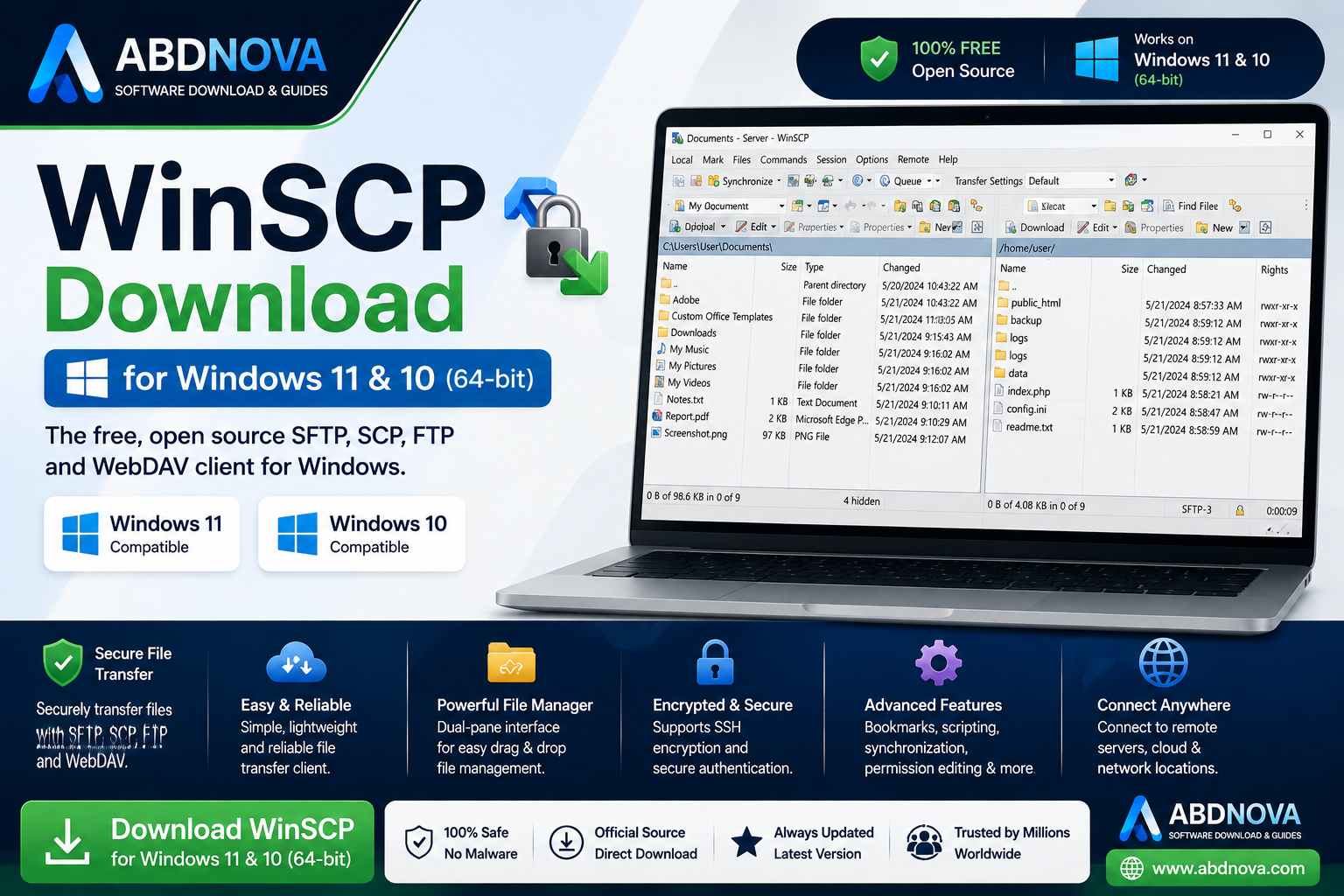
WinSCP Download for Windows gives you a free and open-source file transfer client for securely managing files between a Windows PC and remote servers. WinSCP supports SFTP, SCP, FTP, FTPS, and WebDAV, and is especially useful for website owners, developers, system administrators, and hosting users.
WinSCP Download for Windows – Overview
| Software | WinSCP |
| Category | File Transfer / SFTP Client |
| Platform | Windows |
| License | Open Source |
| Cost | Free |
| SFTP | Supported |
| SCP | Supported |
| FTP / FTPS | Supported |
| WebDAV | Supported |
| Main Use | Secure file transfer and remote file management |
| Official Website | winscp.net |
What Is WinSCP?
WinSCP is a Windows application used to transfer and manage files on remote computers and servers. A common workflow is:
Windows PC → WinSCP → Remote Server
Once connected, you can browse files on both systems and transfer files between them through a graphical interface.
WinSCP Main Interface and Features

Secure SFTP File Transfer
SFTP uses SSH to provide encrypted communication between your computer and a compatible remote server. A typical connection requires a host name, port, username, and password or SSH key.
FTP and FTPS Support
WinSCP also supports FTP and FTPS. When your server supports a secure protocol, SFTP or properly configured FTPS is generally preferable to unencrypted FTP.
SCP Support
WinSCP supports SCP for compatible SSH-based environments. SFTP is often preferred for interactive file management because it provides more file-management functionality.
Dual-Pane File Manager
The Commander-style interface can show your local Windows files on one side and remote server files on the other, making uploads and downloads easier to manage.
Saved Sessions
WinSCP can save frequently used server connection settings. Be careful when saving authentication information on shared or public computers.
File Synchronization
Directory synchronization can help keep a local website folder and remote website folder aligned. Review synchronization settings carefully before starting because incorrect options could overwrite or delete important files.
Remote File Editing
WinSCP can temporarily download a remote file, open it in an editor, and upload the changed file back to the server. Always create a backup before editing important live website files.
How to Download WinSCP for Windows
- Visit the official WinSCP website.
- Open the download section.
- Select the appropriate Windows package.
- Save the installer to your computer.
- Verify that the installer came from the official WinSCP source.
How to Install WinSCP on Windows and Connect to SFTP

- Run the downloaded WinSCP installer.
- Review and accept the license terms.
- Choose the recommended installation options.
- Select your preferred interface style if prompted.
- Complete installation and launch WinSCP.
How to Connect WinSCP to a Server
You will need connection details from your hosting provider or server administrator. These may include:
- File Protocol: SFTP
- Host Name: Your server address
- Port: Server port
- Username: Server username
- Password or SSH key
For SFTP, port 22 is common, but your server may use a different port. Always follow the server provider’s instructions.
How to Upload and Download Files with WinSCP
After connecting, locate the local and remote folders, select the files you want to transfer, and start the upload or download. Be careful when replacing existing files and verify the destination before confirming an overwrite.
Using WinSCP with WordPress and Web Hosting
If your hosting account provides SFTP or FTP access, WinSCP can help manage WordPress files such as themes, plugins, uploads, and configuration files.
Be careful when modifying WordPress core or configuration files. A small mistake can make a website inaccessible, so create a backup before changing important server files.
If you want to build or test a WordPress site locally before transferring files to a live server, see our XAMPP setup guide for Windows to create a local development environment.
Password vs SSH Key Authentication
Some servers allow password authentication, while others support or require SSH keys. If your hosting provider requires SSH keys, follow its documentation for generating, registering, and using the appropriate key. Never share your private SSH key.
Related guide: For SSH terminal access and SSH key tools, see our PuTTY Download for Windows guide.
WinSCP vs FileZilla
Both WinSCP and FileZilla are popular file-transfer applications. WinSCP is Windows-focused and offers strong SFTP, SCP, remote-management, and synchronization features, while FileZilla is a popular cross-platform FTP, FTPS, and SFTP client.
Related guide: Compare another popular Windows file-transfer client in our FileZilla Download for Windows guide.
Common WinSCP Problems

Connection Timed Out
Check the hostname, port, server status, firewall, internet connection, and selected protocol. Verify the server details with your hosting provider.
Authentication Failed
Check the username, password, SSH key, server permissions, and authentication method. Do not assume your WordPress login password is your SFTP password.
Host Key Warning
If WinSCP reports that a server’s host key unexpectedly changed, do not automatically ignore the warning. Confirm the correct key with the server administrator or hosting provider.
Permission Denied
A permission error usually means your server account does not have permission for the requested operation or directory. Do not randomly change server permissions.
File Transfer Failed
Possible causes include connection interruption, full storage, permission restrictions, invalid file names, or server limits. Review WinSCP’s error message to identify the actual cause.
Is WinSCP Safe?
WinSCP is legitimate open-source file-transfer software. Download it from the official source, keep it updated, prefer encrypted protocols such as SFTP, verify unexpected SSH host-key changes, protect passwords and private SSH keys, and avoid modified installers.
Is WinSCP Free?
Yes. WinSCP is free and open-source software for file transfers and remote file management.
WinSCP FAQ
Is WinSCP free for Windows?
Yes. WinSCP is free and open-source software.
Does WinSCP support SFTP?
Yes. SFTP is one of WinSCP’s key supported protocols.
Does WinSCP support FTP?
Yes. WinSCP supports FTP as well as other file-transfer protocols.
Can I use WinSCP with WordPress?
Yes. If your WordPress hosting account provides FTP or SFTP access, WinSCP can be used to manage the site’s server files.
What port does SFTP use?
SFTP commonly uses port 22, but a server administrator can configure another port.
Can I use SSH keys with WinSCP?
Yes. WinSCP supports SSH-based authentication workflows for compatible servers.
Final Thoughts
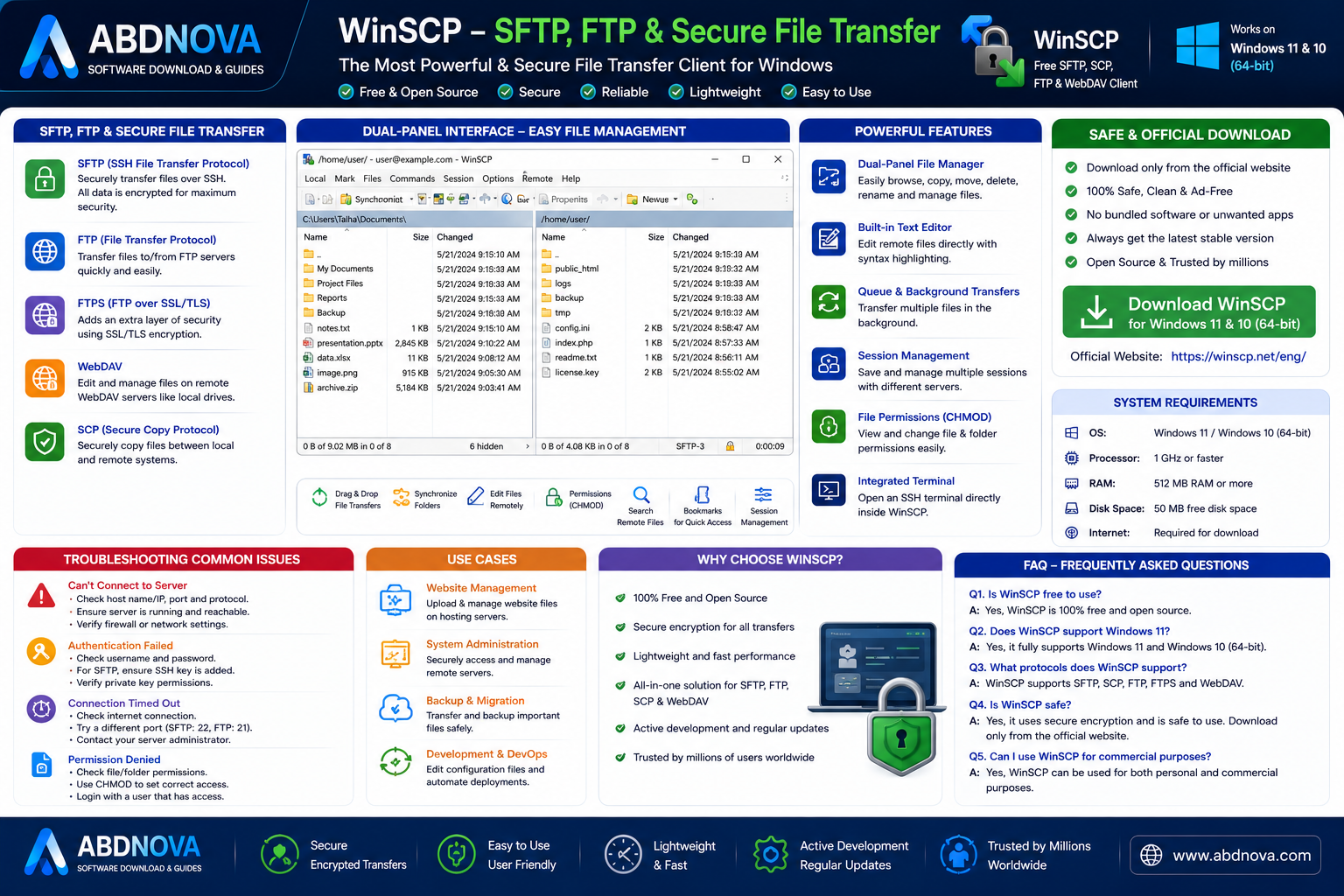
WinSCP is an excellent Windows tool for securely transferring and managing files on remote servers. Its support for SFTP, SCP, FTP, FTPS, WebDAV, synchronization, remote editing, and graphical file management makes it useful for website owners, developers, administrators, and hosting users.
If you are looking for WinSCP Download for Windows, use the official WinSCP source and verify your server connection details before transferring important files.
Ready to download WinSCP?
Windows • Free & Open Source • Official Download
ABDNOVA does not host the installer. The button opens the official WinSCP download page.


