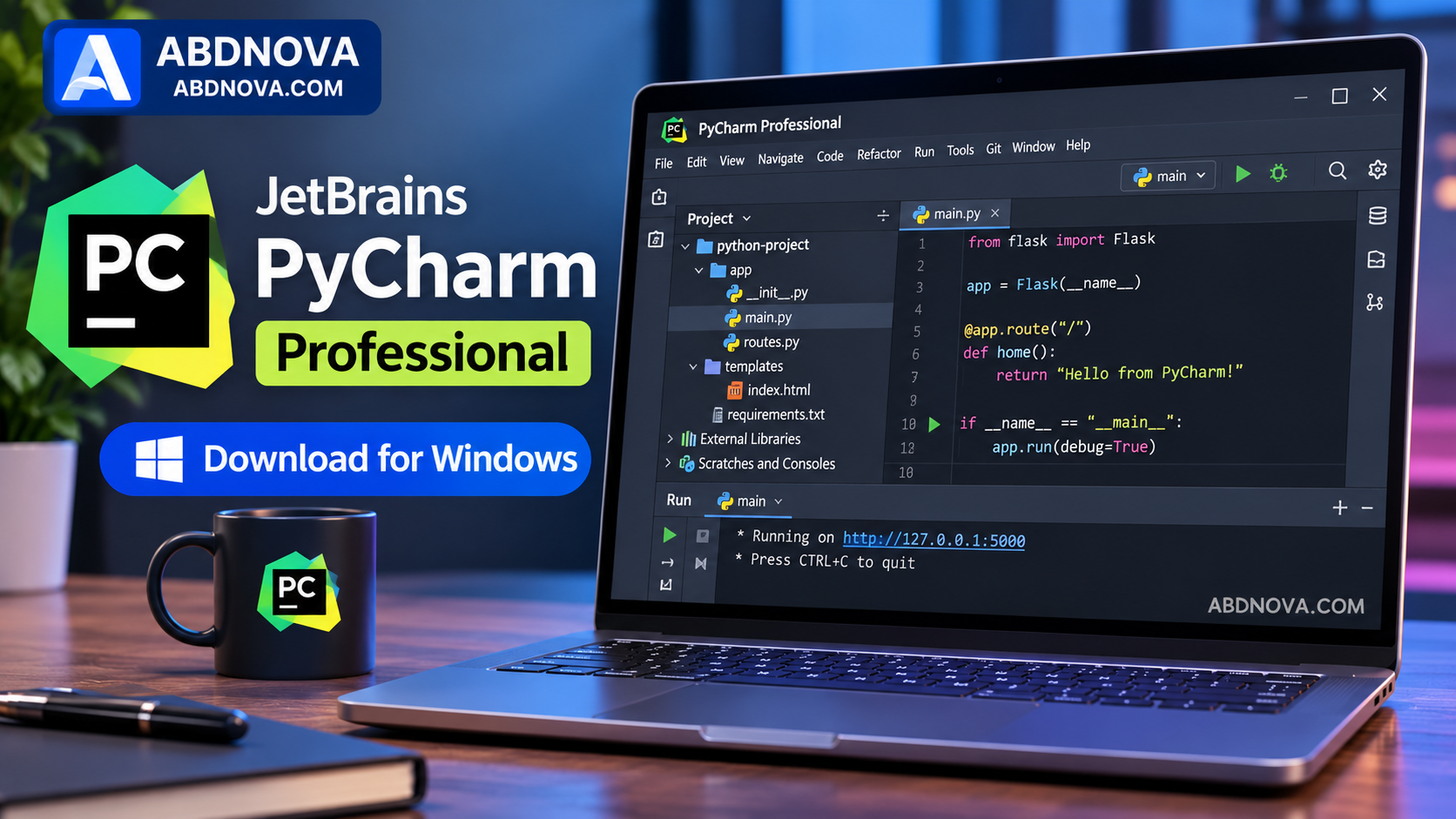

PyCharm Professional – Python Development IDE
JetBrains PyCharm Professional is an integrated development environment (IDE) designed for Python programming, web development and data science. It provides tools for writing, testing, debugging and managing Python applications within a single workspace.
This PyCharm Professional download page covers its development features, installation process and official Windows installer.
PyCharm Professional Overview
PyCharm Professional is suitable for developers working on Python applications, websites, APIs and database-driven projects.
The IDE supports popular frameworks such as Django, Flask and FastAPI. Its integrated development tools allow users to manage project dependencies, virtual environments, databases and version control without relying on several separate applications.
Software Information
| Details | Information |
|---|---|
| Software Name | PyCharm Professional |
| Developer | JetBrains |
| Platform | Windows, macOS and Linux |
| Architecture | 64-bit |
| Software Type | Python IDE |
| License | Commercial / Trial |
| Official Website | jetbrains.com |
Key Features of PyCharm Professional
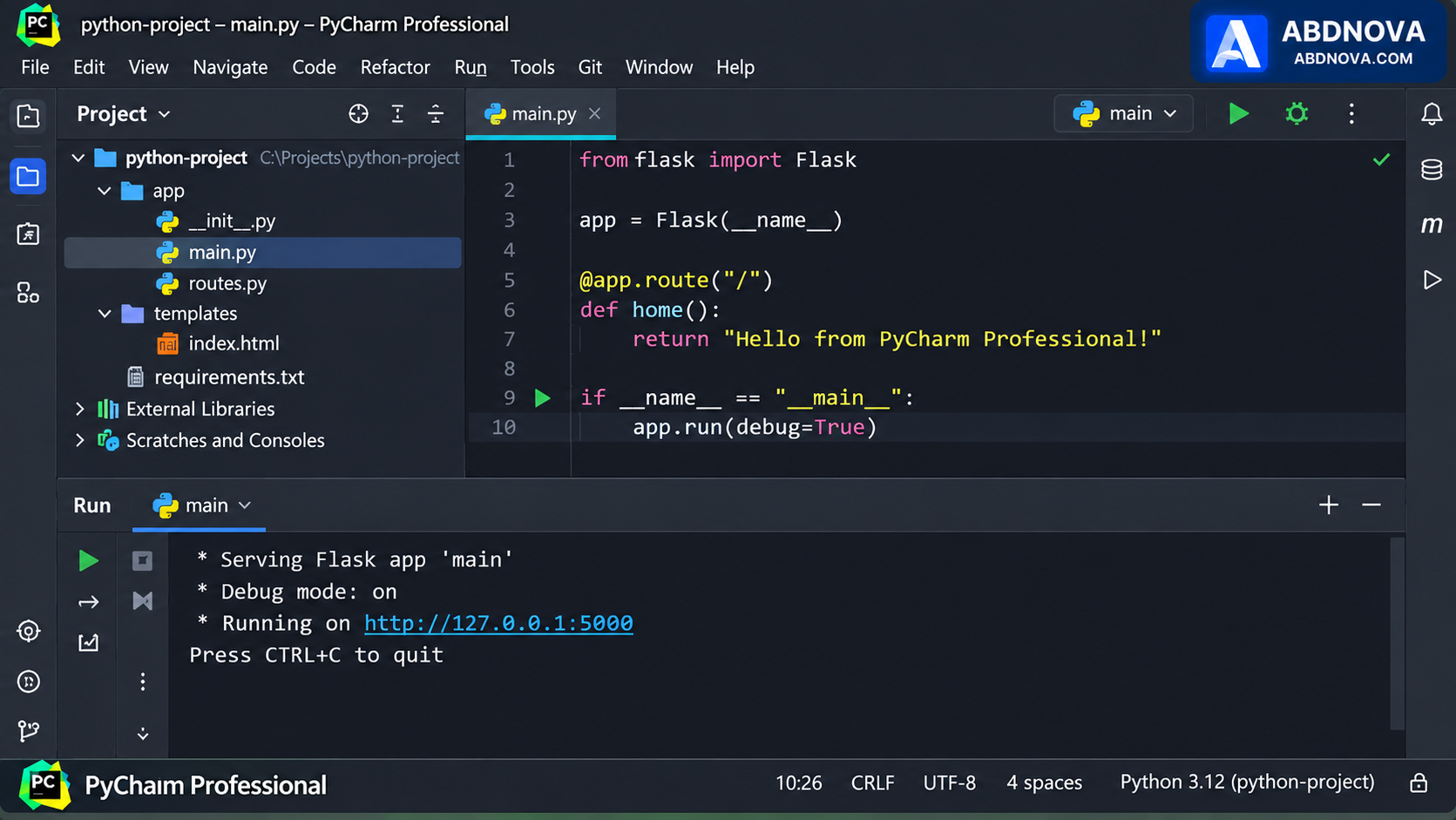
- Intelligent Code Editor: Provides code completion, syntax highlighting and contextual suggestions.
- Code Inspection: Identifies invalid imports, unused variables and potential programming errors.
- Python Debugger: Helps developers inspect variables and identify problems during execution.
- Web Development: Supports Django, Flask, FastAPI and frontend technologies.
- Database Tools: Connect to databases, execute SQL queries and manage data.
- Jupyter Notebook Support: Work with notebooks for data analysis and scientific computing.
- Code Refactoring: Rename and restructure code while maintaining related references.
- Version Control: Manage project changes using Git and supported version control systems.
- Remote Development: Work with supported remote development environments.
PyCharm Standard Features vs Professional Features
| Feature | Standard Features | Professional Features |
|---|---|---|
| Python code editor | Included | Included |
| Code completion | Included | Included |
| Python debugging | Included | Included |
| Advanced web development | Limited | Included |
| Integrated database tools | Limited | Included |
| Remote development | Limited | Included |
Professional features are particularly useful for developers working with web frameworks, databases and larger Python projects.
System Requirements
Before installing PyCharm Professional, check the following:
- Operating System: Windows 11 or Windows 10, subject to current release compatibility.
- Processor: Compatible 64-bit processor.
- RAM: Sufficient memory for the IDE and development tools.
- Storage: Available disk space for installation, project files and dependencies.
- Python Interpreter: Required for running Python projects.
- Internet Connection: Recommended for package installation, updates and license activation.
PyCharm Professional Download for Windows
JetBrains provides an official PyCharm installer with access to Professional features through its applicable trial and subscription options.
How to Install PyCharm on Windows
- Visit the official JetBrains download page.
- Select the Windows installer.
- Run the downloaded setup file.
- Choose the installation location and required options.
- Complete the installation and launch PyCharm.
- Sign in to your JetBrains account when required.
- Configure a Python interpreter for your project.
If Python is not installed on your computer, refer to our Python Download for Windows page.
Creating Your First Python Project
Open PyCharm and select New Project. Choose a project location and configure a Python interpreter using a virtual environment.
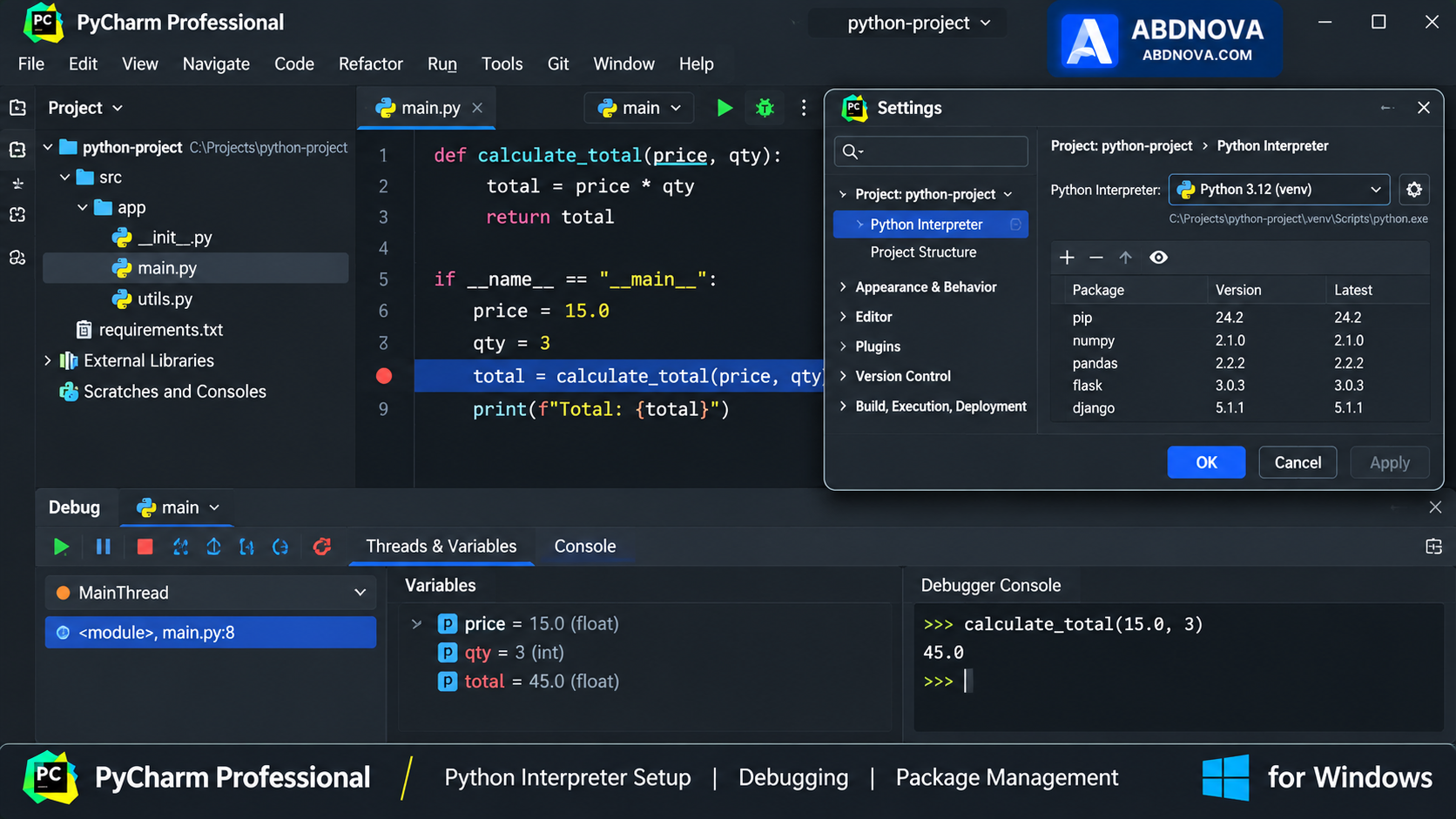
Create a Python file named main.py and enter the following code:
print("Hello, Python!")Right-click the file and select Run. The output will appear in the Run window.
Common Problems and Solutions
| Problem | Solution |
|---|---|
| Python interpreter not detected | Configure the interpreter in project settings |
| Module not found | Install the required package in the selected environment |
| Slow IDE performance | Close unused projects and disable unnecessary plugins |
| Code not running | Check the run configuration and interpreter |
| License activation failure | Check your JetBrains account and subscription status |
Frequently Asked Questions
Does PyCharm include Python?
PyCharm is an IDE. A compatible Python interpreter must be installed or configured to run Python code.
Can I use PyCharm for Django development?
Yes. PyCharm Professional provides development tools for Django and other supported web frameworks.
Does PyCharm support Git?
Yes. Its integrated version control tools allow developers to manage commits, branches and project changes.
Can PyCharm work offline?
Most local coding and debugging tasks can be performed offline. Certain online services, package downloads and licensing operations may require internet access.
Final Thoughts
PyCharm Professional is particularly useful when a Python project requires database access, web frameworks or advanced development tools.
For basic Python programming, the standard features may be sufficient. Evaluate the Professional features before purchasing a subscription based on your project requirements.
Download PyCharm – Official Installer
Windows 11 & 10 • 64-bit • Commercial / Trial
Official installer from JetBrains.