
Getting Started with JRiver Media Center
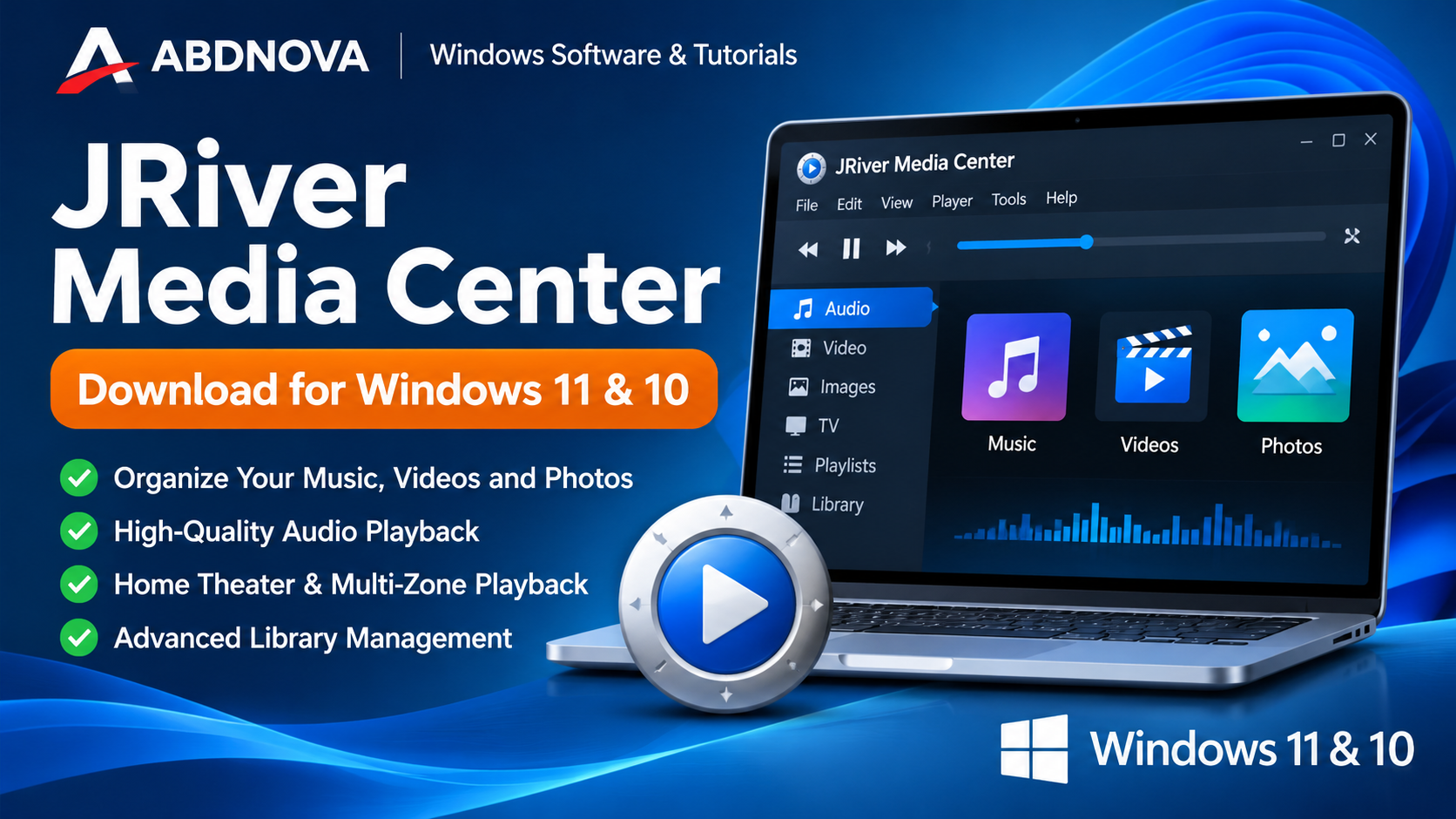
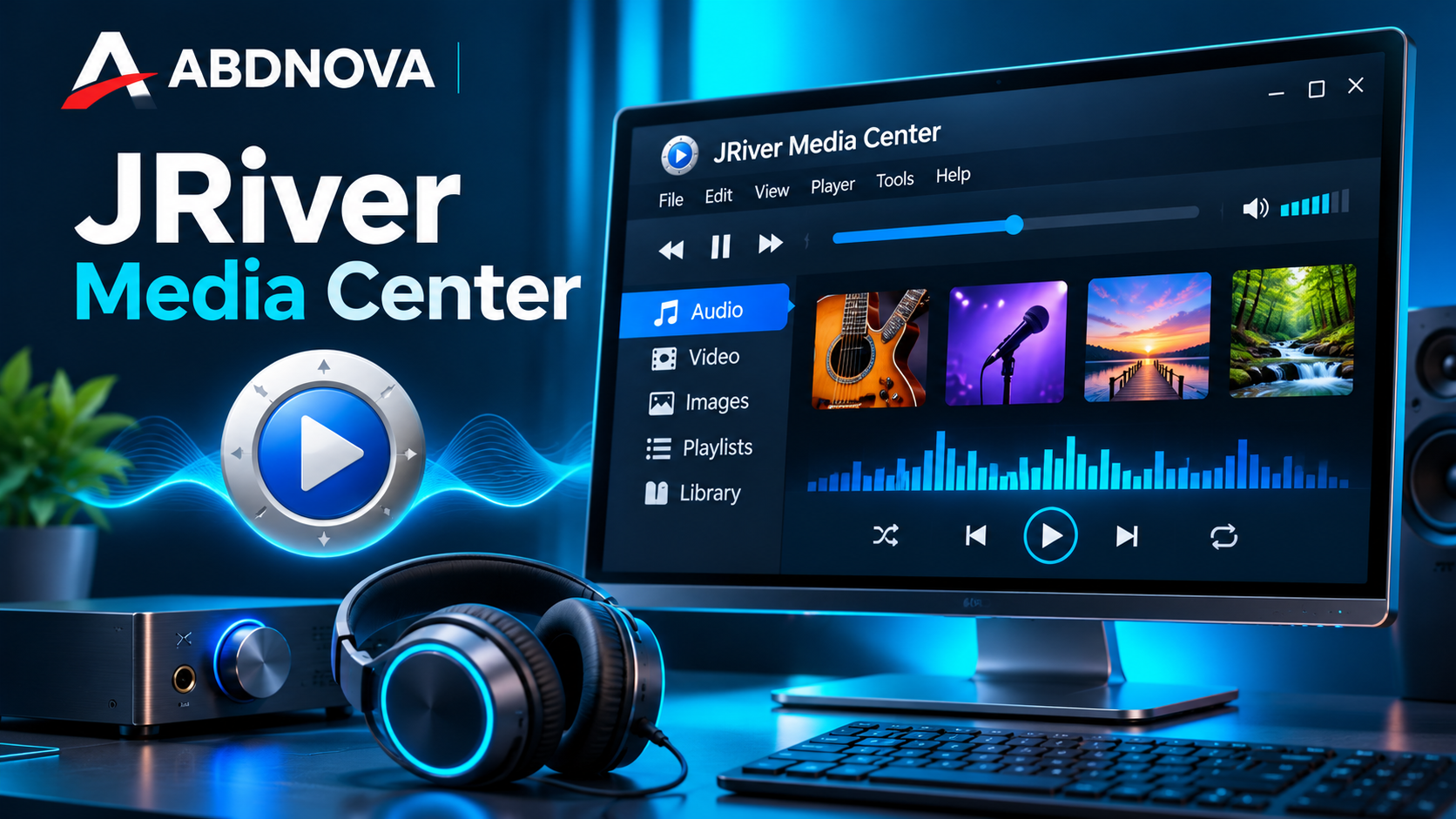
JRiver Media Center Download for Windows 11 & 10 helps users organize and play music, movies, videos, and photographs through a single media management application.
If you keep a large collection of music, movies, videos, and photos on your computer, managing everything through separate folders can become difficult. Sometimes you may spend more time searching for a file than enjoying it.
JRiver Media Center is a multimedia application that helps you organize and play your digital media from one place. Instead of using different programs for music, movies, and photos, you can manage your collection through a single interface.
It is especially useful for people who enjoy high-quality audio, home theater systems, and well-organized media libraries.
In this guide, we explain the main features of JRiver Media Center, how it works, how to install it on Windows, and what you should check before downloading.
JRiver Media Center Download – Overview
| Software | JRiver Media Center |
| Developer | JRiver, Inc. |
| Category | Media Player & Library Manager |
| Platform | Windows, macOS, Linux |
| Windows Compatibility | Check the selected release for Windows 11 and Windows 10 support |
| License | Commercial Software |
| Trial | Subject to current developer availability and terms |
| Music Playback | Supported |
| Video Playback | Supported |
| Photo Library | Supported |
| Media Library Management | Supported |
| Multi-Zone Audio | Supported |
| Home Theater Features | Supported |
| Official Website | jriver.com |
The exact software version, installer size, system requirements, and licensing conditions can change between releases. Review the official developer website before downloading.
What Is JRiver Media Center?
JRiver Media Center is a media management and playback application available for Windows, macOS, and Linux.
It allows users to organize music, videos, movies, and photographs into a searchable library. You can browse your collection by artist, album, genre, and other available information.
For example, if you have hundreds of music albums stored on your computer, you do not need to open each folder separately. JRiver can display your music collection in an organized library with album artwork and other details.
The software also provides advanced playback settings for users who connect their computers to external speakers, audio receivers, or home theater equipment.
Unlike a basic media player, JRiver focuses on both media playback and library management.
JRiver Media Center Main Features
1. Organize Music and Video Collections
JRiver can scan selected folders and add supported media files to its library.
Once imported, you can browse music albums, video files, and other media without manually searching through Windows folders.
It is helpful when your files are stored across several drives.
2. High-Quality Music Playback
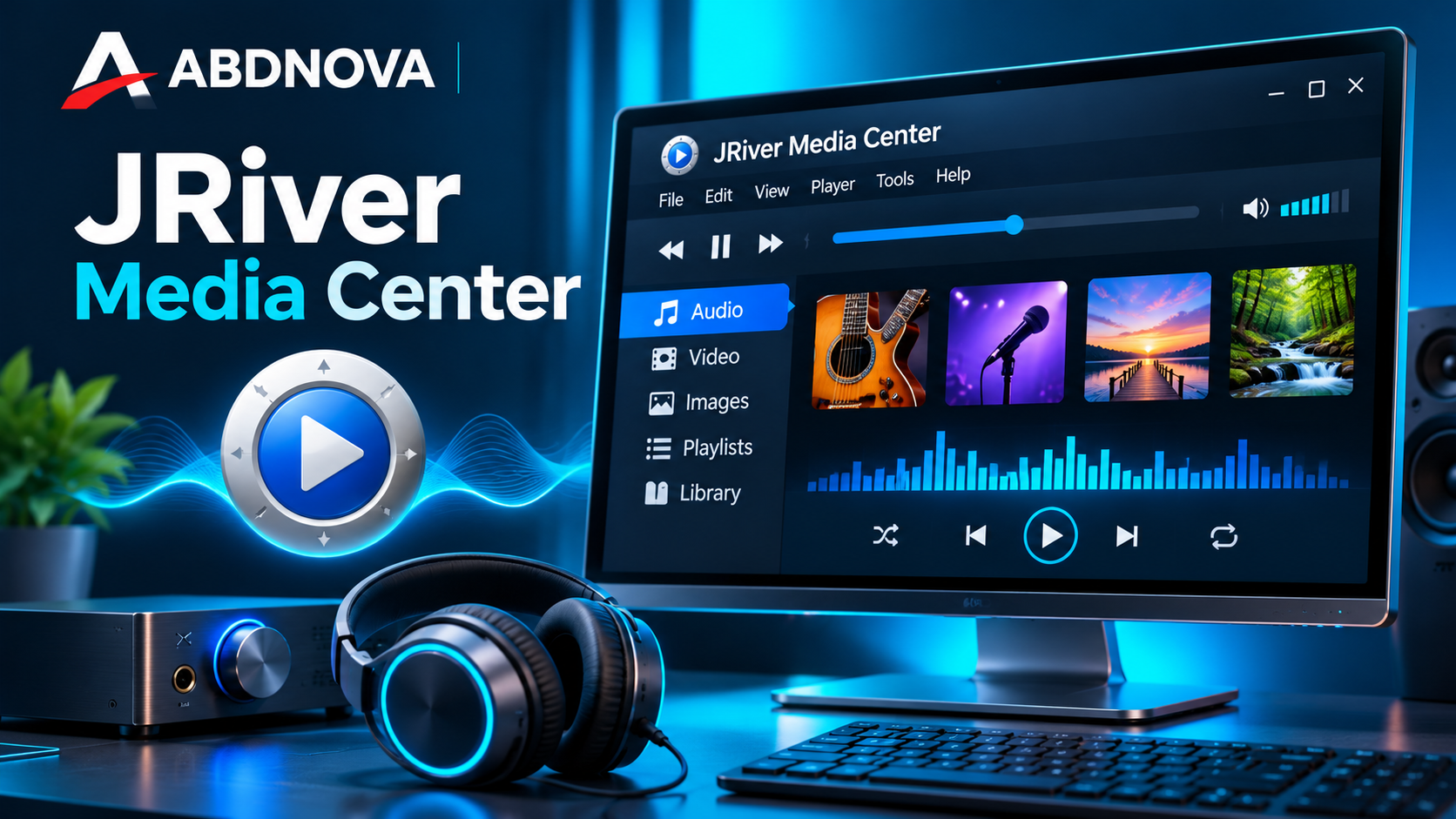
JRiver supports many popular audio formats, including MP3, FLAC, WAV, AAC, and ALAC.
It also provides advanced audio settings for users who want more control over playback.
For normal listening, you can use the default settings. Users with dedicated audio equipment can explore additional configuration options.
Audio Playback Features
- Playback of supported lossless audio formats.
- Music library organization by album and artist.
- Audio output configuration.
- Support for compatible external audio equipment.
- Metadata and album artwork management.
- Playlist and library browsing options.
Actual audio performance depends on your source files, audio hardware, and playback configuration.
3. Video and Movie Playback
You can use JRiver Media Center to play supported video files stored on your computer.
It is useful for keeping a personal movie collection organized, especially when you have many files with different names and formats.
Playback compatibility may depend on the file format, codec, and system configuration.
4. Home Theater Support
If your computer is connected to a television, projector, or AV receiver, JRiver can be used as part of a home entertainment setup.
Users can configure supported audio and video output options according to their equipment.
This makes it useful for people who prefer watching movies on a larger screen.
Example Home Theater Setup
- Connect your computer to a compatible television or projector.
- Connect your audio equipment if required.
- Open JRiver Media Center.
- Choose the appropriate display and audio output settings.
- Import your movie collection.
- Select a movie and test playback.
- Adjust the available settings if necessary.
Supported output options depend on the connected hardware and the installed JRiver version.
5. Multi-Zone Audio Playback
One of JRiver’s more advanced features is multi-zone playback.
For example, you may want music playing through one audio device while another zone uses a different output.
JRiver provides options for managing multiple playback zones, although the exact setup depends on your connected hardware.
6. Search and Filter Your Media
Finding a particular song or album becomes easier when your collection is properly organized.
JRiver allows you to search and filter supported library items using available metadata such as artist, album, genre, and year.
This is particularly useful for users with large music libraries.
7. Network Media Access
JRiver includes network media features that can help users access or share supported media across compatible devices.
The available functions depend on your network configuration and the devices you use.
For best results, keep your local network secure and review sharing permissions before enabling access.
Who Should Use JRiver Media Center?
JRiver is not necessary for every Windows computer. However, it can be useful for:
- Music collectors: People who maintain hundreds or thousands of audio files.
- Home theater users: Those who connect a computer to a TV, projector, or AV receiver.
- Audio enthusiasts: Users who want advanced playback and audio-processing settings.
- Movie collectors: People who prefer keeping a local video library.
- Home users: Anyone who wants music, videos, and photographs organized in one application.
If you only watch an occasional video or listen to a few songs, a simpler media player may be sufficient.
JRiver Media Center vs VLC Media Player
Both applications can play multimedia files, but they are designed for somewhat different needs.
| Feature | JRiver Media Center | VLC Media Player |
|---|---|---|
| Music and Video Playback | Yes | Yes |
| Organized Media Library | Advanced | More basic |
| Audio Configuration | Extensive options | General playback controls |
| Home Theater Features | Advanced | Basic to moderate |
| Multi-Zone Playback | Supported | Not a comparable built-in library feature |
| Licensing | Commercial, with trial availability | Free and open-source |
| Best Suited For | Media collectors and home theater users | Everyday multimedia playback |
If you mainly need a free player for watching videos, read our VLC Media Player Download for Windows guide.
If you want more control over a large media collection, JRiver may be worth trying.
JRiver Media Center is designed for media playback and library management rather than video editing. If you also need to edit videos, record your screen, or convert media files, explore our Movavi Video Suite 2026 Download for Windows guide.
JRiver Media Center System Requirements
JRiver’s requirements can vary depending on the version, operating system, and media formats being used.
Before installing, check the current requirements on the official website.
| Component | What to Check |
|---|---|
| Operating System | Use a Windows version supported by the selected JRiver release. |
| Processor | A modern processor is recommended, particularly for high-resolution video. |
| RAM | More memory may help when working with large libraries or demanding media. |
| Storage | Allow space for the application, media-library information, and your own files. |
| Audio Devices | Confirm compatibility with any external DAC or receiver. |
| Video Output | Check compatibility with your monitor, television, or projector. |
| Internet | Needed to download the installer and may be required for activation or online features. |
Playing demanding video formats may require stronger hardware than ordinary music playback.
Important: Avoid assuming that every JRiver release has identical requirements. Check the official download information for the version you intend to install.
How to Download and Install JRiver Media Center on Windows
You can install JRiver Media Center using the official developer’s installer.
Installation Steps
- Visit the official JRiver website.
- Open the Media Center download section.
- Select the appropriate Windows installer for the release you want.
- Download the setup file to your computer.
- Open the installer and follow the instructions.
- Complete the installation and launch JRiver Media Center.
- Review the trial or licensing information shown by the application.
Important: JRiver Media Center is commercial software. A trial may be available, but continued use can require a purchased license.
Avoid unofficial activated installers or modified packages.
How to Add Music and Videos to JRiver
After installing the application, you can begin creating your media library.
Step 1: Prepare Your Media Folders
Keep your music, movies, and other files in clearly named folders.
For example:
- Music
- Movies
- Family Videos
- Photos
You do not have to move all your files into one folder. JRiver can work with media stored in different locations.
Step 2: Import Your Files
Open JRiver Media Center and use its library import or folder-scanning options to select the locations containing your media.
Allow the application to scan and identify supported files.
Step 3: Check Media Information
After importing, review the available album names, artists, genres, and artwork.
Some files may have incomplete metadata. You can organize or correct information using the available library tools.
Step 4: Start Playback
Select a music album or video from your library and start playback.
If you use external speakers or an AV receiver, check the audio output settings before changing advanced options.
Step 5: Keep Your Library Updated
When you add new media files, use the available library update or monitoring features to keep your collection current.
Common JRiver Media Center Problems and Solutions
Media Files Are Not Appearing
Check whether you selected the correct folder during library import.
Also confirm that the files use supported formats and that JRiver has permission to access their location.
What to Check
- Verify the imported folder location.
- Check whether the media files still exist.
- Confirm that the file formats are supported.
- Review access permissions.
- Run the available library scan again.
No Sound During Playback
Check the Windows volume settings and the audio output selected inside JRiver.
If you use an external DAC or AV receiver, make sure the correct device is connected and selected.
Recommended Checks
- Check the Windows volume level.
- Confirm that audio is not muted.
- Review the output device selected in JRiver.
- Check external speaker or receiver connections.
- Test playback using another supported audio file.
Video Playback Is Not Smooth
Try closing unnecessary background applications and checking your graphics driver.
High-resolution video may require stronger hardware or different playback settings.
Possible Solutions
- Close unnecessary background applications.
- Check the computer’s processor and memory usage.
- Update graphics drivers from the official manufacturer.
- Review the available video playback settings.
- Test a lower-resolution video file.
Album Artwork Is Missing
Some media files do not contain complete artwork or metadata.
Review the library information and use JRiver’s available metadata-management options.
Make sure the album and artist information is correct before updating library details.
Network Playback Is Not Working
Confirm that the devices are connected to the appropriate network and that the required sharing features are enabled.
Also check firewall permissions and device compatibility.
Troubleshooting Steps
- Check the network connection.
- Confirm that the devices can communicate.
- Review JRiver’s available network-sharing settings.
- Check Windows Firewall permissions.
- Confirm that the receiving device is compatible.
- Restart the affected application or device if necessary.
Only enable network sharing for devices and users you trust.
Is JRiver Media Center Free?
JRiver Media Center is paid software, although the developer may provide a trial version.
A trial allows users to evaluate the application before purchasing, subject to the developer’s current terms.
If you only need basic multimedia playback, free alternatives may be enough.
For example, VLC Media Player is suitable for everyday video and audio playback, while JRiver provides additional tools for media-library management and advanced audio setups.
Check the official website for current trial availability, pricing, and license conditions.
Is JRiver Media Center Safe to Download?
JRiver Media Center is a legitimate commercial multimedia application.
For safer installation, download it from the official JRiver website and avoid unofficial repackaged installers.
You should also keep Windows updated and review any installation prompts before proceeding.
Safe Download Checklist
- Use the official developer website.
- Choose a compatible Windows installer.
- Review the software license.
- Avoid cracked or modified installers.
- Keep Windows security features enabled.
- Back up important media files and library information.
- Check the current version and compatibility information.
JRiver Media Center FAQ
What is JRiver Media Center used for?
JRiver Media Center is used to organize, manage, and play music, videos, movies, and other digital media. It also provides advanced audio and home theater features.
Does JRiver Media Center work on Windows 11?
JRiver offers Windows versions of Media Center. Check the official requirements for the particular release before installing it on Windows 11.
Is JRiver Media Center free to use?
JRiver is commercial software. Trial availability and licensing conditions depend on the developer’s current offering.
Can JRiver play FLAC music files?
Yes. JRiver supports FLAC and several other common audio formats.
Is JRiver better than VLC?
It depends on your needs. VLC is suitable for general multimedia playback, while JRiver offers more advanced media-library and audio-management features.
Can I connect JRiver to my home theater system?
JRiver provides audio and video output settings suitable for various home theater configurations. Compatibility depends on your equipment.
Can JRiver organize a large music library?
Yes. Library management, metadata organization, searching, and filtering are among its main functions.
Should I download JRiver from third-party websites?
The safest option is to use the official developer’s website. Avoid unofficial activated or modified installers.
Final Thoughts
JRiver Media Center is a useful choice for people who want to keep their music, movies, and other media organized in one place.
Its main advantage is not only playing files but also managing a large collection with advanced playback options.
For normal video watching, you may not need such an advanced application. However, if you have a large music library, quality audio equipment, or a home theater setup, JRiver Media Center is worth considering.
Before downloading, check the current version, Windows compatibility, and licensing details on the official website.
For safe installation, always use the original JRiver Media Center installer from the developer.
Ready to download JRiver Media Center?
Windows • Music Playback • Media Library • Home Theater
ABDNOVA does not host the installer. The button opens the official JRiver website, where you can select the available Windows download and review trial or licensing terms.