
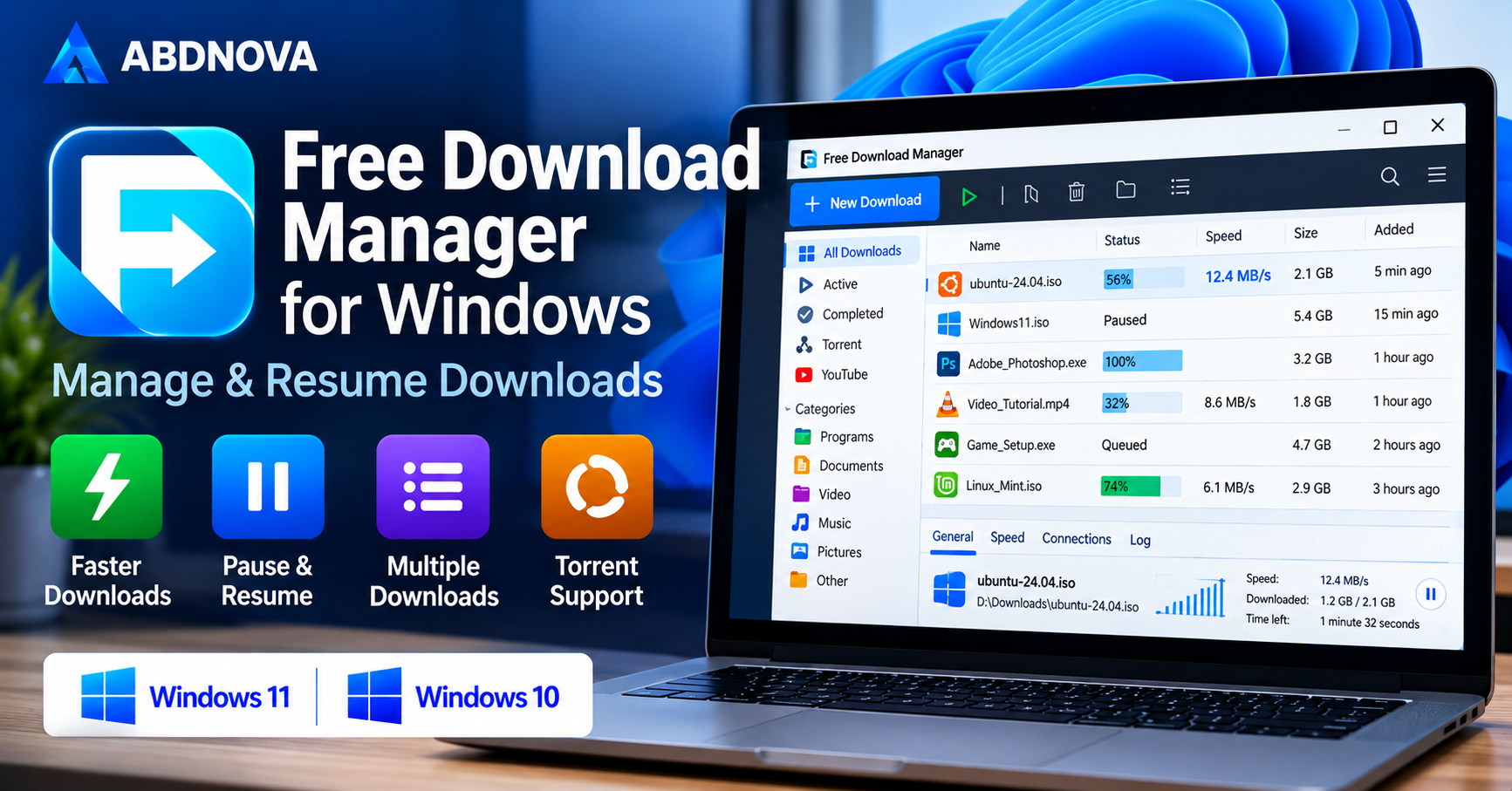

Free Download Manager for Windows 11 & 10
Free Download Manager Download for Windows helps Windows 11 and Windows 10 users manage, accelerate, pause, resume, and organize file downloads.
Free Download Manager (FDM) is a free download management application for Windows that helps users download files, pause and resume supported transfers, organize downloaded content, and manage multiple downloads from one interface.
It supports regular HTTP and HTTPS downloads, BitTorrent transfers, speed limits, and browser integration. FDM can be useful when downloading large software installers, ISO images, videos from supported sources, and other files over unstable internet connections.
Free Download Manager is available for compatible Windows 11 and Windows 10 computers. Whether you want to manage several downloads or recover an interrupted transfer, FDM provides practical tools for everyday downloading.
Free Download Manager at a Glance
| Software | Free Download Manager (FDM) |
| Developer | Free Download Manager |
| Category | Download Manager |
| Operating System | Windows 11 & Windows 10 |
| License | Free |
| Main Purpose | Manage, Accelerate & Resume Downloads |
| HTTP/HTTPS Downloads | Supported |
| BitTorrent Downloads | Supported |
| Pause & Resume | Supported where the server allows |
| Browser Integration | Available |
| Download Queue | Manage multiple transfers |
| Download Speed Limits | Supported |
FDM is free to download and use. Download the installer from the official Free Download Manager website, and check its current Windows compatibility before installing.
Free Download Manager Main Interface & Key Features
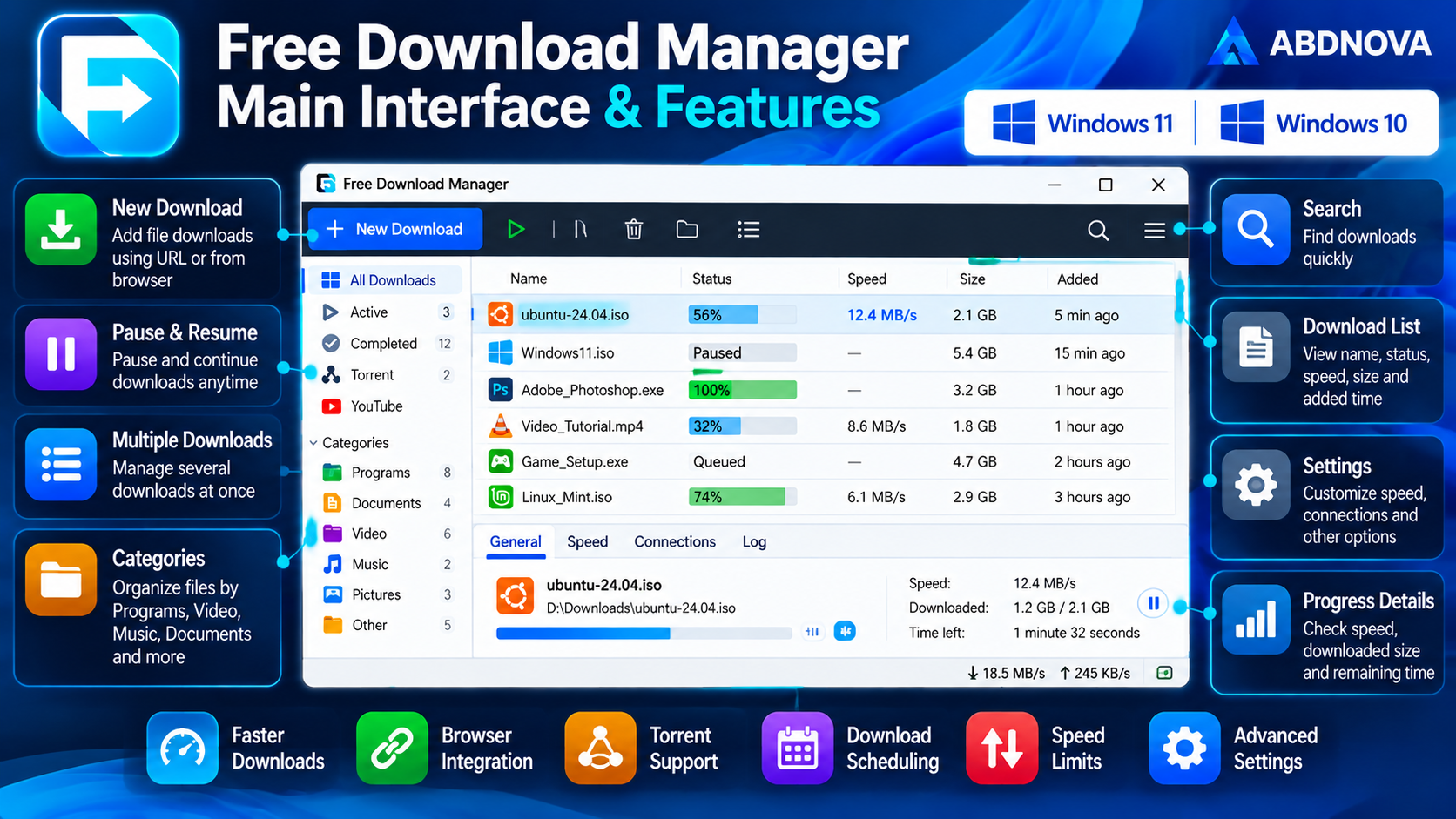
Free Download Manager provides a simple interface for monitoring file transfers, adjusting download settings, and organizing downloaded files.
Key Features of Free Download Manager
Download Acceleration
Uses multiple connections where supported to improve transfer efficiency.
Pause & Resume
Pause downloads and continue later when the server supports resuming.
Multiple Downloads
Manage several file transfers simultaneously from one interface.
BitTorrent Support
Download supported torrent files and magnet links.
Download Queue
Add several transfers to the queue and manually start or pause them as needed. A specific timed scheduling menu has not been verified for the version covered by this guide.
Speed Limits
Control bandwidth usage while downloading files.
Browser Integration
Capture supported download links from compatible web browsers.
File Organization
Save downloaded files to selected folders for easier management.
Download Progress
Monitor transfer speed, file size, and download progress.
Large File Support
Manage software installers, archives, ISO images, and other large files.
Download Management
Start, pause, restart, and remove download tasks.
Traffic Management
Adjust bandwidth usage according to your internet connection.
FDM is especially useful for users who frequently download large files or need greater control than a browser’s built-in download manager provides.
Free Download Manager System Requirements for Windows
The following table lists the Windows compatibility and practical prerequisites covered by this guide. It does not claim unverified minimum CPU, RAM, or installer-size figures.
| Component | Requirement |
|---|---|
| Operating System | Windows 11 or Windows 10 |
| Storage | Space for the application and downloaded files |
| Internet | Required for online downloads |
| Browser | Compatible browser for optional integration |
| License | Free |
Actual performance depends on internet speed, the download server, available storage, and the number of simultaneous transfers.
Before downloading a large ISO or archive, check that the destination drive has enough free space for the complete file. An SSD can make local file operations faster, but download speed still depends mainly on the connection and source server.
How to Download & Install Free Download Manager on Windows 11 & 10
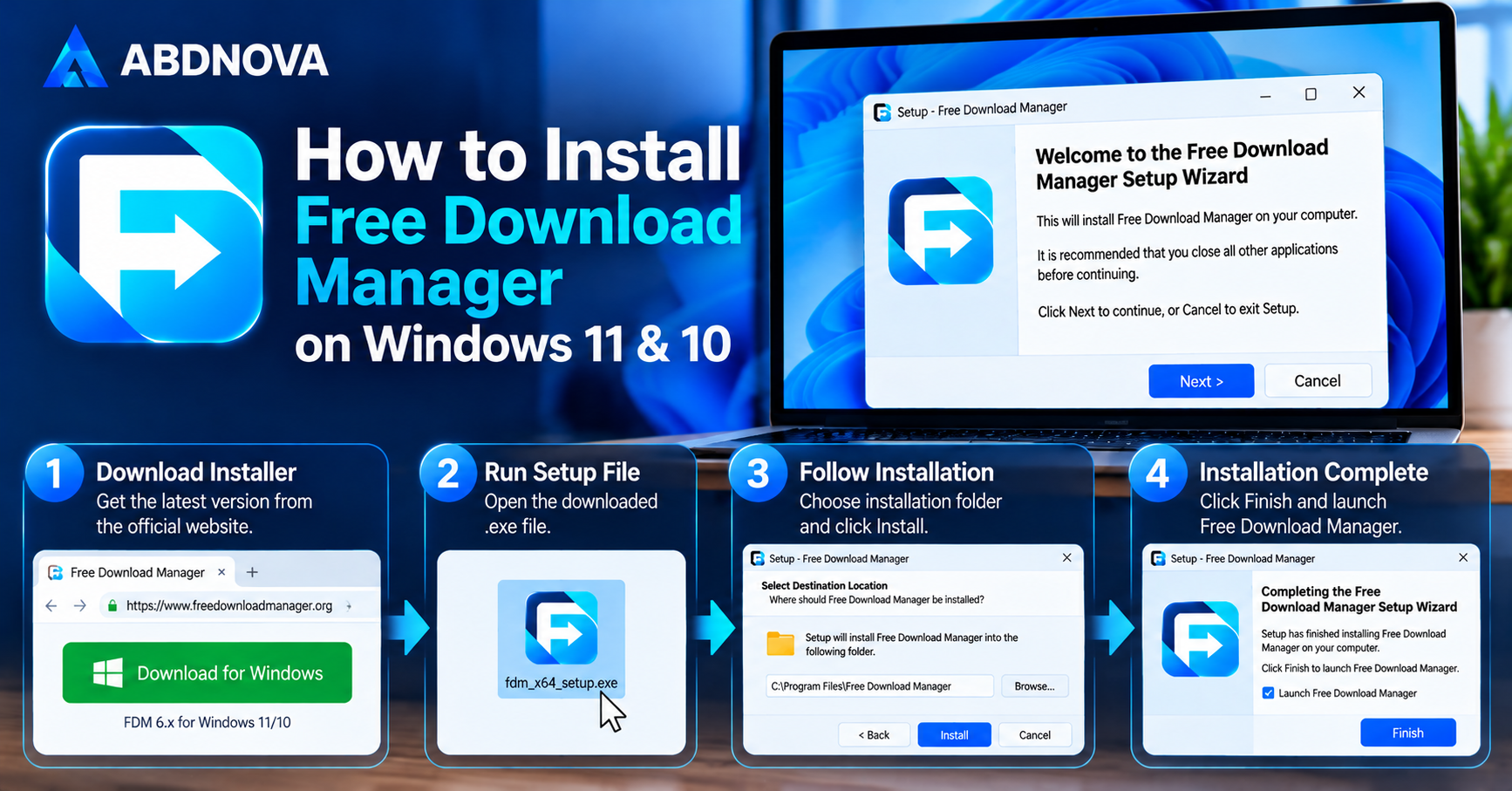
Download FDM directly from its official website to avoid modified or unofficial installers.
FDM Installation Steps
- Visit freedownloadmanager.org and select the Windows download.
- Save the installer to your Downloads folder. Confirm that it came from the official website before opening it.
- Double-click the downloaded installer. If Windows asks for permission, verify the application details before selecting Yes.
- Follow the setup wizard and review any optional settings rather than accepting them without reading.
- Finish installation and launch Free Download Manager from the Start menu.
- Open FDM’s settings and check the default download folder so you know where completed files will be saved.
First-use check: Try downloading a small, legitimate file from its official source before adding a large ISO or archive. This confirms that FDM can save files to your selected folder.
After installation, FDM is ready to manage supported downloads.
How to Use Free Download Manager on Windows
FDM allows users to add downloads manually or capture supported links through browser integration.
Download a File Using a URL
- Open Free Download Manager.
- Click the Add Download (+) button.
- Paste the direct file download URL.
- Select the destination folder.
- Review the available download options.
- Start the download.
- Monitor the progress in the main window.
Once the download finishes, open the destination folder and check that the file is complete. For software installers or ISO images, verify a published checksum when the developer provides one; a completed progress bar alone does not prove file integrity.
Manage Multiple Downloads
You can add several download links and manage them from the main interface.
Depending on the transfer, FDM allows you to:
- Start downloads.
- Pause active downloads.
- Resume supported downloads.
- Adjust download priority.
- Review download speed.
- Remove download tasks.
- Open downloaded files.
- Change download preferences.
FDM Resume, Browser & Torrent Support
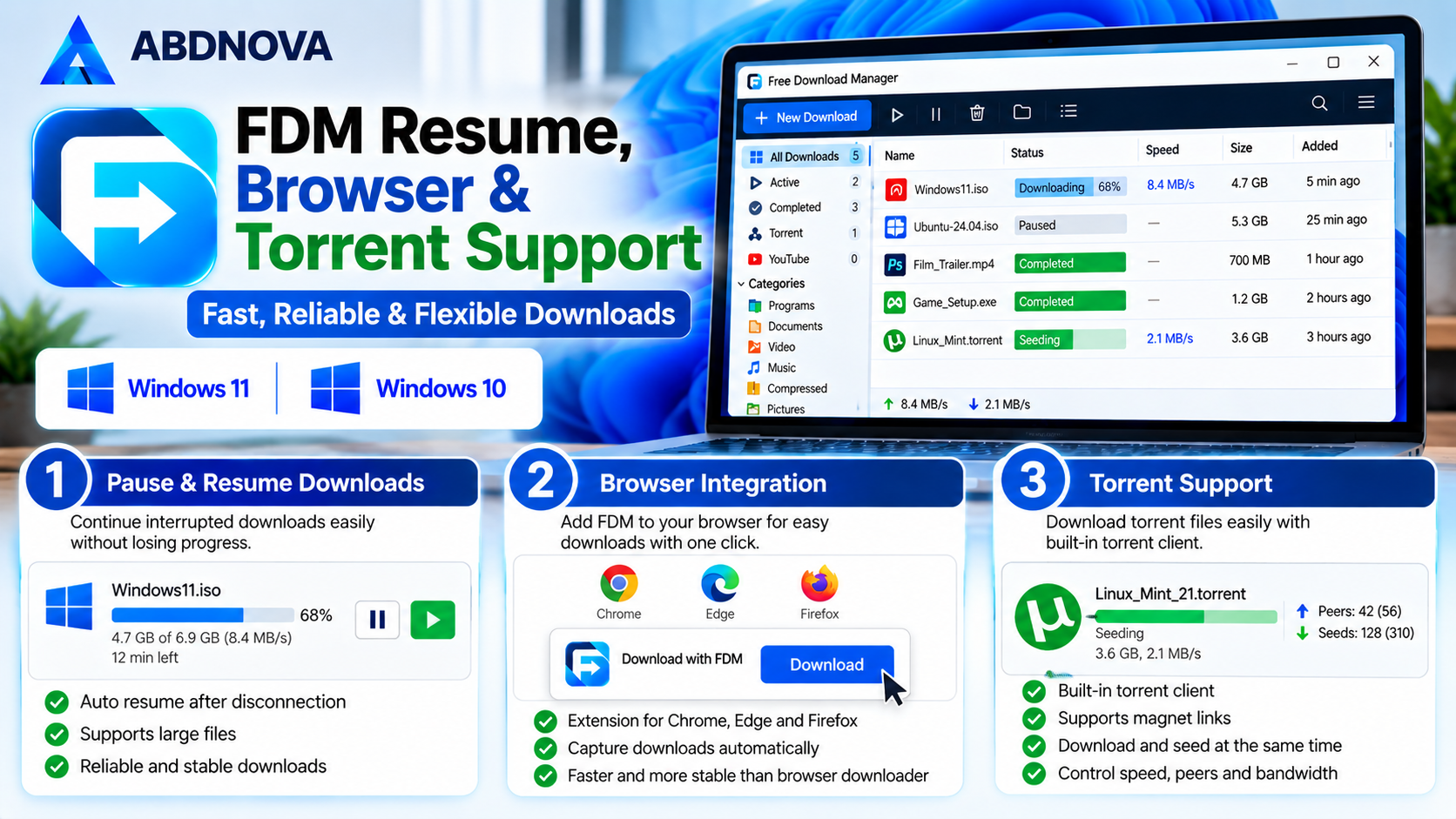
How to Pause & Resume Downloads in FDM
One of the main advantages of Free Download Manager is the ability to pause and resume supported downloads.
Pause a Download
- Open Free Download Manager.
- Find the active download.
- Select the download.
- Click Pause.
- Wait until the transfer stops.
Resume an Interrupted Download
- Open Free Download Manager.
- Find the paused or interrupted transfer.
- Select the download.
- Click Resume.
- Wait for the transfer to continue.
Important: Resume functionality depends on the download server and the original download link. Some servers do not support partial requests, and temporary or signed links can expire. If Resume fails, revisit the original source and obtain a fresh link rather than repeatedly retrying an expired URL.
Free Download Manager Browser Integration – Chrome, Edge & Firefox
Free Download Manager offers browser integration to simplify capturing download links.
Supported integration options may be available for popular browsers such as Google Chrome, Microsoft Edge, and Mozilla Firefox.
Enable Browser Integration
- Install and open the desktop Free Download Manager application.
- In FDM, review the browser integration options available for your installed version.
- Open your browser’s official extension store and locate the extension linked or identified by FDM’s official developer.
- Check the publisher and requested permissions before installing it.
- Enable the extension, then restart the browser if required.
- Try downloading a small file from a legitimate website and confirm that the link is handed to FDM.
If the browser still downloads the file itself, check whether the extension is enabled for that browser and whether FDM is running. Not all websites or protected download links support interception.
When configured correctly, the extension can help send supported download links to FDM.
Browser compatibility and available options may vary with application and extension updates.
For browser installation and setup instructions, see our Google Chrome Offline Installer and Mozilla Firefox Offline Installer guides.
Free Download Manager Speed Limits & Download Acceleration
FDM includes settings for managing bandwidth usage.
Download acceleration works by splitting supported file transfers into multiple connections. However, actual speed depends on server limitations and internet performance.
Adjust Download Speed Limits
- Open Free Download Manager.
- Open the application’s settings or traffic management controls.
- Find the bandwidth or speed limit options.
- Select the preferred traffic mode.
- Adjust download speed limits where available.
- Save the settings.
Reducing download bandwidth can help keep your internet connection responsive while browsing or using other online applications.
Improve Download Performance
- Use a stable internet connection.
- Avoid excessive simultaneous downloads.
- Check available storage space.
- Close unnecessary bandwidth-heavy applications.
- Review FDM’s connection settings.
- Download from reliable servers.
- Use a wired connection when practical.
FDM cannot bypass speed restrictions imposed by your internet provider or the file-hosting server.
How to Download Torrent Files Using Free Download Manager
Free Download Manager supports BitTorrent downloads, including supported torrent files and magnet links.
Add a Torrent Download
- Open Free Download Manager.
- Select Add Download (+).
- Add a supported torrent file or magnet link.
- Choose the destination folder.
- Review the available torrent information.
- Start the transfer.
- Monitor the download progress.
Torrent download speed depends on available peers, network conditions, and other transfer settings.
Only download files you are legally authorized to obtain. For example, some Linux distributions provide official torrent downloads for their ISO images.
Free Download Manager Download Queue & File Organization
FDM provides tools for managing when and where downloads are saved.
Manage Downloads for Later
- Add a legitimate direct download link to FDM using the Add Download (+) control.
- If the transfer starts immediately, use Pause to stop it.
- When you are ready to continue, select the task and choose Resume, provided the server still supports it.
- Check that the original URL has not expired before resuming an older task.
Scheduling clarification: This article does not provide timed scheduling steps because a specific FDM version and its scheduling menu have not been verified. Pausing and manually resuming a task is not the same as automatic scheduling. Check the official FDM documentation for the exact release you install before relying on timed starts.
Organize Downloaded Files
You can choose separate folders for different download categories, such as:
- Software installers.
- ISO images.
- Documents.
- Archives.
- Media files.
- Other downloaded content.
Keeping downloads organized makes it easier to locate files and remove unnecessary installers later.
Free Download Manager vs Internet Download Manager (IDM)
Free Download Manager (FDM) and Internet Download Manager (IDM) are popular Windows download managers. Both provide download acceleration, pause and resume functionality, browser integration, and download management tools.
FDM is free and includes BitTorrent support, while IDM is commercial software with a free trial and advanced browser download integration.
For features, installation instructions, and licensing information, read our Internet Download Manager (IDM) Download for Windows guide.
Free Download Manager vs Browser Download Manager
Windows users can download files directly through Chrome, Edge, or Firefox. However, a dedicated download manager provides additional control.
| Feature | Free Download Manager | Browser Download Manager |
|---|---|---|
| Basic File Downloads | Yes | Yes |
| Pause & Resume | Supported Transfers | Supported Transfers |
| Multiple Connections | Supported | Browser-Dependent |
| Download Queue | Multiple tasks in one application | Varies by browser |
| Speed Limits | Yes | Usually Limited |
| Torrent Downloads | Yes | Usually Not Built In |
| Browser Integration | Available | Built In |
| Download Organization | Advanced Controls | Basic Controls |
| Bandwidth Management | Yes | Usually Limited |
Free Download Manager is a practical option for users who frequently download large files or need more control over active transfers.
For occasional small downloads, a browser’s built-in download manager may be sufficient.
FDM Troubleshooting & Safe Download
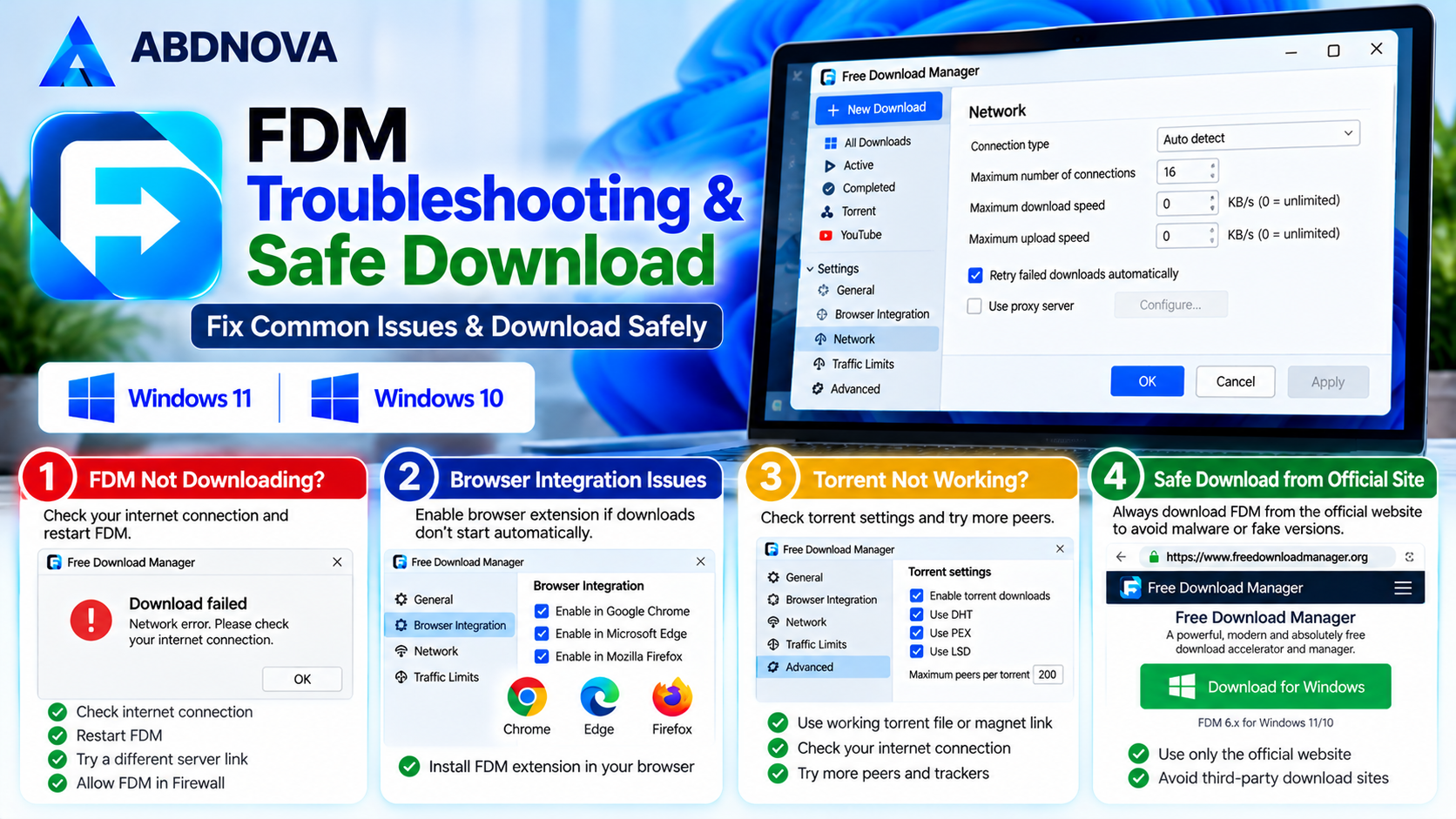
Free Download Manager Not Opening on Windows 11 or Windows 10
If Free Download Manager does not open, the issue may involve damaged application files, background processes, or software conflicts.
Troubleshooting Steps
- Restart Windows.
- Open Task Manager.
- Check whether FDM is already running.
- Close any unresponsive FDM processes.
- Launch the application again.
- Install available Windows updates.
- Check Windows Security or your antivirus notifications for a specific block. Do not disable antivirus protection simply to test the installer.
- Download the latest official installer.
- Reinstall the application if necessary.
Before reinstalling, check whether you need to preserve your download list, settings, or partially downloaded files.
Free Download Manager Download Stuck at 0%
A download may become stuck because of a network problem, expired URL, server restriction, or insufficient storage.
Possible Fixes
- Check your internet connection.
- Pause and resume the download.
- Restart Free Download Manager.
- Confirm that the download URL still works.
- Check available disk space.
- Reduce simultaneous downloads.
- Review firewall or antivirus restrictions.
- Try the official download link again.
Quick diagnosis: Open the source page in your browser. If its download link has changed or requires sign-in, start a fresh task using a newly generated URL. If the file downloads normally in the browser but stays at 0% in FDM, try a different legitimate file to determine whether the problem is specific to that website.
Free Download Manager Cannot Resume Downloads
If FDM cannot resume an interrupted download, the server may not support partial transfers.
Troubleshooting Steps
- Check whether the original download URL is still valid.
- Confirm that your internet connection is working.
- Try resuming the download.
- Check whether the source server supports resuming.
- Obtain a fresh download link if necessary.
- Restart the transfer if the server does not support resuming.
Not every interrupted download can be recovered. Before deleting a failed task, check whether its partial file is still present; removing the task or starting over may discard already downloaded data.
Free Download Manager Browser Extension Not Working
If FDM does not capture download links from your browser:
- Confirm that the official browser extension is installed.
- Check whether the extension is enabled.
- Restart the browser.
- Restart Free Download Manager.
- Review FDM browser integration settings.
- Update the browser and extension.
- Test with a supported direct download link.
Some websites use authentication, temporary links, or specialized download methods that may not work with browser integration. When that happens, use the website’s normal browser download rather than attempting to bypass its access controls.
Is Free Download Manager Free & Safe to Download?
Free Download Manager is free software designed to manage file downloads on supported systems.
For safer use:
- Download FDM from its official website.
- Keep the application updated.
- Use official browser extension stores.
- Avoid modified or cracked installers.
- Download files from trusted sources.
- Scan unfamiliar downloads when appropriate.
- Avoid suspicious torrent files.
- Respect software licenses and copyright restrictions.
- Keep Windows and security software updated.
Remember that using a legitimate download manager does not automatically make every downloaded file safe.
Free Download Manager FAQ
Is Free Download Manager free for Windows?
Yes. Free Download Manager is free to download and use.
Can FDM resume interrupted downloads?
Yes, when the download server and original URL support resuming.
Does FDM increase download speed?
FDM can improve transfer efficiency through multiple connections where supported. Actual download speed depends on the server and internet connection.
Can I download torrents with Free Download Manager?
Yes. FDM supports BitTorrent downloads, including supported torrent files and magnet links.
Does FDM support Google Chrome?
Browser integration is available for supported Chrome versions through the official extension.
Can I schedule downloads using FDM?
This guide has not verified a timed scheduling menu for a specific FDM release, so it does not provide untested steps. You can manually pause and resume supported transfers; consult the official documentation for your installed version to confirm whether automatic scheduling is available.
Why is my FDM download stuck at 0%?
Possible causes include network problems, expired links, server restrictions, or insufficient disk space.
Is Free Download Manager better than browser downloads?
FDM offers additional download management tools, including speed controls, torrent support, and multiple-download management. Whether those features are useful depends on your needs.
Why does a download restart from zero after I click Resume?
The server may not support partial downloads, or the original URL may have expired. Check the source website for a fresh link. A previous partial download cannot always be reused.
Why is my browser downloading files instead of FDM?
Check that the official FDM browser extension is enabled, the desktop app is running, and the website uses a supported download method. Some sites cannot be intercepted.
Final Thoughts
Free Download Manager can be useful when you regularly download large installers, archives, or ISO images and want a visible transfer queue, bandwidth controls, and the option to resume supported downloads. For occasional small files, your browser’s built-in downloader may be enough.
For the best experience, install Free Download Manager from its official website, use trusted download sources, keep sufficient storage space available, and remember that download resuming depends on server support.
Ready to download Free Download Manager?
Windows 11 & 10 • Download Manager • Pause & Resume
ABDNOVA does not host the installer. The button opens the official Free Download Manager website.


