
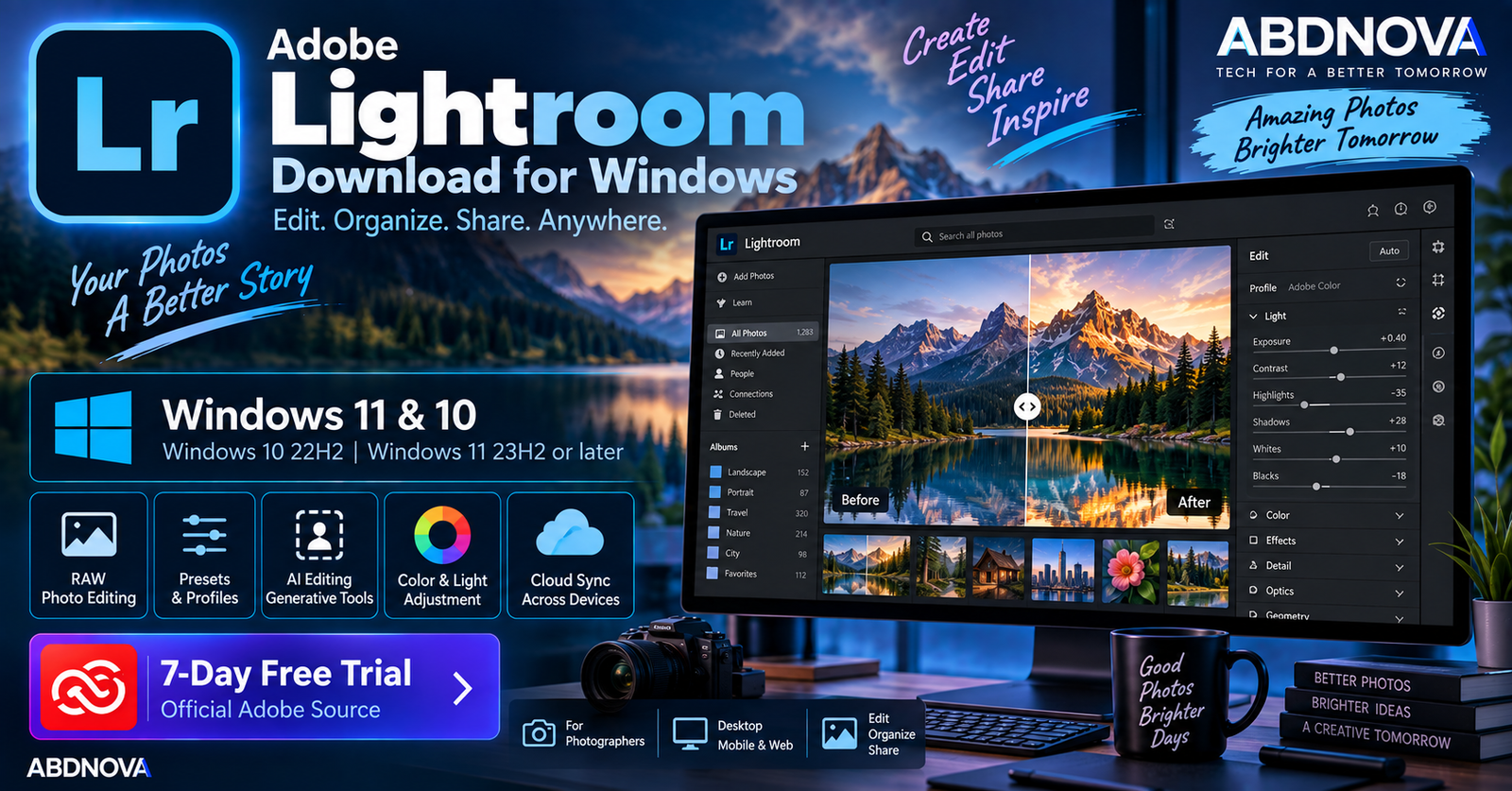

Adobe Lightroom Download for Windows 11 & 10
Adobe Lightroom Download for Windows gives photographers and content creators a streamlined application for photo editing, organization, cloud storage, and sharing. Lightroom provides tools for exposure, color, contrast, highlights, shadows, cropping, masking, presets, noise reduction, object removal, Lens Blur, and other editing tasks while keeping edits non-destructive.
The current Lightroom desktop release is Lightroom 9.5, released in August 2026. Adobe currently supports Windows 10 version 22H2 and Windows 11 version 23H2 or later for Lightroom desktop 9.x.
Unlike Lightroom Classic, standard Lightroom is built around Adobe’s cloud-connected ecosystem, making it easier to access, organize, and edit photographs across desktop, mobile, and web.
Adobe Lightroom for Windows at a Glance
| Details | Information |
|---|---|
| Software | Adobe Lightroom |
| Developer | Adobe |
| Category | Photo Editing & Organization |
| Current Desktop Release | Lightroom 9.5 |
| Windows 11 | Version 23H2 or later |
| Windows 10 | Version 22H2 |
| Processor | 64-bit Intel or AMD, 2 GHz+, SSE 4.2 |
| Minimum RAM | 8 GB |
| Recommended RAM | 16 GB or more |
| Storage | 10 GB minimum plus additional space for installation and sync |
| GPU | DirectX 12 compatible |
| Minimum VRAM | 2 GB |
| License | Paid subscription |
| Free Trial | 7 days |
| Platforms | Desktop, Web & Mobile |
| Official Source | Adobe |
Adobe Lightroom for Windows 11 & 10
Adobe Lightroom provides a modern photography workflow for importing, organizing, editing, synchronizing, and sharing images. It is useful for:
- RAW photo editing.
- Landscape and portrait photography.
- Product photography.
- Travel photography.
- Social media images.
- Color correction.
- Photo organization.
- Preset-based editing.
- AI-assisted photo editing.
- Cloud-based photo access.
A faster processor, additional RAM, SSD storage, and a capable GPU can improve performance when working with high-resolution RAW images, large photo libraries, and AI-powered tools.
Adobe Lightroom on Windows 10
Current Lightroom desktop still officially supports Windows 10. Adobe specifies Windows 10 version 22H2 as the minimum Windows 10 release for Lightroom desktop 9.x.
Press Windows + R, type winver, and press Enter.
Adobe Lightroom System Requirements
| Component | Minimum / Recommended |
|---|---|
| Operating System | Windows 10 22H2 or Windows 11 23H2+ |
| Processor | 64-bit Intel or AMD with SSE 4.2; 2 GHz or faster |
| RAM | 8 GB minimum; 16 GB or more recommended |
| Storage | 10 GB minimum; additional space required during installation and sync |
| Display | 1280 × 768 minimum; 1920 × 1080 or higher recommended |
| Graphics | DirectX 12 compatible GPU |
| VRAM | 2 GB minimum |
| 4K Displays | 4 GB GPU memory recommended |
| Advanced GPU/AI Features | 8 GB dedicated or 16 GB shared GPU memory recommended |
| Internet | Required for activation, subscription validation, sync, and online services |
Adobe recommends 16 GB or more RAM for a smoother workflow. Stronger GPU resources are particularly useful for features such as Denoise, Lens Blur, and other GPU-accelerated or AI-assisted operations.
How to Download & Install Adobe Lightroom on Windows
The safest way to get Lightroom is directly from Adobe.
- Open Adobe’s official Lightroom page.
- Select Free Trial or choose an available Lightroom plan.
- Sign in with your Adobe ID or create an Adobe account.
- Complete the trial or subscription setup.
- Download Adobe Creative Cloud if prompted.
- Install and open the Creative Cloud desktop application.
- Find Lightroom under Apps.
- Select Install.
- Wait for the download and installation to finish.
- Launch Lightroom and sign in with your Adobe account.
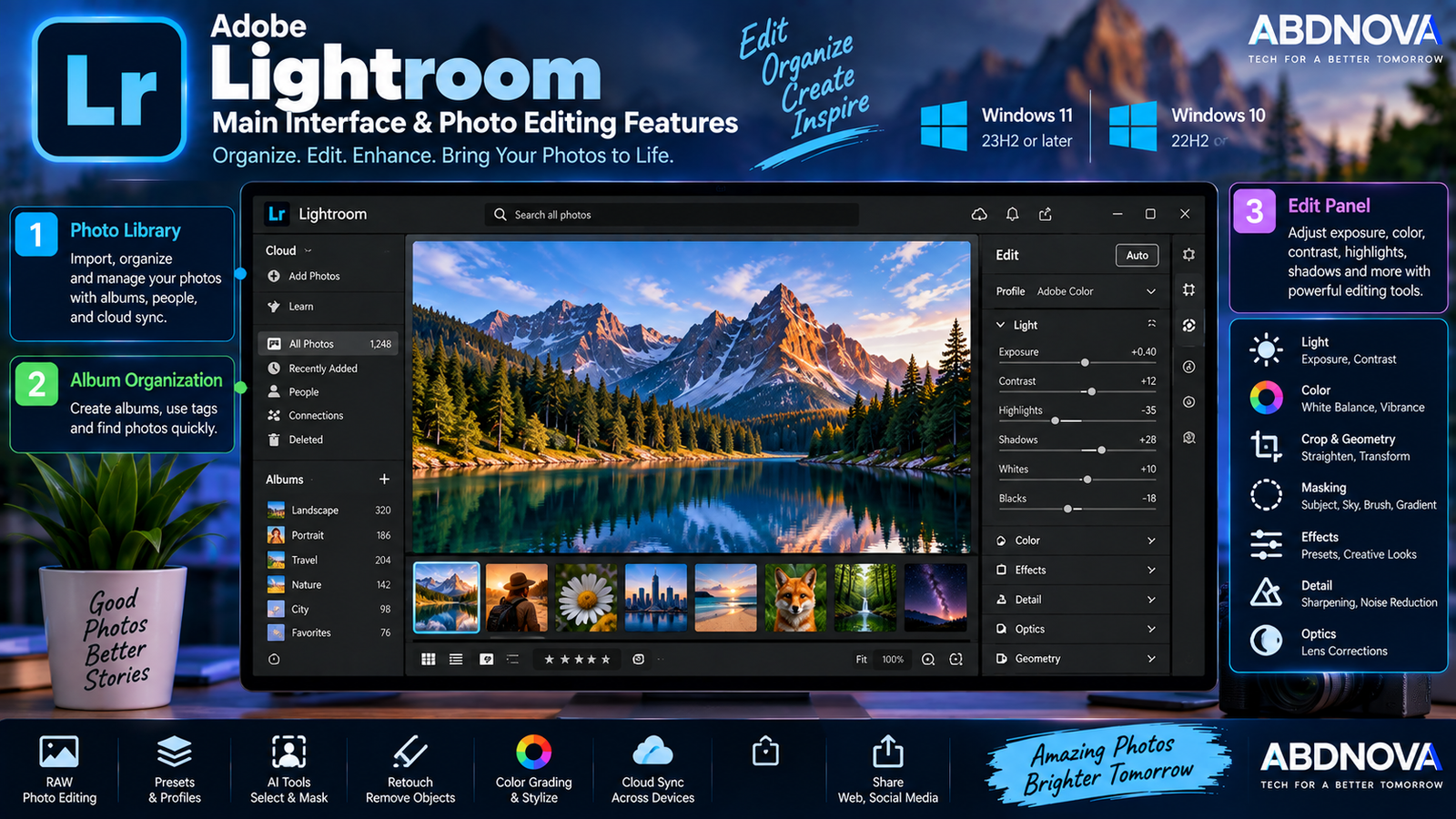
Adobe Lightroom Main Interface & Photo Editing Features
Lightroom provides a photography-focused interface with access to your photo library and editing controls organized into easy-to-navigate panels.
Photo Library
Imported and cloud-based photos can be browsed and organized from Lightroom. Albums help group related images from a trip, client shoot, product collection, or other project.
Edit Panel
The Edit panel provides Lightroom’s primary photo-adjustment controls, including:
- Exposure.
- Contrast.
- Highlights and Shadows.
- Whites and Blacks.
- Temperature and Tint.
- Texture.
- Clarity.
- Dehaze.
- Sharpening.
- Color adjustments.
These adjustments are non-destructive, so you can change the appearance of a photograph without permanently altering the original image.
RAW Photo Editing
RAW editing is one of Lightroom’s main strengths. RAW files retain more original camera information than typical processed JPEG files, providing greater flexibility when correcting exposure, white balance, shadows, highlights, and color.
Adobe regularly adds support for new cameras and lens profiles through Lightroom updates.
Presets
Presets provide a fast way to apply a predefined collection of adjustments. They can be useful for portraits, landscapes, travel photography, black-and-white photos, social media images, and consistent brand photography.
Individual settings remain adjustable after a preset is applied.
Adobe Lightroom AI Photo Editing & Generative Tools
Masking & Selective Editing
Masking allows adjustments to be applied to selected parts of an image rather than changing the entire photograph.
Lightroom supports masking workflows for:
- Subjects.
- Skies.
- Objects.
- People.
- Backgrounds.
- Landscapes.
- Gradients.
- Brushes.
Lightroom 9.5 adds new Feather and Edge sliders for more precise masking transitions.
Generative Remove
Generative Remove uses Adobe Firefly technology to help remove unwanted objects and distractions. Brush over an unwanted element and Lightroom analyzes the surrounding image to generate replacement content intended to blend naturally with the photograph.
It can be useful for removing:
- People in backgrounds.
- Signs.
- Poles.
- Vehicles.
- Small distracting objects.
- Unwanted landscape elements.
Traditional Clone and Heal tools remain available alongside Generative Remove.
Generative Expand
Lightroom 9.5 introduced Generative Expand. It can extend a photograph beyond its original boundaries and generate content for the expanded area.
This can help when:
- Changing an image’s aspect ratio.
- Creating more space around a subject.
- Preparing an image for another layout.
- Correcting composition.
- Expanding panoramic photographs.
AI Sharpen
AI Sharpen is designed to reduce blur, recover detail, and improve clarity in suitable photographs. It can be useful when an image is slightly soft or needs additional detail recovery.
Generative Upscale
Generative Upscale can increase image resolution. Lightroom’s implementation provides higher-resolution output options that can help when preparing lower-resolution images for larger output.
Lens Blur
AI-powered Lens Blur can create or enhance background blur, helping visually separate a subject from the background and create a stronger depth-of-field effect.
Denoise
AI-powered Denoise helps reduce noise while preserving useful image detail. It is particularly helpful for photographs taken at high ISO, indoors, at night, in low light, or with underexposed areas.
Assisted Culling
Assisted Culling helps photographers review large groups of photographs more efficiently. Lightroom’s Faces panel can provide information such as detected faces, eye sharpness, and whether eyes are open to help with people-focused shoots.
Generate Video
Lightroom can also create short motion-based results from photographs using Generate Video. This is not a replacement for a full timeline-based video editor; it is designed to add motion to existing photographs.
Color Editing & Color Grading
Lightroom provides extensive controls for white balance, temperature, tint, saturation, vibrance, individual colors, and color grading.
Point Color and masking tools provide additional control when a particular color or image area requires adjustment.
Crop, Geometry & Lens Corrections
Lightroom includes cropping, straightening, geometric correction, lens correction, and chromatic aberration tools. Supported lens profiles can automatically correct certain characteristics associated with a camera lens.
Cloud Storage & Cross-Device Editing
One of the biggest differences between Lightroom and Lightroom Classic is Lightroom’s cloud-oriented design.
Lightroom is available across desktop, mobile, and web, allowing photographs and edits to be accessed across supported devices through Adobe’s cloud workflow.
This is useful for photographers who want to start editing on a Windows PC and later continue from a phone, tablet, or web browser.
Lightroom vs Lightroom Classic
| Adobe Lightroom | Lightroom Classic |
|---|---|
| Cloud-oriented workflow | Traditional desktop workflow |
| Designed for cross-device access | Designed primarily for desktop use |
| Desktop, mobile and web | Desktop-focused |
| Cloud-based organization | Catalog and local file management |
| Convenient synchronization | Detailed local photo-library control |
Both applications provide advanced photography tools, but their organization and storage workflows differ. Lightroom emphasizes cloud access and synchronization, while Lightroom Classic provides a more traditional desktop catalog and local-file workflow.
Adobe Lightroom vs Photoshop
Lightroom and Photoshop are complementary rather than direct replacements.
| Adobe Lightroom | Adobe Photoshop |
|---|---|
| Photography-focused workflow | Advanced image manipulation |
| RAW processing | Pixel-level editing |
| Photo organization | Layers and complex selections |
| Fast color and exposure adjustments | Advanced retouching |
| Cloud-based photo workflow | Compositing and graphic design |
A photographer can perform the main exposure, color, masking, and organization work in Lightroom and move selected photographs to Photoshop when detailed retouching or complex compositing is required.
Other Photo Tools for Windows
If you also need lightweight tools for quickly viewing and managing images, see our IrfanView Download for Windows guide and FastStone Image Viewer Download for Windows guide.
Is Adobe Lightroom Free?
The complete Lightroom desktop application is not permanently free. Adobe currently offers a 7-day free trial of the full Lightroom application with the latest updates.
The trial converts to a paid membership after seven days unless it is cancelled according to Adobe’s current terms. Because plans, cloud-storage allocations, promotions, and prices can change, check Adobe directly for current details.
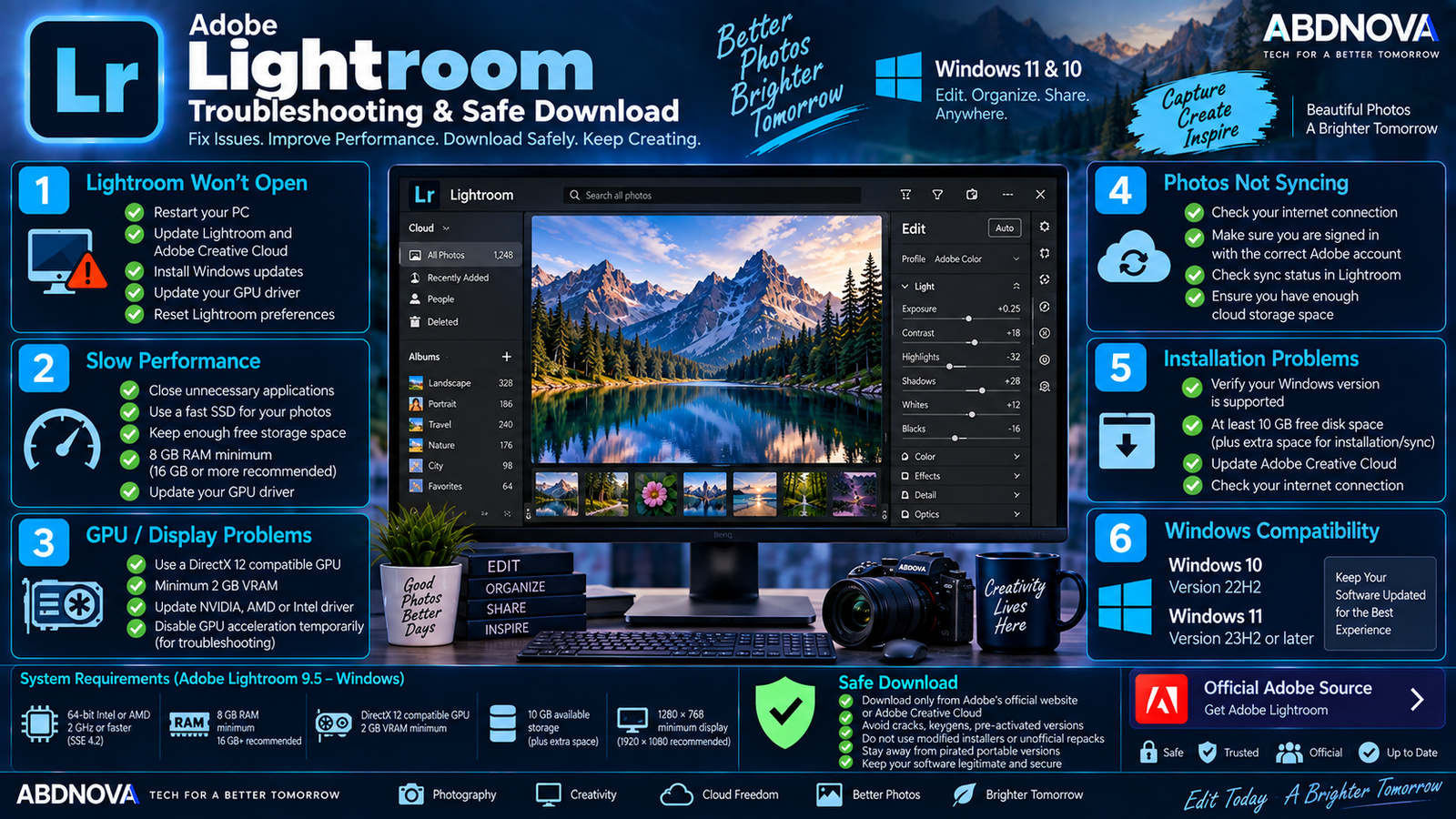
Adobe Lightroom Troubleshooting & Safe Download
Lightroom Does Not Open
Restart Windows first. If Lightroom still does not open:
- Update Lightroom.
- Update Creative Cloud.
- Install Windows updates.
- Update the graphics driver.
- Restart Creative Cloud.
- Check available storage.
- Confirm that your Windows version is supported.
Lightroom Is Running Slowly
Large RAW photographs, AI tools, large albums, and demanding editing operations can require substantial system resources.
Try:
- Closing unnecessary programs.
- Using an SSD.
- Keeping sufficient free storage.
- Updating Lightroom.
- Updating the graphics driver.
- Increasing available RAM where appropriate.
Adobe recommends 16 GB RAM or more, although the minimum is 8 GB.
Photos Are Not Syncing
Check your internet connection and confirm that Lightroom is signed in to the correct Adobe account. Also check pending uploads or downloads and make sure sufficient cloud storage remains available under your plan.
Generative Remove Is Not Working
Generative Remove depends on Lightroom’s online generative AI workflow. Make sure Lightroom is updated, the internet connection is working, and you are signed in to your Adobe account.
Lightroom Will Not Install
Confirm that your Windows PC meets the current requirements:
- Windows 10 22H2 or Windows 11 23H2+.
- Supported 64-bit Intel or AMD processor.
- SSE 4.2 support.
- 8 GB RAM minimum.
- 10 GB available storage plus additional installation and sync space.
Also check your internet connection, Creative Cloud application, Adobe account, and available disk space.
How to Update Adobe Lightroom
Install the available Lightroom update. Keeping Lightroom current provides new features, camera and lens support, bug fixes, compatibility improvements, and performance updates.
Safe Adobe Lightroom Download
Always download Lightroom from Adobe’s official website or install it through the official Adobe Creative Cloud desktop application.
- Lightroom cracks.
- Keygens.
- Pre-activated Lightroom installers.
- Modified Creative Cloud installers.
- Unofficial repacks.
- Pirated portable versions.
- “Lifetime activated” downloads from unknown websites.
Modified installers can contain malware, unwanted applications, credential-stealing software, or altered program files. Use Adobe’s legitimate installation process instead.
Frequently Asked Questions
Does Adobe Lightroom work on Windows 11?
Yes. Adobe currently supports Windows 11 version 23H2 or later for Lightroom desktop 9.x.
Does Adobe Lightroom work on Windows 10?
Yes. Current Lightroom desktop supports Windows 10 version 22H2.
What is the latest Adobe Lightroom version?
The current desktop release checked is Lightroom 9.5, released in August 2026.
Is Adobe Lightroom free?
The complete desktop application is not permanently free, but Adobe currently provides a 7-day free trial of the full Lightroom application.
How much RAM does Lightroom need?
Adobe specifies 8 GB RAM as the minimum and recommends 16 GB or more.
Can Lightroom edit RAW photos?
Yes. RAW photo editing is one of Lightroom’s primary uses, and Adobe regularly adds support for new cameras and lens profiles.
Does Lightroom have AI features?
Yes. Current Lightroom includes AI-assisted features such as Denoise, Lens Blur, masking, Generative Remove, AI Sharpen, Generative Upscale, Assisted Culling, and Generative Expand.
What is the difference between Lightroom and Lightroom Classic?
Lightroom emphasizes cloud storage and cross-device editing, while Lightroom Classic is centered more heavily on a traditional desktop catalog and locally managed photography workflow.
Final Thoughts
Adobe Lightroom Download for Windows provides a streamlined photography workflow combining photo organization, RAW editing, color correction, presets, masking, cloud synchronization, and increasingly capable AI-assisted tools.
The current Lightroom 9.5 release supports Windows 10 22H2 and Windows 11 23H2 or later. Features such as Generative Expand, Generative Remove, AI Sharpen, Assisted Culling, improved masking, and Generative Upscale expand what photographers can accomplish without leaving Lightroom.
For safe installation and reliable updates, download Lightroom directly from Adobe and avoid cracked, modified, pre-activated, or third-party installers.
Download Adobe Lightroom for Windows
Get the official Lightroom desktop application and 7-day trial directly from Adobe.


