
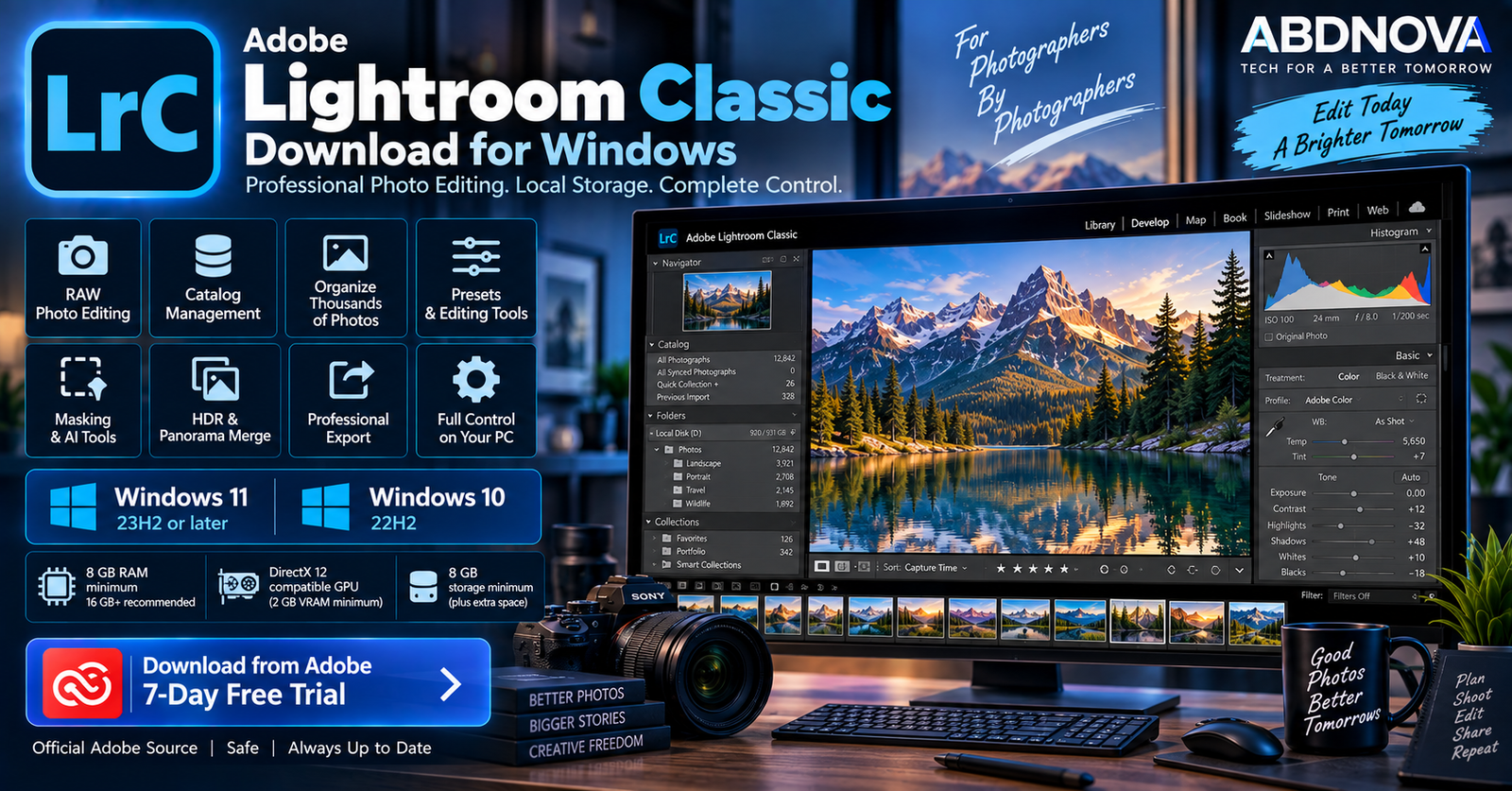

Adobe Lightroom Classic Download for Windows 11 & 10
Adobe Lightroom Classic Download for Windows gives photographers Adobe’s desktop-focused professional photo editing and photo-management application. It is designed especially for users who prefer to keep original photos, catalogs, previews, and most of their workflow on local computers and storage drives.
Lightroom Classic combines RAW photo editing, catalog management, presets, masking, HDR and panorama tools, AI-assisted editing, batch processing, metadata management, printing, and professional export controls.
The current Lightroom Classic 15.5 release supports Windows 10 version 22H2 and Windows 11 version 23H2 or later.
Adobe Lightroom Classic for Windows at a Glance
| Details | Information |
|---|---|
| Software | Adobe Lightroom Classic |
| Developer | Adobe |
| Category | Photo Editing & Photo Management |
| Current Release Checked | Lightroom Classic 15.5 |
| Release | August 2026 |
| Windows 11 | Version 23H2 or later |
| Windows 10 | Version 22H2 |
| Minimum RAM | 8 GB |
| Recommended RAM | 16 GB or more |
| Minimum Storage | 8 GB plus additional installation space |
| GPU | DirectX 12 compatible |
| Minimum GPU Memory | 2 GB |
| License | Paid subscription |
| Trial | Available through Adobe |
| Installation | Adobe Creative Cloud |
Adobe Lightroom Classic for Windows 11 & 10
Lightroom Classic works on Windows 11 version 23H2 or later under Adobe’s current requirements. It is particularly suitable for photographers working with:
- RAW photographs.
- Large local photo libraries.
- Wedding photography.
- Portrait photography.
- Landscape photography.
- Product photography.
- Event and wildlife photography.
- HDR images and panoramas.
- Professional print and export workflows.
A Windows PC with a fast SSD, 16 GB or more RAM, and a capable DirectX 12 GPU provides a stronger starting point for large catalogs and GPU-intensive editing.
Lightroom Classic on Windows 10
Current Lightroom Classic still supports Windows 10 version 22H2. Older Windows 10 releases should be checked for compatibility before installing the current application.
Press Windows + R, type winver, and press Enter.
Adobe Lightroom Classic System Requirements
| Component | Requirement |
|---|---|
| Operating System | Windows 10 22H2 or Windows 11 23H2+ |
| Processor | 64-bit Intel or AMD, 2 GHz or faster with SSE 4.2; current Intel/AMD requirements include AVX2 support |
| RAM | 8 GB minimum; 16 GB or more recommended |
| GPU | DirectX 12 compatible |
| GPU Memory | 2 GB minimum |
| 4K Display | 4 GB GPU memory recommended |
| AI/GPU Workflows | 8 GB dedicated or 16 GB shared GPU memory recommended for full acceleration and demanding AI features |
| Storage | 8 GB minimum plus additional installation space; fast SSD recommended |
| Display | 1024 × 768 minimum; 1920 × 1080 or higher recommended |
Photographers should plan for substantially more storage than the application minimum because catalogs, previews, backups, RAW photographs, exported files, and temporary data require separate space.
How to Download & Install Adobe Lightroom Classic on Windows
Lightroom Classic should be downloaded and installed through Adobe Creative Cloud.
- Visit Adobe’s official Lightroom or Creative Cloud page.
- Start an eligible trial or subscription.
- Sign in with your Adobe account.
- Download and install the Adobe Creative Cloud desktop application.
- Open Creative Cloud.
- Locate Lightroom Classic.
- Select Install.
- Wait for installation to finish.
- Launch Lightroom Classic.
- Create a new catalog or open an existing Lightroom Classic catalog.
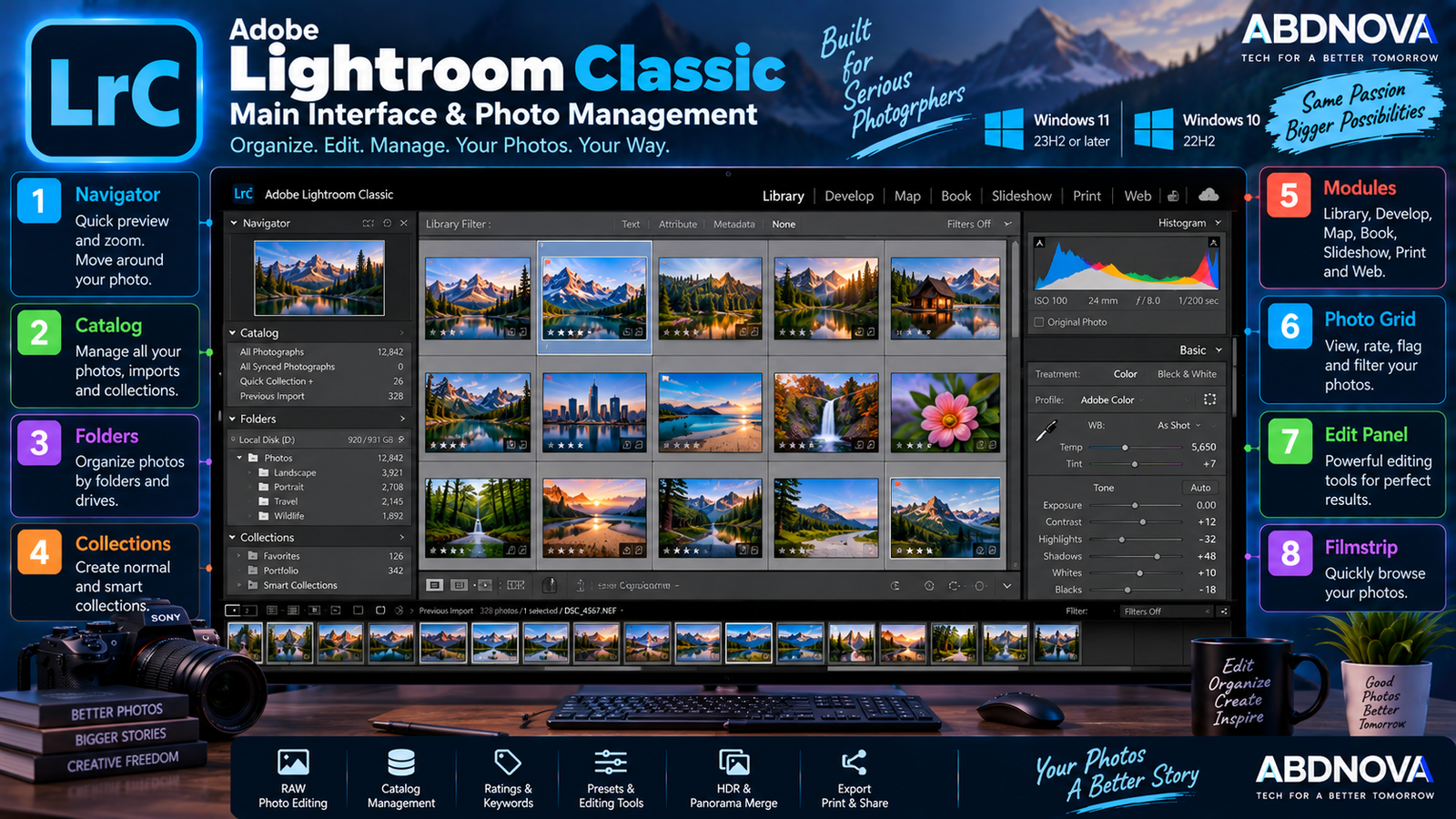
Adobe Lightroom Classic Main Interface & Photo Management
Lightroom Classic uses a module-based professional interface built around a central photo workspace. Important areas include the Library and Develop modules, Filmstrip, side panels, catalogs, folders, collections, and editing tools.
Library Module
The Library module is the main photo-management workspace. You can use it to:
- Import photographs.
- Browse folders.
- Create collections.
- Add ratings and flags.
- Add keywords.
- Edit metadata.
- Filter photographs.
- Find specific images.
- Organize large photo libraries.
Lightroom Classic Catalog
Lightroom Classic uses a catalog to record information about photographs and edits. The catalog references where original files are stored while maintaining edits, ratings, keywords, collections, and other organizational information.
This gives photographers considerable control over images stored on internal and external drives.
Develop Module
The Develop module contains Lightroom Classic’s main photo-editing controls, including:
- Exposure and Contrast.
- Highlights and Shadows.
- Whites and Blacks.
- White Balance.
- Texture and Clarity.
- Dehaze.
- Vibrance and Saturation.
- Tone Curve.
- Color Mixer and Color Grading.
- Detail.
- Lens Corrections.
- Transform tools.
Lightroom Classic editing is non-destructive, allowing adjustments to be changed or reversed without permanently rewriting the original photograph.
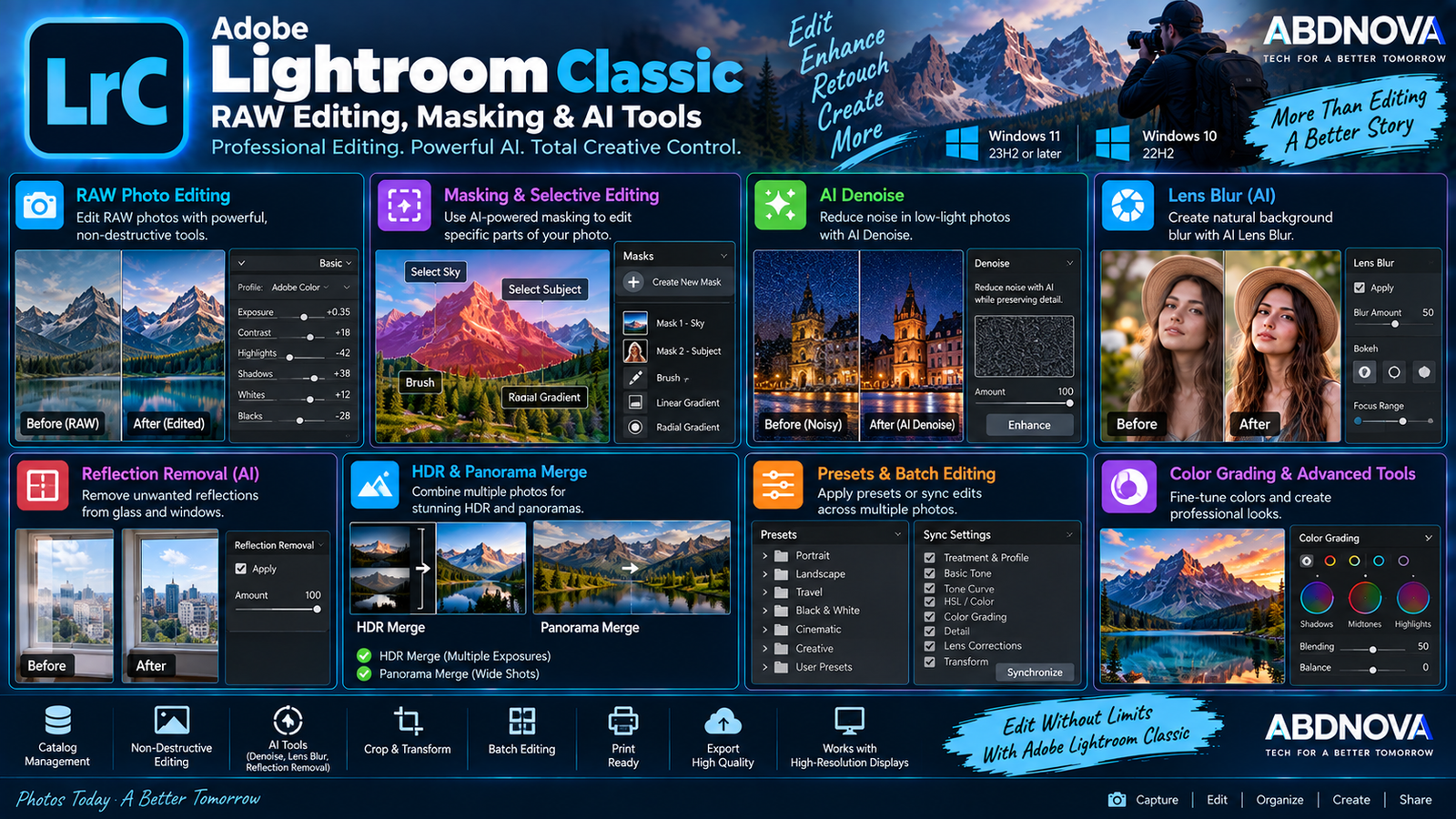
Adobe Lightroom Classic RAW Editing, Masking & AI Tools
RAW Photo Editing
RAW processing is one of Lightroom Classic’s primary functions. RAW files preserve extensive camera data and provide greater editing flexibility for exposure, white balance, highlights, shadows, color, noise, sharpness, and lens corrections.
Adobe regularly updates Lightroom Classic with support for additional cameras and lenses. Lightroom Classic 15.5 added support for new GoPro camera models and profiles for GoPro, Laowa, and SIGMA lenses.
Presets
Presets allow groups of editing adjustments to be applied quickly and can help maintain a consistent look across wedding photos, portraits, travel images, product photography, social media content, and landscapes.
Preset settings remain adjustable after they are applied, and photographers can create their own presets for repetitive workflows.
Masking & Selective Editing
Masking allows selected areas of a photograph to be edited without changing the entire image. Depending on the photo and available tools, photographers can work with subjects, skies, people, objects, backgrounds, brushes, and gradients.
Lightroom Classic 15.5 adds new Feather and Edge controls for finer control over mask transitions.
AI Denoise
AI-powered Denoise can reduce image noise while preserving useful detail. It can be particularly helpful for high-ISO, night, indoor, low-light, and underexposed photographs.
AI processing can place substantially more demand on the GPU, which is why Adobe recommends stronger graphics hardware for these workflows.
Lens Blur
Lens Blur uses AI-assisted processing to create or refine depth and background blur, helping separate subjects from their backgrounds and create stronger depth-of-field effects.
Reflection Removal
Reflection Removal is designed to reduce reflections in suitable photographs, such as images captured through glass. Like Denoise and Lens Blur, it benefits from stronger GPU resources.
HDR Photo Merge
Lightroom Classic can combine photographs captured at different exposure levels into an HDR image, preserving a wider range of highlight and shadow detail.
This is particularly useful for landscapes, architecture, interiors, and other high-contrast scenes.
Panorama Merge
Panorama Merge combines overlapping photographs into a wider image and is useful for landscapes, architecture, cityscapes, and other scenes that cannot easily fit into one frame.
Lightroom Classic also supports suitable HDR panorama workflows.
Render to DNG
Lightroom Classic 15.5 introduced Render to DNG. It creates a new DNG file with current edits permanently rendered, providing a new non-RAW starting point for additional editing.
Improved Cropping in Lightroom Classic 15.5
The August 2026 release adds the ability to adjust a photo’s opacity while cropping, making it easier to see through cropped-out areas while refining composition.
Batch Photo Editing
One of Lightroom Classic’s major strengths is its ability to process many photographs efficiently. Adjustments can be synchronized or reused across related images before individual refinements are made.
This is useful for weddings, events, studio sessions, product shoots, travel photography, and other large projects.
Ratings, Flags & Keywords
Lightroom Classic includes extensive organizational tools:
- Star ratings.
- Pick and reject flags.
- Color labels.
- Keywords.
- Metadata.
- Collections.
These tools make it easier to locate individual photographs in catalogs containing thousands of images.
Exporting Photos
Lightroom Classic provides detailed export controls for:
- File format.
- Image dimensions.
- Resolution.
- Output sharpening.
- Metadata.
- File naming.
- Destination folder.
Different export settings can be created for websites, social media, client delivery, printing, and archival workflows.
Lightroom Classic vs Lightroom
| Lightroom Classic | Lightroom |
|---|---|
| Desktop-focused workflow | Cloud-oriented workflow |
| Catalog-based organization | Cloud/local Lightroom ecosystem |
| Strong local file management | Easier cross-device workflow |
| Detailed folder management | Simpler organization |
| Designed for large desktop photo archives | Designed for desktop, mobile and web access |
| Traditional professional photography workflow | Modern multi-device workflow |
Lightroom Classic is built primarily around photographs managed through a desktop catalog, while Lightroom is more heavily designed around Adobe’s cloud and cross-device ecosystem.
Lightroom Classic vs Photoshop
Lightroom Classic and Photoshop serve different parts of a professional photography workflow.
| Lightroom Classic | Photoshop |
|---|---|
| RAW processing | Advanced pixel-level editing |
| Large photo libraries | Layers and complex selections |
| Batch editing | Advanced retouching |
| Color correction | Compositing |
| Photo organization | Graphic design |
| Photographer-focused workflow | Advanced image manipulation |
Many photographers use Lightroom Classic for the majority of their workflow and send selected images to Photoshop when more advanced retouching or compositing is required.
Other Photo Tools for Windows
For fast image viewing and lightweight photo management outside Lightroom Classic, you can also check our IrfanView Download for Windows guide and FastStone Image Viewer Download for Windows guide.
Is Adobe Lightroom Classic Free?
No. Lightroom Classic is not permanently free software. Adobe provides it through eligible Creative Cloud memberships and offers trial access through its official Creative Cloud workflow.
Adobe currently provides a 7-day Lightroom trial. Plans and pricing can change, so current subscription details should always be checked directly with Adobe rather than relying on older third-party pricing information.
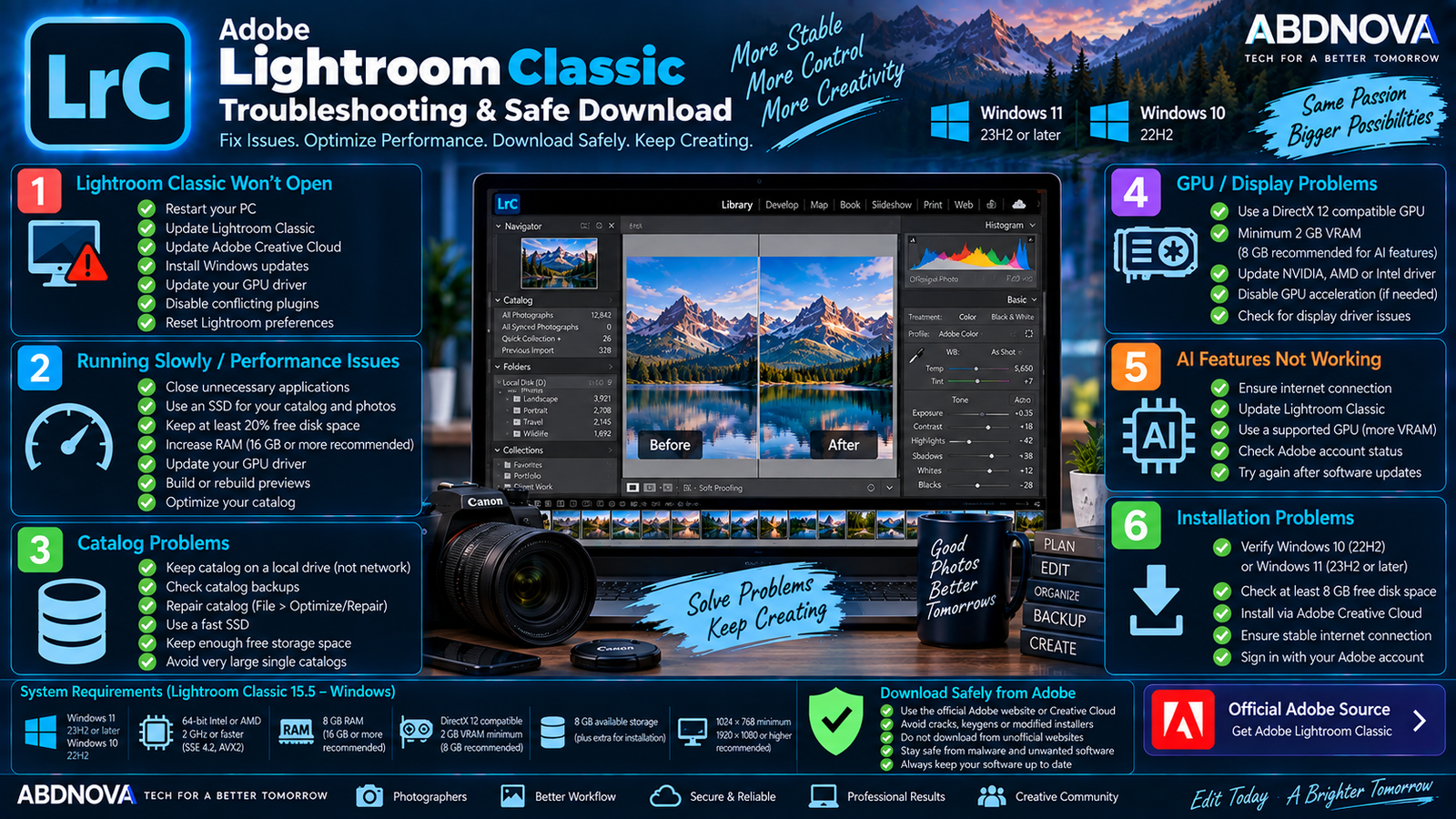
Adobe Lightroom Classic Troubleshooting & Safe Download
Lightroom Classic Does Not Open
Restart Windows first. If the application still does not open:
- Update Lightroom Classic.
- Update Adobe Creative Cloud.
- Install available Windows updates.
- Update the GPU driver.
- Check third-party plugins.
- Confirm your Windows version.
- Check available disk space.
Lightroom Classic Is Running Slowly
Performance depends on catalog size, image resolution, previews, local adjustments, hardware, and storage performance.
Try:
- Using a fast SSD.
- Keeping adequate free disk space.
- Closing unnecessary applications.
- Updating Lightroom Classic.
- Updating your graphics driver.
- Optimizing your catalog workflow.
Adobe recommends keeping the drive containing the catalog, previews, and photographs at least 20% free.
Lightroom Catalog Is Slow
Large catalogs and preview databases can place significant demands on storage. Fast SSD storage is recommended for catalogs and previews.
Avoid placing the Lightroom Classic catalog itself on a network drive because Adobe does not support catalog files there.
GPU or Display Problems
If Lightroom Classic shows graphical problems:
- Update the GPU driver.
- Restart Lightroom Classic.
- Check DirectX 12 support.
- Test whether GPU acceleration is contributing to the problem.
- Verify sufficient GPU memory.
The current minimum specification includes a DirectX 12-compatible GPU with 2 GB GPU memory.
AI Features Are Slow
Denoise, Lens Blur, Reflection Removal, and other GPU-intensive processing can benefit significantly from stronger graphics hardware.
Adobe recommends 8 GB dedicated GPU memory or 16 GB shared memory for full GPU acceleration and demanding AI features.
Lightroom Classic Will Not Install
Check that your PC meets the current minimum requirements:
- Windows 10 22H2 or Windows 11 23H2+.
- Supported 64-bit processor.
- 8 GB RAM minimum.
- 8 GB available application storage.
- DirectX 12 GPU with at least 2 GB GPU memory.
Also update Creative Cloud and verify your internet connection and Adobe account.
How to Update Lightroom Classic
Open the Adobe Creative Cloud desktop application and check for application updates. You can also use:
Before a major upgrade, keeping a current backup of your Lightroom Classic catalog is recommended.
Safe Adobe Lightroom Classic Download
Download Lightroom Classic only through Adobe or the official Creative Cloud desktop application.
- Lightroom Classic cracks.
- Keygens.
- Pre-activated versions.
- Unofficial portable versions.
- Modified Creative Cloud installers.
- Repacked installers.
- “Lifetime activated” downloads.
Unofficial modified installers may contain malware or altered application files and do not provide Adobe’s normal licensing and update workflow.
Frequently Asked Questions
Does Lightroom Classic work on Windows 11?
Yes. Current Lightroom Classic requirements support Windows 11 version 23H2 or later.
Does Lightroom Classic work on Windows 10?
Yes. Adobe currently supports Windows 10 version 22H2.
What is the latest Lightroom Classic version?
The latest documented release checked is Lightroom Classic 15.5, released in August 2026.
How much RAM does Lightroom Classic require?
Adobe requires at least 8 GB RAM and recommends 16 GB or more.
Does Lightroom Classic require a GPU?
The current minimum specification includes a DirectX 12-compatible GPU with at least 2 GB GPU memory. More graphics memory is recommended for high-resolution displays, full GPU acceleration, and AI-intensive features.
Is Lightroom Classic free?
No. Lightroom Classic is subscription software, although Adobe provides official trial access through Creative Cloud.
What is the difference between Lightroom and Lightroom Classic?
Lightroom is more heavily designed around Adobe’s cloud and cross-device workflow. Lightroom Classic uses a traditional desktop catalog and provides greater direct control over locally managed photo libraries.
Can Lightroom Classic edit RAW photographs?
Yes. RAW processing is a core Lightroom Classic feature, and Adobe regularly adds support for additional cameras and lenses.
Can Lightroom Classic organize thousands of photos?
Yes. Catalogs, folders, collections, ratings, flags, keywords, metadata, and filtering tools are designed for managing large photography libraries.
Final Thoughts
Adobe Lightroom Classic Download for Windows is particularly useful for photographers who want professional RAW editing combined with detailed desktop photo organization and local file control.
The current Lightroom Classic 15.5 release supports Windows 10 22H2 and Windows 11 23H2 or later. Adobe recommends 16 GB or more RAM and a fast SSD, while demanding GPU-accelerated AI workflows benefit from considerably more graphics memory than the basic minimum.
For a safe installation, use Adobe Creative Cloud and avoid cracked, repacked, pre-activated, or unofficial portable versions.
Download Adobe Lightroom Classic for Windows
Get Lightroom Classic through Adobe’s official Lightroom and Creative Cloud plans.


