

Adobe Photoshop Download for Windows 11 & 10
Adobe Photoshop Download for Windows gives Windows users access to one of the most established professional applications for photo editing, retouching, graphic design, compositing and digital artwork.
Modern Photoshop combines its traditional layer-based editing workflow with newer AI-assisted features. You can edit photos, work with selections and masks, adjust color and lighting, remove unwanted objects, replace backgrounds, create graphics and text, process Camera Raw images and perform generative edits.
Adobe distributes the current desktop version of Photoshop through Creative Cloud. The safest installation method is therefore to download it directly from Adobe, sign in with an Adobe account and allow the Creative Cloud desktop app to manage installation and updates.
Adobe Photoshop for Windows at a Glance
| Details | Information |
|---|---|
| Software | Adobe Photoshop |
| Developer | Adobe |
| Category | Photo Editing & Graphic Design |
| Current Generation | Photoshop 27.x |
| Windows | Windows 11 and supported Windows 10 versions |
| Architecture | 64-bit / supported Windows ARM configurations |
| Minimum RAM | 8 GB |
| Recommended RAM | 16 GB or more |
| GPU | DirectX 12 compatible GPU meeting Adobe requirements |
| Installation | Adobe Creative Cloud |
| License | Commercial / Subscription |
| Free Trial | 7 days |
| Updates | Adobe Creative Cloud |
| Official Source | Adobe |
Download Adobe Photoshop for Windows 11 & 10
Photoshop should always be downloaded from Adobe rather than an unofficial software repository.
For a first-time installation, the normal process is:
- Open Adobe’s official Photoshop website.
- Sign in or create an Adobe account.
- Choose Photoshop or start the available trial.
- Select the download option.
- Install Creative Cloud if it is not already installed.
- Allow Creative Cloud to download and install Photoshop.
- Launch Photoshop when installation is complete.
If Creative Cloud is already installed, open it, select Apps, locate Photoshop and choose Install.
Adobe Photoshop for Windows 11
Current Photoshop 27.x releases support compatible Windows 11 systems. Adobe currently lists Windows 11 24H2 and 23H2 among its supported versions.
Windows 11 systems with modern CPUs, sufficient RAM, fast SSD storage and a supported GPU are particularly suitable for demanding Photoshop projects.
Although 8 GB RAM is the listed minimum, 16 GB or more is recommended, especially when working with large PSD documents, Camera Raw, complex layer structures or AI-assisted tools.
Adobe Photoshop for Windows 10
Photoshop 27.x also supports specific Windows 10 configurations. Adobe currently lists Windows 10 22H2 and Windows 10 21H2 LTSC.
Before installing the newest Photoshop release on a Windows 10 PC:
- Run Windows Update.
- Check the installed Windows version.
- Update the graphics driver.
- Confirm processor compatibility.
- Make sure sufficient RAM and storage are available.
Adobe Photoshop System Requirements for Windows
| Component | Current Requirement / Recommendation |
|---|---|
| Processor | Supported multicore Intel, AMD or WinARM processor |
| Intel / AMD CPU | AVX2 support required |
| RAM | 8 GB minimum; 16 GB+ recommended |
| Graphics | DirectX 12, feature level 12_0 or later |
| Minimum GPU Memory | 1.5 GB on supported Intel/AMD systems |
| Storage | At least 10 GB available; substantially more recommended for working files and scratch space |
| Internet | Required for activation, subscription validation and online services |
For comfortable professional use, faster storage, additional RAM and a capable modern GPU can significantly improve performance with large images and complex documents.
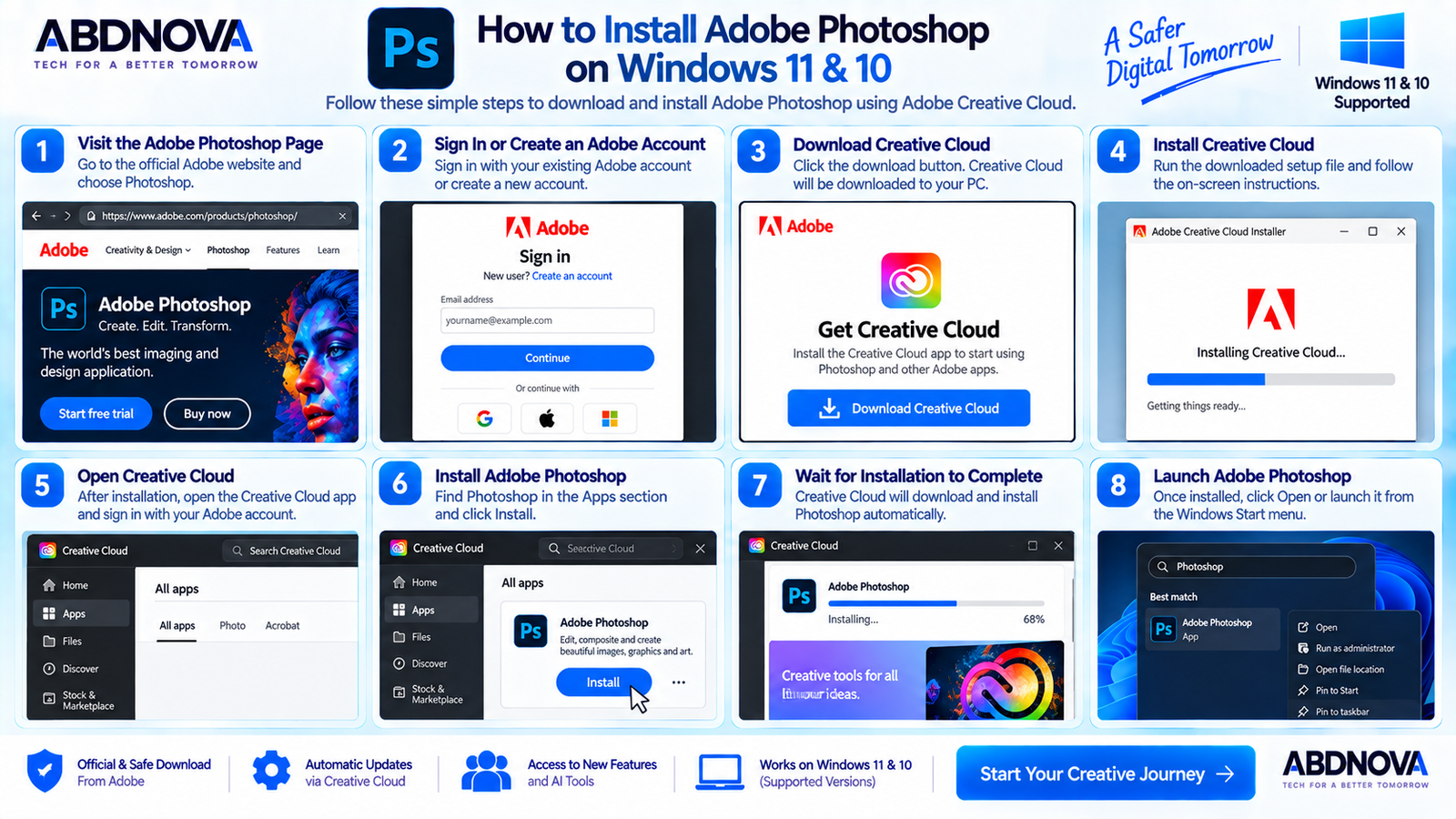
How to Install Adobe Photoshop on Windows
Step 1: Visit Adobe
Open the official Adobe Photoshop page.
Step 2: Choose Photoshop
Select the Photoshop plan or the available free-trial option.
Step 3: Sign In
Sign in with your Adobe account or create one if necessary.
Step 4: Download the Installer
Select the download option. Adobe will provide the required Creative Cloud installation workflow.
Step 5: Install Creative Cloud
Run the downloaded setup and follow the Windows installation instructions.
Step 6: Install Photoshop
Open Creative Cloud, find Photoshop under Apps, and select Install.
Step 7: Launch Photoshop
After installation, launch Photoshop from Creative Cloud or the Windows Start menu.
Step 8: Start Editing
Create a new document or open an existing image to begin working.
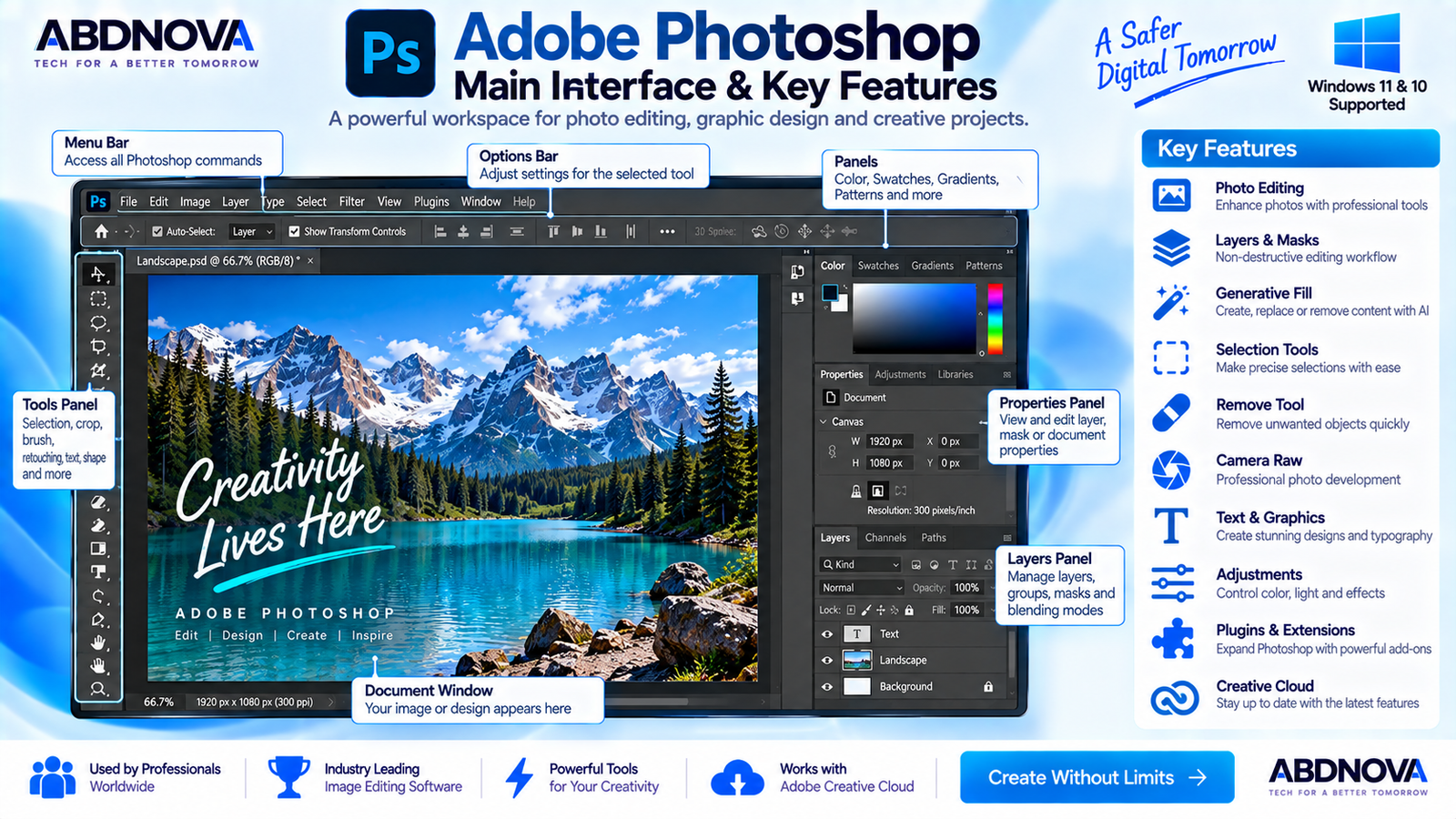
Adobe Photoshop Main Interface & Key Features
Photoshop contains a large collection of professional tools, but understanding its main workspace areas makes the application much easier to use.
Tools Panel
Contains selection, crop, brush, text, retouching, shape and navigation tools.
Options Bar
Displays settings related to the currently selected tool.
Document Window
The central area where the active photo, artwork or design appears.
Layers Panel
Controls layers, groups, masks, adjustment layers, Smart Objects and blending.
Properties Panel
Provides controls for selected layers, masks, objects and adjustments.
Contextual Task Bar
Offers context-sensitive shortcuts for common editing operations.
Menu Bar
Provides access to File, Edit, Image, Layer, Select, Filter, View, Window and other commands.
Adobe Photoshop Layers, Masks & Photo Editing
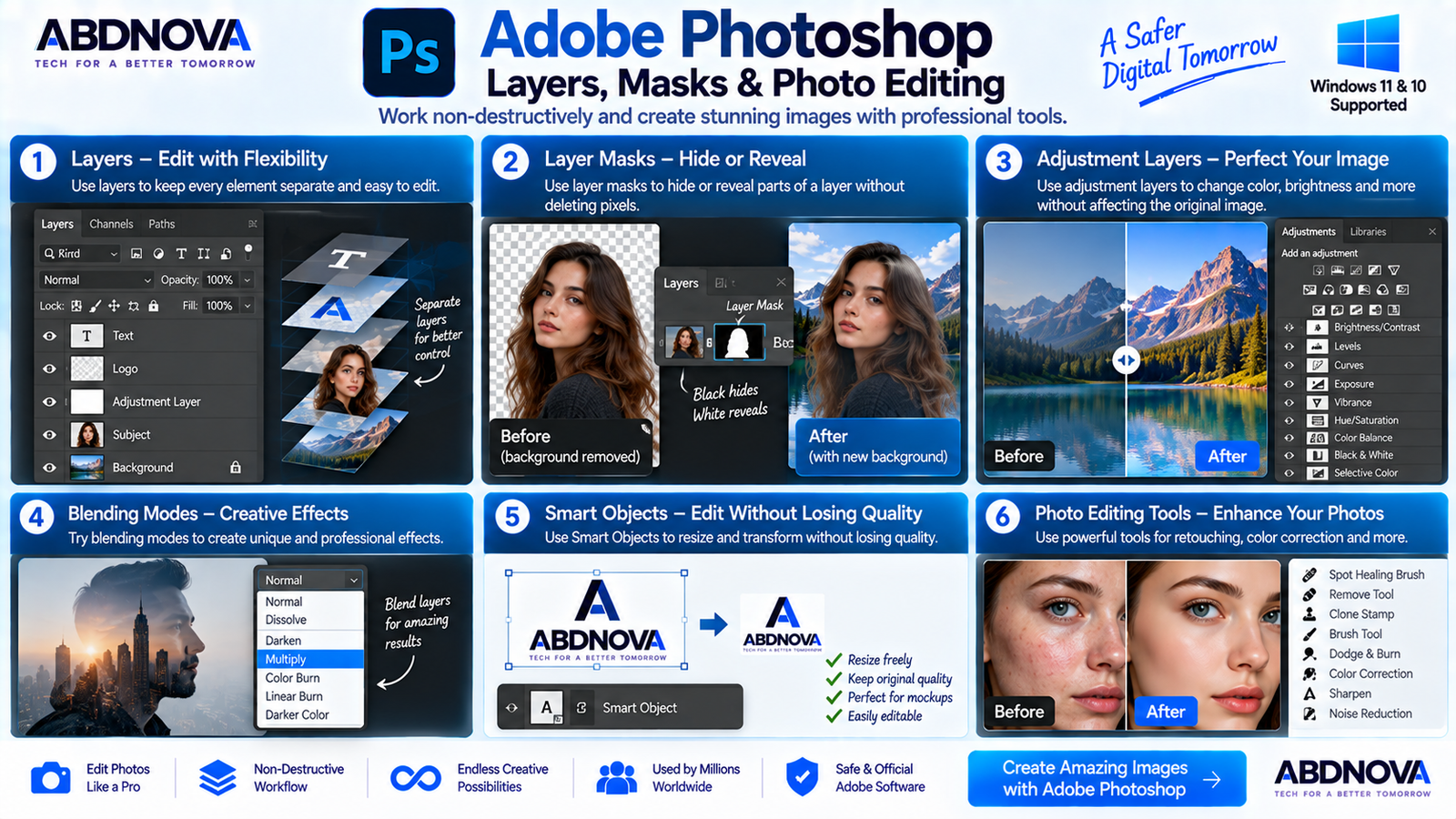
Layers
Layers are fundamental to Photoshop’s editing workflow. Instead of treating an entire design as one flat image, different elements can remain independent.
A project might contain separate layers for:
- Background.
- Product photo.
- Logo.
- Text.
- Color adjustments.
- Shadows.
- Decorative graphics.
Layer Masks
Layer masks hide or reveal portions of a layer without permanently deleting the original pixels.
They are useful for background removal, compositing, selective adjustments, portrait retouching, product photography and creative effects.
Adjustment Layers
Adjustment layers modify brightness, contrast, color and tone while preserving the underlying image data.
This non-destructive approach makes later revisions much easier.
Selections & Background Removal
Photoshop includes manual and automatic selection tools for isolating people, products, skies, objects and backgrounds.
After creating a selection, you can:
- Apply a mask.
- Replace a background.
- Adjust only the selected region.
- Move an object to another composition.
- Apply effects selectively.
- Use generative editing within the selected area.
Adobe Photoshop Generative Fill, Remove Tool & AI Features
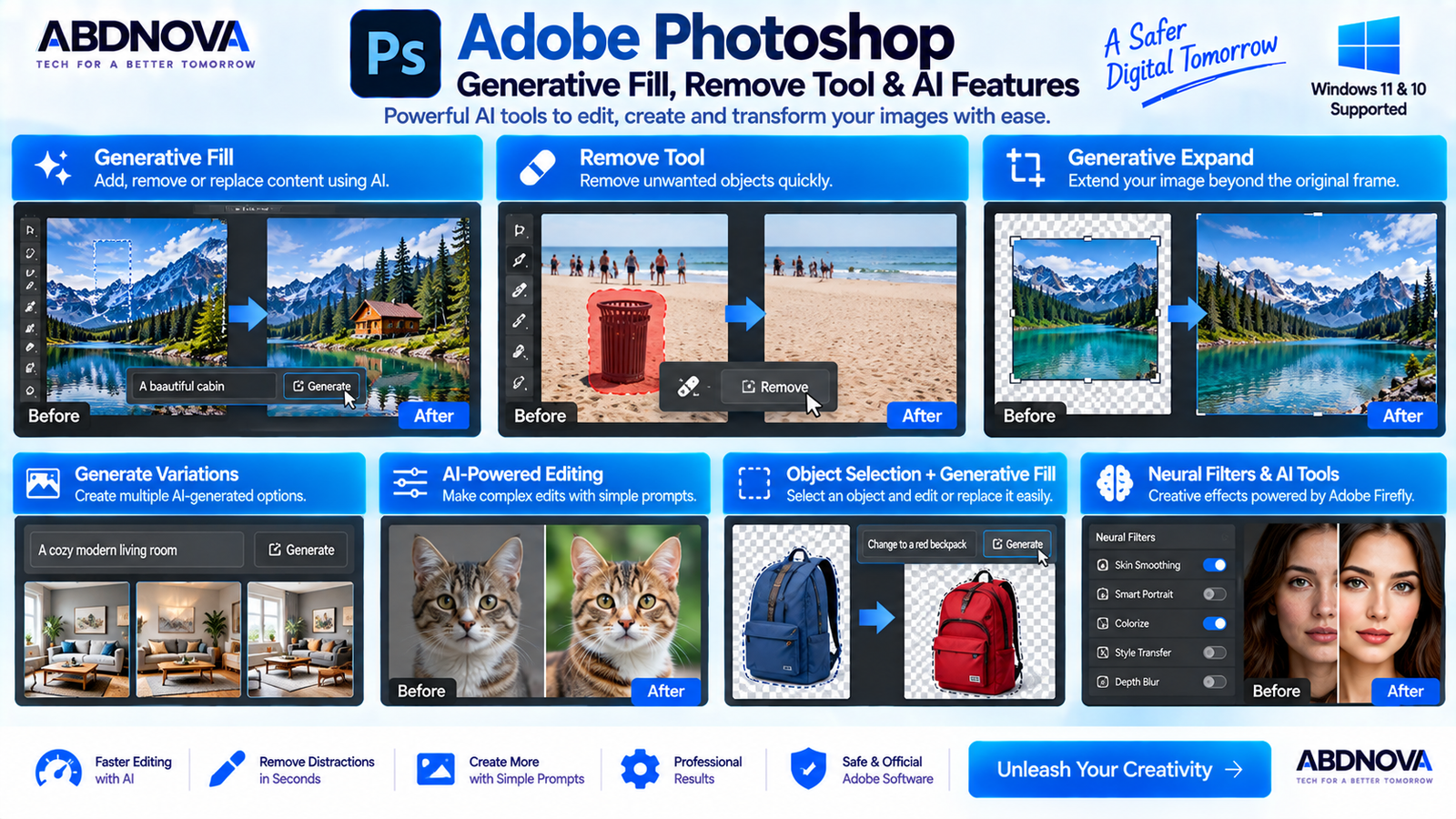
Remove Tool
Photoshop’s Remove Tool can clean photographs and remove unwanted distractions.
You can brush or draw around an unwanted element, and Photoshop processes the selected region to reconstruct the surrounding image.
Common uses include removing:
- Unwanted people.
- Small objects.
- Wires.
- Blemishes.
- Dust.
- Distracting background elements.
Traditional healing and cloning tools are also available when more manual control is required.
Generative Fill
Generative Fill brings generative AI directly into the normal Photoshop workflow.
- Open an image.
- Select the area you want to modify.
- Choose Generative Fill.
- Enter a prompt or leave the prompt blank.
- Generate the result.
- Review the available variations.
Possible uses include adding or removing objects, replacing selected content, generating backgrounds, extending compositions and testing alternative visual concepts.
Current Photoshop versions integrate Adobe Firefly-powered generative features, while available models, generative-credit rules and account requirements may change over time.
AI-Assisted Editing
Photoshop increasingly combines AI-assisted tools with its traditional professional editing workflow.
The important point is that Photoshop remains a full image editor: layers, masks, brushes, selections, typography, filters, retouching and color adjustments continue to work alongside newer AI-assisted tools.
Adobe Camera Raw & Photo Editing
Photographers can combine Photoshop with Adobe Camera Raw for detailed image development.
A typical workflow can include adjustments to:
- Exposure.
- White balance.
- Highlights and shadows.
- Contrast.
- Color.
- Detail.
- Noise.
- Lens-related corrections.
The image can then be opened in Photoshop for detailed retouching, compositing, selections, masks, typography and other advanced edits.
Text, Shapes & Graphic Design
Photoshop is also widely used to create:
- Website graphics.
- YouTube thumbnails.
- Social media posts.
- Advertisements.
- Posters.
- Product banners.
- Marketing graphics.
- Presentation visuals.
- Web design assets.
Text can remain on separate layers, while shapes, gradients, layer styles, masks, Smart Objects and blending modes provide additional design flexibility.
Adobe Photoshop Smart Objects
Smart Objects are useful when you want to transform or reuse content while retaining editing flexibility.
They are especially useful for:
- Mockups.
- Product designs.
- Templates.
- Repeated transformations.
- Placed graphics.
- Reusable design elements.
For example, a logo stored as a Smart Object can be resized and transformed repeatedly without following the same destructive raster-editing workflow.
Photoshop Plugins & Extensions
Photoshop supports compatible plugins and extensions, and Creative Cloud provides a marketplace workflow for supported add-ons.
Before installing a third-party plugin, check its developer reputation, Photoshop compatibility, Windows support, update history and requested permissions.
Adobe Photoshop vs GIMP vs Affinity
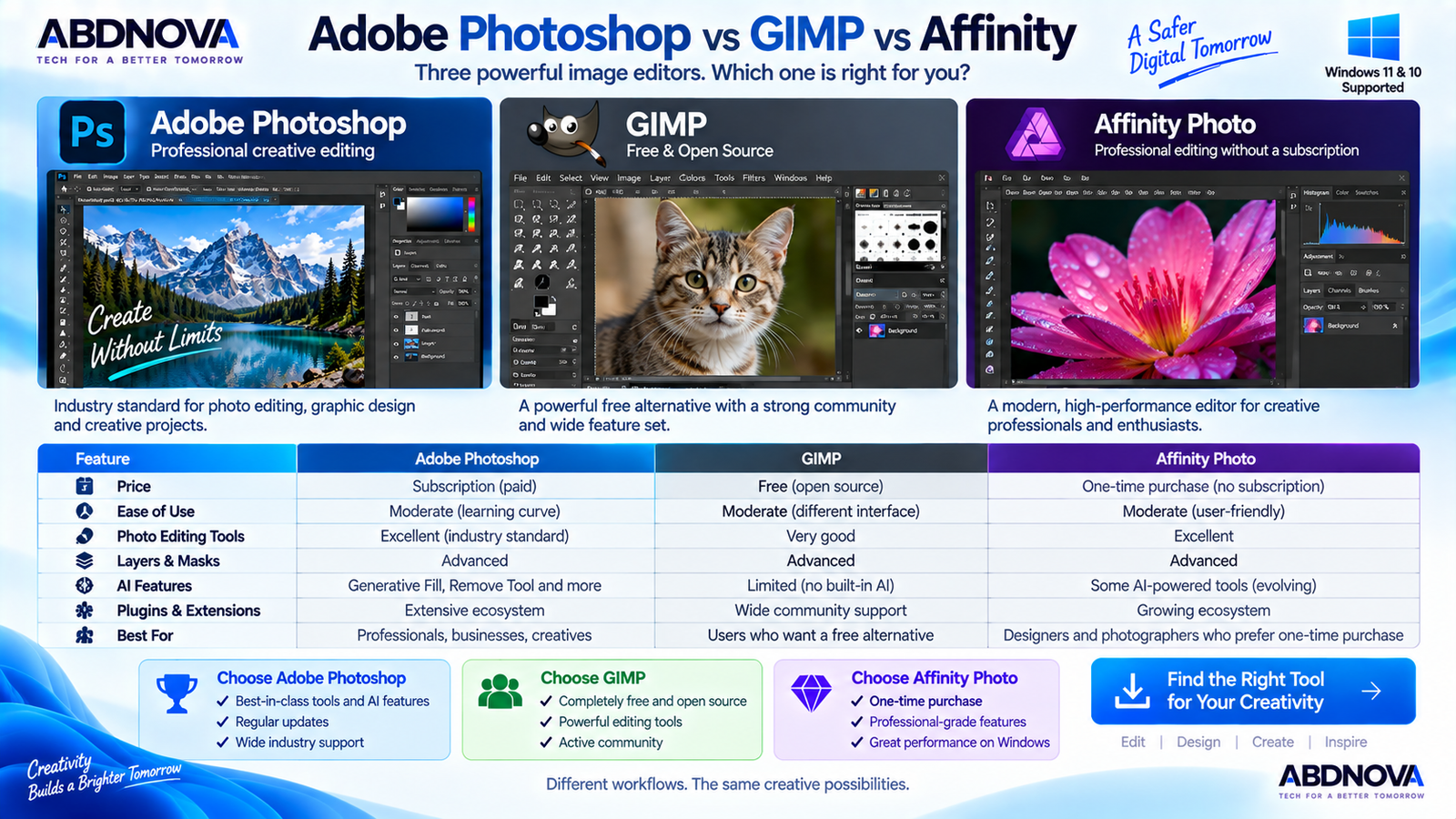
| Feature | Photoshop | GIMP | Affinity |
|---|---|---|---|
| Professional Photo Editing | Excellent | Very good | Excellent |
| Layers & Masks | Yes | Yes | Yes |
| Advanced Retouching | Excellent | Good | Excellent |
| AI-Assisted Workflow | Extensive | More limited | Varies by current version |
| Ecosystem | Adobe / Creative Cloud | Open-source | Affinity ecosystem |
| Ongoing Photoshop Subscription | Yes | No | Depends on current offering |
| Best For | Professional creative workflows | Free/open-source editing | Professional alternative workflows |
Photoshop is particularly attractive to users who rely on Adobe applications and want deep integration with Creative Cloud.
GIMP remains a strong option for users who want a free and open-source image editor, while Affinity targets users looking for another professional creative workflow.
Other Image Tools for Windows
Photoshop is designed for advanced photo editing and creative work, but simpler image tools can be useful for everyday viewing and basic image management. You can also check our IrfanView Download for Windows guide or FastStone Image Viewer Download for Windows guide for lightweight alternatives focused on image viewing and everyday image tasks.
Is Adobe Photoshop Free?
No. The complete Photoshop desktop application is not permanently free.
Adobe currently provides a 7-day free trial of Photoshop. After the trial, continued use requires an eligible paid subscription.
- Photoshop cracked version.
- Lifetime activated Photoshop.
- Photoshop keygen.
- Photoshop pre-activated.
- Photoshop repack.
- Photoshop portable crack.
Adobe Photoshop Troubleshooting
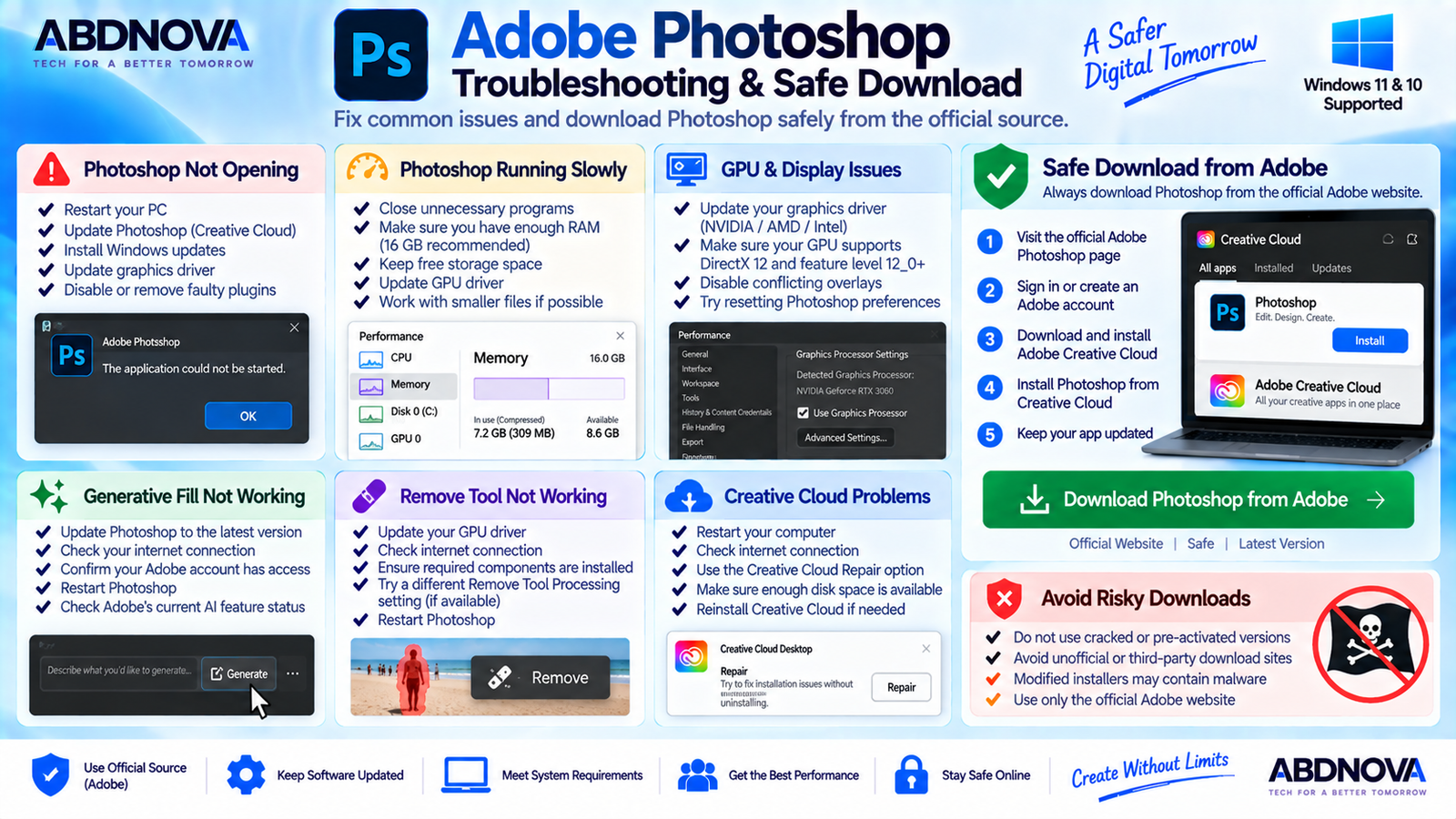
Photoshop Not Opening
- Restart Windows.
- Update Photoshop through Creative Cloud.
- Install available Windows updates.
- Update the GPU driver.
- Check recently installed plugins.
- Confirm the computer meets Photoshop requirements.
- Close unnecessary background applications.
- Repair or reinstall affected Adobe components when necessary.
Photoshop Running Slowly
- Close unnecessary programs.
- Make sure enough RAM is available.
- Maintain sufficient free storage.
- Update the GPU driver.
- Update Photoshop.
- Reduce unnecessary layers in extremely large projects.
- Check problematic plugins.
- Restart Photoshop after long editing sessions.
Adobe currently recommends 16 GB RAM or more even though 8 GB is the listed minimum.
Photoshop GPU Problems
GPU-related problems may include interface glitches, slow rendering, crashes, unavailable features or unusual screen artifacts.
Update the graphics driver directly from the GPU manufacturer’s official source and confirm that the GPU meets Adobe’s current Photoshop requirements.
Generative Fill Not Working
- Update Photoshop.
- Check the internet connection.
- Confirm you are signed in.
- Check account and plan access.
- Review current generative-AI availability.
- Restart Photoshop.
- Update Creative Cloud.
Remove Tool Not Working
If the Remove Tool crashes or fails, update Photoshop and the GPU driver first. Also check the internet connection, available storage and the current Remove Tool processing settings when applicable.
Creative Cloud Installation Problems
- Restart Windows.
- Run Creative Cloud again.
- Check your internet connection.
- Update Windows.
- Confirm sufficient free storage.
- Retry the installation.
- Use Creative Cloud repair options when necessary.
How to Update Adobe Photoshop
- Open Creative Cloud.
- Open the Apps section.
- Locate Photoshop.
- Check for an available update.
- Select Update.
- Allow installation to complete.
- Restart Photoshop.
Safe Adobe Photoshop Download for Windows
The safest source for Photoshop is Adobe itself. Use Adobe’s official website and Creative Cloud installation workflow.
Modified, cracked, repacked, pre-activated and keygen-based installers should be avoided. They can introduce malware, credential theft, unwanted modifications and update or licensing problems.
For Photoshop, ABDNOVA directs users only to Adobe’s official distribution source. No cracked, patched or unofficial installer is provided.
Frequently Asked Questions
Can I install Adobe Photoshop on Windows 11?
Yes. Current Photoshop releases support compatible Windows 11 systems. Photoshop 27.x currently lists Windows 11 24H2 and 23H2.
Does Photoshop still work on Windows 10?
Yes, on supported configurations. Photoshop 27.x currently lists Windows 10 22H2 and Windows 10 21H2 LTSC.
Is Adobe Photoshop free?
The full desktop application is not permanently free. Adobe currently offers a 7-day Photoshop trial.
How much RAM does Photoshop need?
Adobe currently specifies 8 GB minimum RAM and recommends 16 GB or more for Photoshop 27.x.
Does Photoshop require a graphics card?
Current Photoshop requirements include a DirectX 12-capable GPU that meets Adobe’s specified feature-level and GPU-memory requirements.
Can I install Photoshop without Creative Cloud?
Adobe’s normal current desktop installation and management workflow uses Creative Cloud for installation, licensing and updates.
Does Photoshop include Generative Fill?
Yes. Current Photoshop desktop versions include Generative Fill for generative editing within selected areas.
Can Photoshop remove unwanted objects?
Yes. Photoshop includes the Remove Tool plus traditional healing and cloning tools for removing unwanted objects and distractions.
Can Photoshop be installed on more than one computer?
Adobe permits Photoshop to be installed on multiple computers, while individual membership activation is limited according to Adobe’s current licensing policy.
Is cracked Photoshop safe?
No. Use Adobe’s official distribution and licensing system rather than cracked, modified, repacked or pre-activated installers.
Final Thoughts
Adobe Photoshop for Windows remains a powerful choice for professional photo editing, graphic design, retouching, compositing, typography, masking and advanced creative work.
Its traditional features—layers, masks, selections, Smart Objects, Camera Raw and detailed retouching—now work alongside AI-assisted features such as Generative Fill and the Remove Tool.
For a better experience, use a supported Windows 11 or Windows 10 configuration with at least 16 GB RAM where possible, a capable DirectX 12 GPU and sufficient fast storage.
Most importantly, install Photoshop only through Adobe and Creative Cloud. Avoid cracked, patched, pre-activated or repacked versions.
Download Adobe Photoshop for Windows
Get Photoshop for Windows directly from Adobe. A 7-day free trial is currently available for eligible new users.


