

Joplin Download for Windows 11 & 10
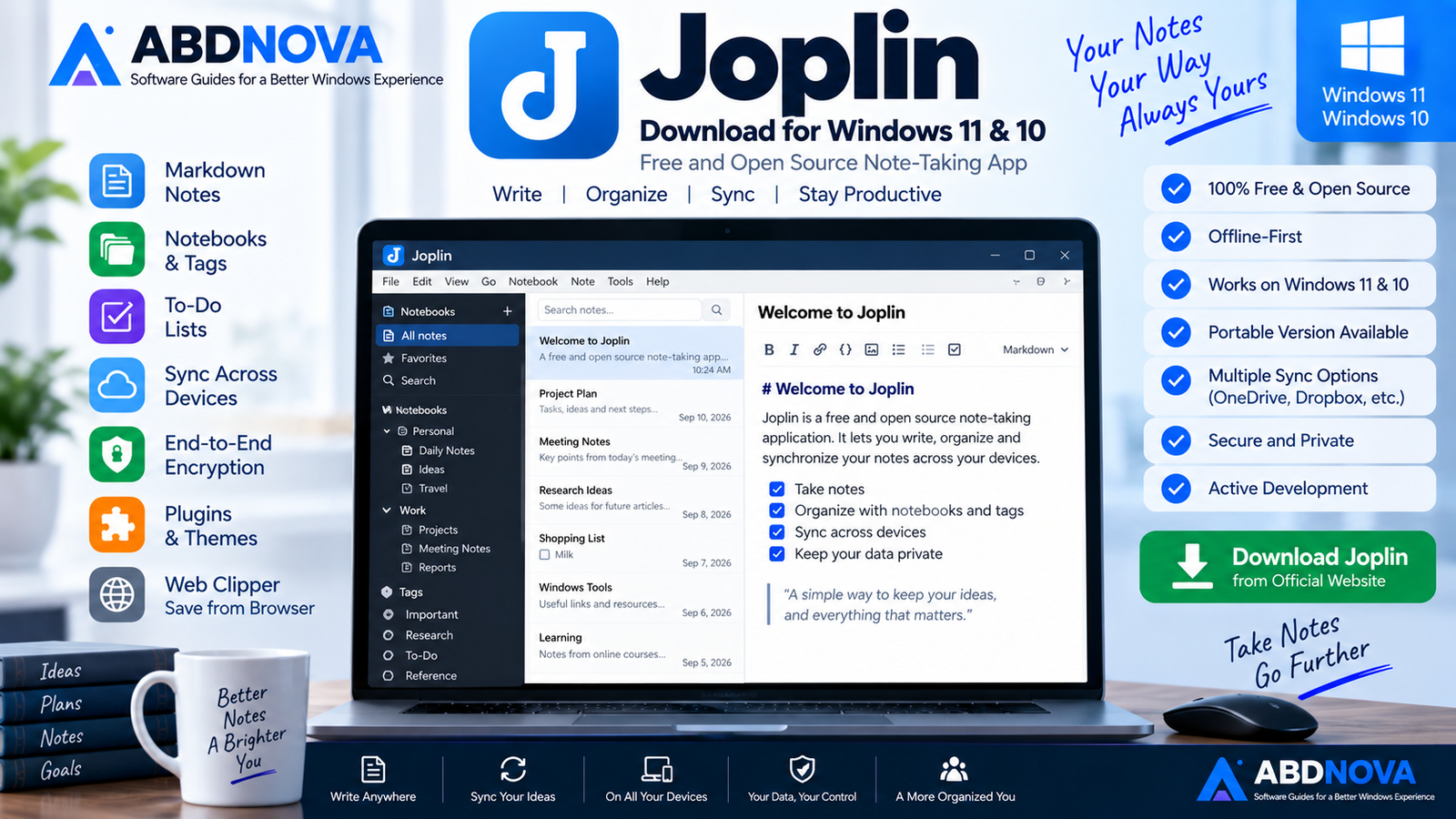
Download Joplin for Windows 11 and 10 to create Markdown notes, notebooks, to-do lists, sync securely, use Web Clipper and work offline.
Joplin Download for Windows gives Windows users a free and open-source note-taking and to-do application designed for people who want more control over their notes, tasks and attachments.
Joplin follows an offline-first approach. Your notes remain available locally on your computer even when you do not have an internet connection.
It uses Markdown as its core note format and includes notebooks, tags, full-text search, to-do lists, attachments, synchronization, end-to-end encryption, plugins, themes and a Web Clipper.
This makes Joplin a strong option for users who want a more privacy-focused and customizable alternative to cloud-first note applications.
Joplin Download for Windows – Quick Overview
| Information | Details |
|---|---|
| Software | Joplin |
| Category | Note Taking & To-Do |
| Current Stable Desktop Version | 3.6.16 |
| Stable Release Date | August 20, 2026 |
| License | Free & Open Source |
| Windows | 32-bit & 64-bit |
| Portable Version | Yes |
| Note Format | Markdown |
| Rich Text Editor | Yes |
| Offline Use | Yes |
| Synchronization | Yes |
| End-to-End Encryption | Yes |
| Plugins | Yes |
| Themes | Yes |
| Web Clipper | Yes |
| Official Cloud Service | Joplin Cloud |
What Is Joplin?
Joplin is a free and open-source note-taking and task-management application available across Windows, macOS, Linux, Android and iOS.
Joplin is useful for:
- Personal notes.
- Meeting notes.
- Research.
- To-do lists.
- Project documentation.
- Study notes.
- Technical writing.
- Knowledge management.
- Web research.
- Portable note-taking.
Desktop, mobile and terminal versions are designed to work with the same Joplin ecosystem and can synchronize with one another when sync is configured.
Joplin 3.6.16 Stable vs 3.7 Pre-Release
The current stable desktop release is Joplin 3.6.16, released August 20, 2026.
The 3.7 series is still represented as a pre-release branch, so normal users should install the stable official release rather than a testing build.
Joplin Desktop vs Portable for Windows
Standard Windows Desktop Installer
For a normal desktop or laptop, the standard Windows installer is the simplest choice.
Joplin Portable
Joplin officially provides a Portable Windows version.
You can place JoplinPortable.exe in a folder on a USB drive or another portable location. Joplin then creates a JoplinProfile directory next to the executable to store profile data.
This can be useful if you:
- Do not want a traditional installation.
- Work across different Windows PCs.
- Want Joplin and its profile on removable storage.
- Need a portable note-taking environment.
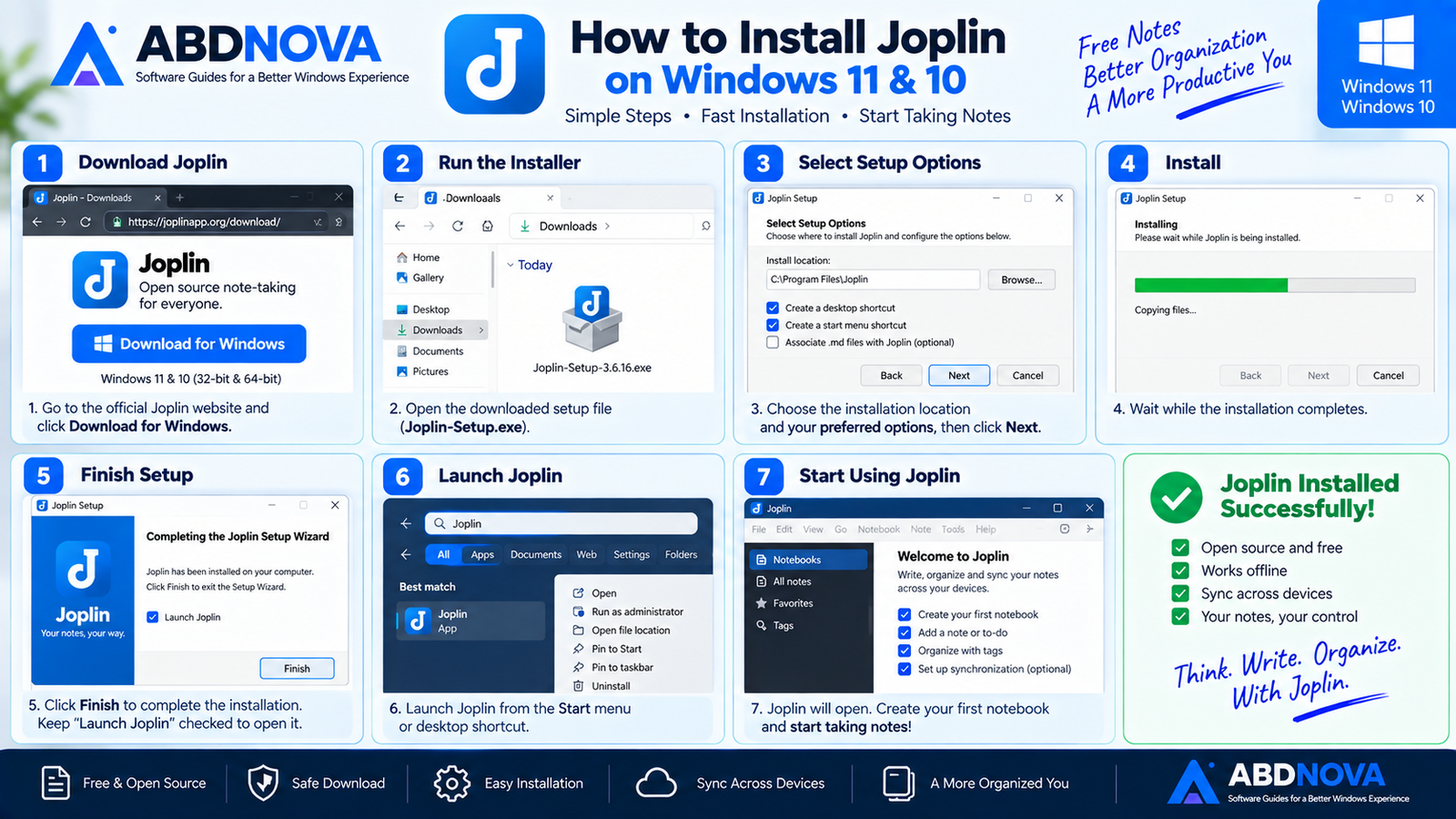
How to Install Joplin on Windows
- Visit the official Joplin download page.
- Download the Windows desktop installer.
- Open the downloaded setup file.
- Follow the installation prompts.
- Launch Joplin.
- Create your first notebook.
- Add a note or to-do item.
- Configure synchronization later if required.
You can begin taking notes locally without first setting up Joplin Cloud, Dropbox, OneDrive or another synchronization provider.
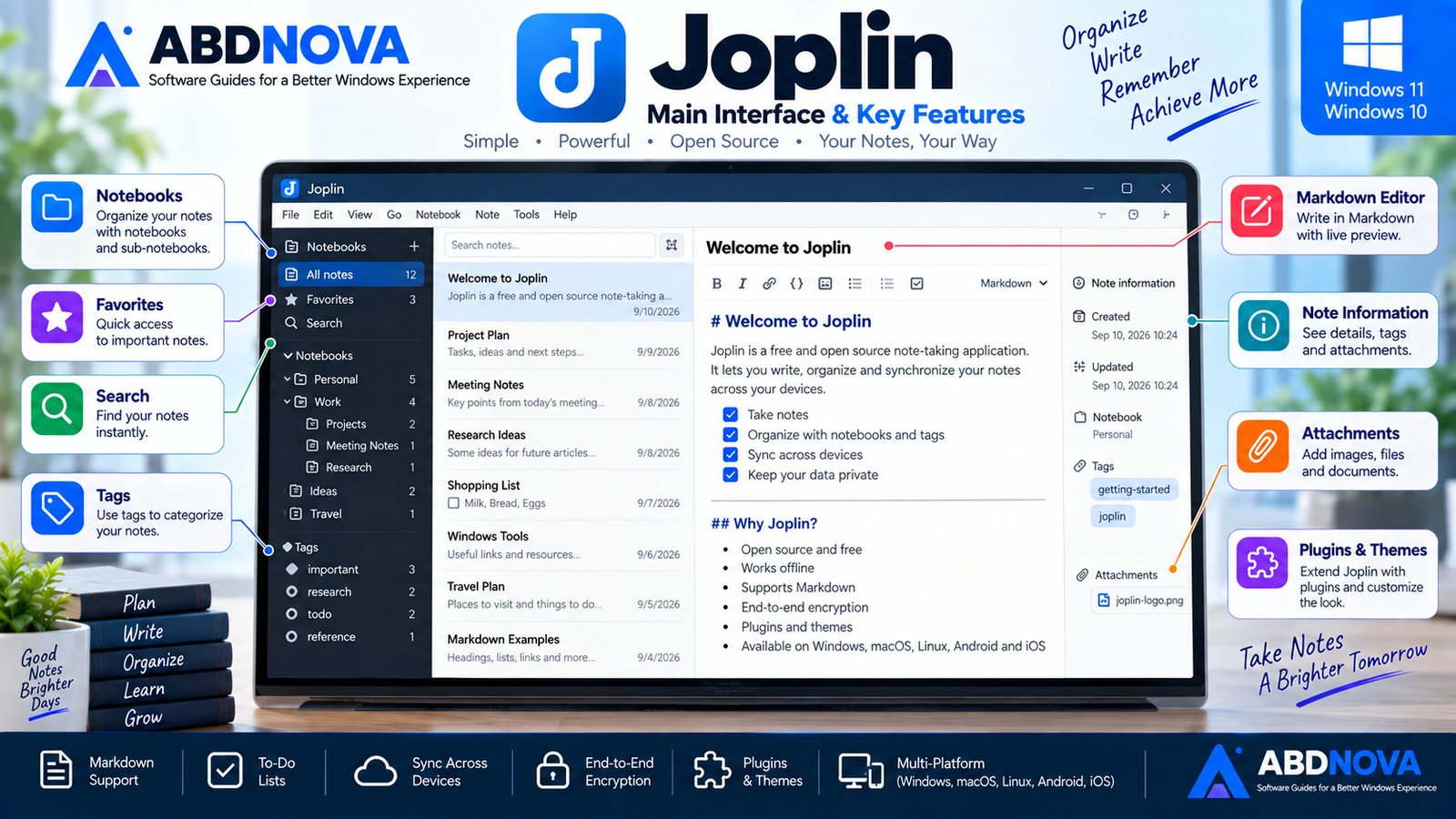
Joplin Main Interface & Key Features
Joplin uses a practical multi-panel desktop interface built around notebooks and notes.
The main workspace provides access to:
- Notebooks.
- Sub-notebooks.
- Notes.
- To-do items.
- Tags.
- Search.
- Note editor.
- Note viewer.
- Synchronization.
- Settings.
This structure can work for a small personal notebook or a much larger collection of research, documentation, project notes and tasks.
Notebooks, Notes & To-Do Lists
Joplin supports both regular notes and actionable to-do items.
Notes can be organized inside notebooks and sub-notebooks and further classified using tags.
Full-text search makes it easier to locate information inside larger collections.
Work
- Meeting Notes
- Supplier Notes
- Reports
Personal
- Travel
- Ideas
- Reading
Projects
- Website
- Research
- Tasks
Markdown Editor
Markdown is central to Joplin.
You can use Markdown for:
- Headings.
- Bold and italic text.
- Lists.
- Checkboxes.
- Links.
- Images.
- Tables.
- Code.
- Quotations.
- Mathematical expressions.
Joplin also extends Markdown through features such as KaTeX, Mermaid diagrams, highlighting, footnotes, table of contents and other Markdown plugins.
This makes it useful not only for casual notes but also for technical documentation, research and structured writing.
Rich Text Editor
Users who do not want to write Markdown syntax directly can use Joplin’s Rich Text editor.
It provides a more familiar WYSIWYG-style editing experience while Markdown remains the underlying format.
Offline-First Note Taking
One of Joplin’s most important characteristics is its offline-first design.
Notes remain available locally on your computer or device, so you do not need a permanent internet connection just to open or edit your information.
Synchronization becomes useful when you want the same collection available across multiple devices.
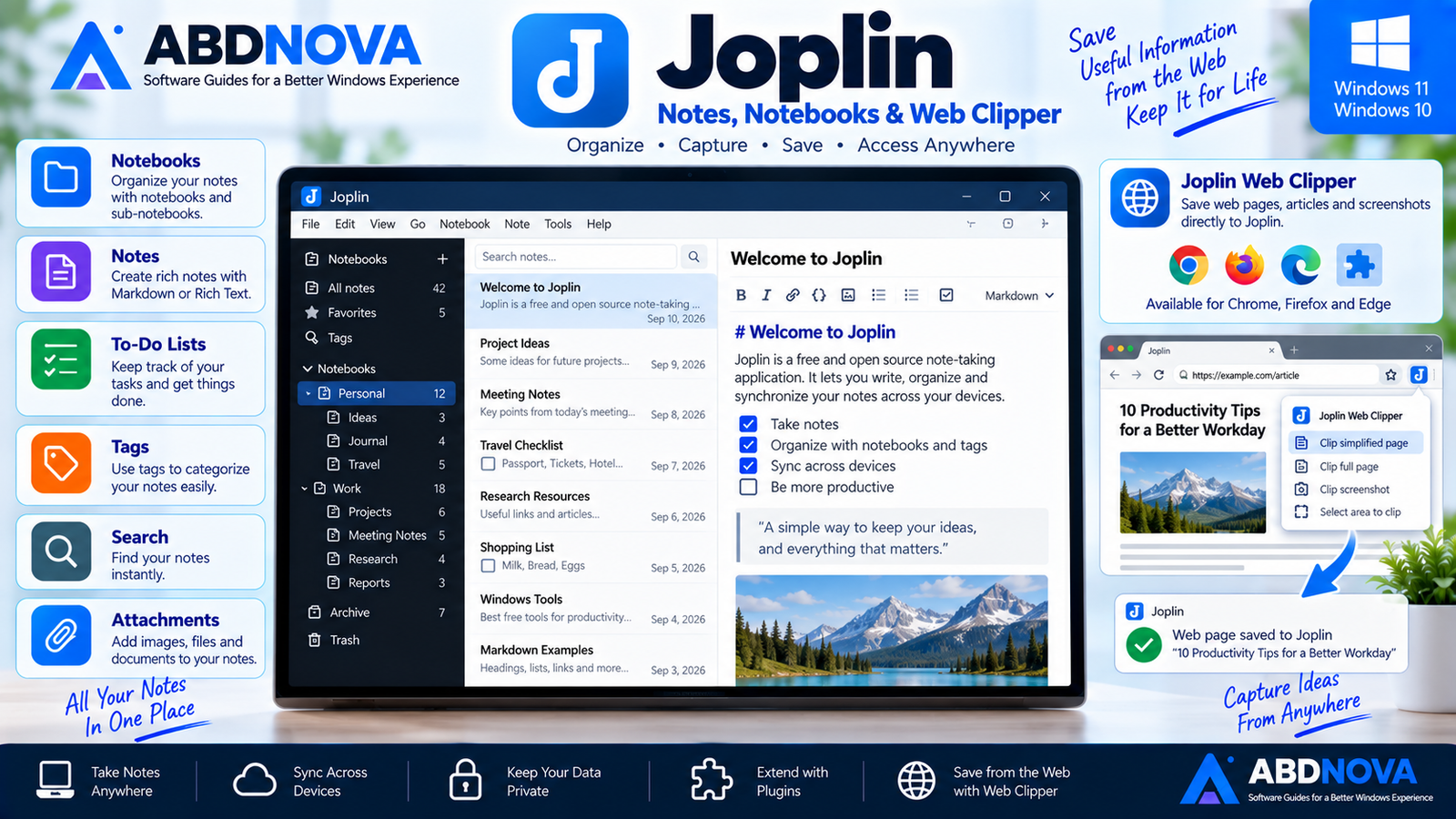
Joplin Synchronization
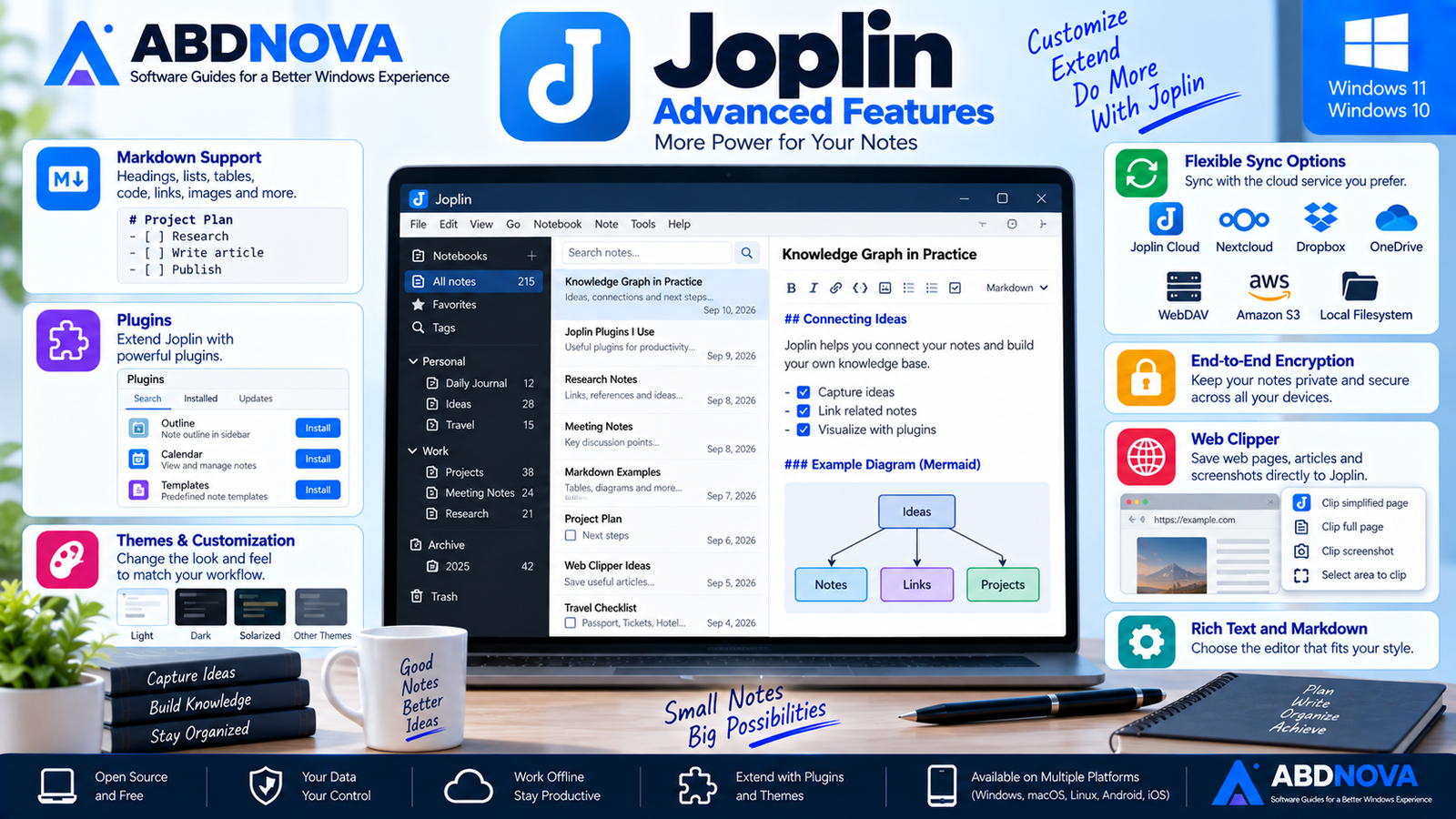
Joplin offers unusually flexible synchronization choices.
Current supported synchronization targets include:
- Joplin Cloud.
- Nextcloud.
- Amazon S3.
- WebDAV.
- Dropbox.
- OneDrive.
- Local filesystem.
Once synchronization is configured, Joplin can synchronize in the background while the application is running. You can also trigger synchronization manually.
This flexibility is particularly attractive if you do not want your notes permanently tied to one cloud provider.
End-to-End Encryption
Joplin supports end-to-end encryption for synchronized notes.
E2EE provides an additional privacy layer when storing synchronized information through supported services.
Joplin Web Clipper
The Joplin Web Clipper lets you save information directly from your browser into Joplin.
It can capture webpages and screenshots and send them to the desktop application.
The Web Clipper is useful for:
- Research.
- Tutorials.
- Reference material.
- Articles.
- Documentation.
- Recipes.
- Project research.
- Saved webpages.
Instead of leaving dozens of browser tabs open, you can keep useful material inside your Joplin notebooks.
Attachments and Resources
Joplin notes are not limited to plain text.
You can keep images and other attachments with notes, allowing research and project records to contain both written information and supporting resources.
Import Notes from Evernote
Users moving away from Evernote can import exported Evernote data into Joplin.
Joplin supports importing .enex files and can bring across compatible formatted content, resources and metadata while converting supported content to Markdown.
If you want to compare that workflow with Evernote itself, see our Evernote Download for Windows guide.
Plain Markdown files can also be imported.
Joplin Advanced Features
Plugins
Joplin’s desktop application supports plugins that can expand functionality and modify workflows.
Plugins can be searched for and installed directly through Joplin’s configuration interface.
Manual installation of supported .jpl plugin packages is also available.
Joplin marks recommended plugins with a gold crown. These plugins have been vetted and recommended by the Joplin team.
Themes & Customization
Joplin can also be customized with themes and plugins.
This lets users adjust the note-taking environment according to their workflow rather than being limited to one fixed interface.
For beginners, however, the default interface is usually the best place to start.
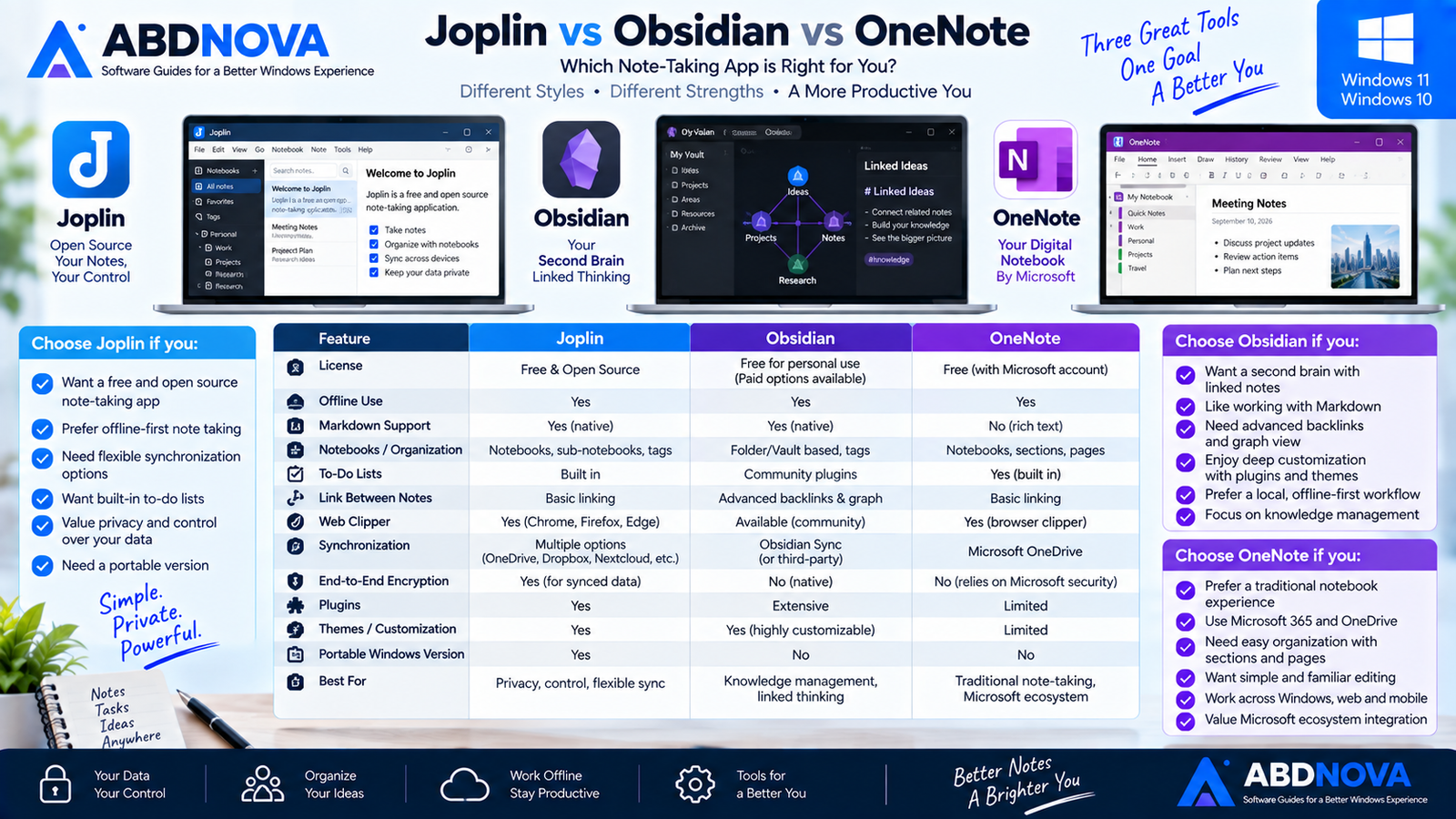
Joplin vs Obsidian vs OneNote
| Feature | Joplin | Obsidian | OneNote |
|---|---|---|---|
| Free Desktop Use | Yes | Yes | Yes |
| Open Source App | Yes | No | No |
| Offline-First | Yes | Yes | Yes |
| Markdown Focus | Yes | Yes | No |
| Notebooks | Yes | Folder/Vault based | Yes |
| To-Do Support | Built in | Workflow dependent | Yes |
| Web Clipper | Yes | Available | Available |
| Plugins | Yes | Extensive | Limited |
| Flexible Sync Targets | Excellent | Different approach | Microsoft ecosystem |
| Portable Windows Version | Yes | No standard portable package | No |
| Best For | Private notes, Markdown, tasks & flexible sync | Linked knowledge & second-brain workflows | Traditional digital notebooks |
Choose Joplin if open-source software, offline access, Markdown, notebooks, tasks, encryption and flexible synchronization are your priorities.
Choose Obsidian if backlinks, connected knowledge, Graph View, Canvas and extensive knowledge-management customization are more important.
Choose OneNote if you prefer Microsoft’s traditional digital-notebook experience and close integration with the Microsoft ecosystem.
If your priority is a more cloud-connected productivity system with notes, Web Clipper, tasks and calendar integration, our Evernote Download for Windows guide covers another relevant option.
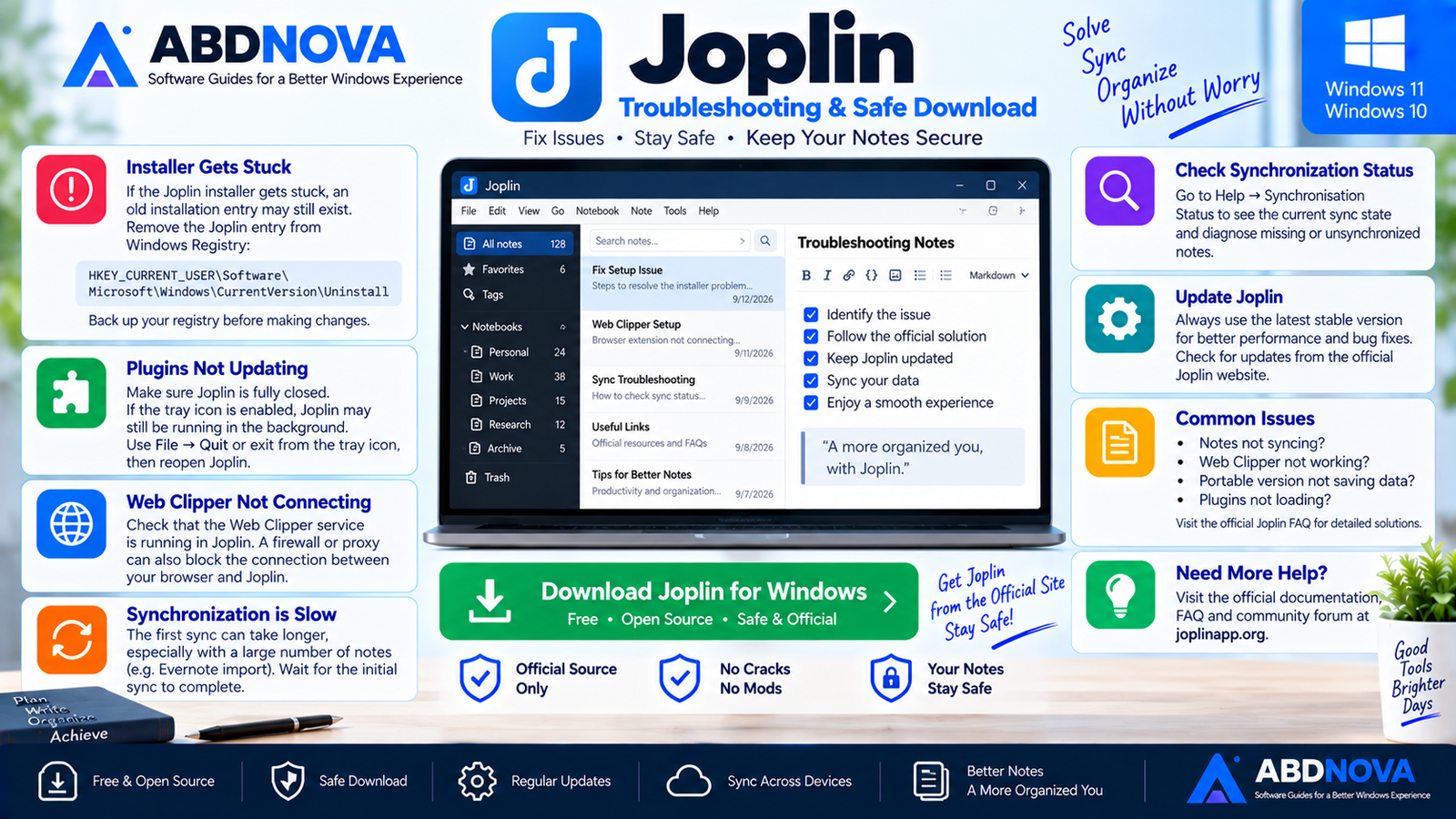
Joplin Troubleshooting on Windows
Joplin Installer Gets Stuck
Joplin’s official troubleshooting information documents a Windows issue where installation can become stuck if an older installation was not removed correctly.
The documented fix may involve removing the leftover Joplin uninstall entry from:
Plugins Don’t Update After Restarting
Make sure Joplin has actually exited.
If the system-tray icon is enabled, closing the main window may leave Joplin running.
Use:
or exit through the Joplin tray icon before reopening it.
Web Clipper Isn’t Connecting
Check that the Web Clipper service is running inside Joplin.
A firewall or proxy can also interfere with communication between the browser extension and the Joplin desktop application.
Synchronization Is Slow
The first synchronization can take longer if you have imported a large note collection.
This may be especially noticeable after migrating a large Evernote library.
Check Synchronization Status
On Joplin for Windows, use:
This can help identify missing or unsynchronized content.
Is Joplin Safe?
Yes, when downloaded directly from the official Joplin project.
Joplin is already free and open source, so there is no legitimate reason to search for cracked or modified versions.
- Joplin Crack.
- Joplin Premium Crack.
- Joplin Activated.
- Modified Joplin.
- Third-party repacks.
- Unknown installers.
Safe Joplin Download for Windows
The safest source for Joplin Download for Windows is the official Joplin website.
Use the official Joplin download page to get the current Windows desktop or Portable release.
Frequently Asked Questions
Is Joplin free?
Yes. Joplin is a free and open-source note-taking and to-do application.
What is the current stable Joplin desktop version?
The current stable desktop release verified for this article is Joplin 3.6.16, released August 20, 2026.
Is Joplin 3.7 stable?
No. The 3.7 series is currently represented as a pre-release branch, so normal users should use the latest stable version.
Does Joplin work on Windows 11?
Yes. Joplin provides an official Windows desktop application for modern Windows PCs.
Does Joplin have a portable Windows version?
Yes. Joplin officially provides a Portable Windows edition.
Can Joplin work offline?
Yes. Joplin is designed around an offline-first approach, so locally stored notes remain available without a constant internet connection.
Does Joplin use Markdown?
Yes. Markdown is Joplin’s core note format, although a Rich Text editor is also available.
Can Joplin sync with OneDrive and Dropbox?
Yes. Current synchronization options include OneDrive, Dropbox, Joplin Cloud, Nextcloud, Amazon S3, WebDAV and the local filesystem.
Does Joplin support end-to-end encryption?
Yes. Joplin supports end-to-end encryption for synchronized notes.
Does Joplin support plugins?
Yes. Plugins can be installed and managed from Joplin’s desktop configuration interface.
Can I import Evernote notes into Joplin?
Yes. Joplin can import supported Evernote ENEX exports, including compatible content, attachments and metadata.
Does Joplin have a Web Clipper?
Yes. Joplin provides a Web Clipper for supported browsers that can capture webpages and screenshots.
Final Thoughts
Joplin Download for Windows is a strong choice for users who value open-source software, offline access, Markdown, privacy, flexible synchronization and control over their data.
It combines straightforward notebooks and to-do lists with more advanced features such as end-to-end encryption, Web Clipper, plugins, themes, multiple synchronization providers and a Portable Windows edition.
Compared with Obsidian, Joplin places more emphasis on traditional notebooks, built-in tasks and flexible cloud synchronization, while Obsidian focuses more strongly on backlinks and connected knowledge. Compared with Evernote, Joplin offers a more open-source, offline-first and provider-independent approach.
You can start completely locally and add synchronization, encryption, plugins or additional functionality only when you need them.
Download Joplin for Windows
Get the current stable Windows desktop or Portable release directly from the official Joplin website. ABDNOVA recommends official sources only.


