
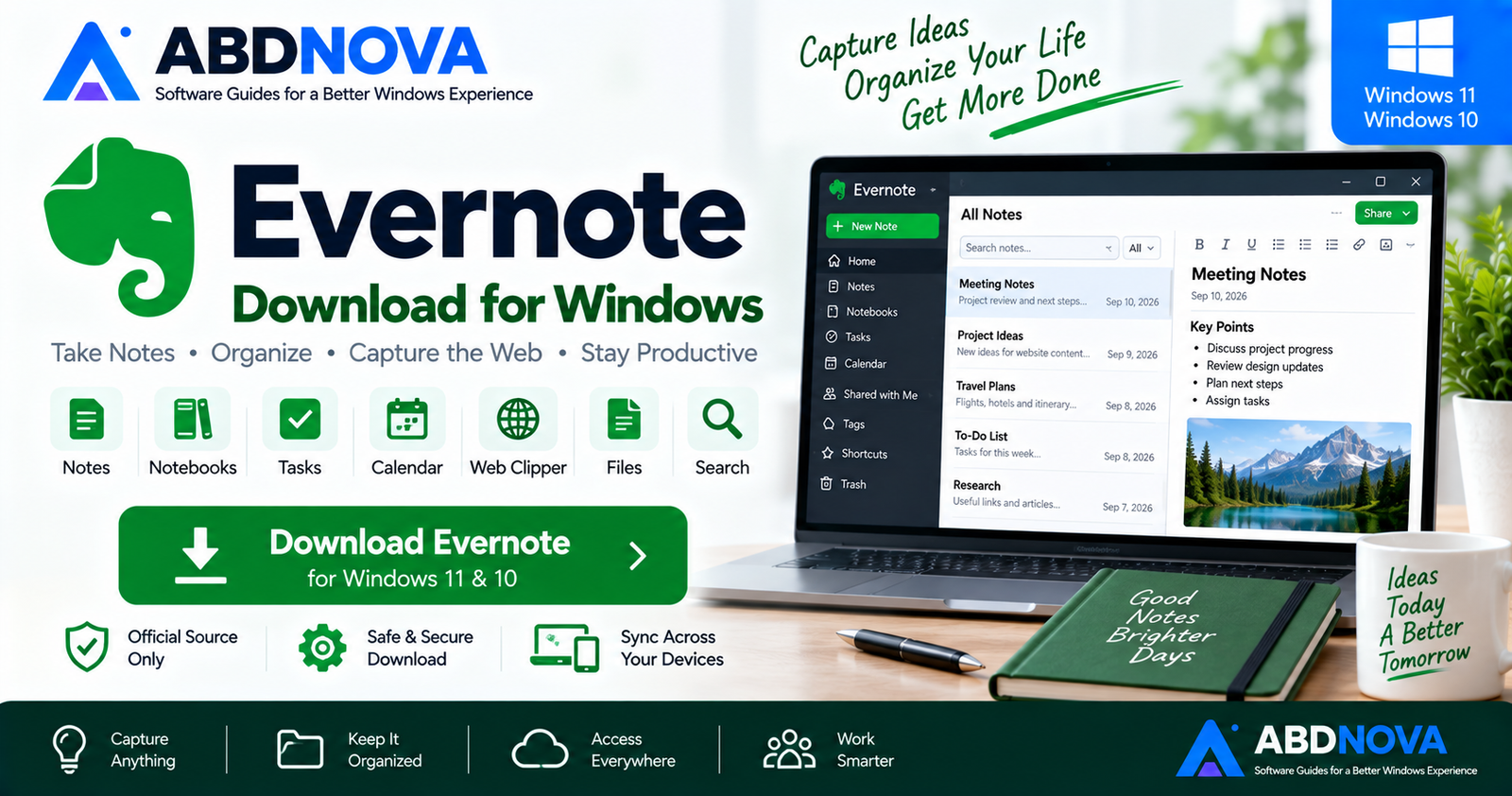

Evernote Download for Windows 11 & 10
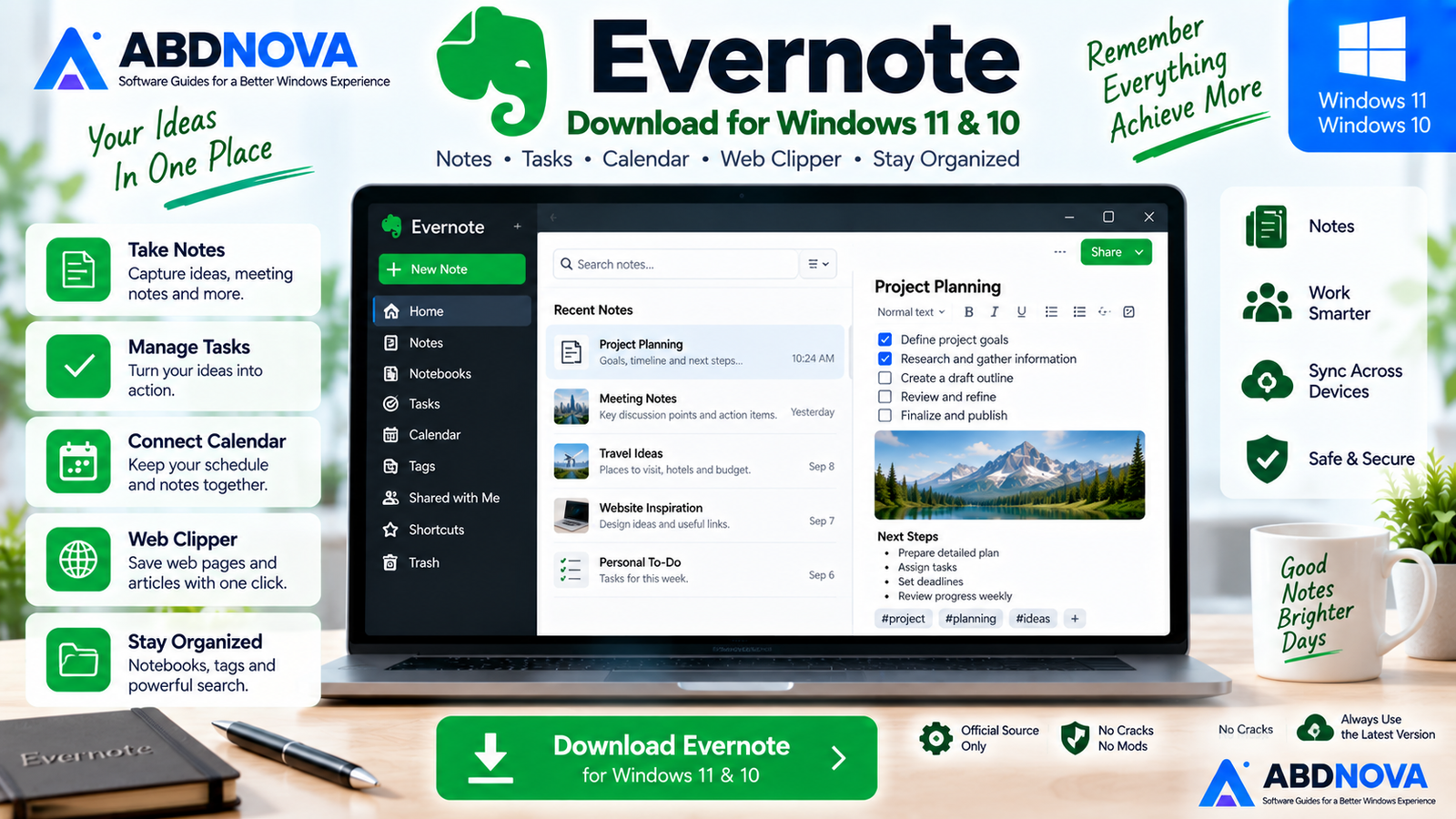
Download Evernote for Windows 11 and 10 to organize notes, notebooks, tasks, files, webpages, calendar information and searchable content in one productivity workspace.
Evernote Download for Windows provides a popular note-taking, organization, task, calendar and information-capture application for Windows.
Evernote is designed to keep notes, documents, webpages, images, tasks, meeting information and other useful content together in one searchable workspace.
The current Evernote desktop application officially supports Windows 10 and newer in both 32-bit and 64-bit environments, which includes Windows 11.
Evernote at a Glance
| Information | Details |
|---|---|
| Software | Evernote |
| Category | Notes & Productivity |
| Windows Support | Windows 10 or newer |
| Windows 11 | Supported |
| 32-bit / 64-bit | Supported |
| ARM | Not officially supported |
| Free Plan | Yes |
| Paid Individual Plans | Starter & Advanced |
| Notes & Notebooks | Yes |
| Tasks | Yes |
| Calendar | Yes |
| Web Clipper | Yes |
| Offline Desktop Access | Yes |
| AI Features | Available |
| Export | ENEX & HTML |
Evernote is therefore more than a simple note editor. It combines note-taking with organization, web capture, files, search, tasks, calendar functionality and AI-assisted workflows.
Download Evernote for Windows 11 & 10
The safest way to install Evernote is directly from the official Evernote website.
Avoid unofficial download mirrors, modified installers, cracks and repacked versions. Evernote already offers a Free plan for users who do not require the capabilities of its paid subscriptions.
Evernote Free vs Starter vs Advanced
Evernote currently offers a limited Free plan alongside Starter and Advanced subscriptions.
| Feature / Limit | Free | Starter | Advanced |
|---|---|---|---|
| Notes | Up to 50 | Up to 1,000 | Unlimited* |
| Notebooks | 1 | 20 | Unlimited* |
| Tags | 20 | 100 | Higher / plan based |
| Attachments | 200 | 1,000 | Unlimited* |
| Storage | 1 GB | 5 GB | Unlimited* |
| Synced Devices | 1 | 3 | Unlimited* |
*Subject to Evernote’s current subscription terms and applicable limits.
The practical point is simple: Evernote can still be used for free, but users with larger note collections or multi-device workflows may need a paid plan.
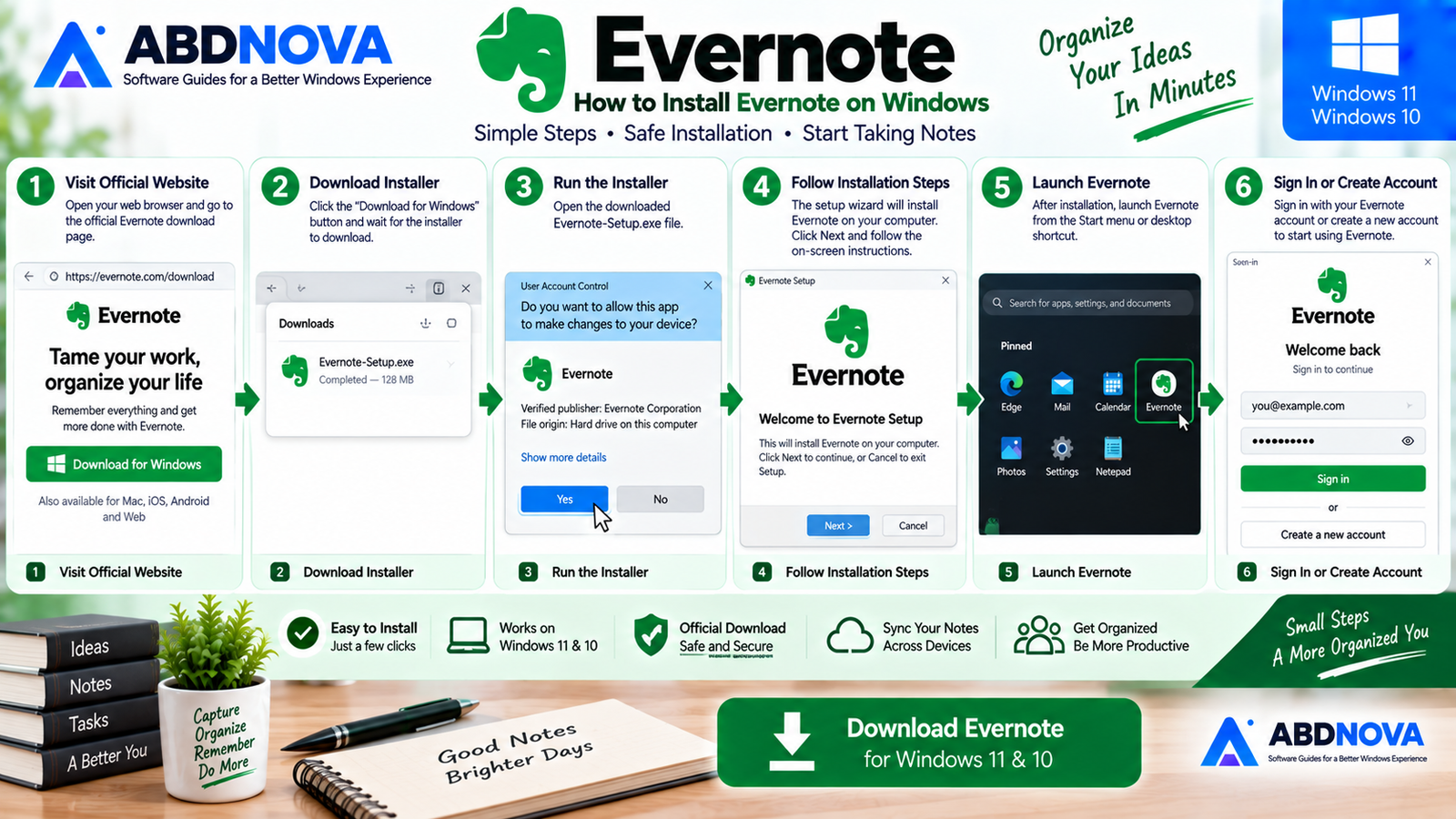
How to Install Evernote on Windows
- Open the official Evernote download page.
- Download Evernote for Windows.
- Open the downloaded installer.
- Follow the installation prompts.
- Launch Evernote.
- Sign in or create an Evernote account.
- Start creating and organizing notes.
Unlike local-first applications such as Obsidian, Evernote is strongly built around an Evernote account and synchronization ecosystem.
Once you sign in with the same account on supported devices, Evernote can synchronize your content according to the limits of your subscription.
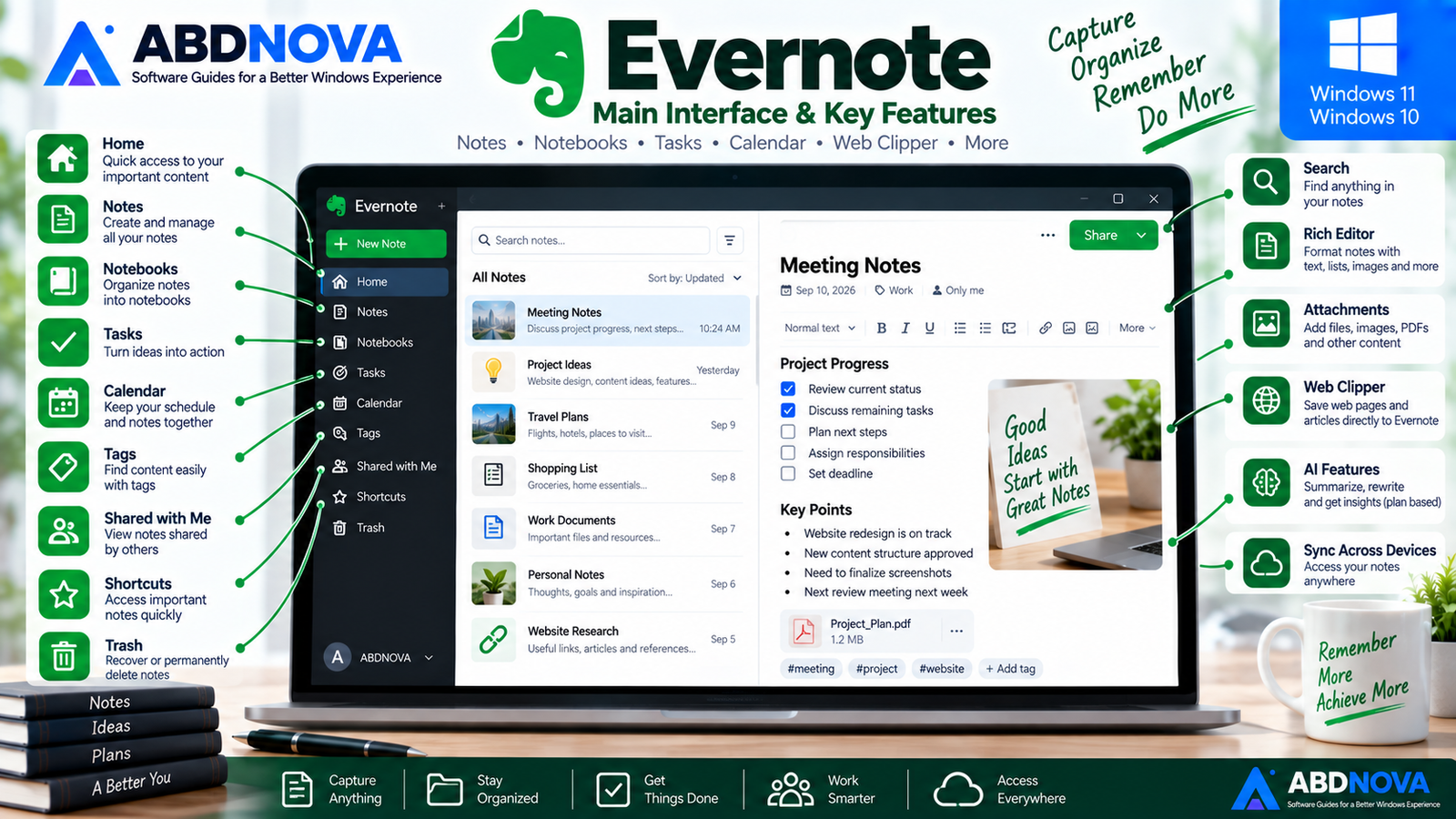
Evernote Main Interface & Key Features
Evernote’s desktop interface provides centralized access to the different parts of your workspace.
The navigation system can include:
- Home.
- Notes.
- Notebooks.
- Tasks.
- Files.
- Calendar.
- Templates.
- Tags.
- Shortcuts.
- Shared content.
- Spaces.
- Search.
Evernote also allows users to customize navigation by choosing which sections appear prominently.
This makes it possible to use Evernote as a simple notebook or as a broader productivity workspace.
Notes and Notebooks
Notes are the foundation of Evernote.
You can create individual notes for:
- Meeting notes.
- Research.
- Project planning.
- Travel.
- Personal records.
- Study material.
- Checklists.
- Work documentation.
- Ideas.
- Reference information.
Related notes can then be organized into notebooks.
For frequently used content, Shortcuts provide faster access without repeatedly browsing through notebooks.
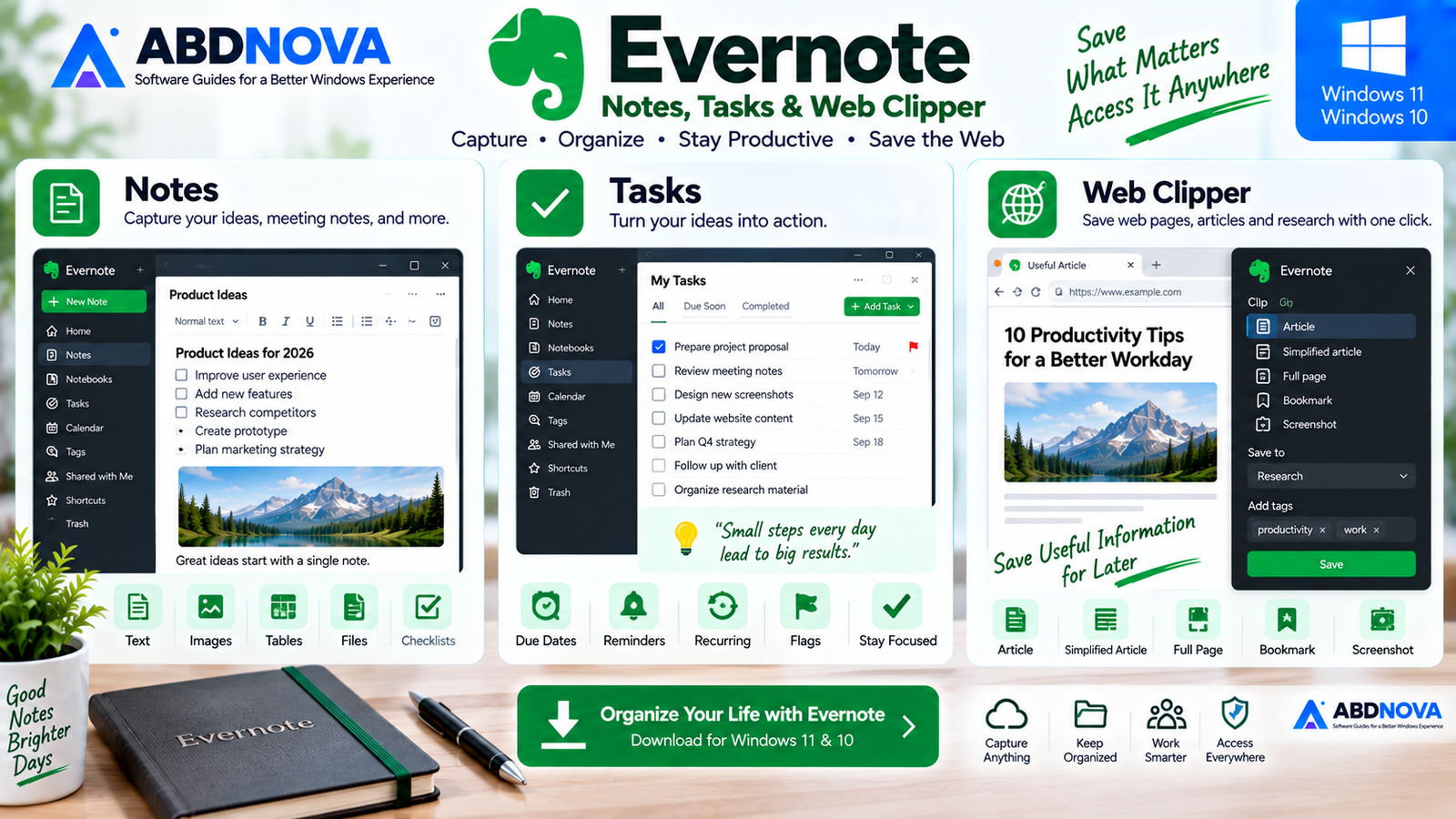
Evernote Note Editor
Evernote provides a visual note editor rather than requiring Markdown syntax.
The editor can work with elements such as:
- Headings.
- Text.
- Lists.
- Checklists.
- Tables.
- Links.
- Images.
- Files.
- Tasks.
- Calendar events.
- Other inserted content.
Tasks inserted into a note remain connected to their context while also being manageable through Evernote’s dedicated Tasks functionality.
Evernote Notes, Tasks & Web Clipper
Evernote Web Clipper
The Evernote Web Clipper is one of the application’s best-known features.
Instead of simply bookmarking a webpage, you can capture useful information directly into Evernote.
Depending on the webpage and browser, clipping modes can include:
- Article.
- Simplified Article.
- Full Page.
- Bookmark.
- Screenshot.
You can also select the destination notebook and apply tags to captured material.
This is useful for research, tutorials, recipes, travel planning, product research, documentation and articles discovered while browsing.
Tasks and To-Do Management
Evernote integrates tasks directly with notes. This allows an action item to remain next to the information explaining why it needs to be completed.
- Review homepage.
- Update screenshots.
- Contact developer.
- Check mobile layout.
Evernote can keep those tasks inside the project note while also making them available through task-management functionality.
Advanced task capabilities can include due dates, recurring schedules, reminders, flags and assignments depending on the user’s subscription.
Calendar Integration
Evernote integrates calendar information with notes and tasks.
Its current ecosystem supports Google and Microsoft Outlook calendar integrations, with available capabilities and limits depending on the plan.
Calendar integration can help you:
- View upcoming events.
- Create meeting notes.
- Connect notes to meetings.
- Find information related to events.
- Prepare notes before meetings.
- Record action items afterward.
Evernote Search
Search becomes increasingly important as an Evernote account grows.
Instead of manually browsing hundreds of notes, Evernote provides search capabilities for locating stored information.
Advanced search capabilities can include Boolean, geographic and filtered searches depending on the current plan.
Attachments and Files
Evernote notes can contain much more than text.
Documents, PDFs, images, audio and other resources can be kept alongside the information they relate to.
For example, a project note can contain written instructions, a PDF, screenshots, a checklist and related tasks in one location.
Offline Access on Windows
Evernote’s Windows desktop application can provide access to synchronized notes when the computer is offline.
On desktop computers, synchronized notes and notebooks are stored in a local database. If you are already signed in before losing connectivity, you can view and edit synchronized content offline.
Changes can synchronize after the internet connection returns.
Evernote Advanced Features
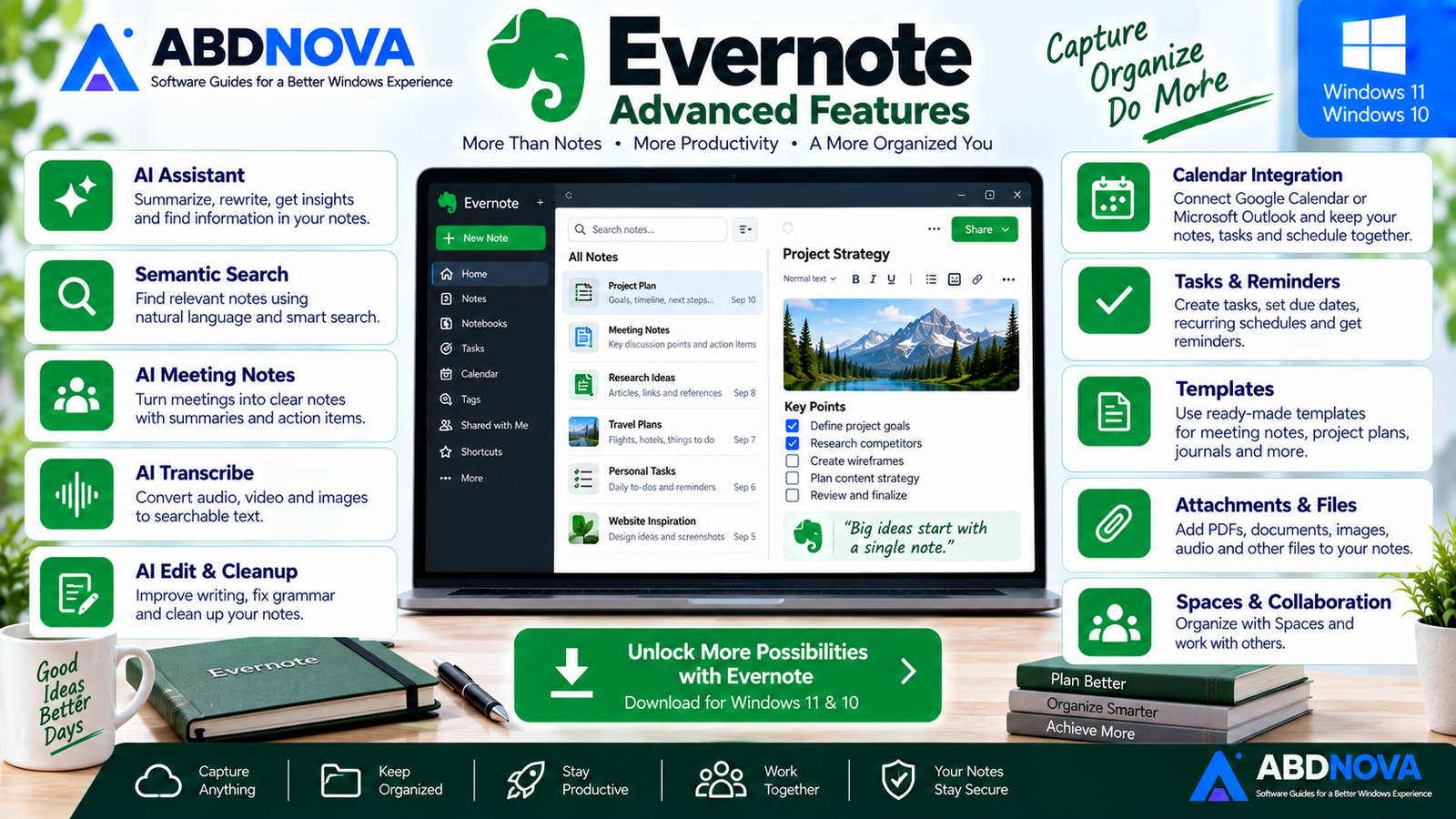
Evernote AI Features
Evernote has expanded into AI-assisted productivity.
Current AI functionality can include:
- AI Assistant.
- Semantic Search.
- AI Meeting Notes.
- AI Transcribe.
- AI Edit.
- AI Note Cleanup.
AI Assistant can help answer questions about content, summarize information, extract tasks, rewrite text and reorganize material.
AI Meeting Notes can work with meeting recordings to create transcripts and summaries, while AI Transcribe can convert supported audio, video and images into searchable text.
Import and Export
One important feature for long-term note management is the ability to export your information.
The Windows desktop application can export notes as:
- ENEX.
- Single-page HTML.
- Multi-page HTML.
Exporting is available through the desktop application rather than Evernote Web.
Free users can also export and download their content without requiring a paid subscription.
ENEX is particularly useful for backups and migrations to applications that support Evernote’s export format.
Evernote can also import previously exported ENEX files through the Windows desktop application.
Evernote vs Joplin vs Obsidian
| Feature | Evernote | Joplin | Obsidian |
|---|---|---|---|
| Free Option | Yes | Yes | Yes |
| Open Source | No | Yes | No |
| Main Approach | Cloud-connected productivity | Open-source notes & tasks | Local knowledge base |
| Notebooks | Yes | Yes | Vault/folder based |
| Markdown Focus | No | Yes | Yes |
| Web Clipper | Excellent | Yes | Available |
| Built-in Tasks | Yes | Yes | Workflow dependent |
| Calendar | Built in / integrated | More limited | Plugin/workflow based |
| Offline Desktop Use | Yes | Strong | Strong |
| Backlinks / Graph | Not primary focus | More limited | Excellent |
| AI Tools | Extensive | Not a core focus | Available through features/plugins |
| Best For | Capture + notes + tasks + calendar | Privacy, open source & flexible sync | Linked knowledge & Markdown |
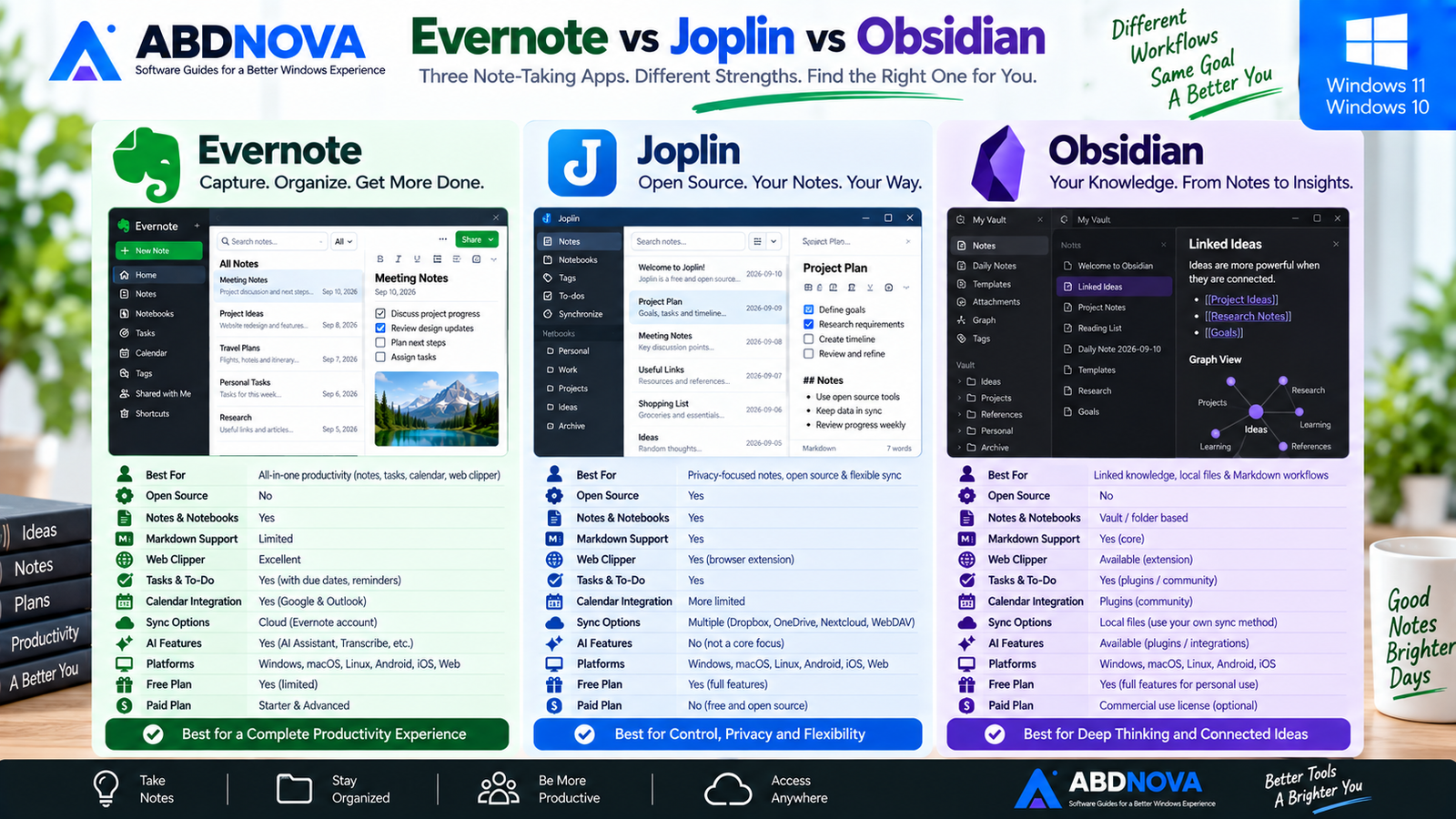
Choose Evernote when you want an integrated productivity environment built around notes, web capture, tasks, files, calendar information, search and AI-assisted workflows.
Choose Joplin when open-source software, Markdown, privacy, offline-first usage and flexible synchronization providers matter more.
Choose Obsidian when local Markdown files, backlinks, Graph View, plugins and connected personal knowledge management are your main priorities.
Evernote Troubleshooting on Windows
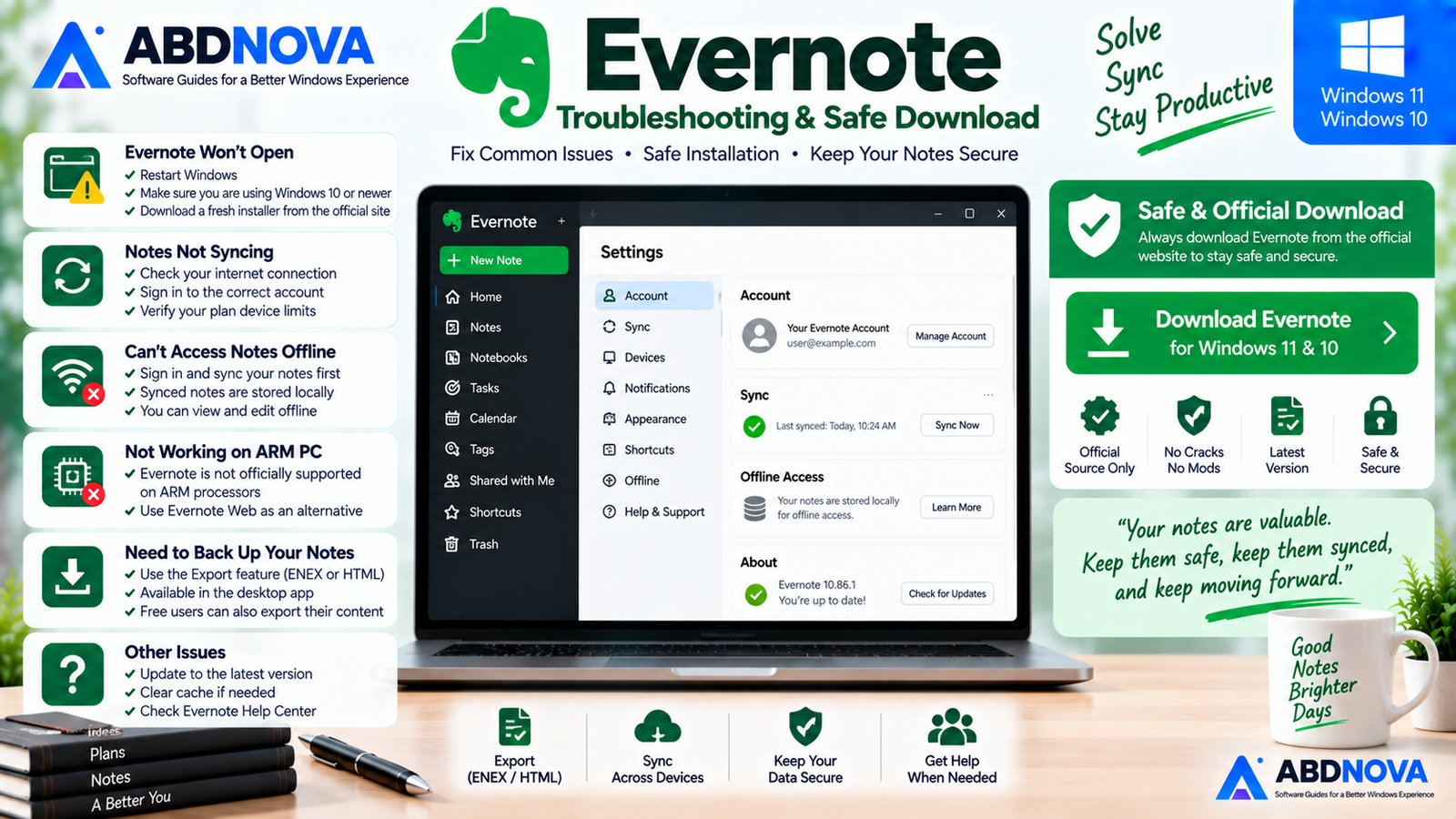
Evernote Won’t Open
Restart Windows first and make sure you are using a supported version of Windows.
Evernote’s current desktop requirements specify Windows 10 or newer.
If necessary, download a fresh installer directly from Evernote’s official website.
Notes Aren’t Synchronizing
Check your internet connection and confirm that you are signed into the correct Evernote account.
Also remember that synchronization limits vary by subscription plan.
Can’t Access Notes Offline
Make sure you have already signed into the Windows desktop application and allowed your notes to synchronize before disconnecting.
Previously synchronized desktop content can remain accessible offline.
Evernote Isn’t Working Properly on an ARM PC
Evernote states that its desktop application is not currently compiled specifically for ARM architecture and ARM processors are not officially supported.
Evernote Web may be worth considering on an unsupported Windows ARM system.
Need to Back Up Your Notes?
Use the Windows desktop application’s Export function.
Exporting notebooks to ENEX provides a useful additional copy of your Evernote content outside the live account.
Safe Official Evernote Download
Always download Evernote from its official website.
There is no reason to install cracked, modified or unofficial Evernote packages.
If you do not want a paid subscription, start with Evernote’s official Free plan and decide later whether Starter or Advanced features are necessary.
- Evernote Crack.
- Evernote Premium Crack.
- Modified Evernote installers.
- Third-party repacks.
- Unknown download mirrors.
Frequently Asked Questions
Is Evernote free?
Yes. Evernote currently offers a Free plan alongside paid subscription options.
Does Evernote work on Windows 11?
Yes. Evernote officially supports Windows 10 and newer, which includes Windows 11.
Does Evernote support Windows 10?
Yes. Windows 10 remains within Evernote’s current supported desktop operating-system requirements.
Is Evernote available for 32-bit and 64-bit Windows?
Yes. Evernote’s current Windows requirements list Windows 10 and newer for both 32-bit and 64-bit environments.
Does Evernote support Windows ARM PCs?
Evernote states that the desktop application is not currently compiled specifically for ARM and ARM processors are not officially supported.
Does Evernote work offline?
Yes. Previously synchronized notes can be viewed and edited offline in the Windows desktop application, with changes synchronizing after connectivity returns.
Does Evernote have a Web Clipper?
Yes. Evernote Web Clipper can capture articles, simplified articles, full pages, bookmarks, screenshots and other supported web content.
Can I export my Evernote notes?
Yes. The desktop application can export notes and notebooks to ENEX or HTML. Free users can also export their content.
Is Evernote open source?
No. Evernote is not an open-source note-taking application.
Does Evernote have AI features?
Yes. Evernote provides AI-assisted features including AI Assistant, Semantic Search, AI Meeting Notes, AI Transcribe, AI Edit and AI Note Cleanup, although availability can depend on the plan.
Final Thoughts
Evernote Download for Windows remains a practical choice for Windows users who want more than a basic note-taking program.
Its combination of notes, notebooks, Web Clipper, files, tasks, calendar integration, search, offline desktop access and AI features creates a broad productivity workspace.
Its main trade-off compared with Joplin and Obsidian is control and pricing. Joplin provides a more open-source and flexible synchronization model, while Obsidian focuses heavily on local Markdown files and linked knowledge. Evernote instead emphasizes an integrated, synchronized productivity ecosystem.
For users who like capturing information from many sources and keeping notes, tasks, meetings, webpages, documents and searchable information together, Evernote remains a useful Windows option.
Download Evernote for Windows
Get the current Windows desktop application directly from Evernote’s official website. ABDNOVA recommends official download sources only.


