


Apple Devices Download for Windows – Manage iPhone & iPad

Download Apple Devices for Windows 11 and 10 to manage, back up, restore, update and sync an iPhone or iPad directly from your Windows PC.
Apple Devices Download for Windows gives Windows 11 and Windows 10 users Apple’s dedicated app for managing an iPhone, iPad and supported iPod devices from a PC.
Apple Devices replaces much of the iPhone and iPad management functionality that previously existed inside iTunes. It provides tools for local backups, encrypted backups, restoring backups, software updates, factory restoration, USB and Wi-Fi syncing, photo synchronization and supported file transfers.
For modern Windows users whose main goal is managing an iPhone or iPad, Apple Devices is now the correct starting point.
Apple Devices Download for Windows – Quick Overview
| Information | Details |
|---|---|
| Software | Apple Devices |
| Developer | Apple |
| Platform | Windows |
| Windows 11 | Supported |
| Windows 10 | Supported |
| Price | Free |
| Download Source | Microsoft Store |
| iPhone Management | Yes |
| iPad Management | Yes |
| Local Backup | Yes |
| Encrypted Backup | Yes |
| Restore Backup | Yes |
| Factory Restore | Yes |
| iOS / iPadOS Update | Yes |
| USB Sync | Yes |
| Wi-Fi Sync | Yes |
| Music Sync | With Apple Music app |
| Movies / TV Sync | With Apple TV app |
| Photos Sync | Yes |
| File Transfer | Supported apps |
What Is Apple Devices?
Apple Devices is part of Apple’s newer Windows application ecosystem.
Instead of keeping music, movies, device management and other Apple functions inside one large iTunes application, Apple now separates major tasks among several Windows apps.
Apple’s current Windows apps include:
- Apple Music: Music library and Apple Music streaming.
- Apple TV: Movies, TV shows and Apple TV content.
- Apple Devices: iPhone and iPad management, backups, updates, restores and syncing.
- iTunes: Podcasts, audiobooks and selected legacy workflows.
This makes Apple Devices especially important for users who regularly connect an iPhone or iPad directly to a Windows PC.
Why Did Apple Replace iTunes Device Management?
Historically, Windows users relied on iTunes for iPhone and iPad backups, restores, software updates, media synchronization and device information.
Apple has now moved those device-management functions into Apple Devices, creating a more focused application for users who simply want to manage their Apple hardware.
If you still use Apple’s older Windows media workflows, see our iTunes Download for Windows guide.
Apple Devices vs iTunes
| Feature | Apple Devices | iTunes |
|---|---|---|
| iPhone Management | Recommended | Legacy workflow |
| iPad Management | Recommended | Legacy workflow |
| Device Backup | Yes | Legacy support |
| Restore Backup | Yes | Legacy support |
| Software Update | Yes | Legacy support |
| Factory Restore | Yes | Legacy support |
| Device Sync | Yes | Legacy workflow |
| Podcasts | No | Yes |
| Audiobooks | No | Yes |
| iTunes Store | No | Yes |
| Best For | Modern iPhone/iPad management | Podcasts, audiobooks & legacy workflows |

How to Install Apple Devices on Windows
- Open Microsoft Store on your Windows PC.
- Search for Apple Devices.
- Make sure the app is published by Apple.
- Select Get or the corresponding installation button.
- Wait for Microsoft Store to download and install the app.
- Open Apple Devices from the Start menu.
- Connect your iPhone or iPad using a compatible USB or USB-C cable.
- Unlock the Apple device.
- Tap Trust if the Trust This Computer message appears.
- Enter the device passcode if requested.
After the connection is trusted, your iPhone or iPad should appear in the Apple Devices sidebar.

Apple Devices Main Interface & Device Management
The Apple Devices interface is organized around the Apple device currently connected to your Windows PC.
General
The General section contains important device-management controls including:
- Device information.
- Software updates.
- Backup.
- Restore Backup.
- Device options.
- Synchronization settings.
Music
The Music section controls music synchronization when Apple Music is installed.
Movies & TV Shows
These sections work with content available through Apple’s newer Apple TV Windows ecosystem.
Photos
The Photos section allows supported photo synchronization between the Windows computer and connected Apple device.
Files
The Files section allows compatible apps to exchange supported files between Windows and the connected iPhone or iPad.

Apple Devices Backup & Restore Explained
Back Up an iPhone or iPad to Windows
Local backup is one of the most useful features in Apple Devices.
- Connect your iPhone or iPad.
- Open Apple Devices.
- Select the device in the sidebar.
- Open General.
- Select the appropriate backup option.
- Choose Back Up Now.
The backup is stored on your Windows PC and can later be used for restoration when needed.
Encrypted Local Backup
Apple Devices also supports encrypted local backups.
Enable Encrypt local backup and create a password.
Restore an iPhone or iPad from Backup
- Connect the Apple device.
- Open Apple Devices.
- Select the device.
- Open General.
- Select Restore Backup.
- Choose the backup.
- Enter the backup password if it is encrypted.
- Start the restore.
Update iPhone or iPad Software
Apple Devices can check for and install available iOS or iPadOS updates from Windows.
This can be useful when you prefer updating from a computer, are troubleshooting an update or already have the device connected for backup.
Restore to Factory Settings
Apple Devices can also restore an Apple device to factory settings.

Apple Devices Sync – Music, Movies, Photos, USB & Wi-Fi
Apple Devices can synchronize selected content between a Windows PC and an iPhone or iPad.
Supported categories can include:
- Music.
- Movies.
- TV shows.
- Photos.
- Files.
Music Sync
Apple’s newer Windows workflow requires the Apple Music app for music synchronization.
Apple Music provides the music library while Apple Devices provides the synchronization controls.
Movies & TV Shows Sync
For movies and TV shows, Apple requires the Apple TV Windows app.
The newer workflow is therefore:
Apple TV + Apple Devices
Photo Sync
Apple Devices can synchronize selected photos or folders from a Windows PC to the connected Apple device.
If you already use iCloud Photos, some corresponding manual-sync options may be unavailable because the content is being managed through iCloud.
USB vs Wi-Fi Sync
USB / USB-C
A cable connection is the simplest initial setup and is useful for reliable backups, large transfers and troubleshooting.
Wi-Fi Sync
After the initial USB setup, Apple Devices can recognize the device over the same Wi-Fi network.
- Connect your iPhone or iPad using USB or USB-C.
- Open Apple Devices.
- Select the device.
- Open General.
- Enable Show this [device] when on Wi-Fi.
- Select Apply.
Automatic Syncing
Apple Devices can automatically synchronize content whenever the device connects.
You can also leave automatic syncing disabled and sync manually whenever needed.
File Transfer Between Windows and iPhone/iPad
Apple Devices supports file transfer for compatible apps that expose file-sharing functionality.
Examples may include documents, media projects, app-specific files and supported offline content.

Apple Devices vs iTunes vs iCloud
| Feature | Apple Devices | iTunes | iCloud |
|---|---|---|---|
| Main Purpose | Device management | Legacy media workflows | Cloud synchronization |
| Local iPhone Backup | Yes | Legacy | No local backup |
| Restore Device | Yes | Legacy | Cloud-based restore ecosystem |
| Software Update | Yes | Legacy | No direct PC device-update role |
| Manual Sync | Yes | Legacy | No |
| Automatic Cloud Sync | No | No | Yes |
| iCloud Photos | Manual sync alternative | Legacy | Yes |
| Podcasts / Audiobooks | No | Yes | Different workflow |
| Best For | Local iPhone/iPad management | Older Apple media workflows | Automatic cloud synchronization |
Apple Devices vs iCloud
Apple Devices is best when you want local backups, cable-based management, manual syncing, restore functions and direct control over transferred content.
iCloud is better suited to automatic cloud synchronization, iCloud Photos and keeping supported content synchronized across devices without frequent manual management.
Do You Need Apple Devices?
Apple Devices is especially useful if you want to:
- Back up an iPhone locally to Windows.
- Restore local backups.
- Update or restore an iPhone from Windows.
- Manage an iPad from Windows.
- Sync local music, movies or photos.
- Transfer files for supported apps.
You may use it less often if almost everything you need is already handled through iCloud, iCloud Photos, Apple Music cloud features or directly on your iPhone or iPad.
Apple Devices and iPod Support
Apple’s Windows documentation also references supported iPod models and older synchronization workflows.
Computer synchronization can remain especially useful for classic iPods that do not have a cloud-based method for adding media.
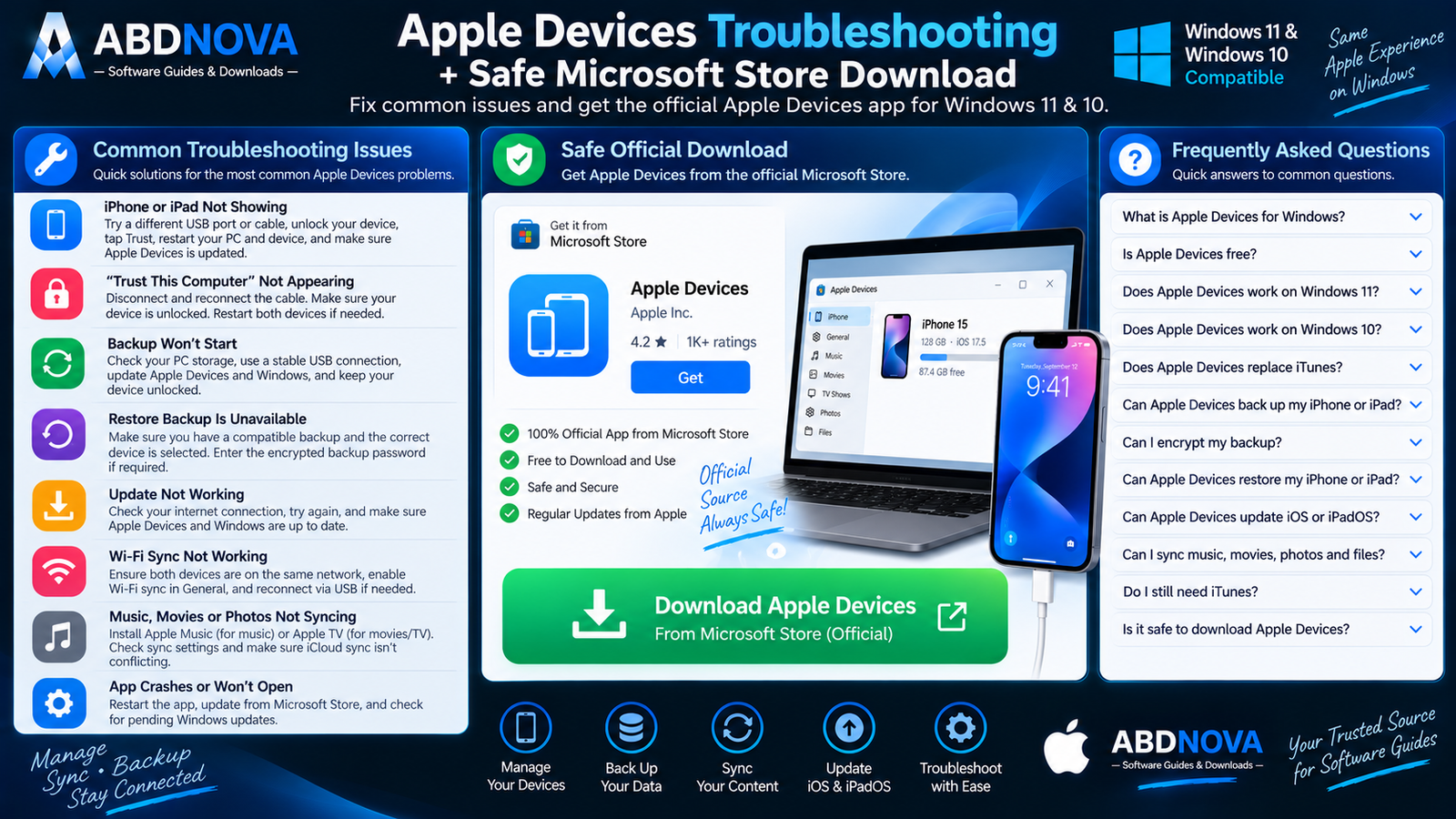
Apple Devices Troubleshooting
iPhone Doesn’t Appear in Apple Devices
Try:
- Unlocking the iPhone.
- Tapping Trust if prompted.
- Reconnect the USB cable.
- Try another USB port.
- Try another compatible data cable.
- Restart the iPhone or iPad.
- Restart Windows.
- Update Apple Devices.
- Install available Windows updates.
Trust This Computer Doesn’t Appear
Disconnect and reconnect the cable. Make sure the Apple device is unlocked and that the cable supports data transfer rather than charging only.
Backup Won’t Start
Check available PC storage, the USB connection, whether the Apple device is unlocked and whether Apple Devices is up to date.
Do not disconnect the device while the backup is running.
Restore Backup Is Unavailable
Verify that a compatible backup exists, the correct device is selected, the backup is not corrupted and you know the encrypted-backup password when encryption was enabled.
Forgot Encrypted Backup Password
An encrypted local backup cannot simply be restored without the correct password. Store encrypted-backup passwords securely when they are created.
Wi-Fi Sync Doesn’t Work
Make sure the PC and Apple device are on the same Wi-Fi network and that Wi-Fi sync was initially enabled while the device was connected by cable.
Music Sync Option Is Missing
Make sure Apple Music is installed. Apple’s current Windows workflow requires the Apple Music app for music-library synchronization through Apple Devices.
Movies or TV Shows Don’t Appear
Install the Apple TV app. Apple Devices relies on Apple TV for those media categories in the newer Windows ecosystem.
Safe Apple Devices Download for Windows
The safest source for Apple Devices Download for Windows is Apple’s official Windows support page, which directs users to the official Microsoft Store version.
Use the official Apple Devices installation guide to install the app through Microsoft Store.
- Apple Devices Crack.
- Apple Devices Portable.
- Apple Devices Mod.
- Apple Devices Activated.
- Apple Devices Offline Repack.
- Modified Apple Devices.
Apple Devices is already free through Microsoft Store, so there is no legitimate reason to use an unofficial modified package.
Frequently Asked Questions
What is Apple Devices for Windows?
Apple Devices is Apple’s dedicated Windows application for managing, backing up, restoring, updating and syncing supported iPhones and iPads.
Is Apple Devices free?
Yes. Apple Devices is available free through Microsoft Store.
Does Apple Devices work on Windows 11?
Yes. Apple Devices is part of Apple’s current Windows application ecosystem.
Does Apple Devices work on Windows 10?
Yes. Apple’s current Windows documentation includes Windows 10 environments.
Does Apple Devices replace iTunes?
For modern iPhone and iPad management, Apple Devices replaces much of the functionality that previously existed in iTunes. iTunes remains relevant for podcasts, audiobooks and selected legacy workflows.
Can Apple Devices back up my iPhone?
Yes. Apple Devices can create local backups on your Windows PC.
Can Apple Devices create encrypted backups?
Yes. You can enable Encrypt local backup and protect the backup with a password.
Can Apple Devices restore an iPhone?
Yes. It can restore from a compatible backup and can also perform a factory restore.
Can Apple Devices update iOS or iPadOS?
Yes. Software-update controls are available through the General section.
Can Apple Devices sync over Wi-Fi?
Yes. After the initial cable setup, Wi-Fi syncing can be enabled for devices on the same network.
Can Apple Devices sync music?
Yes, but Apple’s current Windows workflow requires Apple Music to be installed for music synchronization.
Can Apple Devices sync movies and TV shows?
Yes. Apple’s current workflow requires the Apple TV app for those media categories.
Can Apple Devices transfer files between Windows and iPhone?
Yes, for supported apps and content that provide file-sharing functionality.
Do I still need iTunes?
You may still need iTunes for podcasts, audiobooks and certain older Apple workflows, but Apple Devices is the modern choice for iPhone and iPad management.
Is Apple Devices safe?
Yes, when installed through Apple’s official Microsoft Store distribution.
Final Thoughts
Apple Devices Download for Windows is the right starting point for Windows 11 and Windows 10 users who want to manage an iPhone or iPad without relying on the traditional iTunes device-management workflow.
The app can create local and encrypted backups, restore backups, update device software, perform factory restores, sync content over USB or Wi-Fi, synchronize photos and transfer files for supported apps.
Apple Devices also works alongside Apple Music and Apple TV for modern media synchronization. For most current Windows users, it provides a cleaner and more focused way to manage Apple devices from a PC.
Ready to download Apple Devices?
Install Apple Devices through Apple’s official Windows instructions and Microsoft Store. ABDNOVA recommends official sources only.


