


VMware Workstation Download for Windows
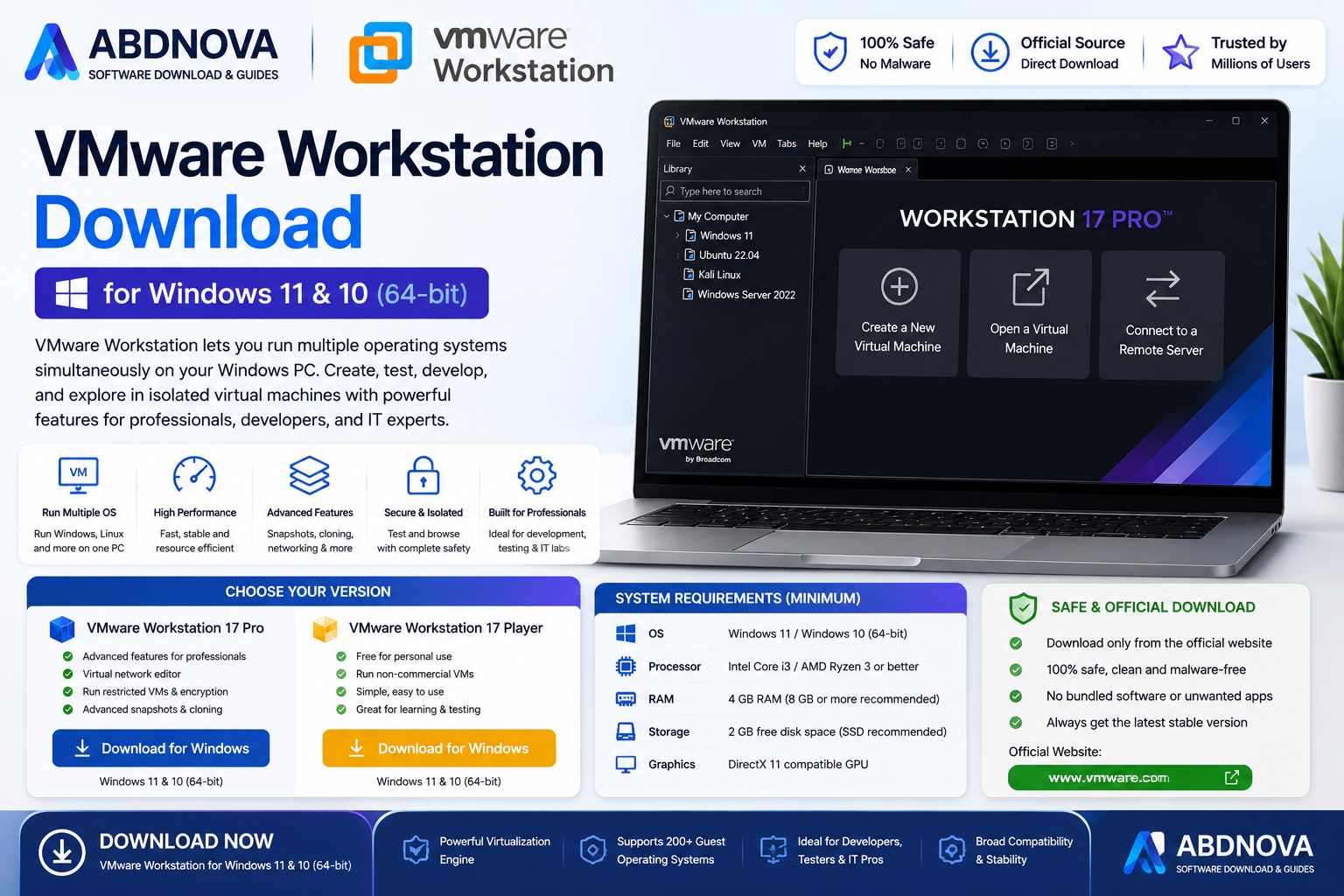
VMware Workstation Download for Windows gives Windows users a powerful desktop virtualization platform for creating and running virtual machines, testing operating systems, building development environments, working with ISO files, and creating isolated lab setups.
VMware Workstation Download for Windows – Overview
| Software | VMware Workstation |
| Developer | VMware / Broadcom |
| Category | Virtualization |
| Platform | Windows |
| Main Use | Running Virtual Machines |
| ISO Installation | Supported |
| Snapshots | Available depending on product/version |
| Virtual Networking | Supported |
| Hardware Virtualization | Required |
What Is VMware Workstation?
VMware Workstation is desktop virtualization software that allows a physical Windows computer to run one or more virtual machines. Each VM can have its own CPU, RAM, storage, network adapter, display, and guest operating system.
VMware Workstation Main Interface + Features

Multiple Virtual Machines
Create separate VMs for Windows testing, Linux development, software experiments, IT training, or server labs.
Virtual Hardware Configuration
Allocate virtual CPU, memory, storage, networking, display, USB, and other resources to each VM. Keep enough resources available for the Windows host.
Snapshots
Snapshots can preserve the state of a VM before software testing or major changes, but they should not replace a proper backup strategy.
Virtual Networking
Depending on version and configuration, VMware can provide NAT, Bridged, and Host-Only networking.
VMware Tools
VMware Tools can improve display behavior, mouse integration, time synchronization, guest/host interaction, and overall VM usability.
VMware Virtual Machines, OS Installation & Advanced Features
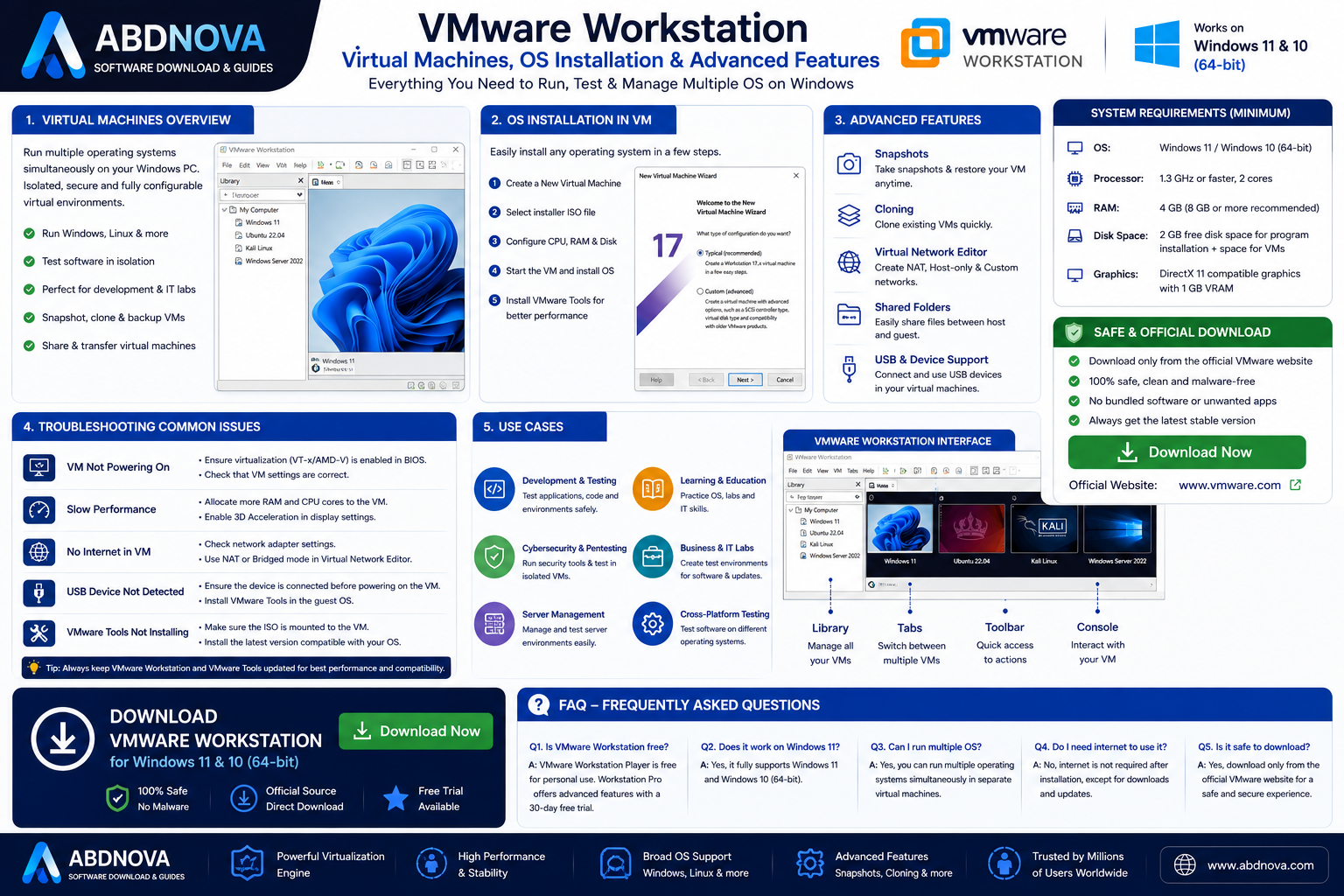
VMware Workstation can install supported operating systems from legitimate ISO files and is useful for testing, development labs, system administration practice, and isolated workloads.
VMware Workstation System Requirements
- Processor: Compatible 64-bit CPU
- Virtualization: Intel VT-x or AMD-V support
- RAM: Enough for both host and guest systems
- Storage: Sufficient free space; SSD recommended
- Windows: Check current VMware/Broadcom compatibility
To check virtualization in Windows: Task Manager → Performance → CPU → Virtualization
How to Download VMware Workstation for Windows
- Use the official VMware/Broadcom website or support portal.
- Find the current VMware Workstation product.
- Review current licensing, account requirements, and Windows compatibility.
- Choose the Windows installer.
- Complete any required account or agreement steps.
- Download the installer from the official source.
How to Install VMware Workstation on Windows

- Open the downloaded installer.
- Verify that it came from VMware/Broadcom.
- Follow the setup wizard.
- Review installation options.
- Continue with installation.
- Restart Windows if requested.
- Launch VMware Workstation.
How to Create a Virtual Machine
- Select Create a New Virtual Machine.
- Choose installation media such as a legitimate ISO file.
- Select the guest operating system.
- Name the VM.
- Choose the storage location.
- Configure virtual disk size.
- Review RAM, CPU, storage, network, and display settings.
- Create the VM.
VMware Workstation vs VirtualBox
Both are popular desktop virtualization solutions. VMware is known for mature VM management, snapshots, virtual networking, and VMware ecosystem integration, while VirtualBox is widely used for development, testing, learning, and running multiple guest operating systems.
Related Guide: VirtualBox Download for Windows
VMware Workstation and Windows ISO Files
For Windows guest systems, see:
Common VMware Workstation Problems and Fixes
VMware Workstation Won’t Start
Restart Windows, check compatibility, install supported updates, repair the installation, or reinstall using the official source.
Virtualization Is Disabled
Open Task Manager → Performance → CPU and check whether Virtualization is Enabled. If disabled, consult your PC manufacturer’s BIOS/UEFI documentation.
Virtual Machine Is Very Slow
Check RAM allocation, CPU resources, storage speed, host workload, snapshots, and guest OS requirements.
VM Won’t Boot from ISO
Check that the ISO is valid, attached to the virtual CD/DVD drive, matches the intended guest OS, and uses the correct architecture.
No Internet Inside the VM
Check whether the VM network adapter is connected and using the intended NAT, Bridged, or other network mode.
VMware Tools Not Working
Confirm the guest OS is supported and the correct VMware Tools or guest integration package is installed.
Is VMware Workstation Safe?
VMware Workstation is legitimate virtualization software. Download it only from the official VMware/Broadcom source, avoid cracked or modified copies, keep VMware updated, and use trusted guest OS images.
Is VMware Workstation Free?
VMware Workstation licensing and distribution have changed over time. Check the current official VMware/Broadcom licensing terms for the exact version you plan to use.
VMware Workstation FAQ
What is VMware Workstation?
Desktop virtualization software that allows compatible Windows computers to create and run virtual machines.
Does VMware Workstation work on Windows 11?
Compatibility depends on the specific release. Check the current official requirements.
Can VMware Workstation run on Windows 10?
Compatibility depends on the Workstation version. Check current VMware/Broadcom documentation.
Do I need to enable virtualization?
Hardware virtualization is generally required.
Can I install Windows 11 in VMware Workstation?
Compatible VMware Workstation versions can run supported Windows guest systems when virtual hardware and guest requirements are met.
Final Thoughts
VMware Workstation is useful for developers, students, IT professionals, testers, and advanced users who need virtual machines, snapshots, configurable hardware, virtual networking, ISO installation, and guest integration tools.
If you are looking for VMware Workstation Download for Windows, use the current official VMware/Broadcom source and verify licensing and compatibility before installation.
Ready to download VMware Workstation?
Windows • Virtual Machines • Official VMware/Broadcom Source
ABDNOVA does not host VMware Workstation installers. VMware/Broadcom download locations and licensing can change, so use the current official source.


