


Zoom Download for Windows

Zoom Download for Windows gives Windows 11 and Windows 10 users access to Zoom Workplace for online meetings, video calls, team communication, screen sharing, chat, Whiteboard, and remote collaboration.
Zoom Download for Windows – Overview
| Software | Zoom Workplace |
| Developer | Zoom Communications, Inc. |
| Category | Communication |
| Platform | Windows |
| Windows Support | Windows 11 & Windows 10 |
| 64-bit / 32-bit | Available |
| Video Meetings | Yes |
| Screen Sharing | Yes |
| Team Chat | Yes |
| Whiteboard | Yes |
| Free Plan | Available |
What Is Zoom Workplace?
Zoom Workplace is Zoom’s current Windows desktop application for communication and collaboration. It combines Zoom Meetings with Team Chat, Whiteboard, Notes, and other supported Workplace tools depending on your account and plan.
Zoom Workplace – Main Interface
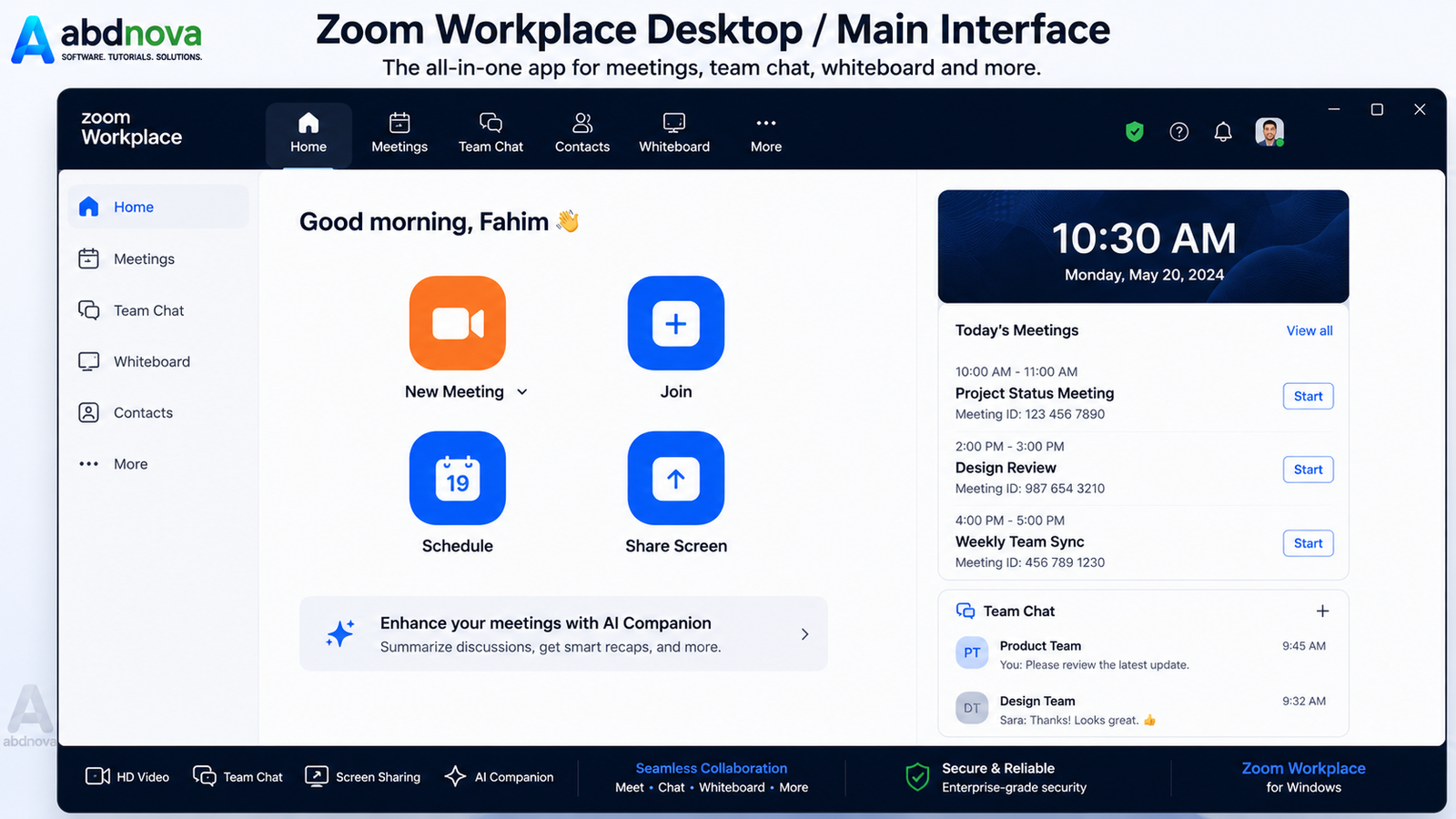
The desktop interface provides quick access to meetings, chat, scheduling, settings, contacts, Whiteboard, and other supported collaboration tools.
Zoom Workplace Features

HD Video Meetings
Zoom supports video and audio meetings with controls for camera, microphone, speakers, and meeting view.
Screen Sharing
You can share your desktop, a particular application, presentation content, or other supported content.
Team Chat
Zoom Workplace includes Team Chat for direct messages, group conversations, channels, and meeting-related chats depending on your account.
Whiteboard
Zoom Whiteboard can be used for brainstorming, classes, presentations, project planning, and remote teamwork.
Zoom Download for Windows 11 & 10
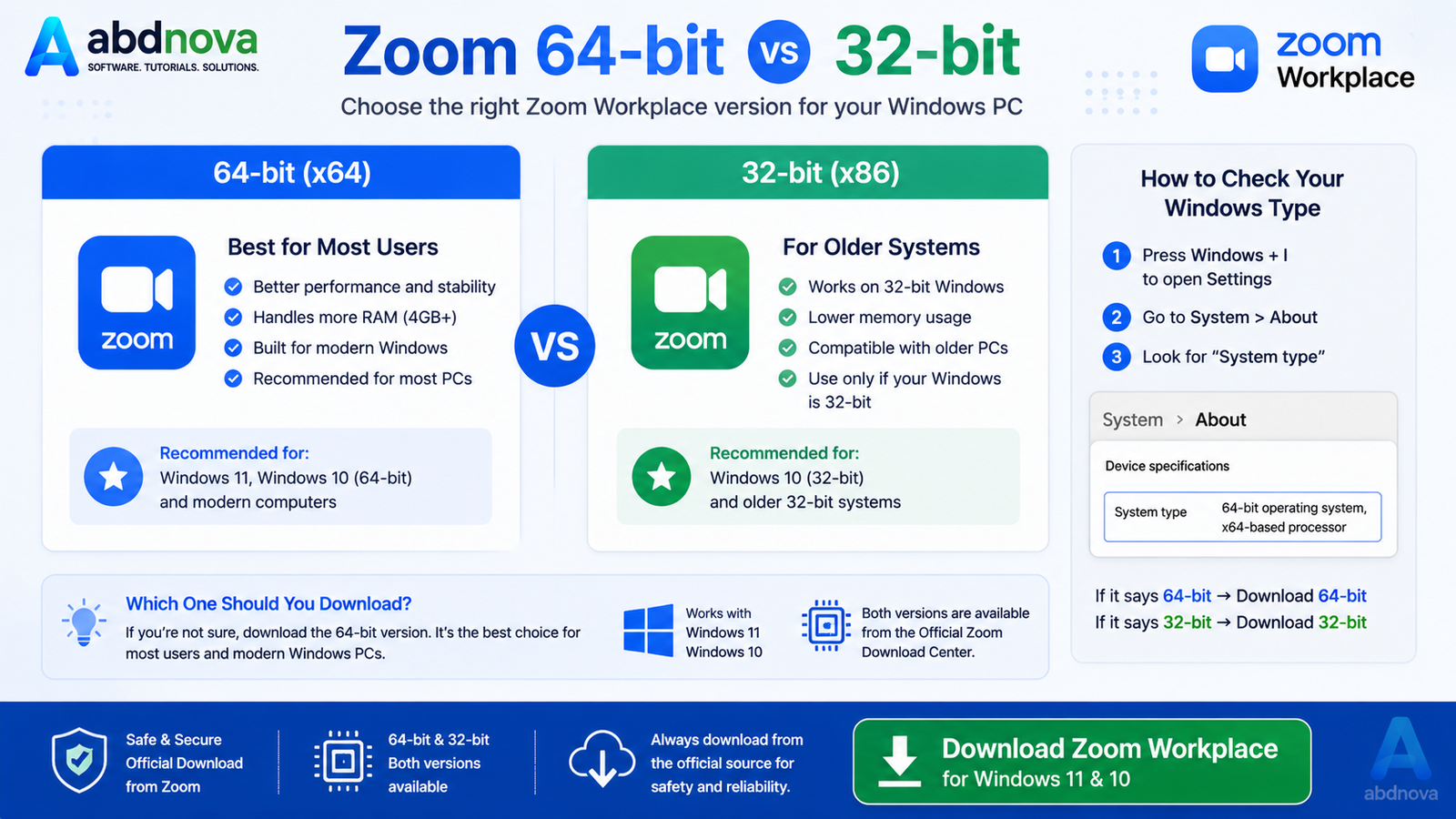
Current Zoom Workplace releases support Windows 11 and Windows 10. Windows 10 S Mode is not supported, and current releases no longer support Windows 7 or Windows 8/8.1.
Zoom 64-bit vs 32-bit
The official Zoom Download Center provides both 64-bit and 32-bit versions. For most modern Windows PCs, the 64-bit version is the natural choice.
Settings → System → About → System type
How to Install Zoom on Windows

- Visit the official Zoom Download Center.
- Find Zoom Workplace for Windows.
- Select the correct 64-bit or 32-bit version.
- Save and open the installer.
- Allow Windows to run it if prompted.
- Wait for installation to complete.
- Launch Zoom Workplace.
- Sign in or join a meeting.
How to Join & Start a Zoom Meeting

Use a meeting link or enter the Meeting ID and passcode. To start a meeting, open Zoom Workplace, start a new meeting, configure audio/video, and invite participants.
Zoom Camera & Microphone Setup

Before an important meeting, confirm the correct microphone, speakers, headphones, and webcam are selected. Close other apps that may already be using your camera.
How to Share Your Screen in Zoom

- Join or start a Zoom meeting.
- Select the Share control.
- Choose the desktop, app, or supported content.
- Start sharing.
- Stop sharing when finished.
Privacy Tip: Close private documents, notifications, emails, or sensitive information before sharing your whole desktop.
Zoom Workplace vs Zoom Web App
| Feature | Zoom Workplace | Zoom Web App |
|---|---|---|
| Installation | Required | No full desktop installation |
| Runs in Browser | No | Yes |
| Meetings | Yes | Yes |
| Regular Use | Recommended | Useful alternative |
Common Zoom Problems and Fixes

Camera Not Working
Check camera permissions, select the correct webcam, close other camera apps, and restart Zoom.
Microphone Not Working
Check Zoom microphone selection, Windows microphone permissions, mute controls, headset connection, and input volume.
No Sound
Make sure Zoom is using the correct speaker or headphones and check Windows volume.
Zoom Won’t Open
Restart Zoom, restart Windows, update Zoom, reinstall the app, and confirm that your Windows version is supported.
Related Communication Guides
See our Microsoft Teams Download for Windows guide.
See our Discord Download for Windows guide.
Is Zoom Free?
Zoom offers a free account option as well as paid plans. Feature availability and meeting limits depend on your account and plan.
Zoom FAQ
Does Zoom work on Windows 11?
Yes. Windows 11 is supported by current Zoom Workplace releases.
Does Zoom work on Windows 10?
Yes. Zoom supports Windows 10 Home, Pro, and Enterprise, but Windows 10 S Mode is not supported.
Is Zoom available in 64-bit?
Yes. The official Zoom Download Center provides both 64-bit and 32-bit downloads.
Can I use Zoom without installing it?
Yes. Zoom provides a Web App for supported meetings and webinars.
Final Thoughts
If you are looking for Zoom Download for Windows, use the official Zoom Download Center, choose the correct architecture, and test your camera and microphone before important meetings.
Ready to download Zoom?
Zoom Workplace • Windows 11 & 10 • Official Source
ABDNOVA does not host the Zoom installer. The button opens Zoom’s official Download Center.


