


Windows 10 ISO Download

Windows 10 ISO Download is still useful for reinstalling an existing Windows 10 PC, creating bootable installation media, setting up a virtual machine, or maintaining older hardware and software. Windows 10 version 22H2 was the final feature version, and standard support ended on October 14, 2025.
Windows 10 ISO Download – Quick Overview
| Operating System | Windows 10 |
| Developer | Microsoft Corporation |
| Final Feature Version | 22H2 |
| Architecture | 32-bit / 64-bit |
| Common Editions | Home / Pro |
| Installation Media | ISO / Bootable USB |
| Standard Support | Ended October 14, 2025 |
| License | Commercial / Proprietary |
What Is a Windows 10 ISO?
A Windows 10 ISO is a disk-image file containing the Windows installation files. It can be used to create bootable USB media, reinstall Windows, perform a clean installation, or mount Windows installation media in a compatible virtual machine.

Windows 10 22H2 – Final Major Version

Windows 10 version 22H2 was the final feature version of Windows 10 for the standard Home and Pro lifecycle. Standard support ended on October 14, 2025. For a supported PC that meets the requirements, Windows 11 is generally the better long-term choice.
Windows 10 ISO Download Options

For a genuine installation, use Microsoft’s official Windows 10 download resources. Microsoft’s installation-media process supports creating a bootable USB drive or creating an ISO file for later use.
Media Creation Tool vs Windows 10 ISO
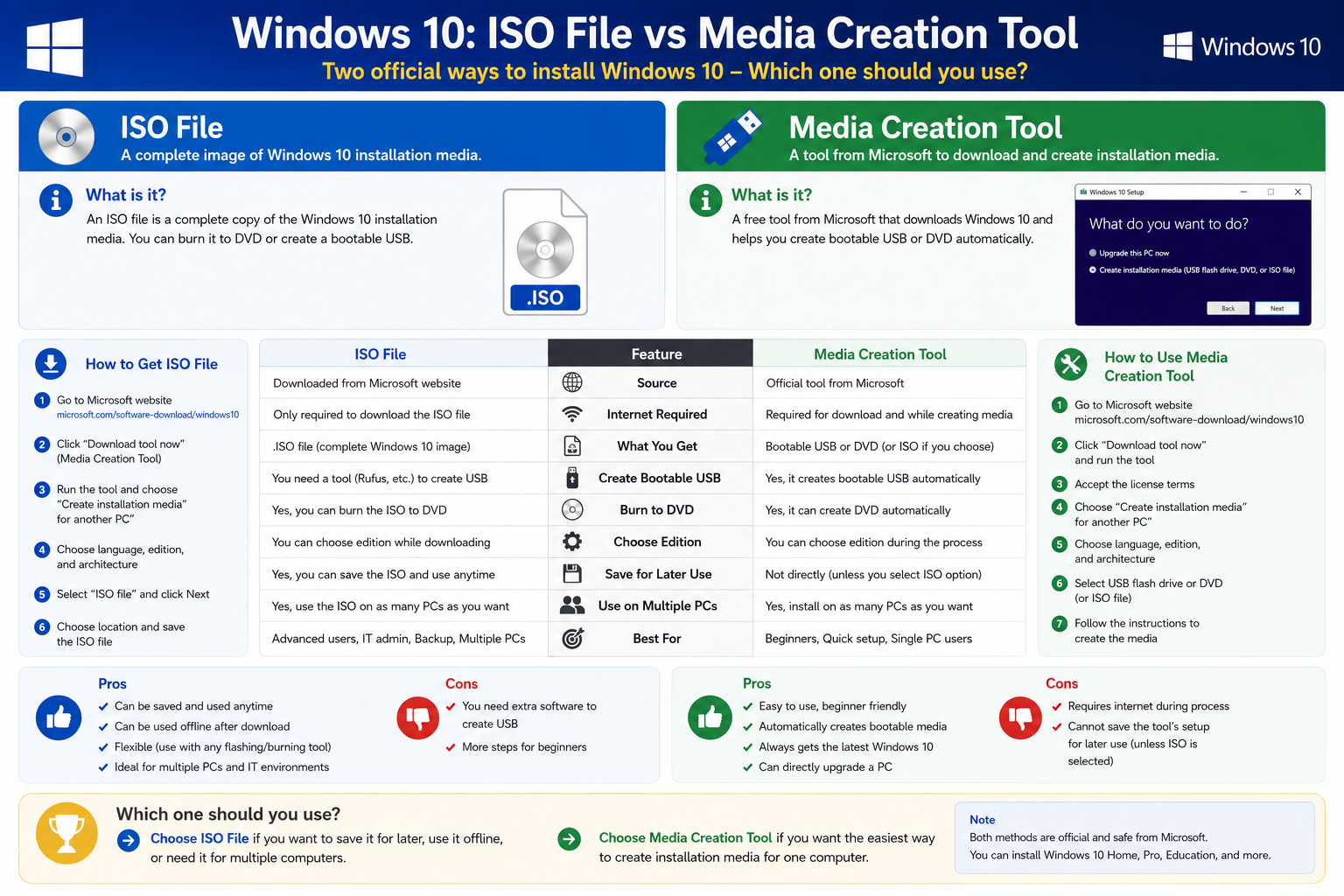
| Feature | Media Creation Tool | ISO File |
|---|---|---|
| Format | Executable tool | Disk-image file |
| Create bootable USB | Yes | Requires another process/tool |
| Create ISO | Yes | Already an ISO |
| Useful for reinstall | Yes | Yes |
| Virtual machine | Less convenient | Excellent |
| Offline archive | Tool + download | Easy to keep |
How to Download Windows 10 ISO Using Media Creation Tool

- Open Microsoft’s official Windows 10 download page.
- Download the Windows 10 Media Creation Tool.
- Run the tool and accept the applicable license terms.
- Select Create installation media for another PC.
- Choose the language, edition, and architecture.
- Select ISO file.
- Choose where to save the ISO.
- Wait while the tool downloads the files and creates the ISO.
Windows 10 32-bit vs 64-bit

For most relatively modern computers, 64-bit Windows is the preferred choice because it supports more memory and modern applications. The 32-bit version is mainly relevant to older hardware with specific compatibility requirements.
Windows 10 Home vs Pro

Windows 10 Home is intended mainly for everyday personal computing, while Windows 10 Pro includes additional functionality for professional and business environments. When reinstalling Windows, choose the edition that matches the device’s existing license.
Windows 10 System Requirements

| Requirement | Minimum |
|---|---|
| Processor | 1 GHz or faster compatible processor |
| RAM | 1 GB for 32-bit / 2 GB for 64-bit |
| Storage | 32 GB or larger |
| Graphics | DirectX 9 or later with WDDM 1.0 driver |
| Display | 800 × 600 or higher |
| Internet | Required for some features and updates |
These are minimum requirements. For more comfortable everyday use, additional RAM and an SSD are preferable.
How to Create a Windows 10 Bootable USB

Microsoft’s installation-media process recommends a blank USB flash drive with at least 8 GB of space. The USB contents can be erased during creation, so back up important files first.
- Connect the USB drive.
- Back up anything important stored on it.
- Use Microsoft’s Media Creation Tool or a trusted USB-creation utility.
- Select the Windows 10 installation-media or ISO option.
- Select the correct USB drive.
- Wait until creation is complete.
- Safely eject the USB drive.
Windows 10 ISO vs Bootable USB

An ISO is the installation image itself, while a bootable USB is physical installation media created from Windows installation files. ISO files are useful for backups and virtual machines; bootable USB drives are convenient for clean installations and reinstallations.
BIOS/UEFI and GPT/MBR

Modern computers generally use UEFI firmware and commonly use GPT partitioning. Older systems may use Legacy BIOS with MBR. Do not change partition schemes or delete partitions without understanding the consequences, because doing so can erase data.
Clean Install vs Upgrade

An upgrade attempts to preserve compatible applications, settings, and personal files. A clean installation starts with a fresh Windows environment and may erase partitions and personal data depending on the choices made during setup. Always back up important files first.
How to Install Windows 10 from USB
- Connect the Windows 10 installation USB.
- Restart the computer and boot from the USB drive.
- Choose language, time, and keyboard settings.
- Select Install now.
- Enter a valid product key if required, or use the appropriate digital-license option.
- Select the Windows edition that matches your license.
- Choose the installation type.
- Carefully select the target drive or partition.
- Allow Windows Setup to copy files and restart the PC.
- Complete the Windows setup process.
Windows 10 Product Key & Activation

Downloading Windows 10 installation media does not automatically activate Windows. Activation depends on a valid product key, digital license, or an eligible product key embedded in the device firmware. If the PC was previously activated, reinstall the same edition whenever possible.
Avoid unauthorized activators, cracked keys, and modified Windows images.
Windows 10 vs Windows 11

| Feature | Windows 10 | Windows 11 |
|---|---|---|
| Standard consumer support | Ended Oct. 14, 2025 | Supported |
| Final Windows 10 version | 22H2 | — |
| New feature releases | No | Ongoing |
| Older hardware | Useful for legacy PCs | Stricter requirements |
| Recommended for a new compatible PC | No | Yes |
For supported hardware, see our Windows 11 ISO Download guide.
Common Windows 10 ISO Problems
ISO Download Fails
Check the internet connection, available storage, and try the official Microsoft download process again.
USB Does Not Boot
Check whether the USB was created correctly, whether it is detected in BIOS/UEFI, the boot order, firmware mode, USB port, and USB drive condition.
Windows Cannot Install on the Selected Disk
This can happen when the disk partition style does not match the current firmware configuration. Do not randomly delete partitions, especially if the drive contains important data.
Windows Activation Doesn’t Work
Confirm that the installed edition matches the license and use Microsoft’s official activation troubleshooting resources.
Windows 10 ISO Safe Download Notice

Use genuine Microsoft installation media. Avoid downloads advertised as “pre-activated,” “cracked,” “modified,” “debloated,” or “no product key required.” Modified operating-system images may contain unwanted software or other changes.
Related Windows & Installation Guides
Need Microsoft’s current supported Windows version? Read our Windows 11 ISO Download guide.
Need to create a bootable USB? See our Rufus Download for Windows guide.
You can also see our Ventoy Download for Windows guide for multiboot USB creation.
Windows 10 ISO FAQ
Is Windows 10 ISO free to download?
Windows installation media can be obtained through Microsoft’s official process, but downloading the ISO does not provide a free Windows license. Activation still depends on a valid digital license or product key.
What is the final Windows 10 version?
Windows 10 22H2 was the final feature version of Windows 10.
Is Windows 10 still supported?
Standard support for Windows 10 ended on October 14, 2025.
Can I install Windows 10 from an ISO?
Yes. An ISO can be used to create installation media or can be mounted in supported environments such as a virtual machine.
How large should the USB drive be?
Microsoft recommends a blank USB flash drive with at least 8 GB for its installation-media process. Existing contents can be erased.
Do I need a Windows 10 product key?
A product key may be required, although some PCs can activate using an existing digital license or an eligible firmware-embedded key.
Should I use Windows 10 or Windows 11?
If your PC supports Windows 11, moving to a currently supported Windows version is generally the better long-term option. Windows 10 may still be useful for specific legacy or compatibility needs.
Final Thoughts
Windows 10 ISO Download remains useful for reinstalling an existing licensed Windows 10 PC, creating bootable installation media, maintaining legacy systems, and setting up virtual machines. However, Windows 10 22H2 reached standard end of support on October 14, 2025.
For a compatible modern PC, Windows 11 is generally the better long-term option. If Windows 10 is required, use genuine Microsoft installation media and a legitimate Windows license.
Ready to download Windows 10 ISO?
Windows 10 22H2 • Official Microsoft Source • Installation Media
ABDNOVA does not host Windows ISO files. This button opens Microsoft’s official Windows 10 download page.


