


Discord Download for Windows
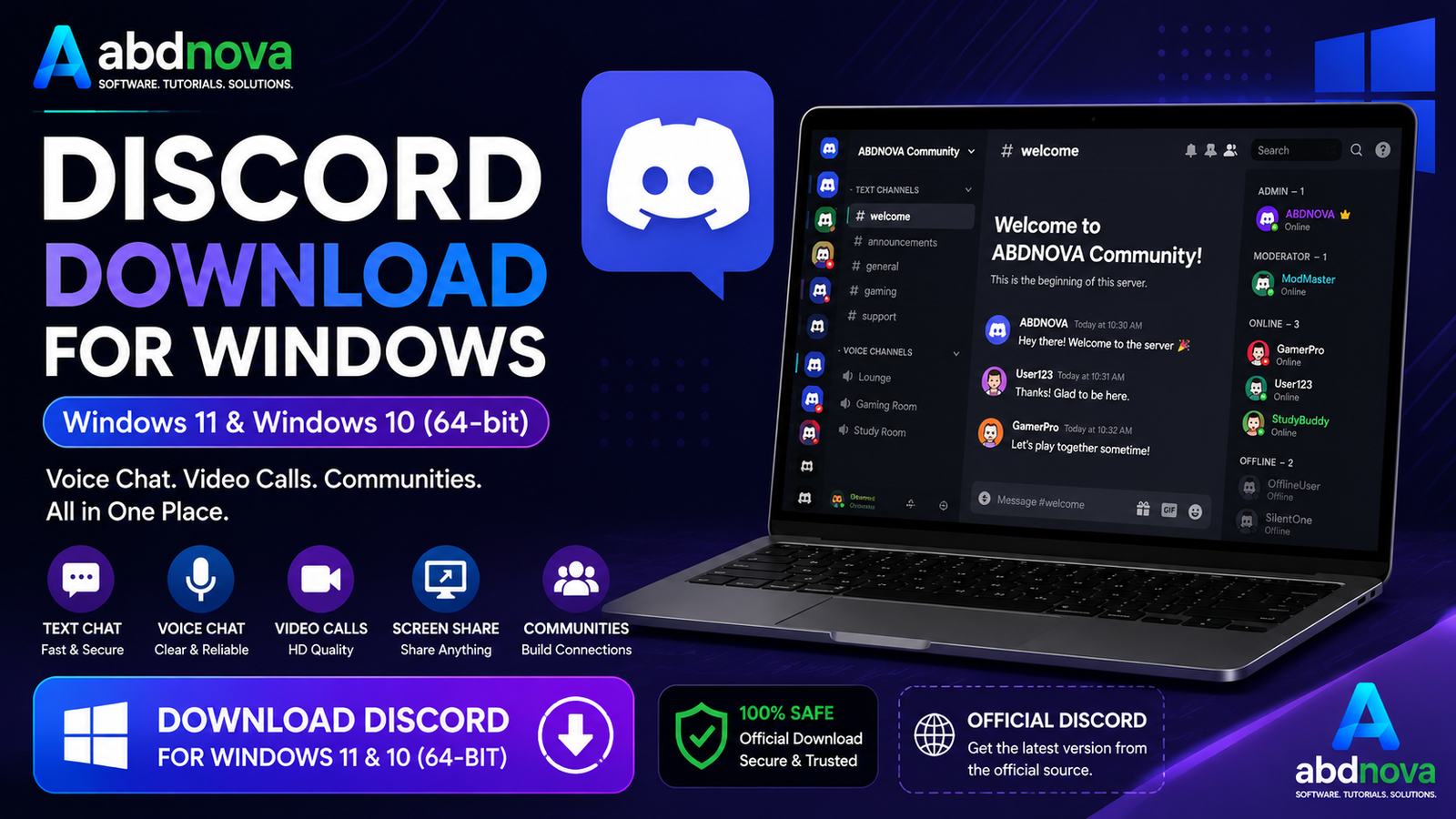
Discord Download for Windows gives Windows 11 and Windows 10 users quick access to text chat, voice channels, video calls, screen sharing, servers, communities, direct messages, and gaming groups through the official desktop app.
Discord Download for Windows – Overview
| Software | Discord |
| Category | Communication |
| Platform | Windows |
| Minimum Windows | Windows 10+ |
| Windows 11 | Supported |
| Windows 10 | Supported |
| 32-bit Windows | Not Supported |
| Architecture | 64-bit Windows |
| Price | Free with optional paid features |
What Is Discord?
Discord is a communication platform for text messages, voice channels, video calls, direct messages, group chats, servers, screen sharing, Go Live streaming, and file or media sharing.
A typical Discord community can be organized as:
Discord Server → Text Channels → Voice Channels → Members
Although Discord became popular with gamers, it is also widely used by online communities, study groups, developers, content creators, friends, and teams.
Discord Desktop Main Interface

The Discord desktop interface gives quick access to servers, channels, direct messages, voice rooms, notifications, and account settings. Regular users often prefer the desktop app because it provides better Windows integration and faster access than keeping Discord open in a browser tab.
Discord Features

Text Chat
Discord supports messages in servers, channels, group conversations, and direct messages. Depending on permissions and account features, users can also share images, links, GIFs, emoji, files, and videos.
Voice Channels
Voice channels allow members to join an ongoing voice conversation without creating a traditional phone call. Simply enter an available voice channel and start communicating with other members.
Video Calls
Discord supports video communication through compatible webcams and devices, making it useful for online discussions, gaming, collaboration, and casual conversations.
Screen Sharing and Go Live
Discord lets you share your screen or supported application content with other users. This can be useful for gaming, tutorials, presentations, technical help, and collaboration.
Servers, Roles and Permissions
A Discord server can contain multiple channels for different subjects. Server administrators can also configure roles and permissions to control access for different members.
Discord 64-bit & Windows Compatibility

Current Discord desktop support is focused on Windows 10 and Windows 11. Discord ended official support for Windows 7, Windows 8, and Windows 8.1 in 2024, and current 32-bit Windows systems are no longer officially supported.
To check your Windows architecture, open:
Settings → System → About → System type
For current supported desktop use, a 64-bit Windows 10 or Windows 11 PC is the appropriate setup.
How to Install Discord on Windows
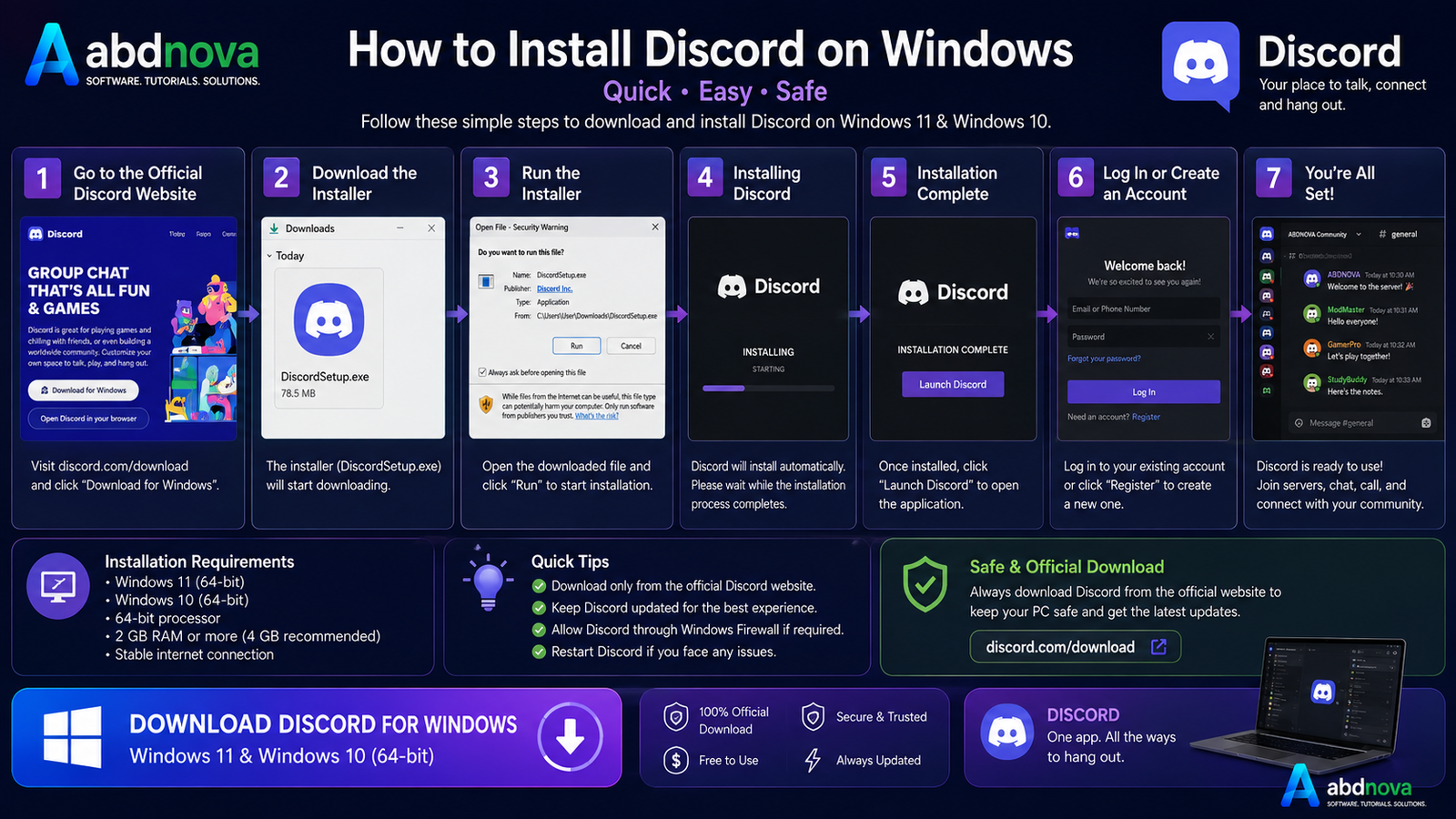
- Visit the official Discord download page.
- Select Download for Windows.
- Open your Downloads folder.
- Find
DiscordSetup.exe. - Double-click the installer.
- Allow Discord to complete installation and update.
- Open Discord.
- Sign in to your account or create a new account.
How to Join a Discord Server
- Receive or copy a valid Discord invite link.
- Open the invite in Discord.
- Select the option to accept or join the server.
- Complete any required verification or rule agreement.
- Open the channels available to your account.
Discord Voice, Video and Screen Sharing Setup
Voice & Video Settings
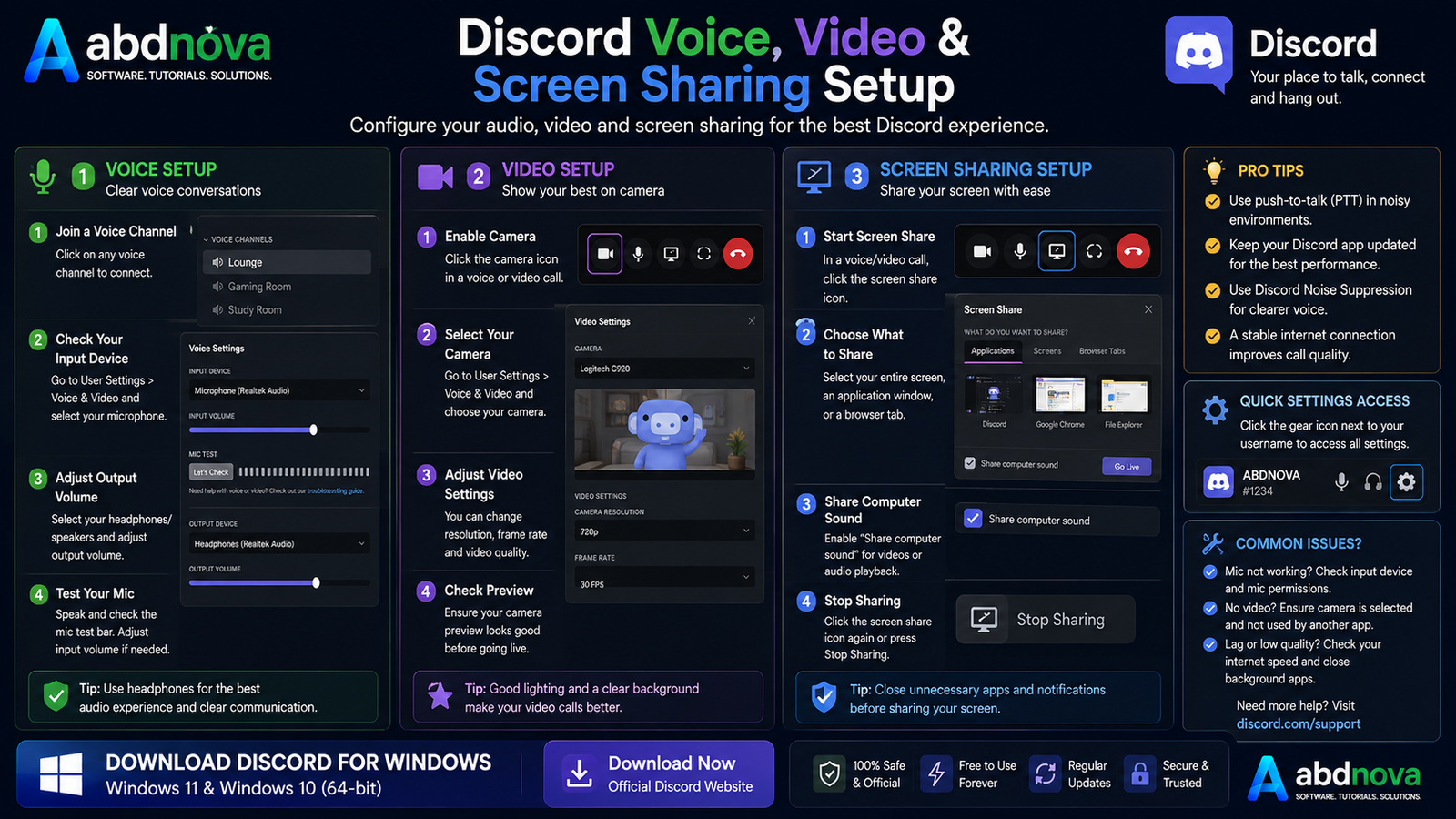
Open User Settings → Voice & Video and check the input device, output device, microphone level, speaker or headset, and other available voice settings.
How to Share Your Screen
- Join a supported call or voice channel.
- Choose the screen-sharing or streaming control.
- Select the screen or application you want to share.
- Review the available stream settings.
- Start sharing.
Privacy Tip: Before sharing your whole desktop, close private emails, documents, passwords, notifications, and personal messages that you do not want other participants to see.
Discord Desktop App vs Browser
| Feature | Desktop App | Browser |
|---|---|---|
| Installation | Required | Not Required |
| Text Chat | Yes | Yes |
| Servers | Yes | Yes |
| Voice Features | Yes | Yes, depending on browser/OS |
| Windows Integration | Better | Limited |
| Best For | Regular use | Occasional access |
Discord Stable vs PTB vs Canary
Stable is the normal Discord version and the one most users should download. PTB is a public test build, while Canary is an experimental build that can receive newer features earlier but may be less stable.
Common Discord Problems and Fixes
Discord Won’t Install
Close Discord completely, end any remaining Discord processes, restart Windows, and download a fresh installer from the official source. If installation continues to fail, clearing the appropriate Discord AppData folders may help before reinstalling.
Discord Won’t Open
Restart Discord or Windows, check for Windows updates, and reinstall the latest official Discord desktop app if necessary.
Microphone Not Working
Check the microphone connection, Windows microphone permission, Discord input device, input volume, input mode, and any physical headset mute control.
Can’t Hear Other People
Check the Discord output device, Windows volume, connected speakers or headphones, and Discord output volume.
Camera Not Working
Make sure the webcam is connected, Windows camera permission is enabled, Discord can access the camera, another application is not using it, and camera drivers are current.
Discord Is Lagging
Update Discord and Windows, check the internet connection, restart the router, close unnecessary applications, reduce streaming quality, and test hardware acceleration settings if needed.
Related Communication Guides
For online meetings and video calls, see our Zoom Download for Windows guide.
For team chat and collaboration, see our Microsoft Teams Download for Windows guide.
Is Discord Free?
Yes. Discord can be downloaded and used for free. Optional paid features and subscriptions are available, but they are not required for basic Discord use.
Is Discord Safe to Download?
The legitimate Discord desktop application is safe to obtain from Discord’s official source. Avoid modified or cracked installers, keep Discord updated, use a strong password, and be cautious with unknown links or files.
Discord FAQ
Does Discord work on Windows 11?
Yes. Discord supports current Windows 11 systems.
Does Discord support Windows 10?
Yes. Windows 10 remains the minimum supported Windows desktop version for current Discord releases.
Does Discord support Windows 7?
No. Current official Discord support does not include Windows 7, Windows 8, or Windows 8.1.
Does Discord support 32-bit Windows?
No. Current official Discord desktop support requires 64-bit Windows.
Can I use Discord without installing it?
Yes. Discord provides a web client that can be used through a compatible browser.
Which Discord version should I download?
For normal users, choose the Stable Windows desktop client from the official Discord website.
Can Discord share my screen?
Yes. Discord supports screen sharing and Go Live functionality.
Final Thoughts
Discord is a useful Windows communication app for text chat, voice conversations, video calls, servers, communities, gaming, and screen sharing. For most Windows users, the setup process is straightforward and the Stable desktop client is the best choice.
If you are looking for Discord Download for Windows, use the official Discord source and keep the app updated for current voice, video, and security support.
Ready to download Discord?
Windows 11 & 10 • 64-bit • Official Source
ABDNOVA does not host DiscordSetup.exe. The button opens the official Discord download page.


