


Android Studio Download for Windows
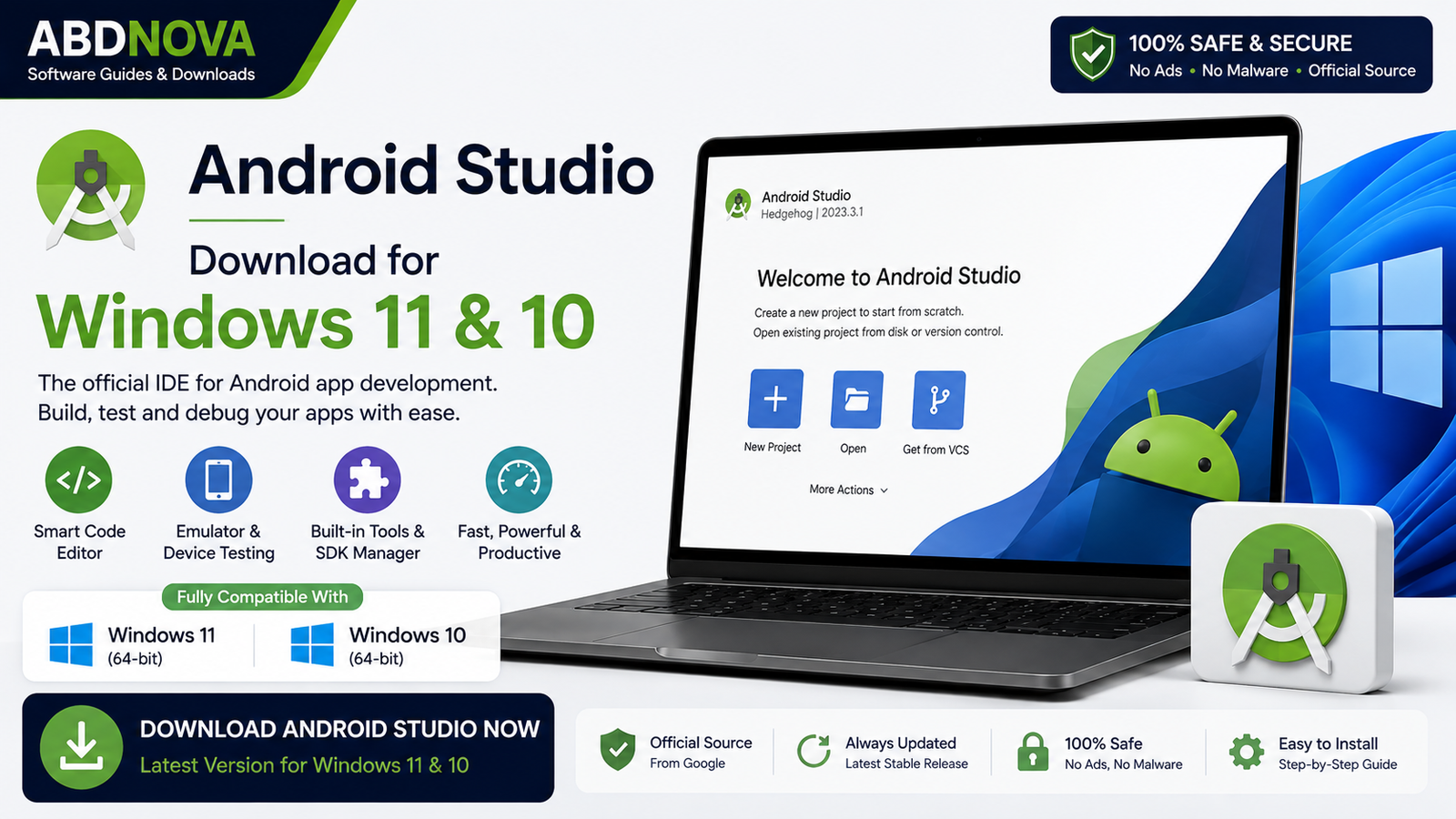
Android Studio Download for Windows gives developers Google’s official IDE for building Android applications with Kotlin or Java. Android Studio combines a powerful code editor with Android SDK tools, the Android Emulator, Gradle, debugging, device management, profiling, and other Android-specific development features.
Android Studio Download for Windows – Overview
| Software | Android Studio |
| Developer | |
| Category | Developer Tools / IDE |
| Platform | Windows |
| License | Free |
| Primary Languages | Kotlin & Java |
| Main Tools | Android SDK, Emulator, Gradle, Device Manager, Debugger |
| Best For | Native Android App Development |
What Is Android Studio?
Android Studio is Google’s official integrated development environment for Android application development. It provides a centralized workspace for writing code, designing user interfaces, managing SDK packages, testing apps, debugging problems, and building Android applications.
Android Studio supports development for Android phones, tablets, foldables, Wear OS devices, Android TV, and other supported Android platforms.
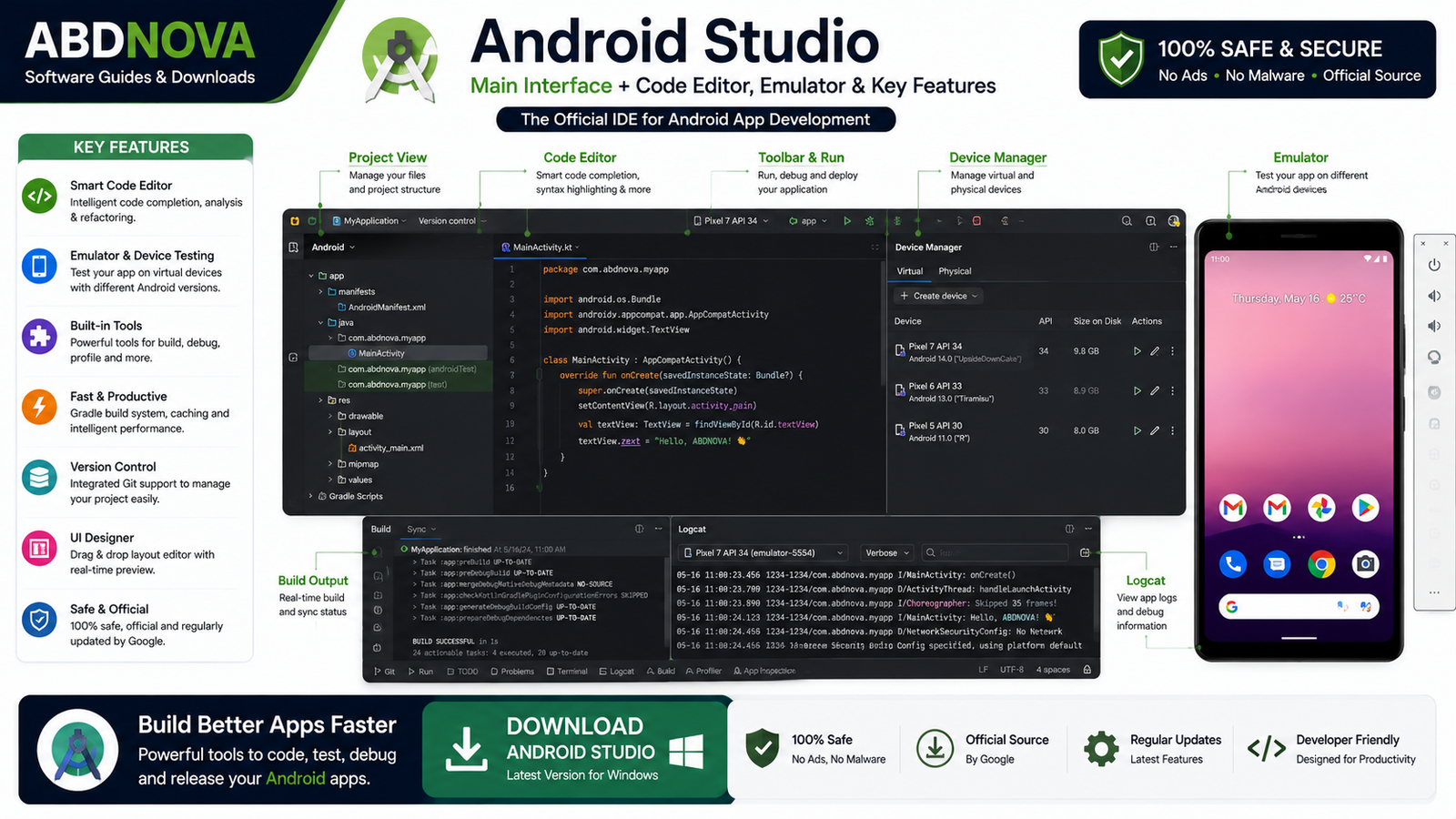
Android Studio Main Interface, Code Editor and Key Features
Powerful Code Editor
Android Studio includes syntax highlighting, code completion, refactoring, error detection, navigation, quick fixes, and other tools designed for Android development.
Kotlin and Java Support
Kotlin is a primary language for modern Android development, while Java remains supported for existing projects and Java-based libraries. Projects can use Kotlin, Java, or both where appropriate.
Android SDK
The Android SDK contains the APIs and tools required to build Android applications. Android Studio’s SDK Manager can install and update SDK platforms, build tools, platform tools, emulator components, system images, and other packages.
Android Emulator and Device Manager
The Android Emulator lets you test apps on virtual Android devices without always connecting a physical phone. Device Manager helps create and manage virtual devices for smartphones, tablets, foldables, Wear OS, Android TV, and other profiles.
Visual UI Development
Android Studio supports modern Jetpack Compose workflows and traditional XML-based layouts. Preview tools can help visualize interface changes during development.
Gradle Build System
Android Studio uses Gradle-based build tools for dependencies, build variants, debug and release builds, packaging, and project configuration.
Debugging, Logcat and Profiler
Developers can set breakpoints, inspect variables, step through code, review Logcat messages, analyze exceptions, and use profiling tools to investigate CPU, memory, network, and application performance.
How to Download Android Studio for Windows
- Visit the official Android Developers website.
- Open the Android Studio download page.
- Select the Windows download.
- Review the license terms.
- Download the installer from the official source.
- Verify the installer source before running it.
How to Install Android Studio on Windows + Set Up Android SDK & Emulator
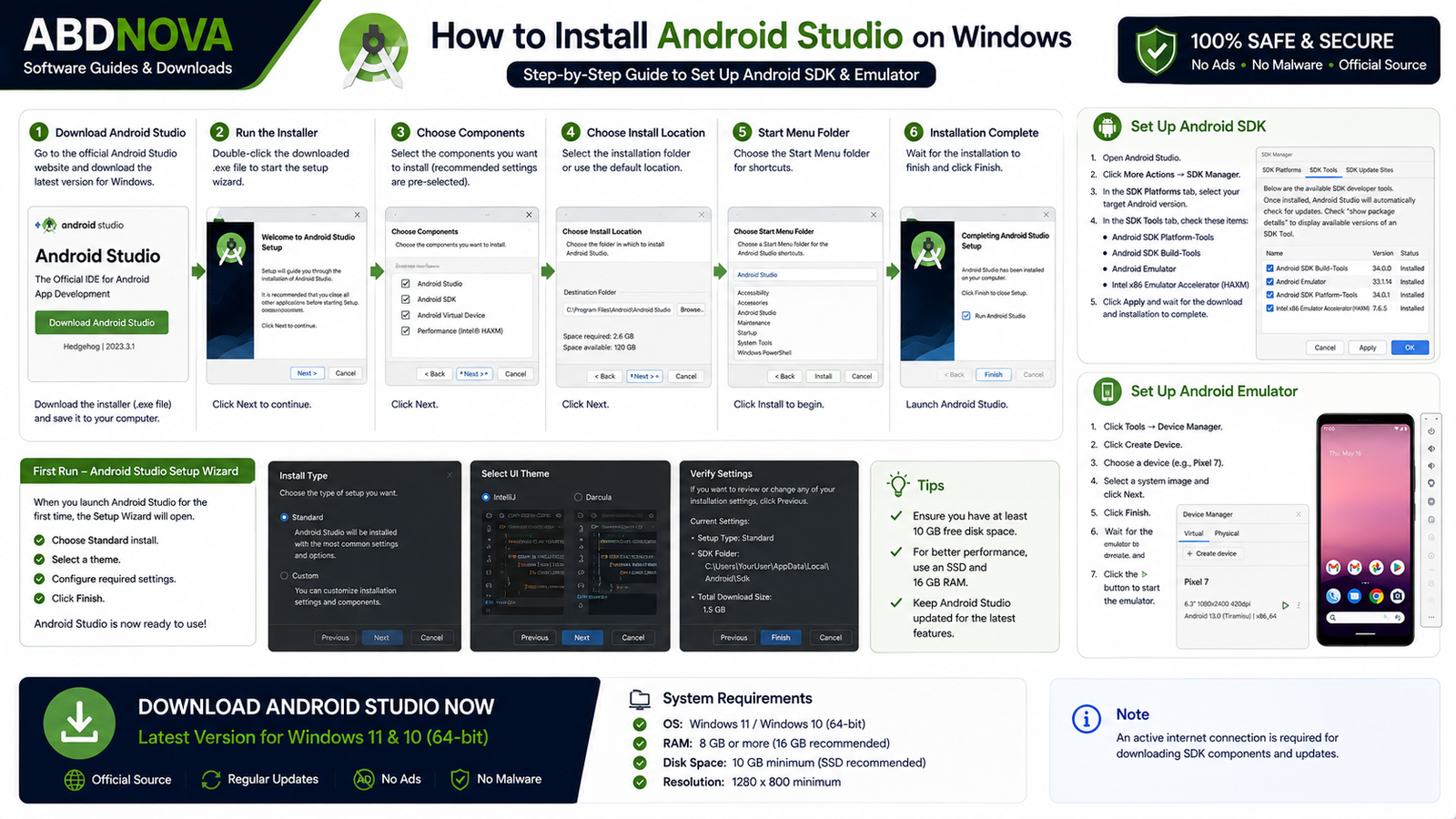
- Run the downloaded Android Studio installer.
- Confirm the installer came from the official Android Developers source if Windows shows a security prompt.
- Keep the recommended components selected unless you have a specific reason to change them.
- Choose the installation location.
- Complete the installation.
- Launch Android Studio.
- Allow the setup process to install required Android SDK components.
- Open Device Manager and create an Android virtual device if you want to use the emulator.
How to Create Your First Android Project
- Open Android Studio and choose New Project.
- Select an appropriate project template.
- Enter the application name, package name, save location, language/options, and minimum SDK.
- Create the project.
- Wait for Gradle Sync and any required downloads to finish.
- Select an Android Emulator or connected physical Android device.
- Run the application.
How to Set Up Android Emulator
- Open Device Manager.
- Create a new virtual device.
- Select a hardware profile.
- Select an Android system image.
- Download the image if necessary.
- Finish the virtual-device configuration.
- Start the emulator.
Emulator performance depends heavily on CPU, RAM, virtualization support, graphics drivers, available storage, and whether your project is stored on an SSD.
Android Studio App Development, SDK, Emulator and Gradle

Build APK and App Bundles
Android Studio can build APK files for testing and distribution workflows and Android App Bundles (AAB) for supported Google Play release workflows.
Test on a Physical Android Device
You can enable Developer Options and USB debugging on a compatible Android device, connect it to your Windows PC, approve the debugging prompt, and run the application directly on the device.
Git and Version Control
Android Studio integrates with common Git workflows so developers can track code changes, create branches, commit changes, review modifications, and work with remote repositories.
Related Guide: See our Git Download for Windows guide for setting up Git on Windows.
For a visual Git workflow, see our GitHub Desktop Download for Windows guide.
Related Guide: If you also work with Java development tools, read our Java JDK Download for Windows guide.
Android Studio System Requirements
Android Studio is heavier than a simple code editor, especially when using the Android Emulator. For practical development, a supported 64-bit Windows system, modern multi-core processor, SSD, and sufficient RAM are recommended.
- RAM: 8 GB is a basic practical starting point; 16 GB or more provides a smoother experience for frequent development and emulator use.
- Storage: Keep plenty of free SSD space for Android Studio, SDK packages, Gradle caches, projects, and emulator images.
- Virtualization: Hardware virtualization can improve emulator performance depending on your configuration.
- Internet: Required for installation, SDK downloads, Gradle dependencies, and updates.
Related Guide: For general Java development outside Android-specific workflows, see our Eclipse IDE Download for Windows guide for Java development, plugins, debugging, and Windows setup.
Android Studio vs Visual Studio Code
Android Studio is Google’s official full IDE for native Android development and provides deep integration with the Android SDK, Emulator, Gradle, profiling, debugging, and Android UI tools. Visual Studio Code is lighter and more flexible for many general programming workflows.
Related Guide: See our Visual Studio Code Download for Windows guide.
Common Android Studio Problems and Solutions
Android Studio Won’t Open
Restart Windows, confirm you have enough free storage, check Windows Security notifications, update Android Studio, or reinstall it from the official source if necessary.
Android Emulator Is Very Slow
Enable hardware virtualization when required, close unnecessary programs, allocate sufficient RAM, use an appropriate emulator image, and run Android Studio from an SSD.
Emulator Won’t Start
Check CPU virtualization, virtual-device configuration, emulator updates, system image, RAM, storage, graphics drivers, and Windows virtualization settings.
Gradle Sync Failed
Check the internet connection, Gradle configuration, dependencies, repositories, plugins, SDK settings, and proxy settings. Read the specific Gradle error before changing versions randomly.
Android SDK Not Found
Open Android Studio settings and verify the SDK location. Also check SDK Manager to confirm that the required SDK components are installed.
Physical Android Phone Not Detected
Enable USB debugging, unlock the phone, reconnect it, accept the debugging authorization prompt, check Windows drivers, and use a data-capable USB cable.
Build Failed
Review the Build output and fix the first meaningful error. Common causes include Kotlin or Java compilation errors, missing dependencies, SDK problems, Gradle configuration errors, resource issues, manifest errors, and plugin incompatibilities.
Is Android Studio Free?
Yes. Android Studio itself can be downloaded and used without purchasing an IDE subscription.
Is Android Studio Safe?
Android Studio is Google’s official Android development environment when downloaded from the legitimate Android Developers website. Keep Android Studio and SDK components updated, protect app signing keys and private credentials, and avoid modified installers.
Android Studio FAQ
Is Android Studio free?
Yes. Android Studio itself is available free of charge for Android application development.
Does Android Studio work on Windows 11?
Current Android Studio releases support compatible modern 64-bit Windows environments. Check the current official system requirements before installation.
Which programming language should I use with Android Studio?
Kotlin is a major choice for modern native Android development, while Android Studio also supports Java.
Does Android Studio include the Android SDK?
Android Studio integrates Android SDK management and can install the required SDK components through the setup process and SDK Manager.
Does Android Studio include an Android Emulator?
Yes. Android Studio integrates with the Android Emulator and Device Manager for creating and managing virtual Android devices.
Can Android Studio create APK and AAB files?
Yes. Android Studio provides build tools for creating APKs and Android App Bundles for appropriate development and release workflows.
Final Thoughts
Android Studio provides the official native Android development workflow with Kotlin and Java support, Android SDK management, Emulator, Gradle, debugging, profiling, Device Manager, APK/AAB building, and Git integration.
If you are looking for Android Studio Download for Windows, use the official Android Developers source and make sure your Windows PC has enough RAM, storage, and virtualization support for your development needs.
Ready to download Android Studio?
Windows • Official Android IDE • Free Download
ABDNOVA does not host the Android Studio installer. The button opens the official Android Developers download page.


