
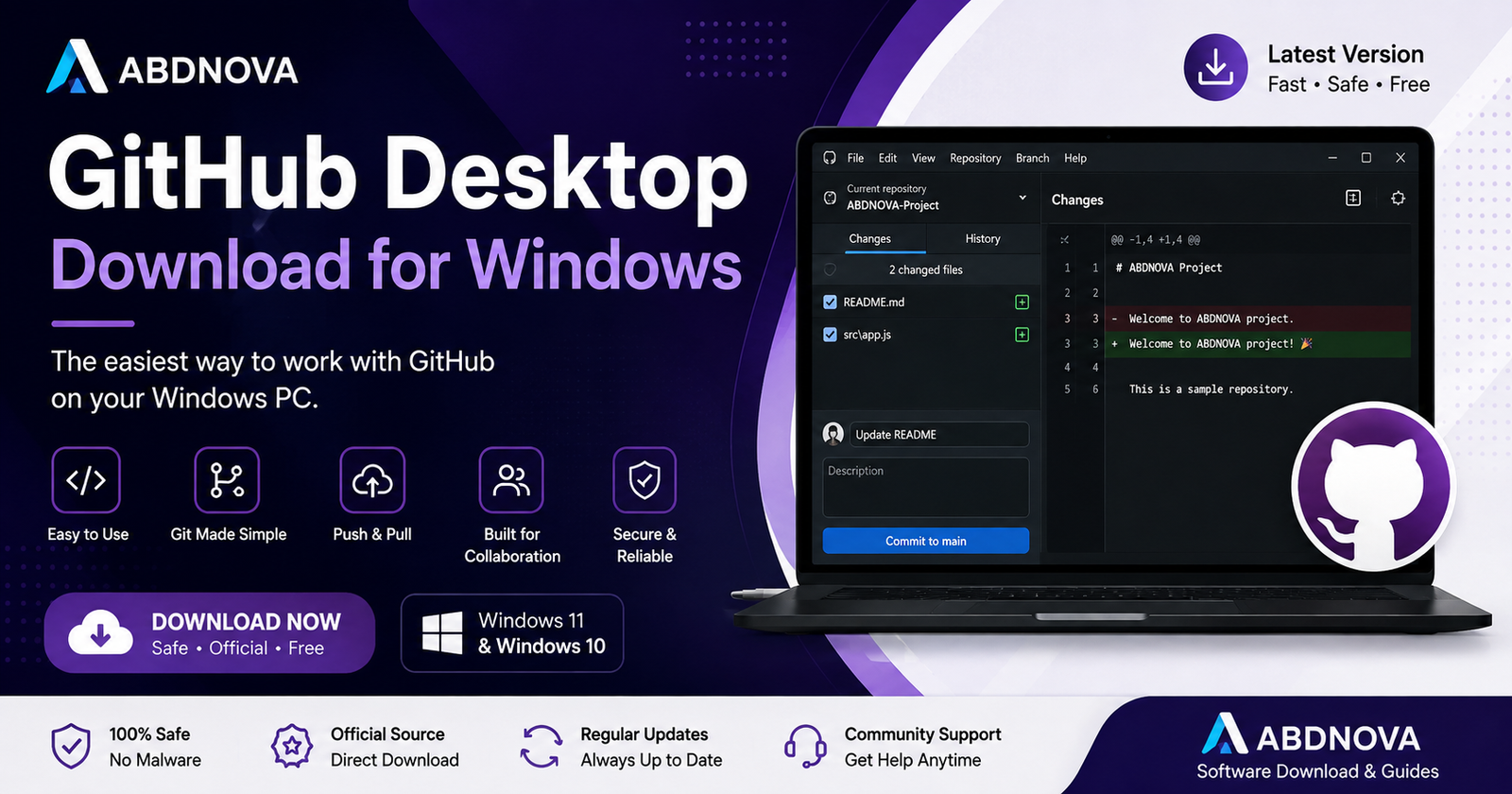

GitHub Desktop Download for Windows

GitHub Desktop Download for Windows gives developers a simple graphical way to work with Git and GitHub without entering every command manually. This guide covers installation, sign-in, repositories, commits, branches, push and pull, Visual Studio Code integration, and common troubleshooting.
GitHub Desktop Download for Windows – Overview
| Software | GitHub Desktop |
| Developer | GitHub |
| Category | Developer Tools / Git Client |
| Platform | Windows |
| License | Open Source |
| Cost | Free |
| Main Use | Git & GitHub Repository Management |
| Account | GitHub account recommended |
| Official Website | desktop.github.com |
What Is GitHub Desktop?
Git is a version control system used to track changes to files and source code, while GitHub is an online platform for hosting and collaborating on Git repositories. GitHub Desktop provides a graphical interface that connects these workflows.
Instead of entering commands such as git clone, git add, git commit, git push, and git pull, many everyday Git operations can be performed through menus, buttons, and visual panels.
GitHub Desktop Main Interface and Features

- Create new repositories
- Clone repositories from GitHub
- Review changed files and code differences
- Create commits
- Push and pull changes
- Create and switch branches
- Merge changes
- Review commit history
- Open projects in an external editor
- Open repositories on GitHub
Visual File Changes
GitHub Desktop shows modified files and differences between previous and current versions, making it easier to review work before creating a commit.
Easy Git Commits
After reviewing changes, enter a clear commit summary and optional description, select the files you want to include, and commit them to the current branch.
Push and Pull Changes
Push sends local commits to the remote repository. Pull retrieves remote changes and integrates them into your local copy.
Git Repository and Branch Management

Branches let developers work on features or fixes separately from the main branch. GitHub Desktop can help you create, switch, publish, compare, and merge branches through its graphical interface.
After pushing a branch, you can continue the collaboration workflow on GitHub by creating a pull request for code review and discussion.
GitHub Desktop vs Git
Git is the underlying distributed version control system and supports command-line workflows. GitHub Desktop is a graphical application designed to simplify common Git and GitHub tasks.
GitHub Desktop can be easier for beginners, but learning basic Git commands is still useful for professional development.
Related Guide: Read our Git Download for Windows guide to learn more about command-line Git.
GitHub Desktop and Visual Studio Code
GitHub Desktop works well with Visual Studio Code. A typical workflow is:
GitHub Desktop → Open in Visual Studio Code → Edit Files → Save → Review Changes → Commit → Push
Related Guide: See our Visual Studio Code Download for Windows guide.
Java developers: See our Eclipse IDE Download for Windows guide.
How to Download GitHub Desktop for Windows
- Visit the official GitHub Desktop website.
- Select the Windows download option.
- Save the installer to your computer.
- Wait for the download to finish.
- Verify that the installer came from an official GitHub source before running it.
How to Install GitHub Desktop on Windows

- Locate and open the downloaded installer.
- If Windows displays a security prompt, confirm the installer is from the expected source.
- Allow GitHub Desktop to complete installation.
- Launch GitHub Desktop.
- Sign in to GitHub or begin configuring the application.
How to Sign In to GitHub Desktop
- Open GitHub Desktop.
- Choose the GitHub sign-in option.
- Continue through your web browser when prompted.
- Sign in to your GitHub account.
- Authorize GitHub Desktop when required.
- Return to the desktop application.
Configure Your Git Name and Email
Git commits contain author information. Configure the name and email you want associated with your commits. If privacy is important, review GitHub’s available email privacy options.
How to Clone a Repository with GitHub Desktop
- Open GitHub Desktop.
- Select the option to clone a repository.
- Choose a repository from your account or use an appropriate repository URL.
- Select the local folder where the repository should be saved.
- Start the cloning process.
How to Create a New Repository
GitHub Desktop can also create a new local repository. Enter the repository name, description, local path, and other available settings. After creating it, add project files and begin making commits.
How to Commit, Push and Pull Changes
Commit Changes
After editing files, return to GitHub Desktop, review the changed files, select what you want to include, enter a clear commit summary, and create the commit.
Push Changes
After creating local commits, use the available Push origin option to send them to the remote GitHub repository.
Pull Changes
If the remote repository has newer changes, fetch or pull them before beginning new collaborative work so your local branch stays current.
GitHub Desktop System Requirements
- A supported version of Windows
- Compatible processor architecture
- Internet access for GitHub synchronization
- Enough storage for the application and repositories
- A GitHub account for GitHub-connected features
Exact requirements can change between releases, so check GitHub’s current official documentation before downloading.
Common GitHub Desktop Problems
GitHub Desktop Won’t Open
Restart the application or Windows, install appropriate pending updates, update GitHub Desktop, or reinstall it from the official source if necessary.
Can’t Sign In to GitHub
Check your internet connection, GitHub credentials, browser authentication, firewall or network restrictions, and GitHub service status. Complete two-factor authentication when required.
Repository Won’t Clone
Check the repository URL, access permission, authentication, network connection, available storage, and local path. Private repositories require appropriate account access.
Push Failed
A push can fail when the remote repository contains changes that are not yet available locally. Fetch or pull the latest changes and resolve conflicts before trying again.
Merge Conflict
GitHub Desktop can identify conflicting files, but you may need to open them in an editor and decide which changes should remain before completing the merge.
Changes Are Not Showing
Make sure GitHub Desktop is displaying the correct repository and branch, and confirm that the edited files are inside the repository folder.
Is GitHub Desktop Safe?
GitHub Desktop is a legitimate development application. Download it from its official source, keep it updated, and review unfamiliar repositories or code before running them.
Is GitHub Desktop Free?
Yes. GitHub Desktop itself is free and open source. GitHub may offer separate account or service features with their own pricing, but you do not need to purchase GitHub Desktop itself.
GitHub Desktop FAQ
Is GitHub Desktop free for Windows?
Yes. GitHub Desktop is free and open-source software.
Does GitHub Desktop work on Windows 11?
Current releases support appropriate Windows environments, but check the official requirements for the version you plan to install.
Do I need a GitHub account?
A GitHub account is needed for features that connect to repositories hosted on GitHub. Some local repository work can be performed independently.
Is GitHub Desktop the same as Git?
No. Git is the version-control system, while GitHub Desktop provides a graphical interface for Git and GitHub workflows.
Can I use GitHub Desktop with Visual Studio Code?
Yes. GitHub Desktop can open repositories in external editors such as Visual Studio Code.
Can GitHub Desktop clone private repositories?
Yes, provided the signed-in GitHub account has permission to access the private repository.
Final Thoughts
GitHub Desktop is useful for Windows users who want a simpler visual way to work with Git and GitHub. It makes it easier to review changes, create commits, manage branches, clone repositories, and synchronize projects.
If you are looking for GitHub Desktop Download for Windows, use the official source, sign in securely, and review unfamiliar repositories before running their code.
Ready to download GitHub Desktop?
Windows • Free & Open Source • Official Download
ABDNOVA does not host the GitHub Desktop installer. The button opens the official GitHub Desktop download page.


