


Python Download for Windows 11 & 10

Python Download for Windows 11 & 10 provides the official Python programming environment for 64-bit Windows PCs. Python is a free, open-source programming language widely used for software development, automation, data analysis, scripting, web development, and learning to code. This guide explains how to download and install Python on Windows 11 and Windows 10, configure PATH, verify the installation, use pip and virtual environments, and troubleshoot common setup problems.
Python is one of the most popular programming languages in the world. It is widely used for web development, automation, data analysis, artificial intelligence, machine learning, scripting, software development, and many other programming tasks.
If you want to start coding with Python on a Windows PC, installing the official Python package is the first step. Python is free and open source, and you can download it directly from the official Python website.
In this guide, you will learn how to download Python for Windows, install it correctly, add Python to PATH, check your installed version, use IDLE and the command line, and fix some common installation problems.
For most modern Windows 11 PCs, the 64-bit Python installer is the standard choice, while the appropriate installer still depends on your Windows version and processor architecture.
Python for Windows Overview
Python is a high-level, general-purpose programming language designed to make programming easier to read and write. Its relatively simple syntax makes it suitable for beginners, while its huge ecosystem of libraries and frameworks makes it powerful enough for professional development.
Python can be used on Windows for both small scripts and large development projects.
Python Download Information
| Information | Details |
|---|---|
| Software | Python |
| Developer | Python Software Foundation |
| Category | Programming / Developer Tools |
| License | Open Source |
| Platform | Windows |
| Architecture | 64-bit / ARM64 depending on release |
| Cost | Free |
| Internet Required | For download and online packages |
| Official Website | python.org |
Note: Available installers and supported Windows versions can change between Python releases. Always check the official Python download page before installing.
Why Download Python for Windows?
Python is useful for beginners, students, programmers, web developers, data analysts, researchers, system administrators, and many other users.
Unlike programming languages that can require complicated development environments, you can get started with Python relatively quickly.
After installing Python, you can create and run .py files directly on your Windows computer.
Some popular uses include:
Learning programming
Creating automation scripts
Web development
Data analysis
Artificial intelligence
Machine learning
Scientific computing
Backend development
Testing software
Processing files and data
Building command-line tools
Related Guide: If you are using Python alongside local web development tools, see our XAMPP Download for Windows guide for setting up Apache, MariaDB, PHP, and phpMyAdmin on Windows.
Python also works with popular editors and IDEs such as Visual Studio Code and PyCharm.
Python Features
Python provides a combination of simplicity, flexibility, and a large software ecosystem.
Easy-to-Learn Syntax
Python code is generally easy to read compared with many lower-level programming languages.
For example:
print("Hello, World!")This makes Python a popular first programming language.
Free and Open Source
Python is free to download and use.
It is open-source software and is maintained with support from the Python community and the Python Software Foundation.
Large Package Ecosystem
One of Python’s biggest advantages is its extensive collection of third-party packages.
Python’s package installer, pip, can be used to install additional packages.
For example:
python -m pip install requestsPackages are available for web development, automation, data science, machine learning, image processing and many other purposes.
Cross-Platform Support
Python isn’t limited to Windows.
It is also available for operating systems including:
Windows
macOS
Linux
This makes it easier to develop projects that need to work across different platforms.
Object-Oriented Programming
Python supports object-oriented programming as well as several other programming styles.
Developers can create reusable classes, functions, and modules for larger applications.
Extensive Standard Library
Python includes a large standard library with modules for tasks such as:
File management
Dates and times
JSON processing
Networking
Regular expressions
Database access
Mathematics
Compression
Testing
Many common tasks can therefore be performed without installing additional packages.
Python Download for Windows 11 64-bit
For most modern Windows computers, the 64-bit version of Python is normally the appropriate choice.
A 64-bit installation can work with more memory and is compatible with modern 64-bit Windows environments.
Before downloading, you can check your Windows system type:
Settings → System → About → System type
If your computer uses an ARM processor, check whether the current Python release provides the appropriate ARM64 installer for your system.
How to Download Python for Windows
The safest place to download Python is the official Python website.
Step 1: Visit the Official Python Website
Open your web browser and visit the official Python website.
Go to the Windows downloads section.
Step 2: Choose a Python Release
The website normally highlights a current stable Python release.
Choose the version appropriate for your Windows computer.
For most standard modern PCs, this will normally mean the Windows 64-bit installer.
Step 3: Download the Installer
Download the official Windows installer and wait for the file to finish downloading.
Avoid modified Python installers from unknown download websites when an official installer is available.
How to Install Python on Windows

Installing Python is straightforward, but there is one setting beginners should pay particular attention to.
Step 1: Run the Python Installer
Open the downloaded Python installer.
The setup window will appear.
Step 2: Add Python to PATH
Near the beginning of setup, look for the option to add Python to your system’s PATH.
Enable the relevant PATH option before continuing when appropriate.
This is important because it makes it easier to run Python from Command Prompt or PowerShell.
Step 3: Start Installation
Choose Install Now for a typical installation.
Advanced users can choose the customized installation options if they need to change features or installation locations.
Step 4: Complete the Installation
Wait while Windows installs Python.
When setup finishes successfully, close the installer.
Python should now be ready to use.
How to Check If Python Is Installed
After installation, you should verify that Python works correctly.
Open Command Prompt or PowerShell and enter:
python --versionDepending on your installation, you can also try:
py --versionWindows should display the installed Python version.
You can also start Python interactively with:
pythonThen try:
print("Python is working!")If the message appears correctly, your Python installation is working.
To exit the interactive interpreter, you can use:
exit()What Is Python IDLE?

Python installations for Windows may include IDLE, Python’s integrated development and learning environment.
IDLE provides a simple environment where you can:
Write Python code
Run Python scripts
Test commands
Use an interactive Python shell
Learn basic Python programming
For beginners, IDLE can be an easy way to start without installing a more advanced code editor immediately.
Related guide: For a more complete Windows development setup, see our Visual Studio Code Download for Windows guide.
Using Python with Visual Studio Code
If you want a more powerful development environment, Python works well with Visual Studio Code.
After installing Python and VS Code:
Open Visual Studio Code.
Open the Extensions section.
Find Microsoft’s Python extension.
Install the extension.
Create or open a .py file.
Select the correct Python interpreter when necessary.
Run your Python code.
VS Code provides useful features such as code completion, debugging, integrated terminals and extension support.
What Is pip?
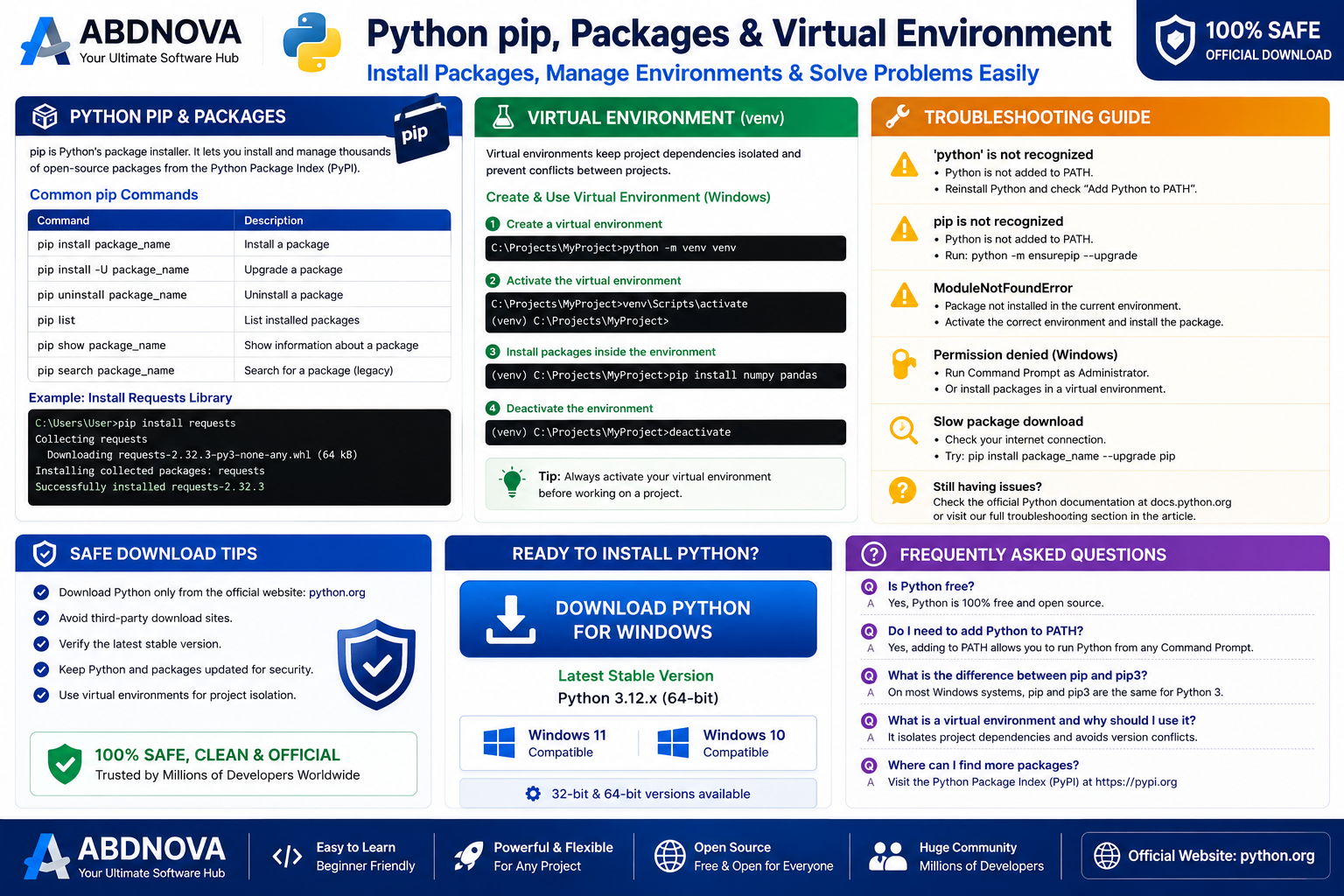
pip is Python’s package installer and is commonly included with standard Python installations.
You can check whether pip is available by opening Command Prompt and running:
python -m pip --versionYou can install a package with:
python -m pip install package-nameFor example:
python -m pip install requestsYou can also upgrade pip when necessary:
python -m pip install --upgrade pipUsing python -m pip can help ensure you are using pip with the intended Python installation.
Python Virtual Environments
When working on multiple Python projects, it is often better not to install every third-party package globally.
Python supports virtual environments that allow projects to maintain separate dependencies.
Create a virtual environment with:
python -m venv .venvOn a typical Windows Command Prompt setup, it can then be activated with:
.venv\Scripts\activateAfter activation, packages installed with pip can be kept within that project environment.
This becomes especially useful as you start working on larger Python projects.
Python System Requirements
Exact requirements depend on the Python version you install.
In general, you need:
A Windows version supported by the selected Python release
A compatible processor architecture
Enough free storage for Python and your packages
Internet access to download Python and online packages
Administrator permission for installation options that require it
Because supported operating systems can change with new Python releases, check the official release documentation if you are using an older Windows version.
Common Python Problems on Windows
“Python is not recognized”
You may see an error similar to:
‘python’ is not recognized as an internal or external command
This commonly happens when Windows cannot find the Python executable.
Try:
Reopening Command Prompt after installation
Checking whether Python was added to PATH
Trying the py command
Repairing or reinstalling Python with the appropriate PATH option
pip Is Not Working
First check:
python -m pip --versionIf that works, use:
python -m pip install package-nameinstead of relying only on the standalone pip command.
Multiple Python Versions Installed
Developers sometimes have multiple Python versions on the same computer.
On Windows, the Python launcher can help identify installed versions. For example:
py -0Where supported, you can use the launcher to select a particular installed Python version.
Python Script Won’t Run
Check that:
The file ends in .py
Python is installed correctly
You are running the command from the correct directory
Required packages are installed
Your code does not contain syntax errors
Package Installation Fails
Package installation can fail because of an outdated package installer, network problems, incompatible package versions, or missing build requirements.
Start by checking your Python and pip versions and carefully reading the error shown in the terminal.
Is Python Safe to Download?
Yes, Python itself is legitimate open-source software.
For the safest installation, download Python from the official Python website and avoid unknown modified installers or bundled downloads.
You should also keep Python and the third-party packages used in your projects updated when appropriate.
Is Python Free?
Yes. Python is free and open source.
You don’t need to purchase a subscription to learn Python, create personal projects, or use the standard Python interpreter for commercial development.
However, some third-party development tools, cloud platforms, APIs, courses, or services used alongside Python may have their own pricing.
Python vs Visual Studio Code
Python and Visual Studio Code perform different jobs.
Python is the programming language and runtime.
Visual Studio Code is a code editor.
You can install both and use VS Code to write, run, and debug Python programs.
For a beginner Windows development setup, Python + Visual Studio Code is a popular combination.
Frequently Asked Questions
Can I download Python for Windows for free?
Yes. Python is free and open-source software.
Does Python work on Windows 11?
Current Python releases provide Windows support, but always check the requirements for the specific Python version you want to install.
Can I install Python on Windows 10?
Compatibility depends on the Python release. If you use Windows 10, check the official release information before choosing a version.
Should I download 32-bit or 64-bit Python?
Most modern Windows PCs use 64-bit Windows, so a 64-bit Python installation is generally the normal choice. Available architectures depend on the specific Python release.
Do I need Visual Studio Code to use Python?
No. Python can run without VS Code. You can use IDLE, Command Prompt, PowerShell, another IDE, or another text editor.
Does Python include pip?
Standard Python installations commonly provide pip. You can verify it with:
python -m pip --versionWhy is Python not recognized in Command Prompt?
Windows may not be finding the Python executable through PATH. Try the py command or check your Python/PATH installation settings.
Can beginners learn Python?
Yes. Python’s readable syntax and extensive learning resources make it one of the most accessible programming languages for beginners.
Final Thoughts
Python is an excellent choice if you want to learn programming or build applications, automation tools, websites, data projects, or AI and machine-learning solutions.
Installation on Windows is relatively simple: download the appropriate installer from the official source, install Python, configure PATH where appropriate, and verify the installation from Command Prompt or PowerShell.
Once Python is running, you can start with IDLE or combine it with an editor such as Visual Studio Code for a more complete development environment.
Download Python only from the official source and choose a release compatible with your version of Windows.
Ready to download Python?
Get the current Windows release directly from the official Python website. Choose a release compatible with your Windows version and system architecture.


