
Adobe Animate Download for Windows 11 & 10
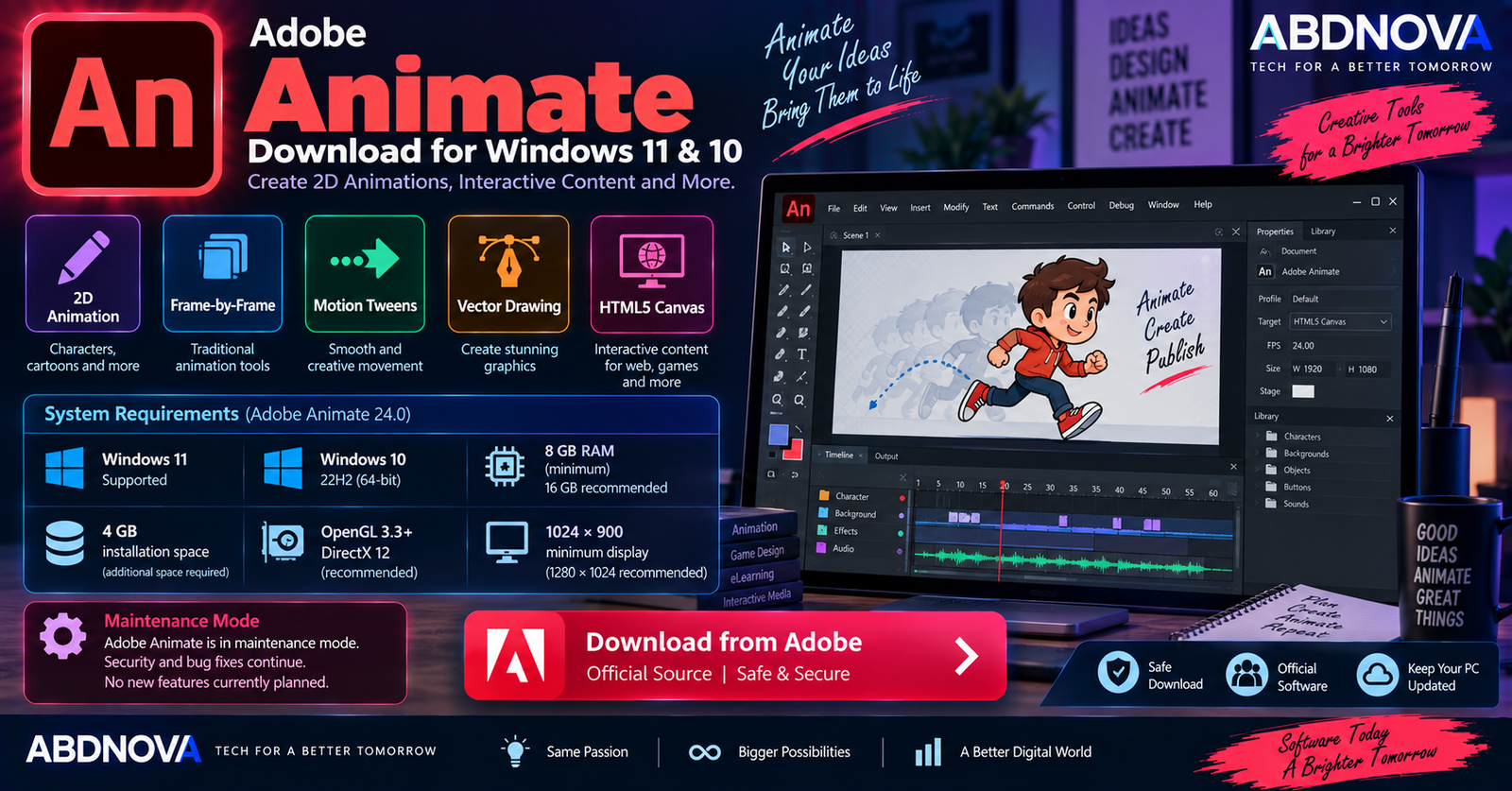
Adobe Animate Download for Windows gives animators and designers a professional environment for creating 2D animation and interactive content. It can be used for cartoons, animated characters, banner ads, games, eLearning projects, infographics, and interactive web animations.
Animate combines a Stage and Timeline with vector drawing tools, layers, symbols, frame-by-frame animation, motion tweens, audio, and interactive publishing. Projects can be published for destinations including HTML5 Canvas, WebGL, Adobe AIR, SVG, and other supported formats.
Adobe Animate for Windows at a Glance
| Details | Information |
|---|---|
| Software | Adobe Animate |
| Developer | Adobe |
| Category | 2D Animation & Interactive Design |
| Current Version | Animate 24.0 |
| Windows 11 | Supported |
| Windows 10 | Version 22H2 supported |
| Processor | 2 GHz or faster compatible Intel processor |
| RAM | 8 GB minimum; 16 GB recommended |
| Storage | 4 GB minimum |
| Display | 1024 × 900 minimum |
| Graphics | OpenGL 3.3 or later |
| Recommended Graphics | DirectX 12 with Feature Level 12_0 |
| License | Paid Creative Cloud subscription |
| Free Trial | 7 days |
| Development Status | Maintenance mode |
| Official Source | Adobe |
Adobe Animate for Windows 11 & 10
Adobe Animate on Windows 11
Adobe Animate 24.0 and later officially list Windows 11 support. Animate is useful on Windows for projects such as:
- 2D character animation.
- Frame-by-frame animation.
- Motion graphics.
- Interactive banners.
- HTML5 animations.
- Game assets.
- Educational animations.
- Animated advertisements.
- Infographics.
- Interactive web content.
For a current Windows 11 PC, keeping Windows, Creative Cloud, and graphics drivers updated is sensible for security and compatibility.
Adobe Animate on Windows 10
Adobe’s current Animate-specific system requirements still list Windows 10 version 22H2 for Animate 24.0 and later.
If you use Windows 10, check your installed version before downloading Animate.
Press Windows + R, type winver, and press Enter.
Adobe Animate System Requirements
| Component | Requirement |
|---|---|
| Operating System | Windows 10 22H2 or supported Windows 11 release |
| Processor | Compatible Intel processor, 2 GHz or faster |
| RAM | 8 GB minimum; 16 GB recommended |
| Storage | 4 GB available space plus additional installation space |
| Display | 1024 × 900 minimum; 1280 × 1024 recommended |
| GPU | OpenGL 3.3 or later |
| Recommended GPU | DirectX 12 with Feature Level 12_0 |
| Internet | Required for activation, subscription validation and online services |
Although 8 GB RAM is the minimum, 16 GB is preferable when working with larger assets, complicated timelines, multiple Adobe applications, or many programs at the same time.
An SSD can also improve application startup, project loading, and general Windows performance.
How to Download & Install Adobe Animate on Windows
The safest way to install Animate is through Adobe’s official website and Creative Cloud desktop application.
- Open Adobe’s official Animate page.
- Select the free trial or purchase option.
- Sign in with your Adobe account.
- Download Adobe Creative Cloud Desktop if required.
- Install and open Creative Cloud.
- Open the Apps section.
- Find Adobe Animate.
- Select Install.
- Wait for installation to complete.
- Launch Animate.
Adobe Animate Main Interface & 2D Animation Features
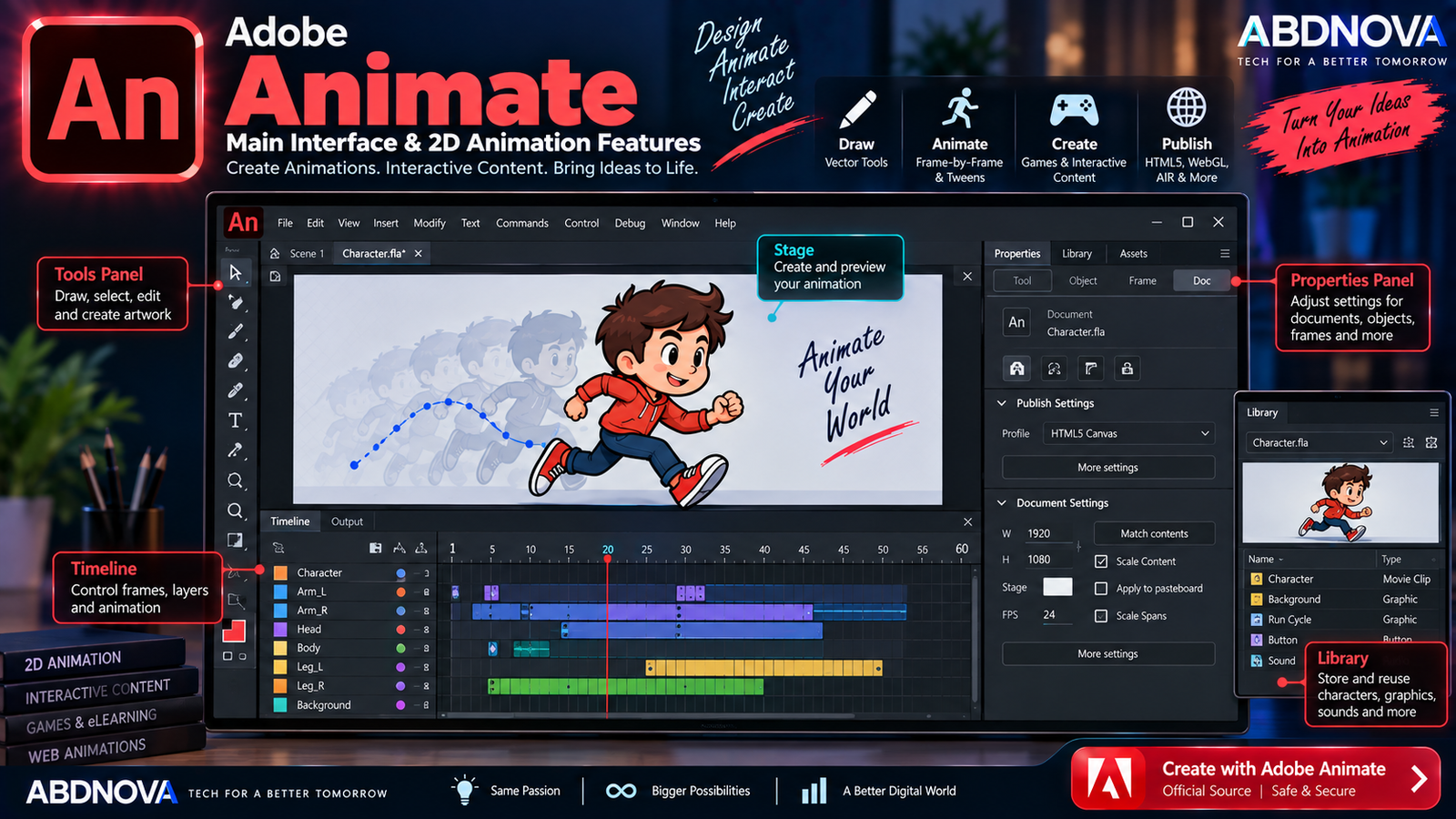
Adobe Animate uses a workspace centered around drawing, animation, and interactive-content creation. Its most important areas include the Stage, Timeline, Tools panel, Properties panel, and Library.
Stage
The Stage is the main visible canvas where characters, graphics, backgrounds, text, and other objects are arranged. Content positioned on the Stage generally represents the visible animation.
Timeline
The Timeline controls how the animation develops over time. It contains elements such as:
- Frames.
- Keyframes.
- Layers.
- Frame labels.
- Tween spans.
- Playhead controls.
Understanding the Timeline is one of the most important parts of learning Adobe Animate.
Tools & Properties Panels
Animate provides drawing and editing tools including Selection, Free Transform, Brush, Pencil, Pen, Line, Rectangle, Oval, Text, Paint Bucket, and Eraser.
The Properties panel changes according to the selected item and provides controls for documents, shapes, text, symbols, frames, tweens, and other objects.
Library
The Library stores reusable project assets such as symbols, graphics, movie clips, buttons, images, and audio. Reusing Library assets can make larger animation projects easier to organize.
Frame-by-Frame Animation
Adobe Animate supports traditional frame-by-frame animation, where individual frames can contain different drawings or poses.
This workflow is useful for:
- Hand-drawn animation.
- Character actions.
- Facial expressions.
- Cartoon sequences.
- Animated effects.
- Morphing artwork.
Motion & Classic Tweens
Motion Tween allows Animate to calculate intermediate animation between key states. It can animate position, rotation, scale, movement, transparency, and other supported properties without manually drawing every frame.
Classic Tweens provide another keyframe-based workflow familiar to long-time Flash and Animate users.
Adobe Animate Character Animation, Timeline & Publishing
2D Character Animation
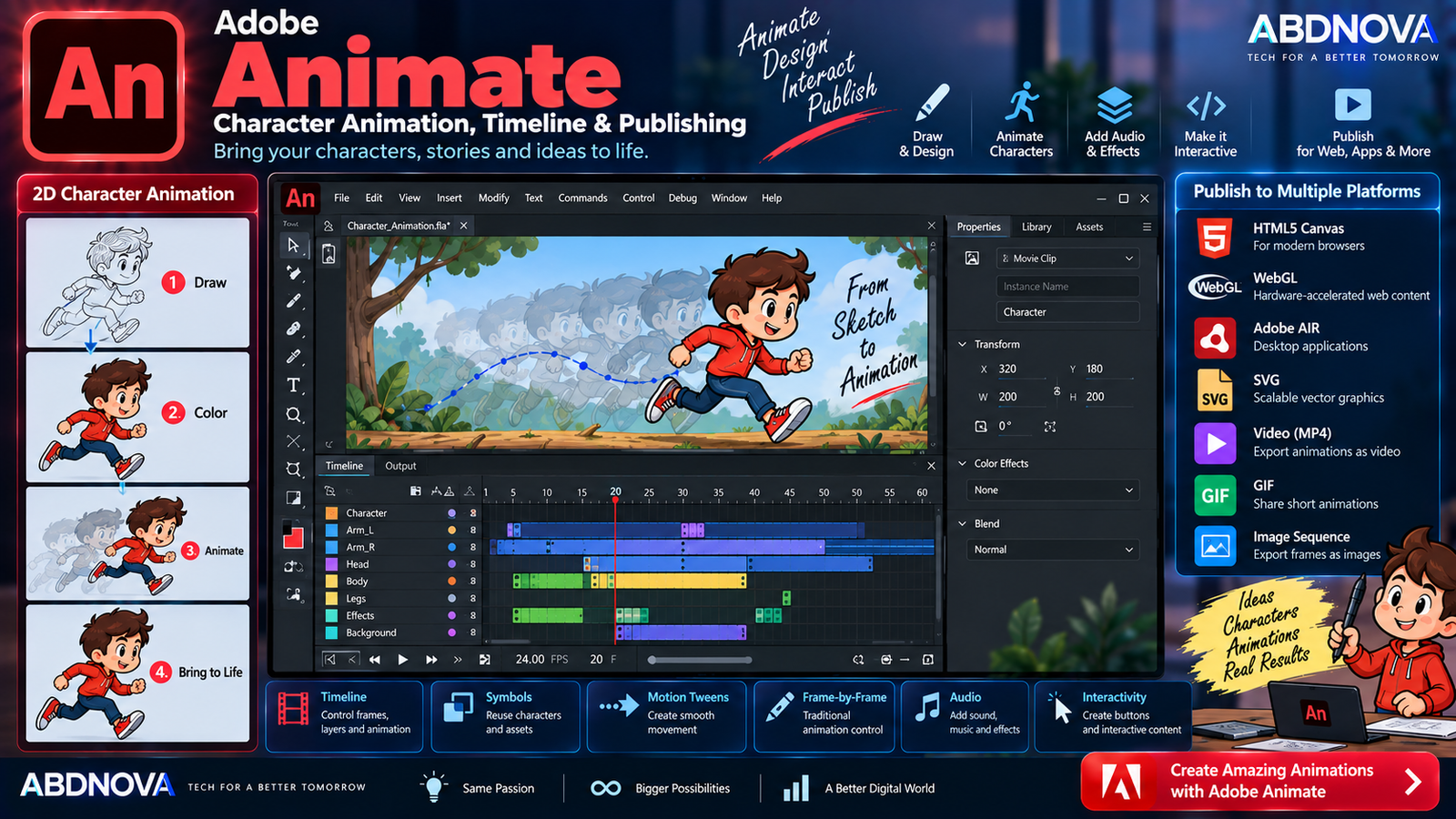
Adobe Animate is particularly useful for manually controlled 2D character animation. Creators can:
- Draw or import characters.
- Separate body parts into layers.
- Convert artwork into reusable symbols.
- Animate arms and legs.
- Create facial expressions.
- Animate eyes.
- Create walk cycles.
- Synchronize dialogue.
- Add backgrounds and effects.
Vector Drawing Tools
Animate includes vector drawing tools, making it possible to create scalable characters, icons, backgrounds, objects, logos, game elements, buttons, and interface graphics.
Vector artwork is particularly useful for web animation because it can scale to different display sizes without the same quality loss associated with ordinary raster images.
Symbols & Layers
Symbols allow objects to be stored and reused throughout a project. Animate includes Graphic, Movie Clip, and Button symbols for different animation and interactive workflows.
Layers help keep complex projects organized by separating backgrounds, character components, text, effects, and other elements.
Interactive Web Animation
Animate is not limited to conventional video animation. It can also create interactive content for banners, games, advertisements, eLearning, infographics, and browser-based experiences.
Interactive projects can respond to actions such as mouse movement, clicks, touch, and other supported input.
HTML5 Canvas
HTML5 Canvas is one of Animate’s important publishing workflows. It allows creators to build web animations using modern browser technologies rather than relying on the discontinued browser-based Flash Player.
This makes Animate useful for website animations, interactive banners, educational content, web advertisements, and other browser experiences.
WebGL
Compatible projects can also target WebGL-based experiences. WebGL provides hardware-accelerated graphics inside modern web browsers and can support richer interactive visual content.
Audio
Audio can be added for dialogue, music, sound effects, interface sounds, and narration, with sound synchronized to animation through the Timeline.
Photoshop & Illustrator Workflow
Animate also fits into Adobe Creative Cloud workflows. Artwork can be prepared in Photoshop or Illustrator before being brought into Animate for animation.
For example, Illustrator can be useful for creating vector artwork, while Photoshop can prepare raster images and layered graphics before animation.
Export & Publish Options
Depending on the project and workflow, Adobe Animate supports publishing to formats and platforms including:
- HTML5 Canvas.
- WebGL.
- Adobe AIR.
- SVG.
- Other customized publishing targets.
Adobe Animate vs After Effects
| Feature | Adobe Animate | After Effects |
|---|---|---|
| 2D Character Animation | Strong | Available |
| Frame-by-Frame Drawing | Strong | Limited workflow |
| Vector Drawing | Built in | More limited |
| Interactive Web Content | Strong | Not primary purpose |
| HTML5 Canvas | Yes | Not primary workflow |
| Motion Graphics | Good | Advanced |
| Visual Effects | Basic–Moderate | Advanced |
| Video Compositing | Limited | Advanced |
Animate focuses more heavily on drawing, cartoons, frame-by-frame animation, characters, and interactive content. After Effects is designed more heavily around motion graphics, compositing, and visual effects. See our Adobe After Effects Download for Windows guide for more information about the After Effects workflow.
Adobe Animate vs Character Animator
Adobe Animate gives creators detailed Timeline-based control over drawing and 2D animation. Character Animator focuses more heavily on performance-driven character animation using facial movement, voice, and other input.
Animate is better suited to manually constructing animation frame by frame or through tweens, while Character Animator provides a different performance-based workflow.
Is Adobe Animate Free?
No. Adobe Animate is commercial software available through Creative Cloud membership.
Adobe currently provides a 7-day free trial of the full desktop application. The trial automatically converts to a paid membership after seven days unless cancelled according to Adobe’s current terms.
Adobe Animate Maintenance Mode Explained
Adobe officially placed Animate into maintenance mode in 2026. This does not mean that Animate has been discontinued.
Adobe says it plans to continue:
- Supporting Animate.
- Providing security fixes.
- Providing bug fixes.
- Keeping Animate available to new and existing users.
However, Adobe currently does not plan to add new features.
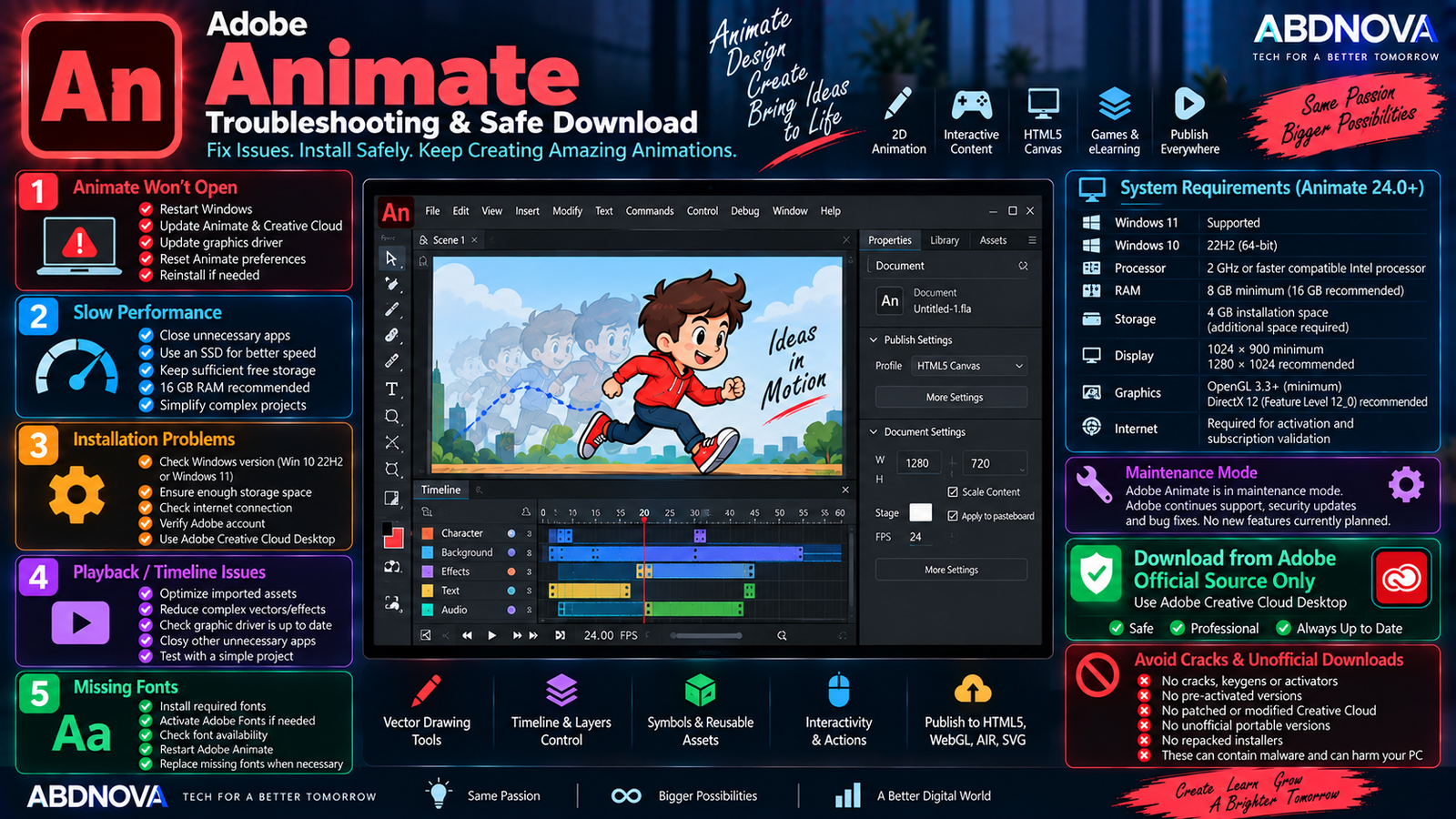
Adobe Animate Troubleshooting & Safe Download
Adobe Animate Won’t Open
Try the following:
- Restart Windows.
- Update Animate through Creative Cloud.
- Install Windows updates.
- Update the graphics driver.
- Check available storage.
- Reset Animate preferences if necessary.
- Check problematic third-party extensions.
- Reinstall Animate if required.
Animate Is Running Slowly
For better performance:
- Close unnecessary programs.
- Use 16 GB RAM where possible.
- Keep project assets organized.
- Reduce unnecessary Timeline complexity.
- Use an SSD.
- Keep sufficient free storage.
- Update graphics drivers.
Adobe specifies 8 GB RAM as the minimum but recommends 16 GB.
Animate Installation Fails
Check:
- Your Windows version.
- Available storage.
- Internet connectivity.
- Your Adobe account.
- Creative Cloud Desktop.
- Windows updates.
- Antivirus or firewall interference.
An internet connection and registration are required for software activation, subscription validation, and Adobe online services.
Animation Playback Is Slow
Complex animations can be difficult to preview smoothly. Try reducing unnecessary layers, optimizing imported images, simplifying complicated vector artwork, closing other applications, and reducing unnecessary effects.
Also test the final published output because Timeline preview performance does not always represent final playback performance.
Missing Fonts
If a project opens with missing fonts:
- Install the required font.
- Check Adobe Fonts.
- Activate the appropriate font.
- Restart Animate.
- Replace unavailable fonts when necessary.
Remember that replacing a font can change text dimensions and affect the animation layout.
How to Update Adobe Animate
Install available maintenance updates from Adobe. Because Animate is now in maintenance mode, updates should primarily be expected to focus on security and bug fixes rather than major new features.
Safe Adobe Animate Download
Always download Adobe Animate directly from Adobe or install it through the official Adobe Creative Cloud Desktop application.
- Adobe Animate cracks.
- Keygens.
- Activators.
- Pre-activated installers.
- “Lifetime activated” versions.
- Patched versions.
- Modified Creative Cloud installers.
- Unofficial portable versions.
- Repacked Adobe installers.
Modified installers can contain malware, credential-stealing software, unwanted applications, or changes that interfere with Creative Cloud activation and updates.
Frequently Asked Questions
Does Adobe Animate work on Windows 11?
Yes. Adobe’s current Animate system requirements list Windows 11 support.
Does Adobe Animate work on Windows 10?
Yes. Adobe currently lists Windows 10 version 22H2 for Animate 24.0 and later.
What is the latest Adobe Animate version?
Adobe’s current release notes identify Animate 24.0, released in October 2023, as the latest/current version.
Is Adobe Animate discontinued?
No. Adobe says Animate is in maintenance mode but remains available to new and existing users, and Adobe currently has no plans to discontinue it.
Will Adobe Animate receive new features?
Adobe currently plans to continue security and bug fixes but says new features are not planned while Animate is in maintenance mode.
How much RAM does Adobe Animate need?
Adobe specifies 8 GB RAM as the minimum and recommends 16 GB.
Can Adobe Animate create HTML5 animations?
Yes. HTML5 Canvas is an important Animate publishing workflow, and Animate also supports other publishing options including WebGL.
Is Adobe Animate good for 2D character animation?
Yes. Animate supports drawing, frame-by-frame animation, tweens, symbols, layers, characters, cartoons, and interactive 2D content.
Is Adobe Animate free?
No. Animate is paid software, although Adobe currently provides a 7-day free trial of the full desktop application.
Final Thoughts
Adobe Animate Download for Windows remains useful for 2D animation, cartoons, character design, frame-by-frame animation, interactive banners, HTML5 Canvas content, eLearning, games, and web animation.
Its Stage, Timeline, vector drawing tools, symbols, layers, tweens, and publishing options provide a complete environment for traditional and interactive 2D animation. The main consideration in 2026 is that Animate is now in maintenance mode: Adobe continues support, security updates, and bug fixes, but new features are not currently planned.
For a safe installation, use Adobe’s official Animate page and Creative Cloud rather than cracked, modified, pre-activated, or third-party installers.
Download Adobe Animate for Windows
Get the official Adobe Animate desktop application and 7-day trial directly from Adobe.